

How to Find A Sitemap From Any Website In Seconds
Use the free Sitemap Finder tool to check whether a website publishes a sitemap, sitemap index, or robots.txt sitemap reference. This guide shows how to run the check, read the result, and verify the sitemap URL before you crawl or analyze a site.
Benefits of Using the Sitemap Finder Tool:
A sitemap check helps you confirm what a site exposes before you crawl it. Use the Sitemap Finder when you need to:
- Gather Competitor Intelligence:
- Check whether a competitor publishes a sitemap, review the major URL groups they expose, and decide which public pages are worth deeper analysis or chatbot ingestion.
Step-by-Step Guide: Now, let’s dive into the step-by-step process of using our Sitemap Finder tool effectively to build a sitemap from website scraping.
- Accessing the Sitemap Finder Tool:
- Begin by navigating to the Sitemap Finder tool.
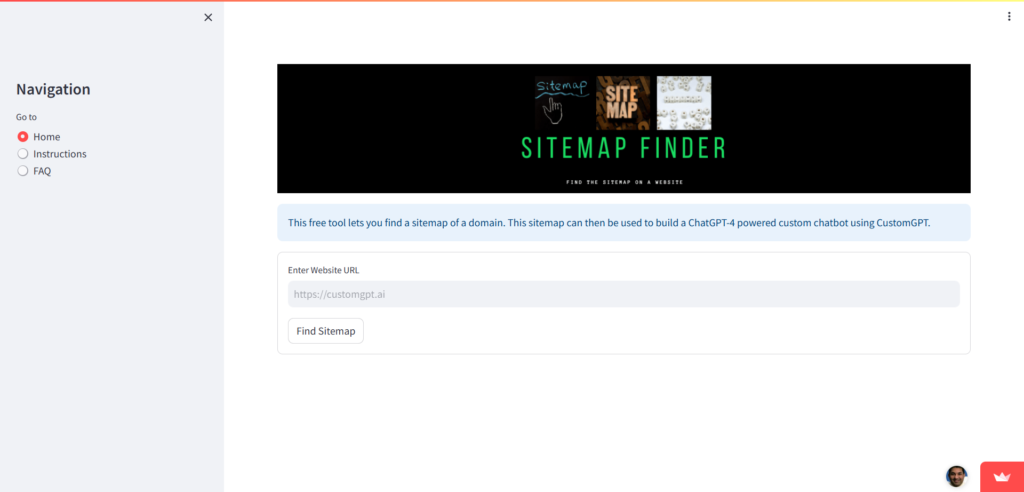
- Ensure you have the URL of the website you wish to examine readily available.
- Initiating the Search:
- Copy the link to the desired website and save it to your clipboard.

- Navigate back to our Sitemap Finder tool and paste the website URL into the designated search field.
- Executing the Search:
- Click on the “Find Sitemap” button to initiate the search process.

- Analyzing the Results:
- After the tool completes the search, the sitemap status will be displayed.
- If a sitemap is found, you can proceed to extract and utilize the information accordingly.

Frequently Asked Questions
What is the fastest way to find a website sitemap?
The fastest manual check is to try /sitemap.xml first, then /sitemap_index.xml, then open /robots.txt and look for a Sitemap: line. If none of those exist, use a sitemap finder or crawler to see whether the site exposes a public XML sitemap. Per Google Search Central (https://developers.google.com/search/docs/crawling-indexing/sitemaps/build-sitemap), one sitemap is limited to 50,000 URLs or 50MB uncompressed, so larger sites often use a sitemap index instead of a single file. That is common on large content libraries with many URL groups. In CustomGPT.ai, the crawler flow and Sitemap Analyzer are usually faster than guessing URLs by hand when you want to verify discovery paths across a site. If the tool detects a sitemap but manual entry shows a red X, the sitemap may be blocked, malformed, or redirected, so open the URL directly in a browser and verify it returns valid public XML. Ahrefs or Screaming Frog can help verify edge cases.
What kind of websites can you check with a sitemap finder?
You can check most publicly accessible websites that expose a sitemap or common sitemap location, including ecommerce stores, blogs, marketing sites, news sites, and documentation hubs. Enter the exact domain or sitemap URL. If you do not know the sitemap address, try common paths such as /sitemap.xml, /sitemap_index.xml, or /robots.txt, or start with a crawler to discover it automatically, which is how tools like CustomGPT.ai, Screaming Frog, and Ahrefs often surface sitemap links. Large sites frequently use a sitemap index because Google Search Central (https://developers.google.com/search/docs/crawling-indexing/sitemaps/build-sitemap) documents a 50,000 URL or 50 MB uncompressed limit for each XML sitemap. If a sitemap is detected automatically but manual entry shows a red X, the file is often blocked by permissions, malformed XML, a bad redirect, or the wrong exact URL, such as entering the homepage instead of the canonical sitemap. Open the sitemap in a browser first and confirm it returns a public 200 status.
Can a sitemap finder be used on competitor websites?
Yes. A sitemap finder can be used on competitor websites for public technical research, to check whether they publish a sitemap, sitemap index, or robots.txt reference and to review site structure and indexing setup. Start with the public paths /sitemap.xml, /sitemap_index.xml, and the Sitemap line in /robots.txt. If you are comparing sites such as Ahrefs or Semrush, the sitemap can reveal major page types, language or regional sections, blog depth, product or feature hubs, and whether images or videos are split into separate sitemap files. Not every site exposes a sitemap, and some use several sitemap files or only a sitemap index. Per the Sitemaps protocol (https://www.sitemaps.org/protocol.html), one XML sitemap is limited to 50,000 URLs or 50 MB uncompressed, which is why large sites often break them up. That makes a sitemap finder useful for checking what is publicly declared, not for seeing every URL a competitor has.
What do you need before using a sitemap finder?
Before using a sitemap finder, have the site’s exact canonical homepage URL ready, including the correct protocol and subdomain. If you already know the sitemap, paste the direct XML or .xml.gz URL instead. This matters because sitemaps are host-scoped: a sitemap on https://www.example.com cannot list URLs from https://example.com or another subdomain. If the finder does not detect one from the homepage, check robots.txt first, then common paths like /sitemap.xml and /sitemap_index.xml. Large sites often split content across multiple sitemap files because each sitemap is limited to 50,000 URLs or 50MB uncompressed. On larger documentation sites, choosing the right sitemap saves time because docs, blog, and product pages may sit in separate sitemap files. Screaming Frog, Ahrefs, and CustomGPT.ai all rely on these same basic checks.
Why use a sitemap finder instead of searching manually?
A sitemap finder is faster than searching manually because it checks common sitemap locations, reads robots.txt, follows sitemap indexes, and surfaces usable URLs in minutes. Manual searching often means guessing file names, clicking through pages, and still missing nested sitemap files. It is especially helpful when you do not know where a sitemap lives on a domain, when naming is unclear, or when a crawler detects one but manual entry still fails. A finder helps confirm the exact sitemap path before you start ingestion in tools like CustomGPT.ai. That matters on larger sites, because many do not have a single /sitemap.xml file. Per the Sitemaps protocol (https://www.sitemaps.org/protocol.html), one sitemap can contain up to 50,000 URLs or 50 MB uncompressed, so bigger sites often split content across multiple child sitemaps. Tools like Screaming Frog or Ahrefs can catch those references much faster than page-by-page searching.
How can finding a sitemap help with website analysis?
Finding a sitemap speeds up website analysis by showing a site’s key URLs, structure, and update dates in one place. It helps you decide what to crawl, index, or exclude before running a full scan. Most sites publish one at /sitemap.xml or reference it in robots.txt. A good sitemap surfaces canonical pages, lastmod timestamps, and sometimes image or video entries, which makes it easier to spot thin sections, orphaned content, or stale pages. One useful technical check: per the Sitemaps protocol (https://www.sitemaps.org/protocol.html), XML sitemaps are limited to 50,000 URLs or 50 MB uncompressed, so larger sites often use a sitemap index. If a tool accepts the domain but rejects the sitemap, common causes are invalid XML, the wrong MIME type, or submitting an index where a single file is expected. Screaming Frog and Sitebulb are often used to verify this before loading content into CustomGPT.ai.
Conclusion
Use the Sitemap Finder tool to confirm whether a site publishes a sitemap, then verify the result before you crawl or analyze the site. For larger sites, read our guide to generating large sitemaps from websites, or continue with the related sitemap resources below.
Related Resources
This guide pairs well with a deeper look at finding sitemap files directly from website URLs.
- Finding Sitemaps From URLs — Learn practical ways to locate sitemap files from a site’s URL structure so you can audit pages and improve discovery.


