
Quick Answers
- What does export teams conversation do?
It automatically sends CustomGPT chats or documents to your tools via Zapier. - Why use it?
Save hours of manual exporting and ensure consistent formatting. - Who is it for?
Teams automating marketing, reporting, or collaboration workflows. - Formats supported:
PDF, CSV, JSON, XLSX.
Every team runs on conversations. They happen in meetings, in Slack, in support threads, in AI chat tools. They contain ideas, strategies, updates, and decisions — the lifeblood of how work actually gets done.
But here’s the problem: most of those conversations vanish.
They’re trapped inside apps, scattered across screenshots, or locked in personal chat logs. Teams spend hours retracing what was said, when, and by whom.
If you’ve ever tried to export teams conversations for documentation or reporting, you already know the struggle: copy-pasting, formatting, or downloading dozens of separate threads just to create one report.
CustomGPT.ai fixes that.
With the new Export Conversation to Zapier feature, CustomGPT.ai now lets you instantly send your full chat sessions or generated documents into any connected Zapier workflow — no copying, no downloading, no manual uploads.
Why Teams Need Better Ways to Export Conversations
Team chats have evolved. They’re no longer just messages; they’re knowledge streams — dynamic, searchable, and context-rich.
But the way teams manage those conversations hasn’t evolved as quickly.
- Manual copy-paste is slow. Even exporting one chat takes multiple steps.
- Different tools, different formats. Marketing might need a PDF; data teams want CSVs.
- Information gets lost. Once a conversation ends, the insights disappear unless someone saves them.
The result? Teams spend more time managing their knowledge than using it.
That’s why CustomGPT.ai rethought the entire export process — not just as a file download, but as a live connection between team knowledge and workflow automation.
What “Export Conversation to Zapier” Does
The new Export Conversation feature lets you instantly send any AI-generated conversation or document in one of four formats:
- PDF for formatted summaries, client reports, or archives.
- CSV for structured datasets, tables, or analytics.
- JSON for developer workflows or integrations.
- XLSX for clean, ready-to-share spreadsheets.
Once exported, Zapier delivers that file wherever your team works — Google Drive, Slack, HubSpot, Notion, Airtable, or any of 5,000+ other apps.
How Exporting Conversations Improves Team Efficiency
When your AI assistant can export conversations directly into your team’s systems, something powerful happens — your conversations become assets, not just chats.
- Faster knowledge sharing: Conversations are saved automatically and shared with stakeholders.
- Centralized documentation: Every team member sees the same version — no confusion.
- Searchable history: AI-powered chats turn into indexed, retrievable files for later use.
- Cross-tool visibility: A single conversation can appear in multiple apps (e.g., Slack + Drive + HubSpot).
This isn’t just about exporting data — it’s about building a connected workflow where no idea, update, or discussion is ever lost again.
How It Works
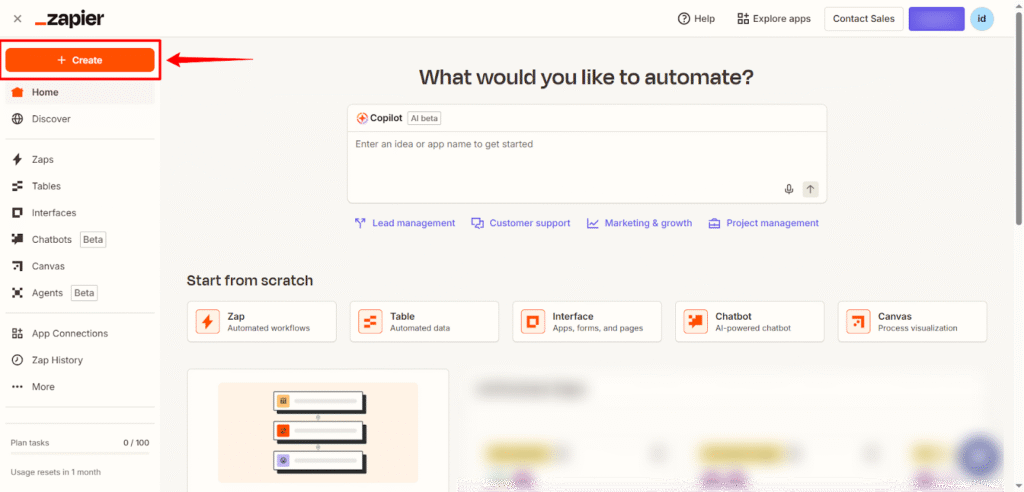
- Log in to your Zapier account and click Create Zap.
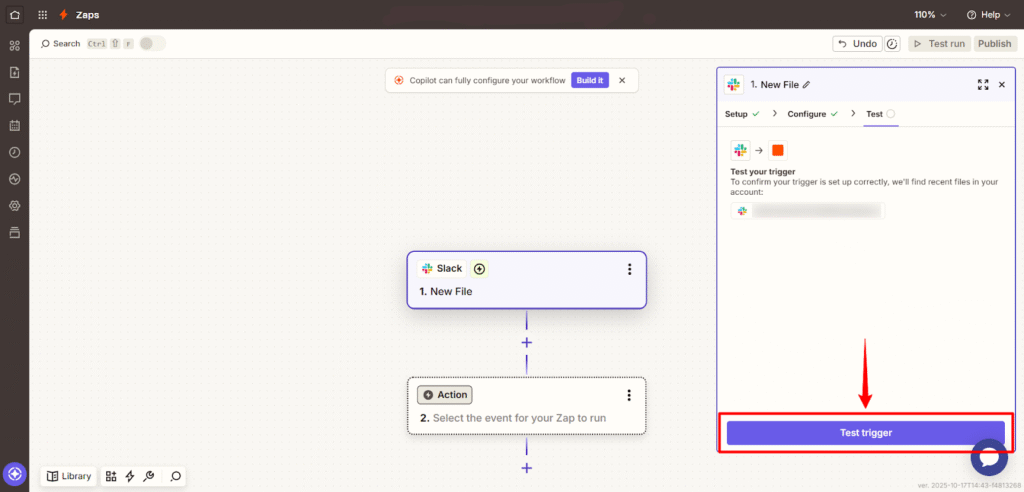
- In the Trigger section, select the app that will start the workflow (e.g., Slack, Google Drive, or any supported Zapier app trigger. ).

- Choose a trigger event such as New file, New message, or Form submission and test the trigger to make sure it’s working correctly.
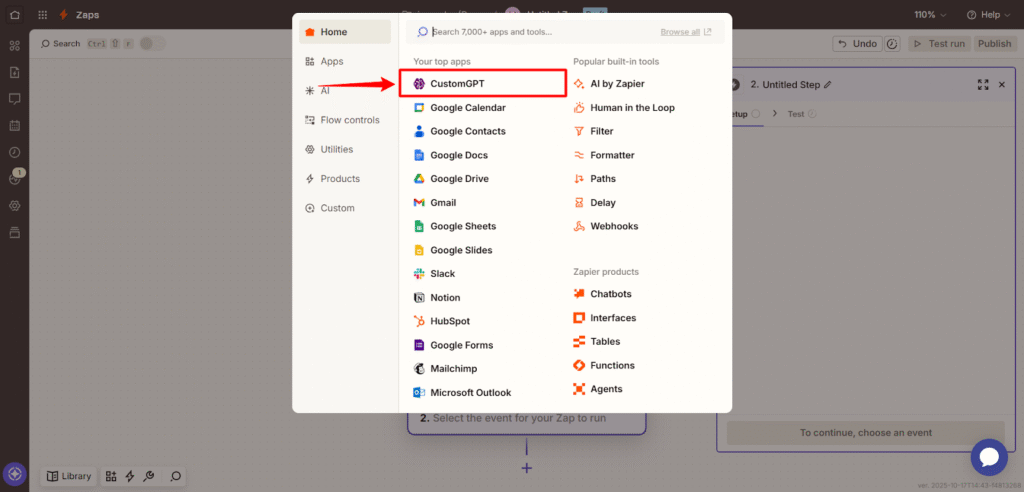
- In the Action step, search for CustomGPT.
- Select the Export Conversation action.
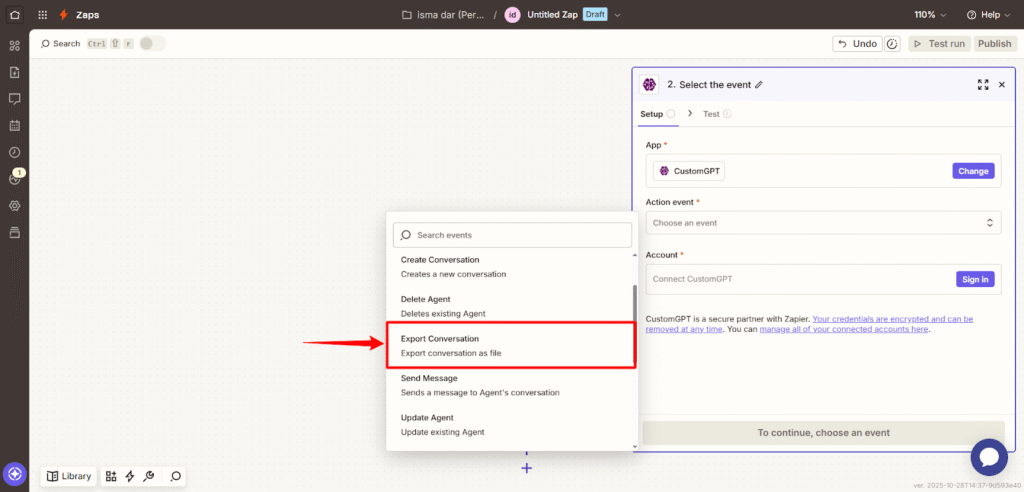
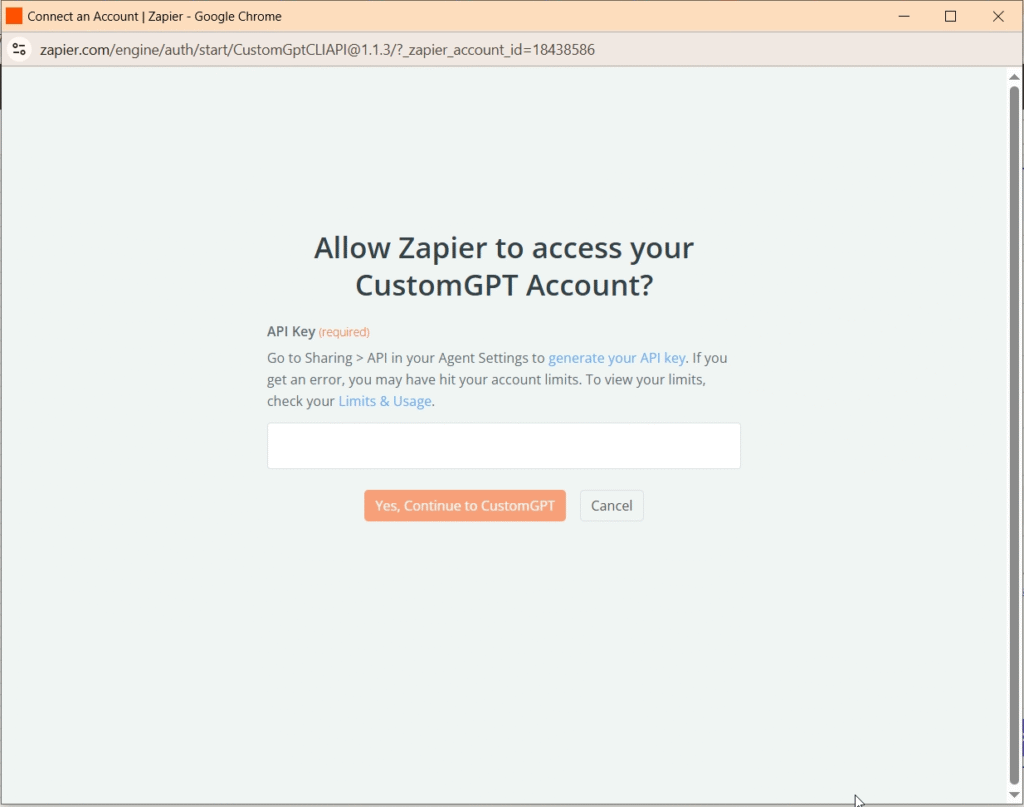
- When prompted, sign in to CustomGPT by clicking Sign In and entering your API key. To get your API key, see the API Key Guide.
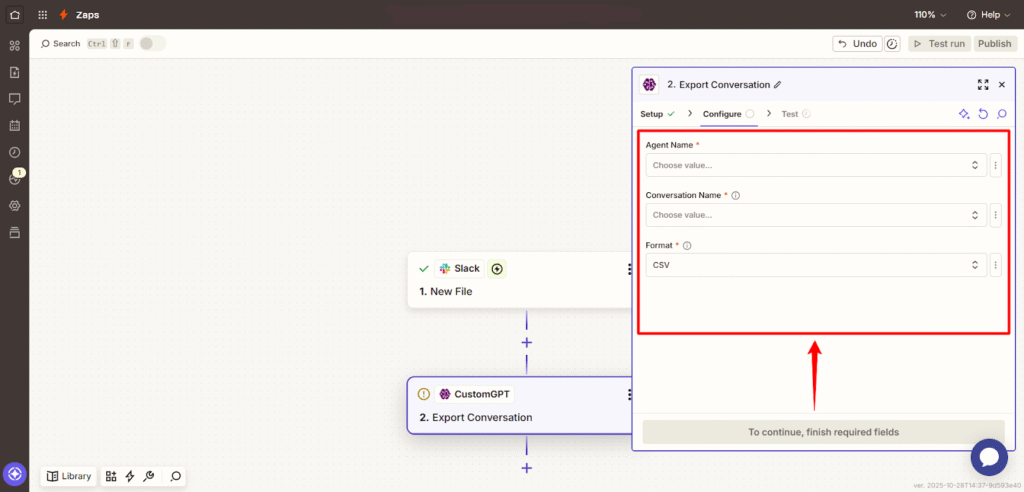
- In the Set up action section, complete the following fields:
- Agent Name: Select the agent that owns the conversation.
- Conversation Name: Enter the name of the conversation you want to export.
- Export Format: Choose from PDF, CSV, XLSX, or JSON.
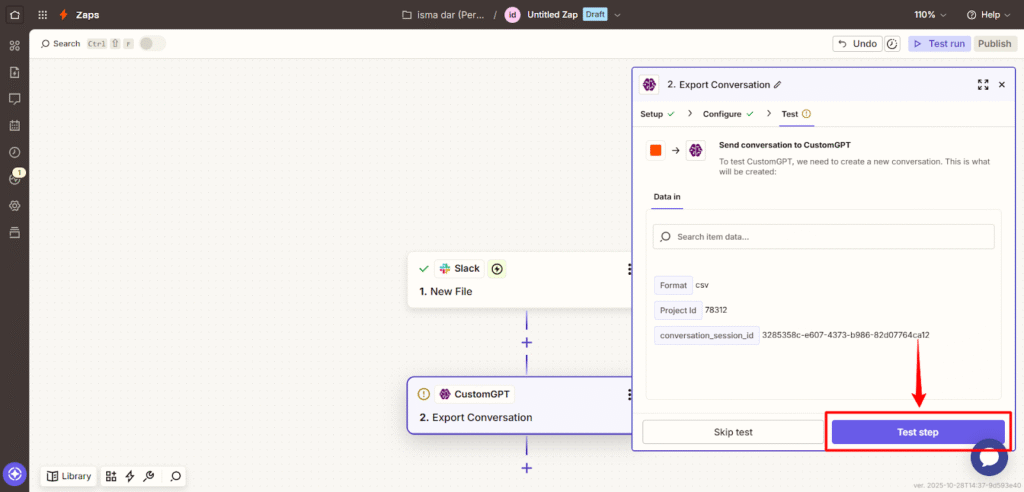
- Click Continue, then use Test to ensure the action runs as expected.
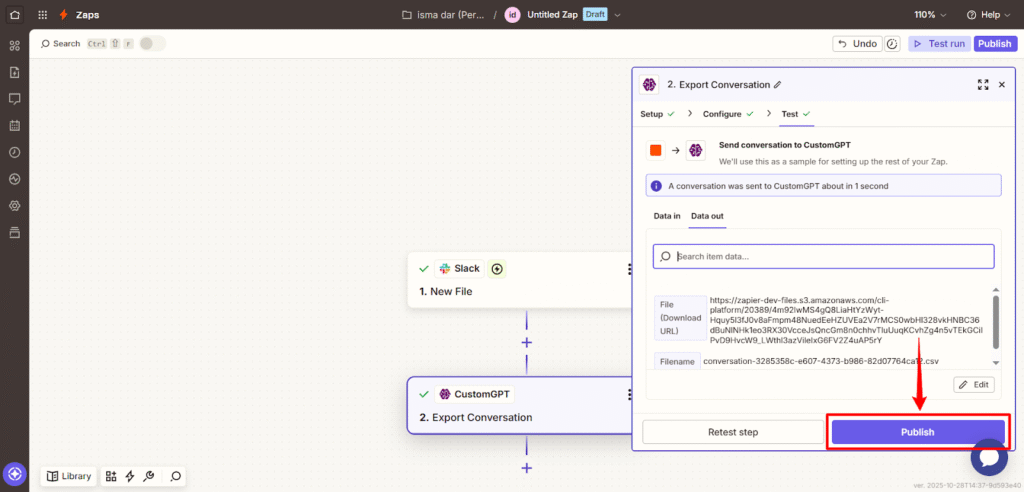
- Once the test is successful, click Publish to activate your Zap.
Why Teams Love Export Conversation
Teams using Export Conversation report three immediate improvements:
- Every conversation is captured and formatted consistently. No missed messages or broken layouts.
- Collaboration happens faster. Everyone gets access to the same conversation output instantly.
- Time savings compound. What once took 10 minutes per export now happens in seconds.
It’s a small change that transforms how teams manage and reuse their internal knowledge.
Security and Compliance You Can Trust
Exporting conversations means handling valuable team data — and CustomGPT.ai treats that with enterprise-grade care.
- All exported files follow SOC 2 Type II security standards.
- Data is encrypted both in transit and at rest.
- Exports remain fully under your control — stored only in your chosen destinations.
Your conversations stay yours — CustomGPT.ai simply automates how they move.
Real-World Use Cases
Export Conversation to Zapier was designed for professionals and teams that need structured, reliable automation without complexity:
Marketing Teams
Create campaign plans, brand tone guidelines, or ad copy in CustomGPT.ai — then export the entire chat as a PDF to Google Drive or Slack for review.
Want structured data like keywords or content calendars? Export in CSV format and feed directly into Airtable or Sheets.
Sales and Customer Success Teams
Export client conversations or AI-generated call summaries as XLSX or PDF files directly into HubSpot or Salesforce.
Every rep gets context without extra work.
Product and Engineering Teams
Turn feature discussions, bug analysis, or sprint planning chats into JSON exports and push them into Jira, Trello, or Notion — keeping every technical note structured and traceable.
Operations and Analytics
Export data-rich conversations or performance summaries into CSV for dashboards. Automate weekly reports by sending files directly into analytics folders.
Each of these workflows replaces hours of manual effort with one automated export — freeing teams to focus on collaboration, not documentation.
If you use AI to create — and need to connect those creations across systems — this feature is for you.
Why “Export Teams Conversation” Is the Future of Work
We’re entering a new era of collaboration where teams don’t just talk — they capture, connect, and automate.
In that world, exporting isn’t an afterthought; it’s part of the creative and operational process itself.
The ability to export teams conversations automatically bridges human collaboration and AI execution — turning knowledge into organized, shareable, and actionable data.
CustomGPT.ai doesn’t just make exporting easier. It makes your entire workflow smarter.
Start Automating Today
Say goodbye to manual exports and disconnected tools
CustomGPT.ai now connects the final step in your AI workflow — export and integration.
No copy-paste. No reformatting. Just automation that works.
👉 Try Export Conversation to Zapier on CustomGPT.ai
Transform every CustomGPT conversation into a document, dataset, or report that moves — instantly and automatically.
Frequently Asked Questions
How do you export a team conversation from CustomGPT.ai to Zapier?
Use the Export Conversation to Zapier feature to send a full chat session or generated document into a connected Zapier workflow. This is designed to replace manual copying, downloading, and uploading steps.
If I export a conversation and paste it back later, will the assistant continue where we left off?
The documented feature is for exporting conversation content to Zapier workflows. It is not described as a chat-resume or session-restoration feature.
Which export format should teams pick for conversation workflows: PDF, CSV, JSON, or XLSX?
All four are supported: PDF, CSV, JSON, and XLSX. Choose the format your downstream workflow or reporting tool expects in Zapier.
Can I export conversations from different departments into separate workflows?
Yes. Because exports are sent into connected Zapier workflows, teams can direct different conversation streams into different automations for marketing, reporting, or collaboration needs.
Do I need Zapier for this, or can I use Make, n8n, or another automation tool?
For this specific feature, Zapier is the documented integration path. If you use other automation tools, you would need a different integration approach outside this feature’s stated flow.