
TL;DR
Glean is an AI-powered platform that combines enterprise search, AI assistants, and AI agents to help teams find the information they need across workplace tools like Jira, Slack, etc.
When choosing an alternative to Glean, you want to look for;
- AI-powered contextual search (not just keyword matching)
- Possible integrations with your existing tools
- Strong security certifications (SOC 2, GDPR, ISO 27001)
- Ease of setup without requiring extensive IT resources
- Flexible pricing that scales with your team
Based on my detailed testing, the top three Glean alternatives I recommend are: CustomGPT, Coveo, and Elastic Enterprise Search.
My overall best alternative is CustomGPT. This tool offers citation-backed answers with inline sources, integrates with major tools like Slack, Notion, and Google Drive, and starts at just $89/month for 3 team members.
For large enterprises with complex needs and six-figure budgets, Coveo is worth considering for its advanced AI recommendations and deep customization.
For developer-focused teams building custom search into applications, Elastic Enterprise Search could be a great alternative because of its open-source flexibility with robust API capabilities.
Key Takeaways
- Glean is a strong enterprise search platform, but it’s geared toward large organizations and priced accordingly. There’s also no free trial or self-serve plan, and many smaller teams may find the platform too heavy for their needs.
- When evaluating alternatives, look closely at how well each tool handles semantic, context-aware search beyond keyword matching. Integrations also matter: Google Drive, Slack, Notion, Confluence, SharePoint, and CRMs are must-haves for most teams.
Security certifications like SOC 2, GDPR, and ISO 27001 are non-negotiable if you’re going to be storing sensitive data.
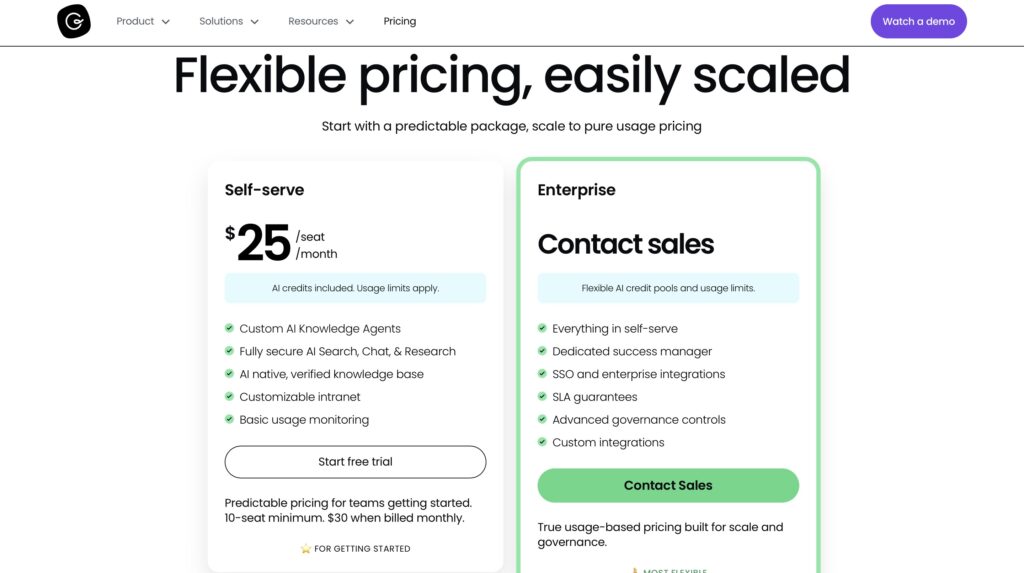
- Cost-wise, Glean alternatives range widely. GoSearch offers a free tier for small teams. Meilisearch starts at $30/month, while Guru follows a per-seat pricing model at $25/user/month.
CustomGPT starts at $89/month for 3 users, offering predictable pricing for growing teams. Enterprise solutions like Coveo and Elastic Enterprise Search typically start around $99–$114/month or require custom quotes based on usage and data volume.
- When picking the right Glean alternative, if you have a:
- Small team (1–10 people): Then you want to prioritize easy setup and affordability. I would recommend CustomGPT, GoSearch, or Meilisearch.
- Mid-sized team (10–50 people): You would need stronger integrations, automation, and analytics. CustomGPT Pro or Elastic are good fits.
Large enterprise (50+ employees): With many data sources and compliance requirements, platforms like Coveo or Guru would make more sense.
When we talk about enterprise search platforms, Glean often pops out. But that’s not the only tool out there.
There are many reasons why today, you might be reading about the best Glean alternatives:
- You’re probably considering switching from Glean.
- Glean’s pricing isn’t public, and according to some sources, it could be way above your budget
- The platform seems complex and too advanced for your business needs.
These are also the same reasons some clients who switched to our platform, CustomGPT, often mentioned.
At the end of the day, you are not just looking for an enterprise search platform. What you want is one that is cost-effective, easy to use, and most importantly, meets your unique business needs.
That’s exactly what I am covering in this article. I will share my best Glean alternatives.
I tested their most interesting features, saw their strengths and limitations. After reading this, you should have good enough knowledge to choose your best alternative.
Let’s go!
Best Glean Alternatives: Quick Comparison
| Tool | Key Integrations | Free plan | Starting price |
| CustomGPT | Drive SharePoint MCP Notion Confluence Zendesk Slack |
❌ (7-day trial) | $89/month |
| Coveo | AWS Box Confluence Dropbox Google Drive |
❌ (14-day trial) | Custom pricing |
| Elastic Enterprise Search | Atlassian Jira AWS Azure Beats Box |
❌ (14-day trial) | $99/month |
| Meilisearch | Python Dart Java Script Swift Symfony Golang Ruby |
❌ (14-day trial) | $30/month |
| GoSearch | GitHub Slack HubSpot BambooHR Google Drive Microsoft Teams Salesforce |
✅ Yes | $0/user/month |
| Guru | Claude Microsoft Copilot ChatGPT Adobe Workfront Azure DevOps OneDrive |
❌ No | $25/user/month |
If you want to see how this actually works with your own data, take the 7-day trial. It’s the easiest way to get a real sense of it.
6 Best Glean Alternatives
1. CustomGPT.ai
| My rating: ⭐⭐⭐⭐ 4.5/5 Base price: $89/mo, paid annually Integrates with: Slack, Notion, Google Drive, HubSpot, Zapier Best for: SMBs to small businesses with enterprise search deployment needs |
Our first best Glean alternative on this list is CustomGPT.ai
One thing I love is that CustomGPT offers Citation‐backed answers with inline source links.
Beyond that, you can connect all your data (1,400+ file formats) and broad enterprise connectors such as Drive, SharePoint, MCP, Notion, and more.
But there’s a whole lot more that CustomGPT offers. Let’s get into those.
First off, it’s worth noting that it won’t take you more than 3 clicks to create your first agent. All you need to do is select a data source for your agent, and then choose how you want to use it.
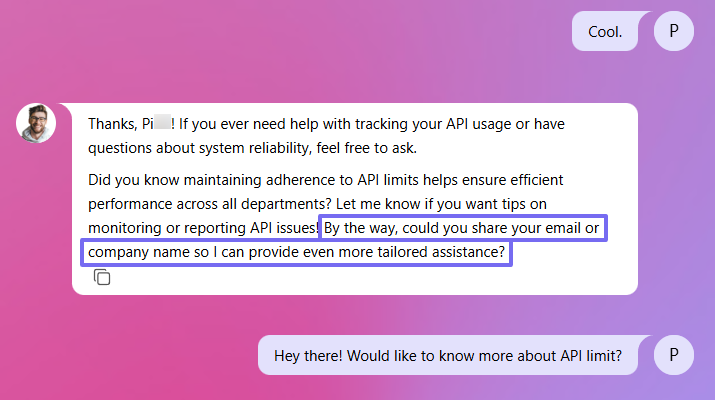
With the Lead capture feature active, your agents will save you hours by collecting leads’ information, such as name, email, and company name, during chats. It can also send your leads directly into Salesforce or HubSpot.
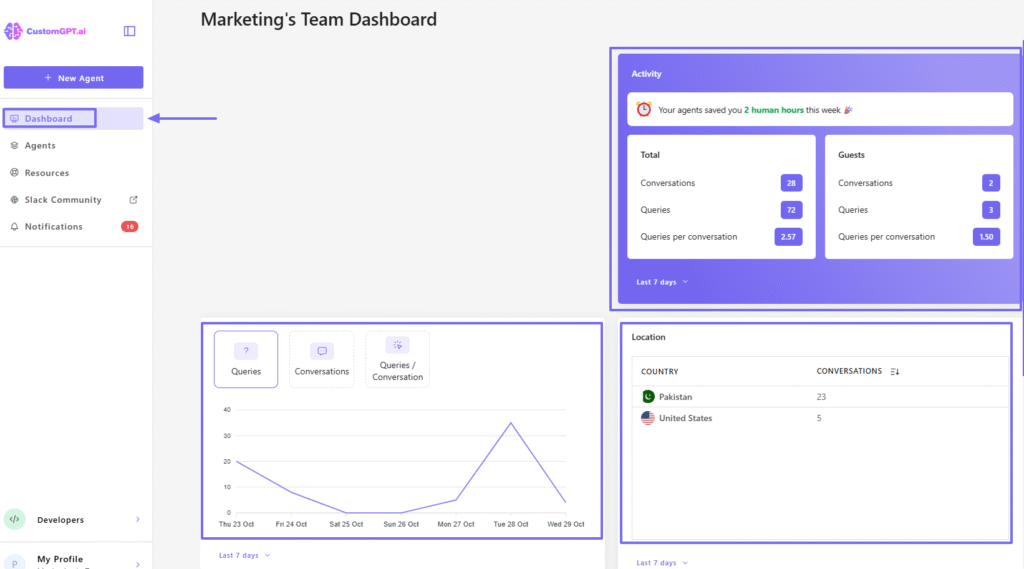
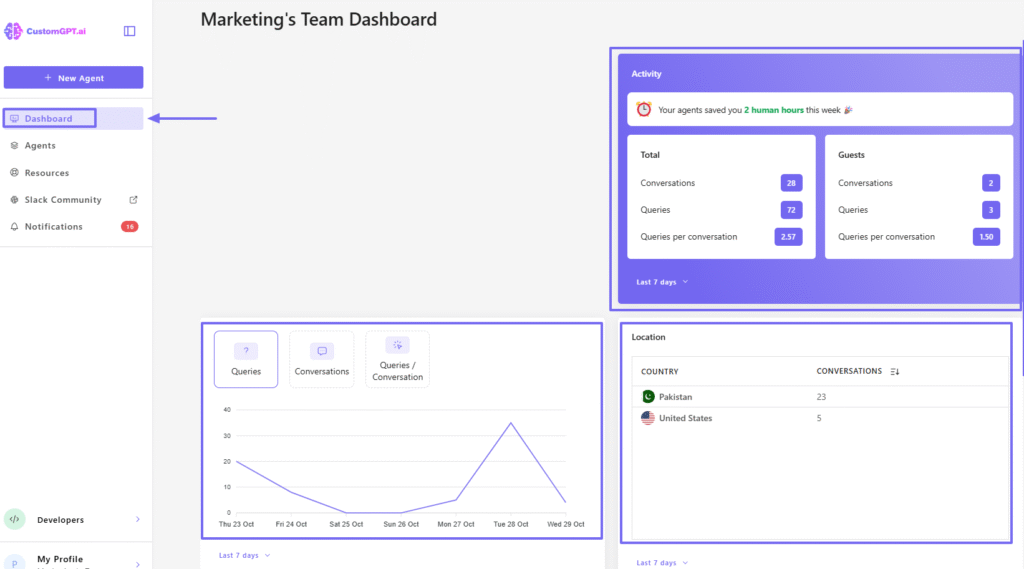
Now, the dashboard is your go-to feature if you want to view your team’s performance and other metrics that are important to you. You can see the number of conversations, queries, and queries per conversation on there.
Using Customer Intelligence, you can analyze chatter behavior and demographics. I enjoyed exploring where users came from, how often certain keywords were searched, trends in sentiment & search intent, and what content gaps I could fill.
But that’s not all. In fact, I can’t go on without mentioning our AI copilot. It functions as your buddy. You can literally ask for help with anything, and it will go the extra mile for you.
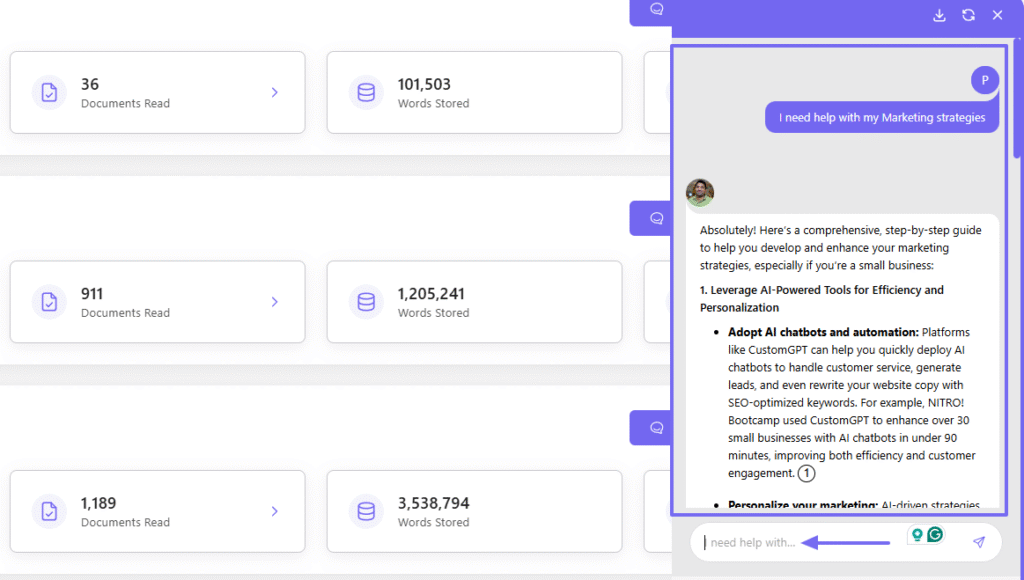
Key Features
1. Agents
Agents do more than just retrieve information. They can use your custom knowledge to perform many actions, such as sending updates to your CRM, automating routine workflows, or refreshing internal documentation based on content gaps.
You can use agent actions, MCP connectors, or API for advanced users. You can also use integrations like Zapier.
But right now, I am simply going to show you how easy it is to create an agent with CustomGPT and find relevant information.
After signing in, click “New agent”

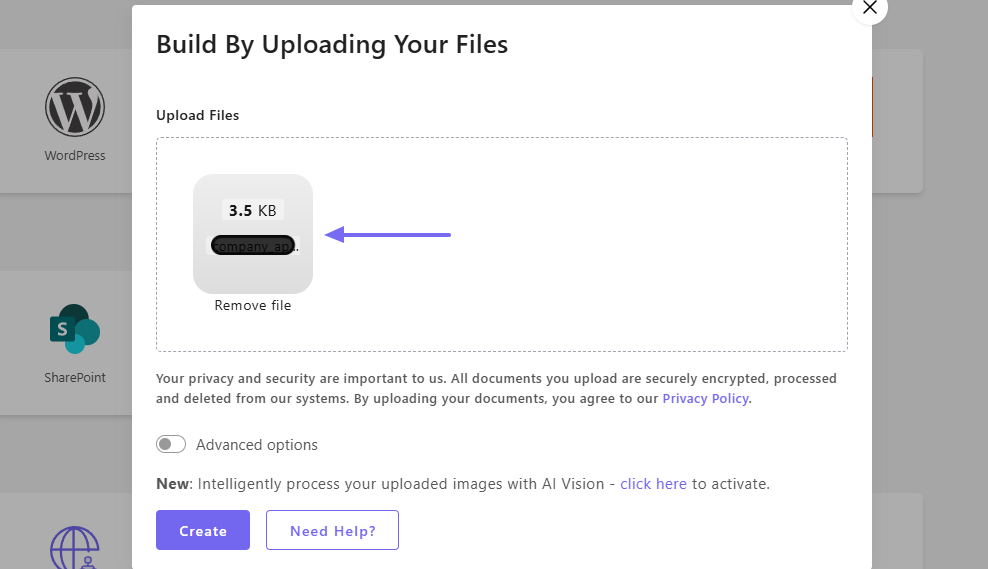
Next, choose a data source for your agent. For this tutorial, I will select “File upload”.

After that, upload your file.
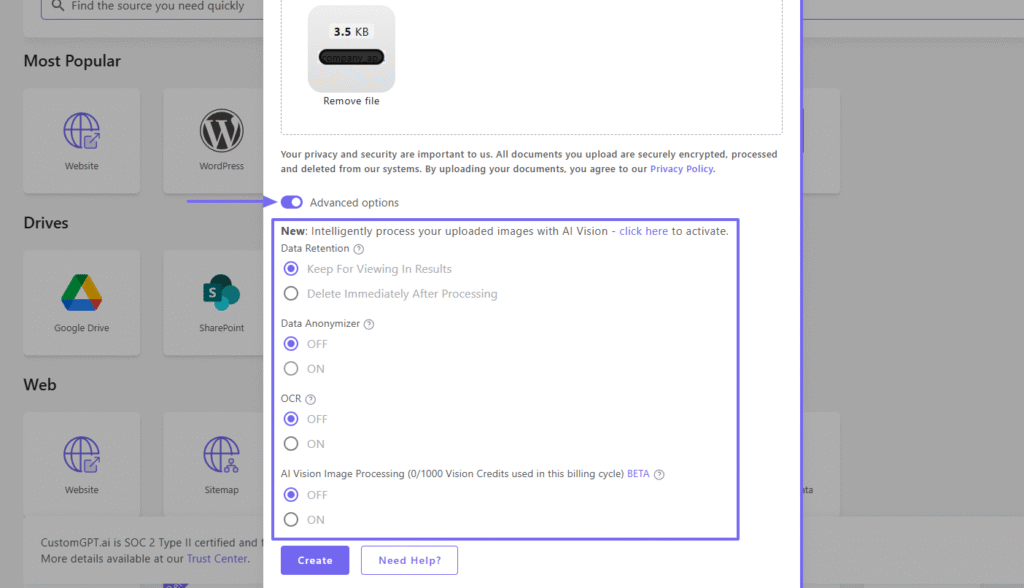
When you click “Advanced options”, you will see other interesting settings. You can, for example, decide to keep your file for “Viewing in Results” or delete it immediately after processing. You can also turn AI Vision Processing on or off.
Now, it’s time to select how you want to use your agent. Among the available options, I will go with Enterprise Search.
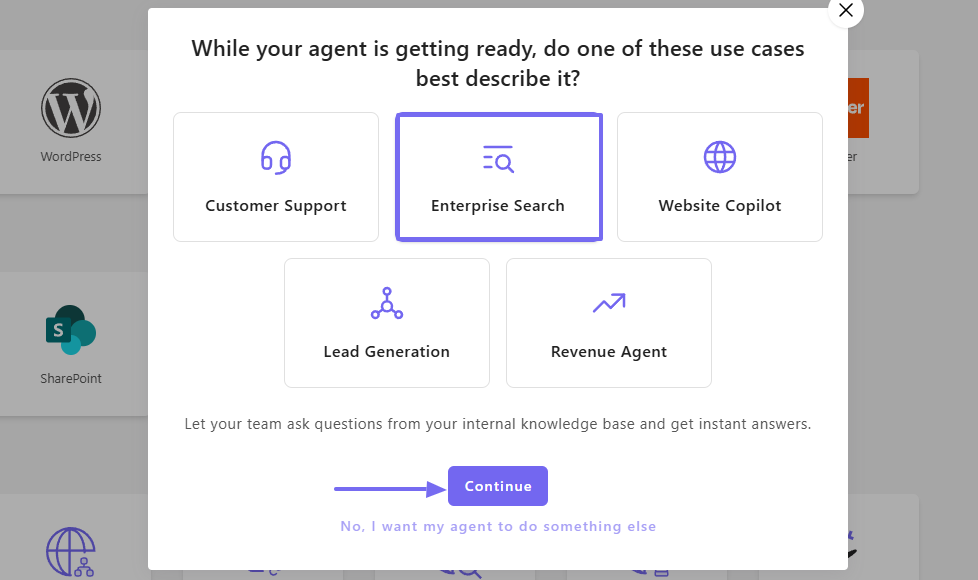
The agent is ready. From the get-go, it will suggest questions you can start with.
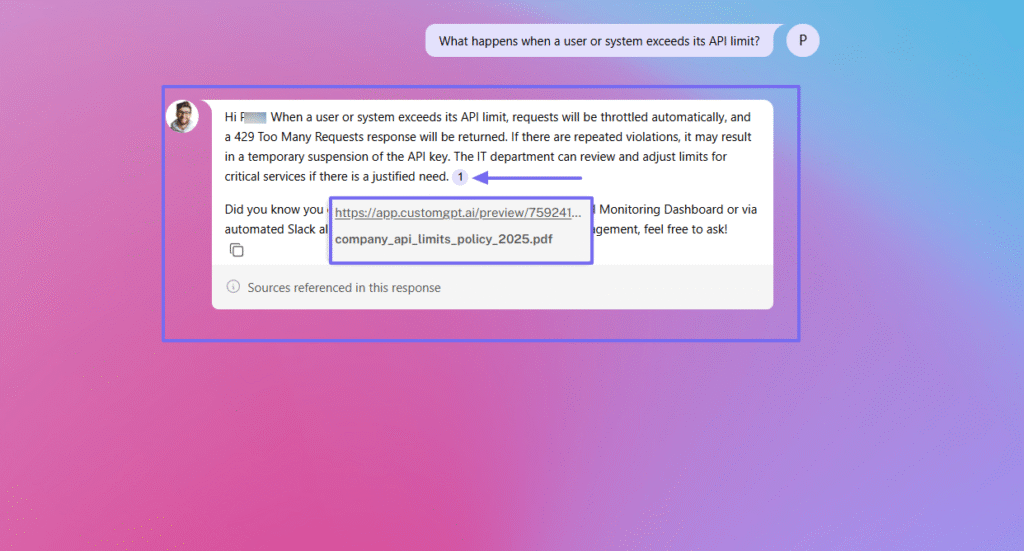
The file I uploaded was about API. This is the question I started with: “What happens when a user or system exceeds its API limit?”
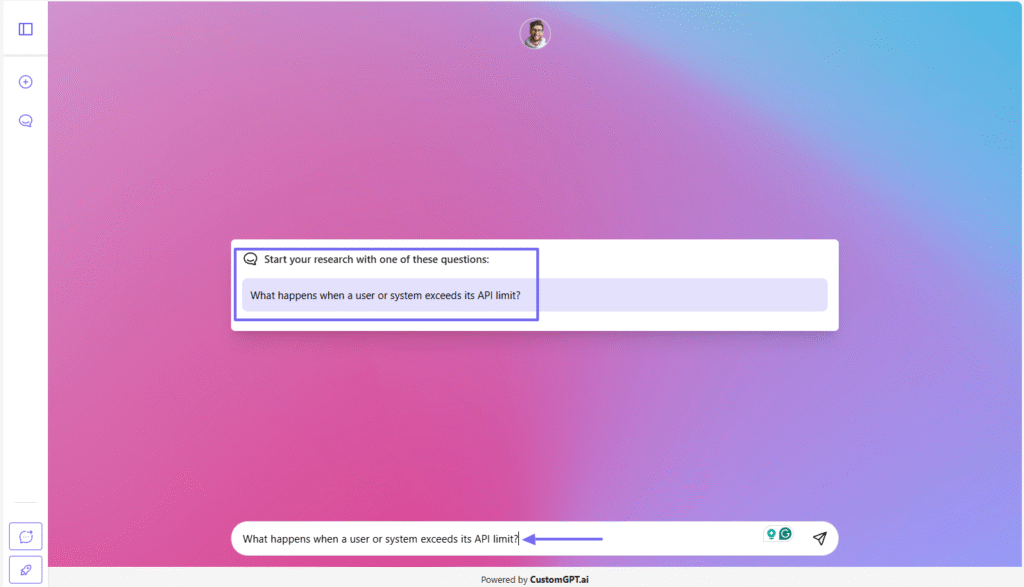
Within seconds, the agent provided accurate answers based on the file I uploaded. The answer came with the source referenced in it.
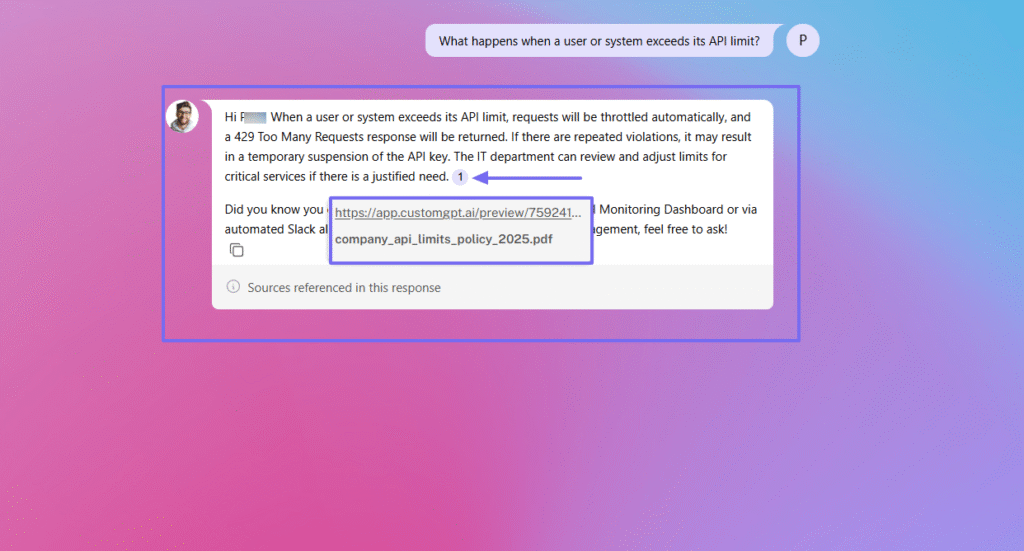
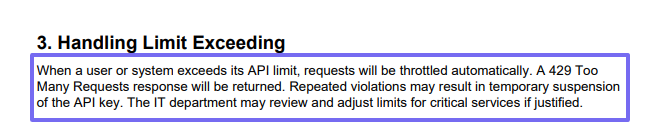
You can click on the link to retrieve that information.
2. Lead capture
We recently introduced Lead Capture, a feature that lets your agent do more than just chat with visitors. Your agent can collect their information, such as name, email, and company name, and then turn them into leads.
Let’s try it!
Go to your agent section, and click “Actions”.
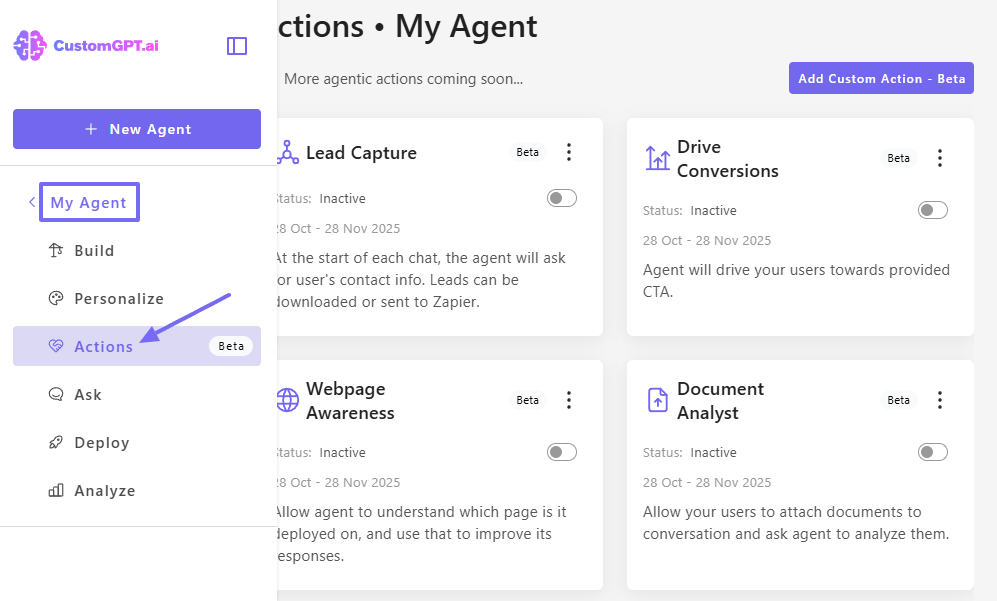
You can turn on the Lead capture button.
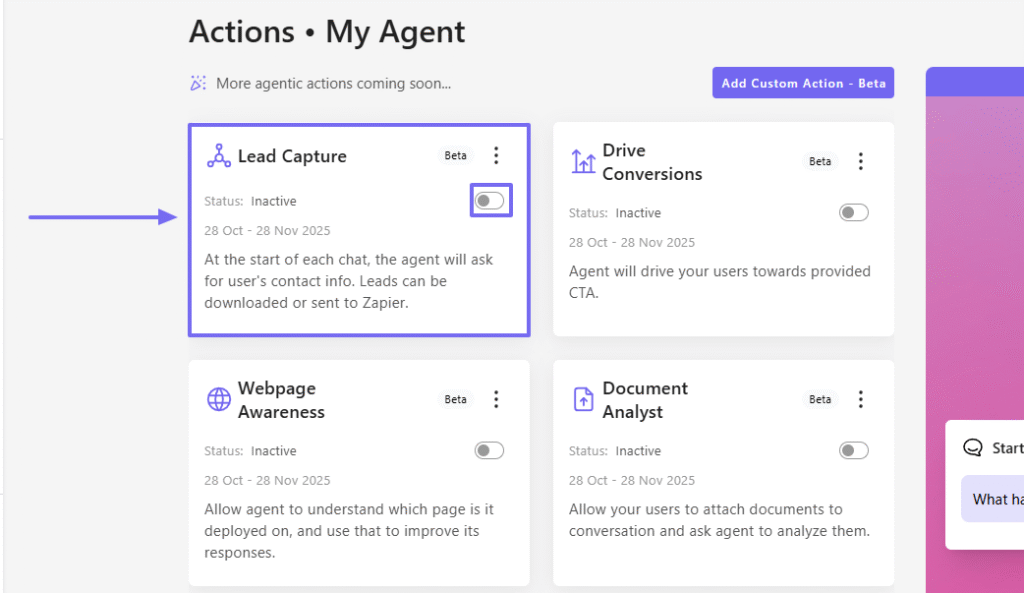
It’s time to configure your lead capture. Choose the information you want your agent to attempt to collect. If that’s not enough, you can still add other fields.

Now, your agent is currently private. However, you can make it public and share it with everyone.
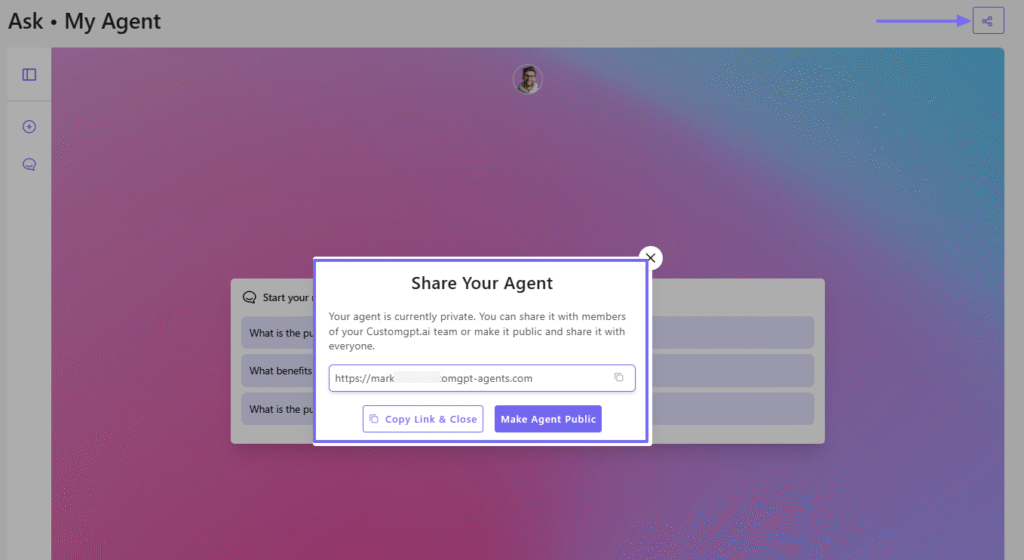
This way, when a visitor chats with the agent, it will find a way to collect the visitor’s information.

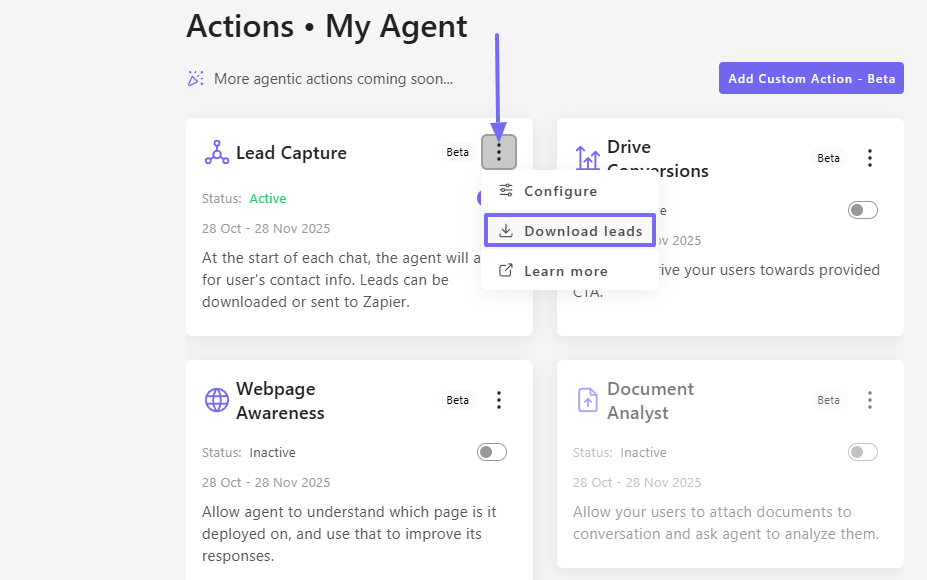
Back to the platform! By clicking the three-dot menu, you can download the leads your agent had a chat with.
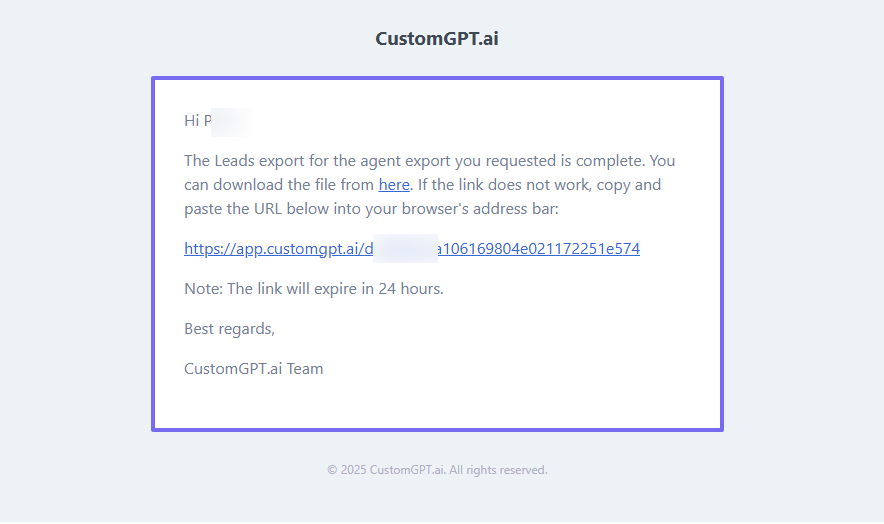
CustomGPT will send you an Email with a link to export your leads.
3. Dashboard
We also provide a team dashboard that displays how many hours your agents save you every week.
You will also see your total number of conversations, queries, and queries per conversation.
As I mentioned earlier, it also shows the different countries your conversations are from.
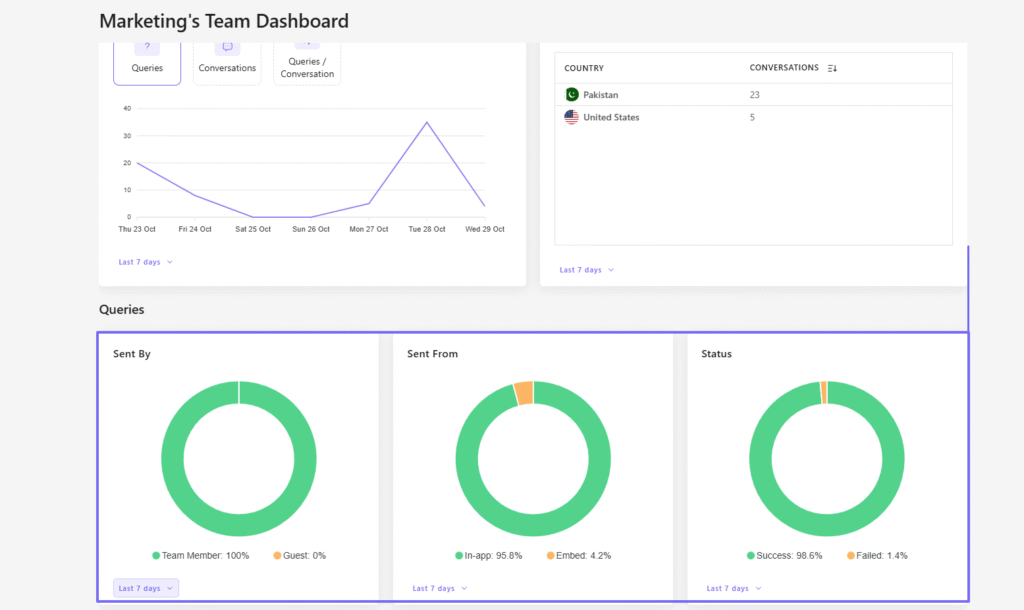
Below, you have access to more insights: How many queries were made, who sent them, where they came from, and how many were successful.
What I enjoyed vs what gave me a hard time
| What I enjoyed 👍 ✅ Has a clean interface making it easy to locate all the features on the sidebar menu ✅ You can create a custom agent in three clicks, which shows how easy it is to use. ✅ Your agent can easily collect leads’ information, such as name, email, or company name. ✅ The platform integrates with HubSpot, Slack, Notion, WordPress, Zendesk, and Zapier ✅ The dashboard tells you how many hours your agents save you every week |
What gave me a hard time 👎 ❌ Total batch size limit for uploads is 1 GB. However, you can either split them into smaller parts or connect sources like Google Drive or SharePoint to sync your files. |
Best for
- SMBs to small enterprises who want to deploy enterprise search functionality rapidly, without extensive dev resources.
Pricing
- Standard: $89/month/ 3 team members, billed annually
- Premium: $449/month, billed annually
- Enterprise: Custom pricing

2. Coveo
| My rating: ⭐⭐⭐⭐ 4/5 Base price: Custom pricing Integrates with: AWS, Box, Confluence, Dropbox, Google Drive Best for: Large enterprises with complex search needs |
Coveo is the next best Glean alternative we’ll look at.
It unifies structured and unstructured content into a single index. It also offers semantic search, AI recommendations, and GenAI answering.
I added Coveo to this list for a couple of reasons, and we’ll get to that right away.
With Coveo, you will need a search page before you can search a company’s data. And to add one, you have to choose a type, name your page, and assign it to a project.
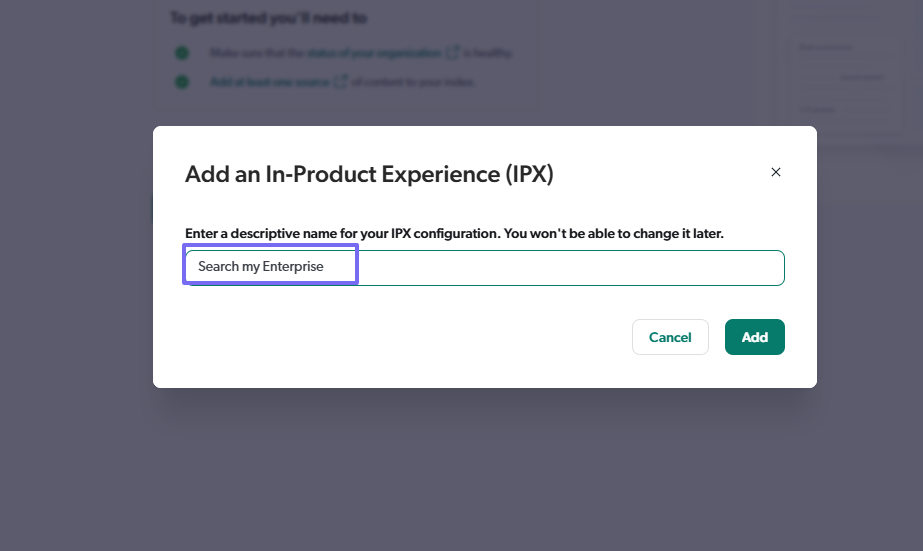
Moreover, you can find relevant information from your company without leaving your current workflow when you use the In-Product Experience. But first, you must name the In-Product Experience(IPX), adjust your filtering options, and style.
If I want to keep all my searches organized, I can create projects for them. I first select a project type, name my project, add a description, and an email.

And because enterprise search software can only retrieve data that it has been fed, you may want to add your content. The way to do it is simply by choosing your preferred sources: file uploads, website, or sitemaps, just to name a few.
Key Features
1. Search Pages
Coveo is also best known as an AI-powered enterprise search tool. Using the search pages feature, you can search for information or data across your company.
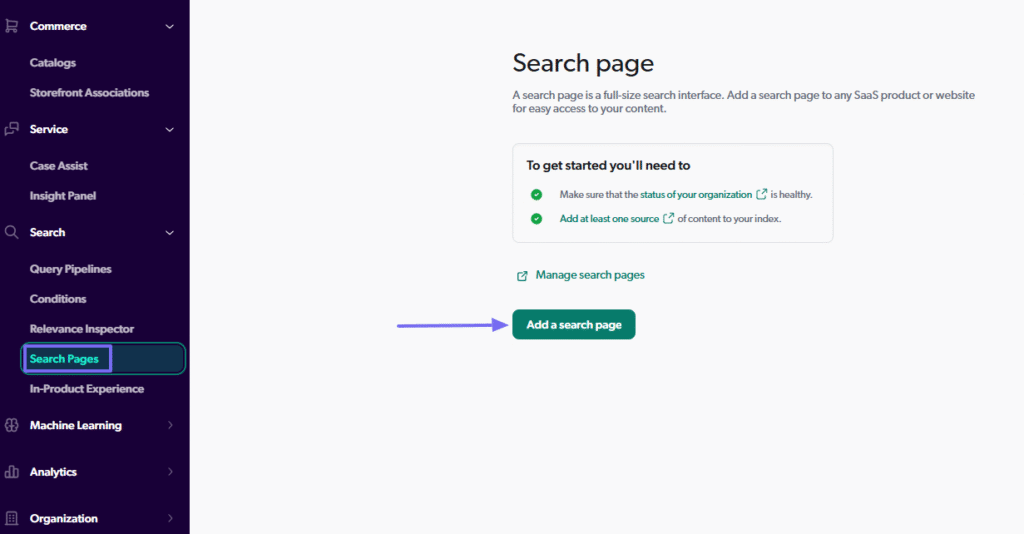
But before you can do any of that, you must create a search page.
Now, let’s create one.
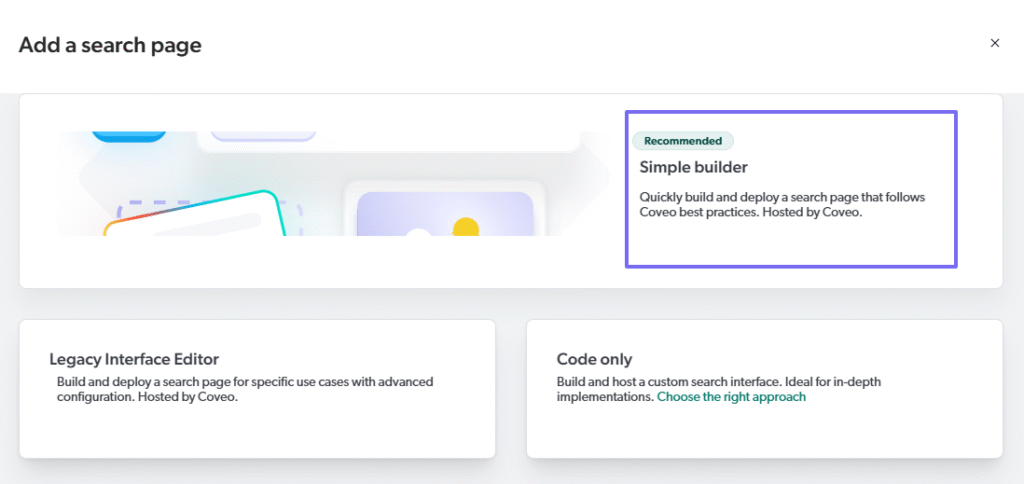
I can choose my search page type from three options: Legacy Interface Editor, Code only, or Simple builder. The “Simple builder” is what I will use.
The next step is to name my search page and assign it to a project, if I have one.
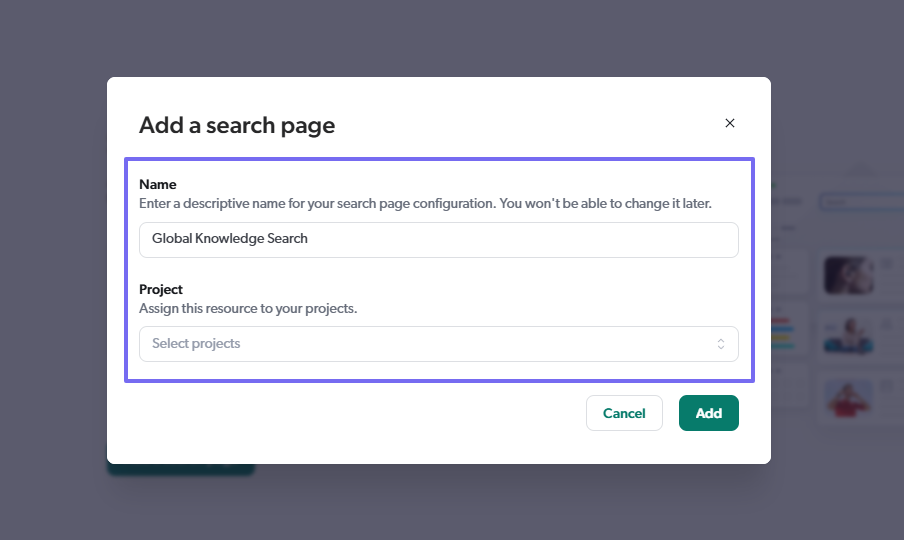
Now that your search page is ready, you can always edit, share, or delete it.
After creating my search page, I opened it.
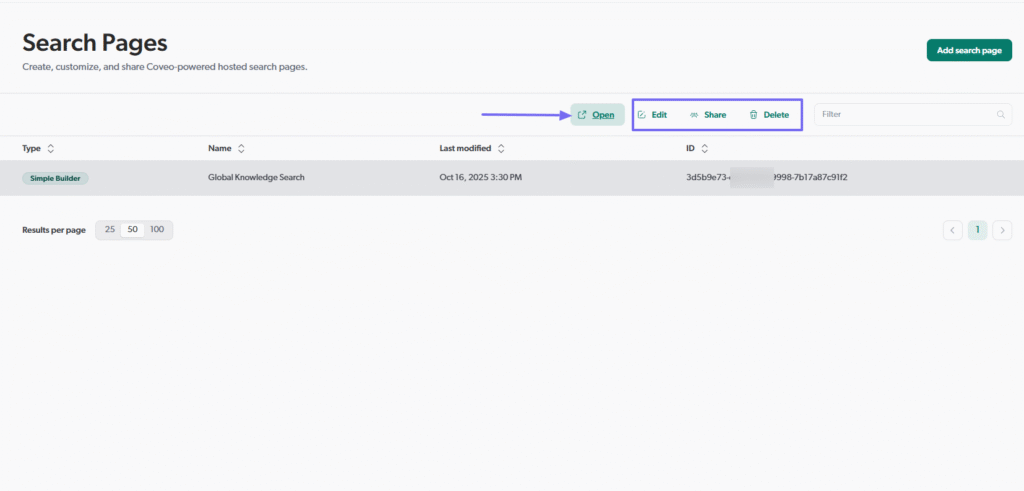
The interface had a clean look, which makes it easy to get around.
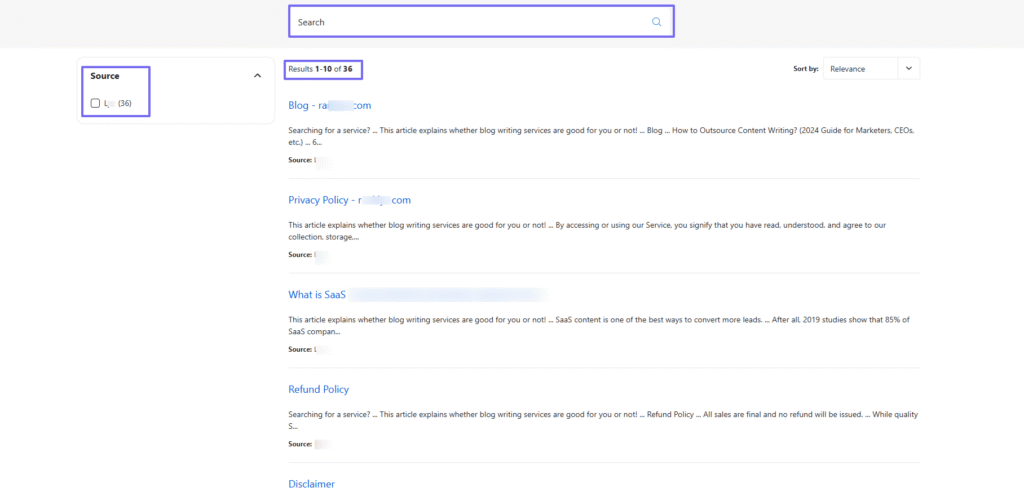
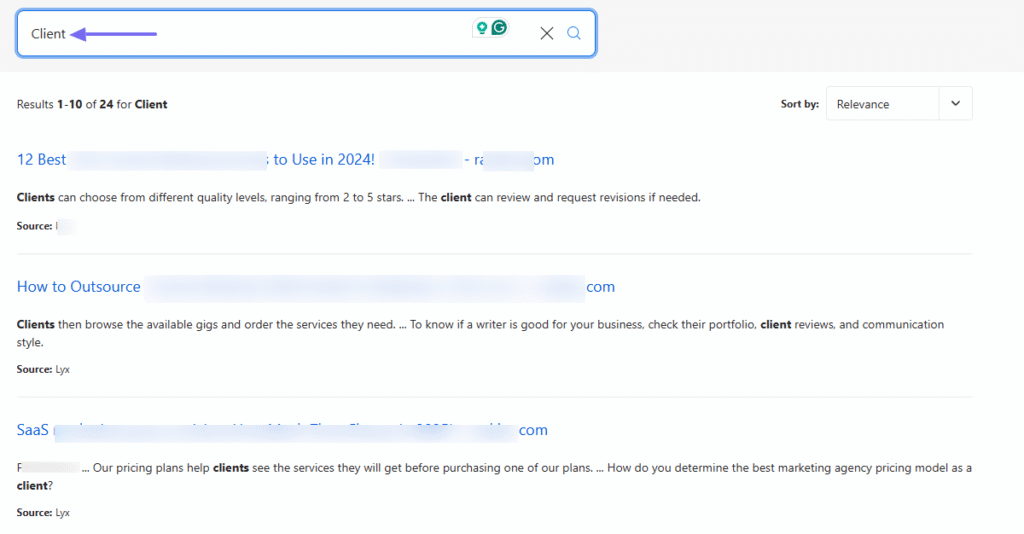
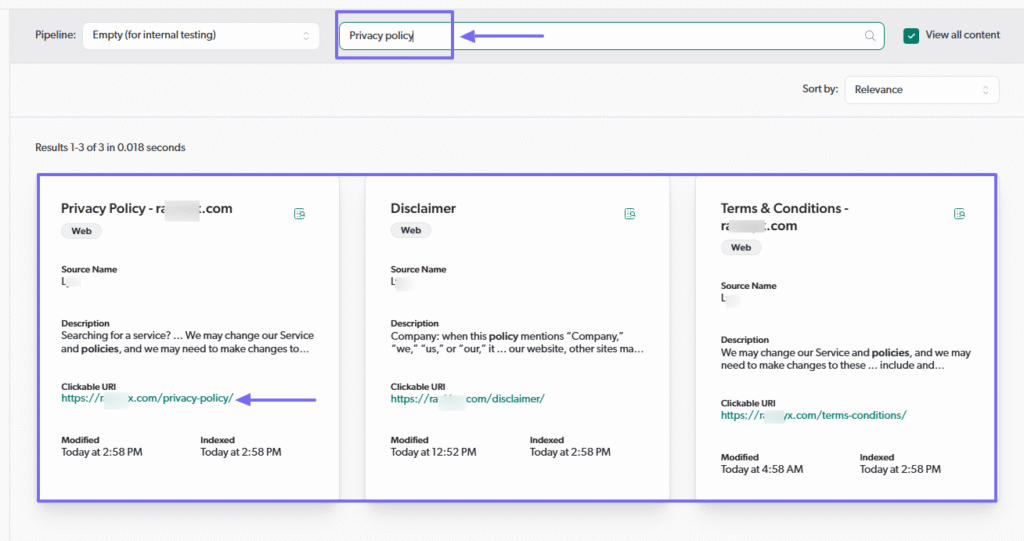
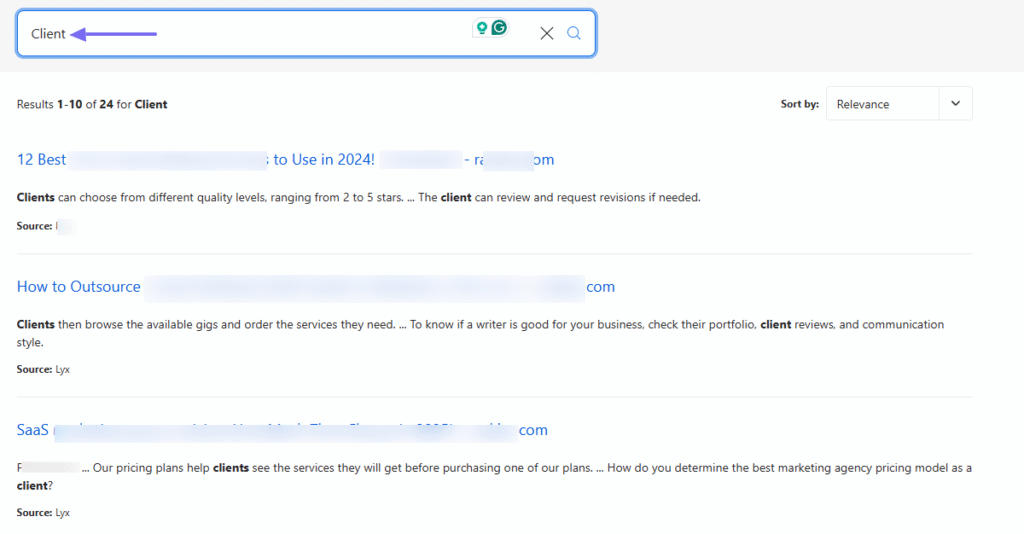
To test the search page, I entered “Client” in the search bar. I waited a few seconds, and different results popped up. I could just scroll and select the result I wanted.
2. In-Product Experience
The In-Product Experience on Coveo is a lightweight search tool you can use to find relevant information within the app without leaving your current workflow.
Let’s create one!
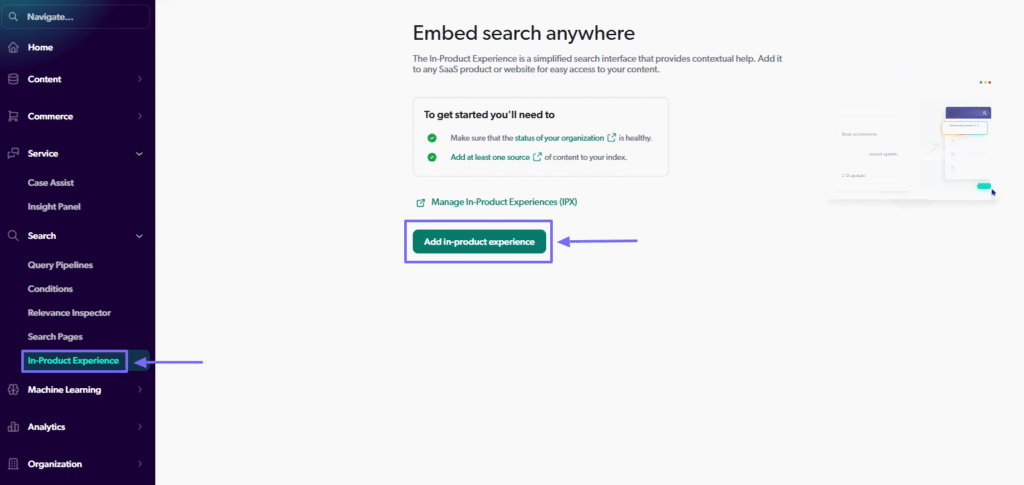
First, enter a descriptive name for your IPX configuration.
In the next window, you can configure your IPX’s filtering options, style, settings, or version history.
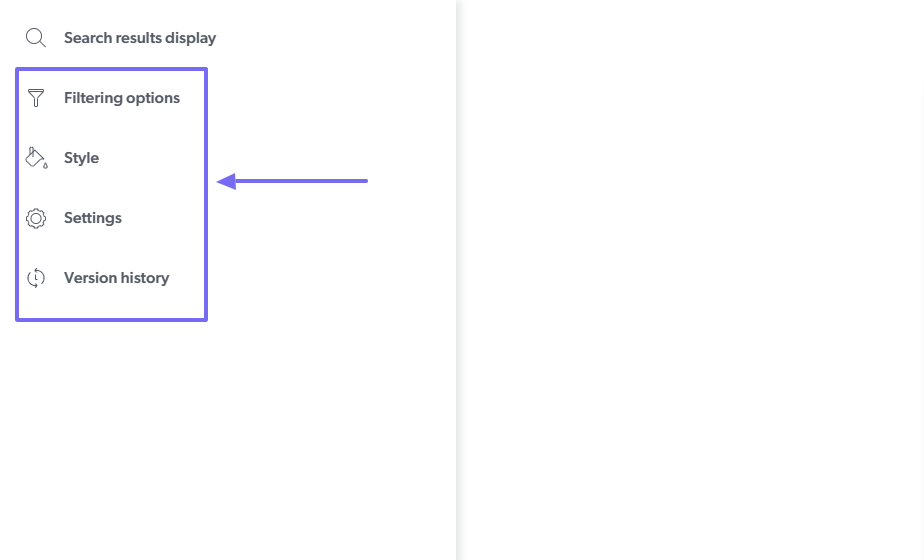
Under style, for instance, I could adjust the theme, select a background color, fonts, and much more.

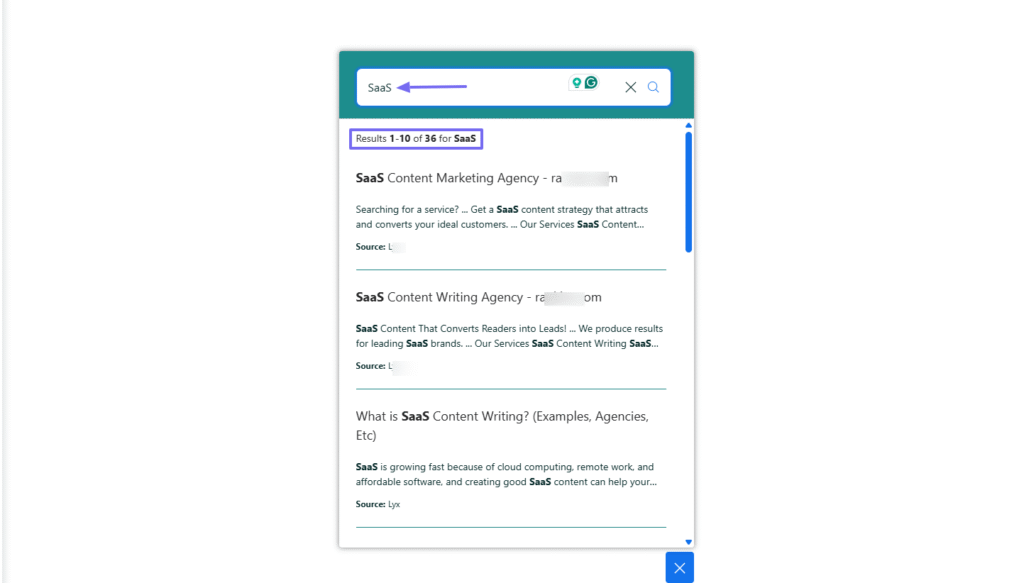
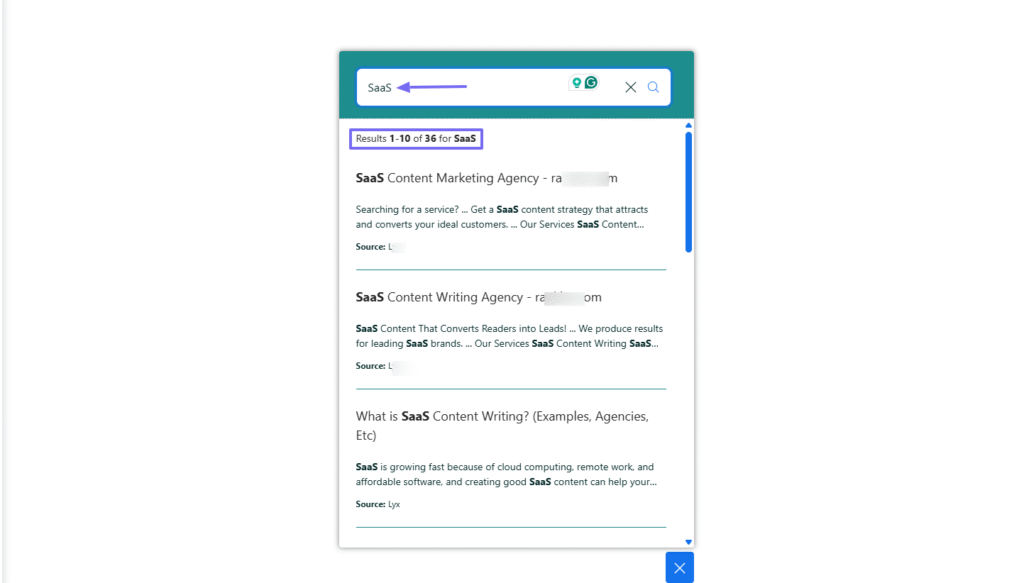
Once your In-Product Experience is ready, you can test it out with a quick search. After I created mine, I entered “SaaS”, and the feature brought up about 36 results.
3. Project
As an organization, dealing with AI search might require a lot of search pages and sources. To be organized, you need to create projects. This way, you can easily find what you are looking for when you are looking for it.

To create my first project, I will choose a project type, add a name, description, and an email that will serve as a point of contact.
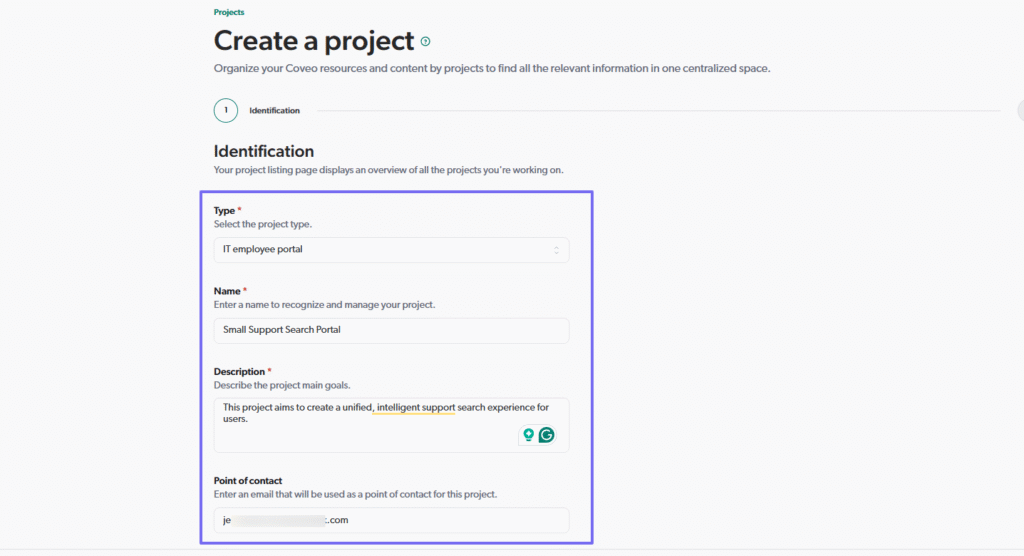
Next, I’ll choose the resource used for this project and click “Create”.
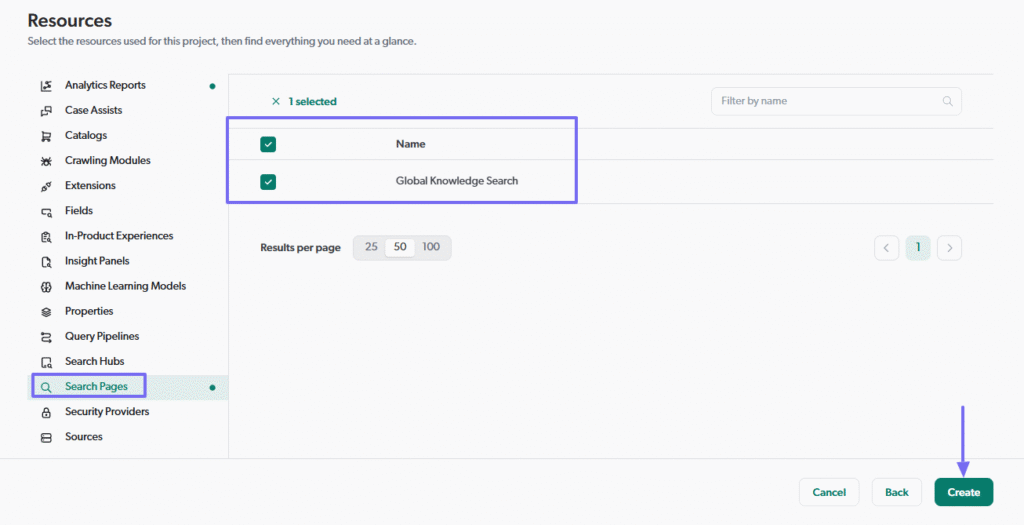
Voilà, I have just created my project. Now I can conduct a search on a particular item within the project and always revisit it when I need to.

What I enjoyed vs what gave me a hard time
| What I enjoyed👍 ✅ You can customize the search page with filtering options such as source, author, item type, etc. ✅ Has a section dedicated to commerce where you can create a catalog ✅ There are various resources I could use for my project: Properties, Search hubs, Extension, Pipeline, Search page, etc. ✅ Can customize your In-Product Experience using filtering options, style, version history, and so on. |
What gave me a hard time 👎 ❌ The platform displays too many features on the sidebar, which can be confusing. ❌ Can be difficult for non-technical users. You need some coding experience to understand language models like Python. |
Best for
- Large enterprises with contracts in the six-figure range with complex search and content management needs.
Pricing
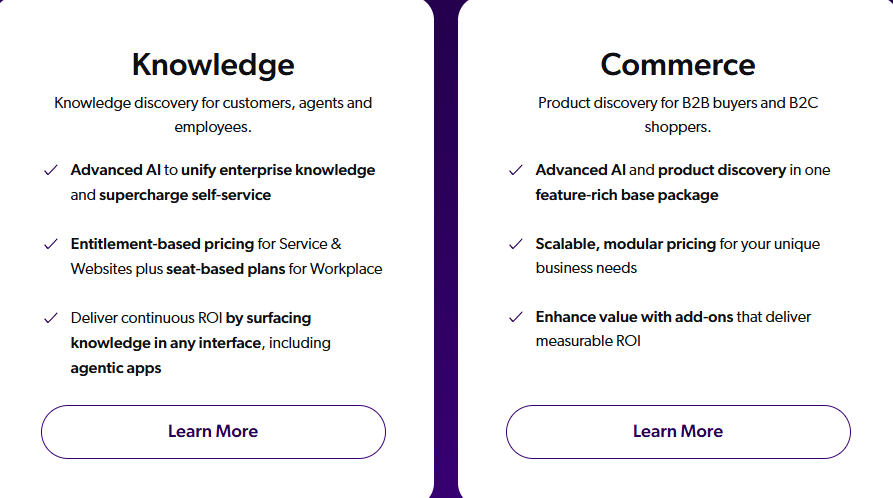
- Knowledge: Custom pricing
- Commerce: Custom pricing
3. Elastic Enterprise Search
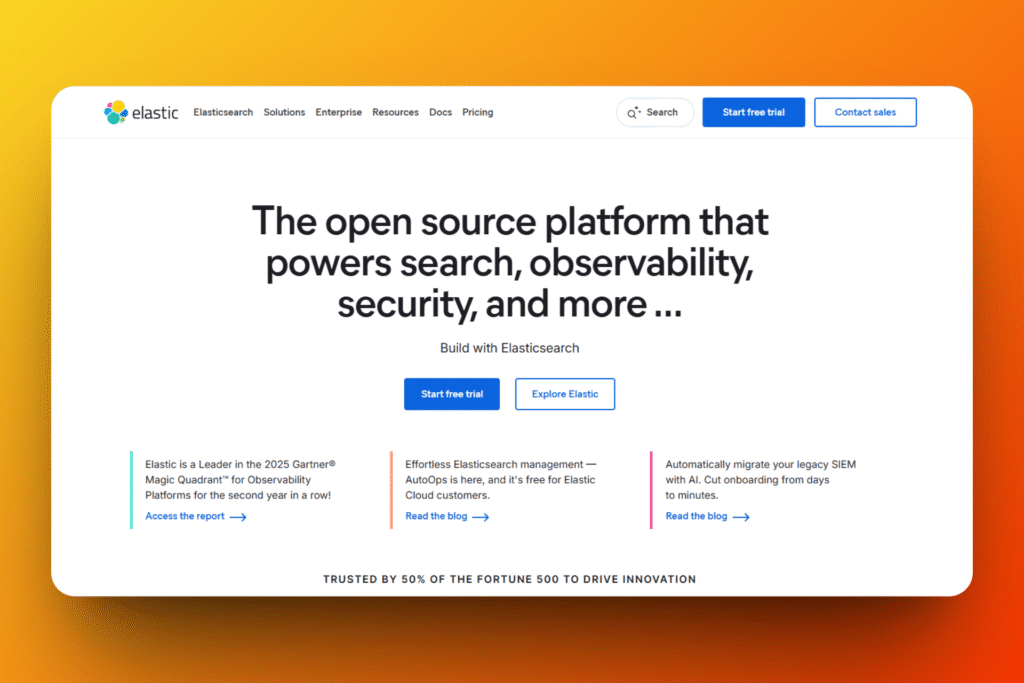
| My rating: ⭐⭐⭐ 3.5/5 Base price: $99/month Integrates with: Atlassian Jira, AWS, Azure, Beats, Box Best for: Developers and large organizations with complex dataset needs |
Moving on with our next best Glean alternative, Elastic Enterprise Search. It provides AI search with semantic search, vector database, and a machine learning model.
It comes with its own LLM called Elastic Managed LLM. And you can also connect other LLMs like OpenAI or Azure.
I will show you how I used this platform during my test.
Elastic Enterprise Search has a Machine Learning feature that I could use to analyze or visualize data from files. I could also analyze data, its shape, and statistical metadata from a data view.
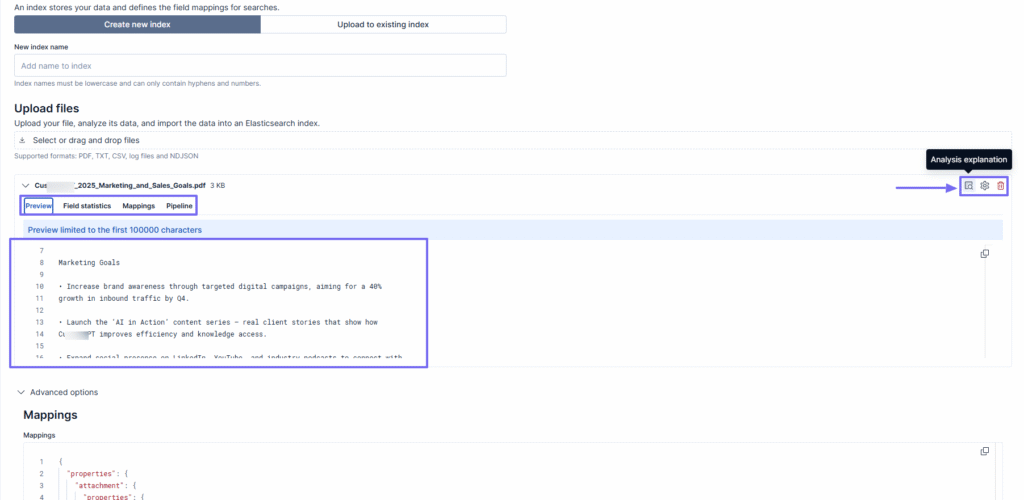
Interestingly, I can also create agents that can help answer questions based on the data I provide. To create an agent, you will have to provide the agent ID, add instructions, find a display name, and add a description.

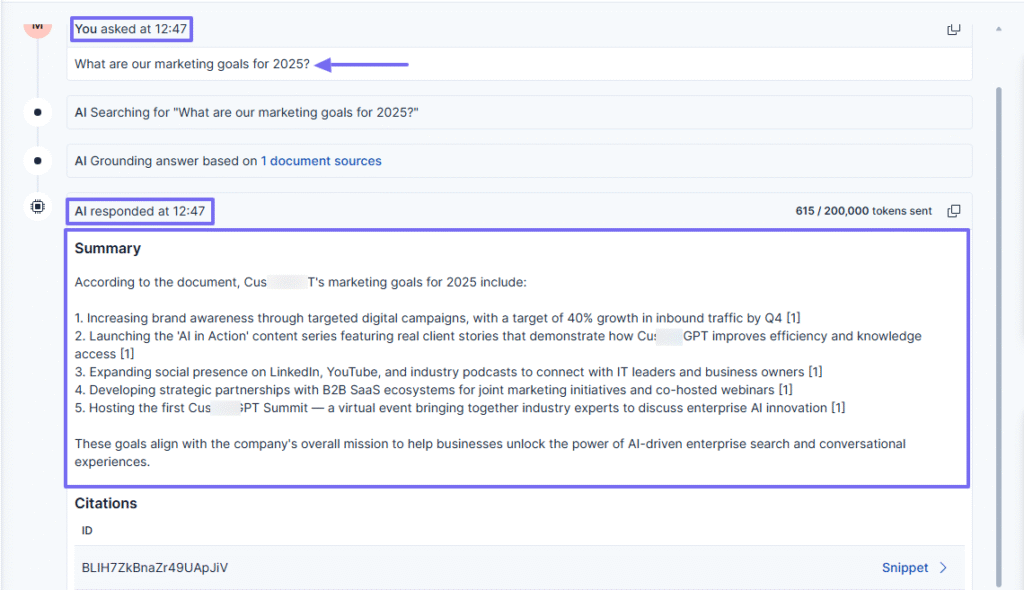
But that’s not all! I could create and set up a chat experience after I chose my preferred LLM. Afterward, I could upload files, name my index, select my AI connector, and add clear instructions.
One more thing I loved was how I could expand my search when I created synonyms. In Elastic Enterprise search, you can add a rule type for equivalents and explicit words.

Key Features
1. Playground
The Playground feature allows you to A/B-test different LLMs from model providers. Thanks to that, you can set up a chat after you upload your documents.
To use it, go to “Sidebar” and click “New playground”.
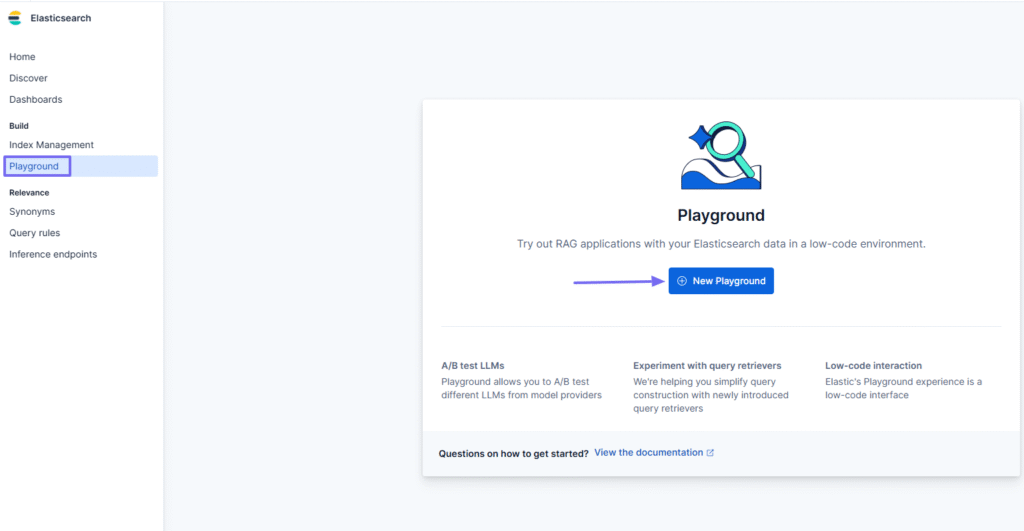
You can choose your preferred LLM or use Elasticsearch Data when setting up your chat experience.
Then, you can start by uploading files.

During my test, I uploaded my files and named my index. After that, I could run an analysis explanation of the document, apply advanced settings, or delete it.
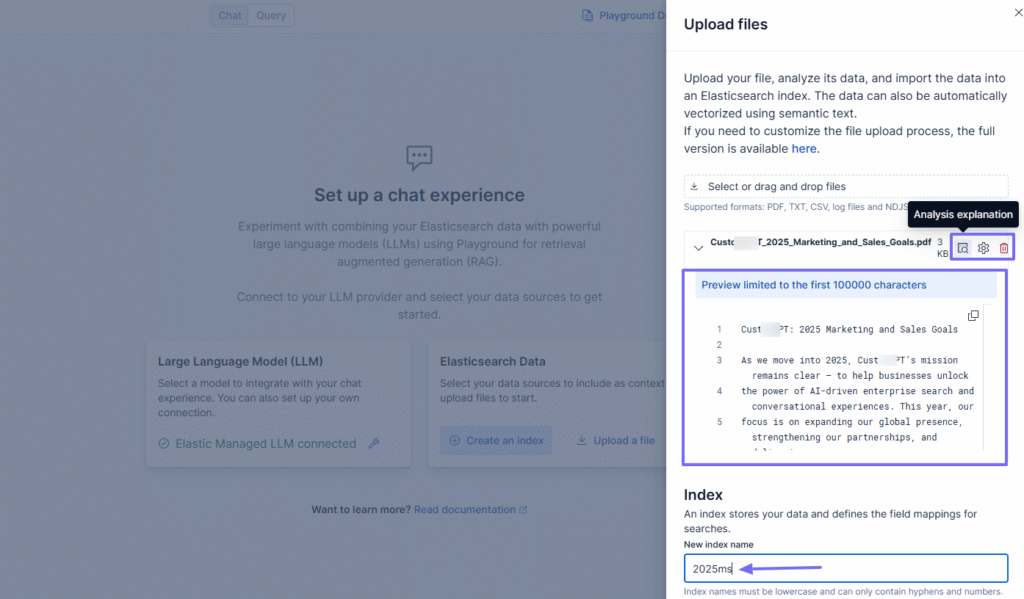
Under LLM settings, I could also select my AI connector and add clear instructions.
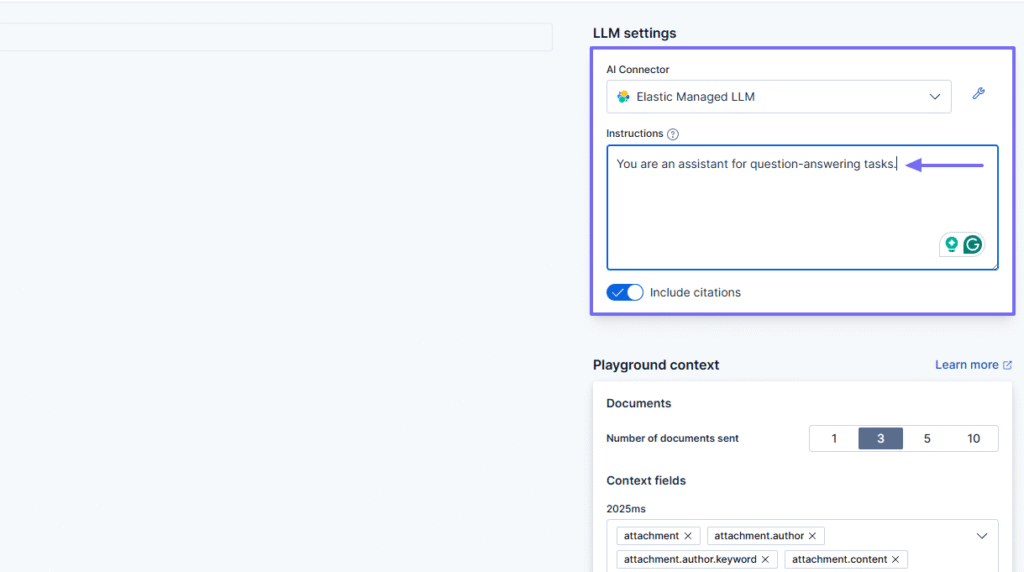
One thing I found useful was that I could adjust the playground context by choosing the exact number of documents to send and adding context fields.
Now, let’s test the chat!
Here’s the question I entered: “What are our marketing goals for 2025?”.
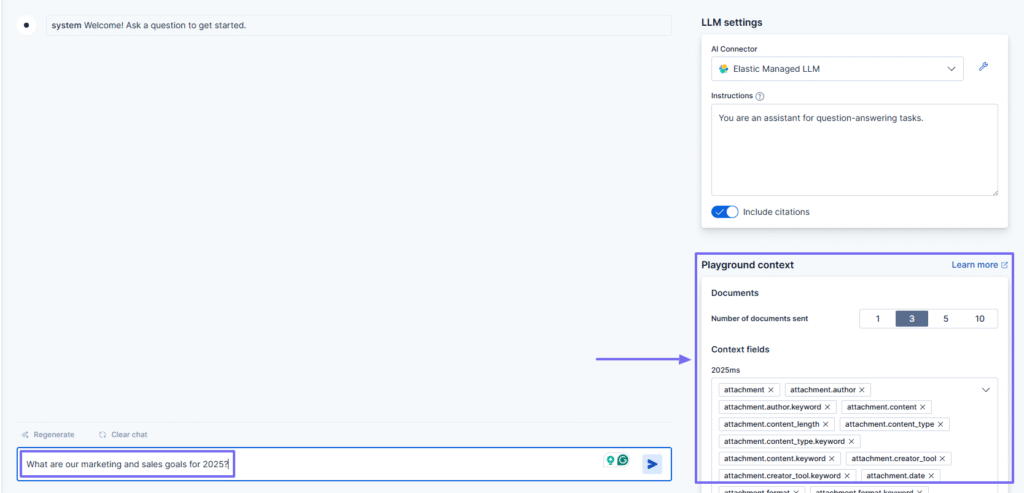
Within the chat, I could see the time I asked the question and exactly when the AI answered.

Besides that, the answer it provided was on point.
2. Agents
Basically, the agents you create on Elastic Enterprise Search can answer questions by searching your data with its assigned tools.
I will just show you how to create one.
Select “Agents” from the menu.

“Create a new agent” is the next step.
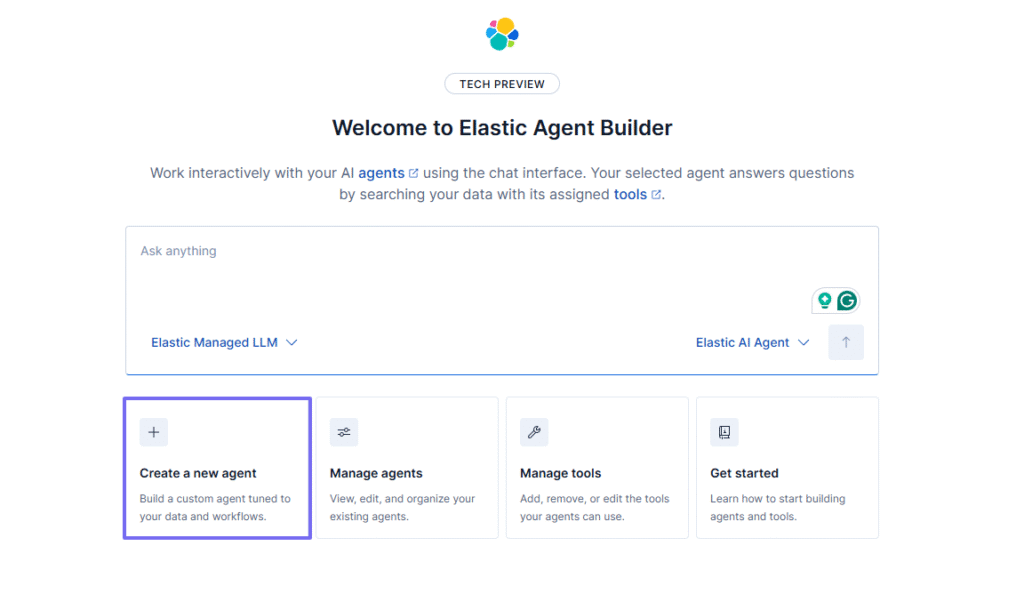
This is where you create your agent. I added an agent ID and gave it my instructions. Then, I chose its display name: “Boris”, and added a description that users can see.
I could also choose my avatar symbol and color.

Under “Tools”, select the tools you want your agent to work with.
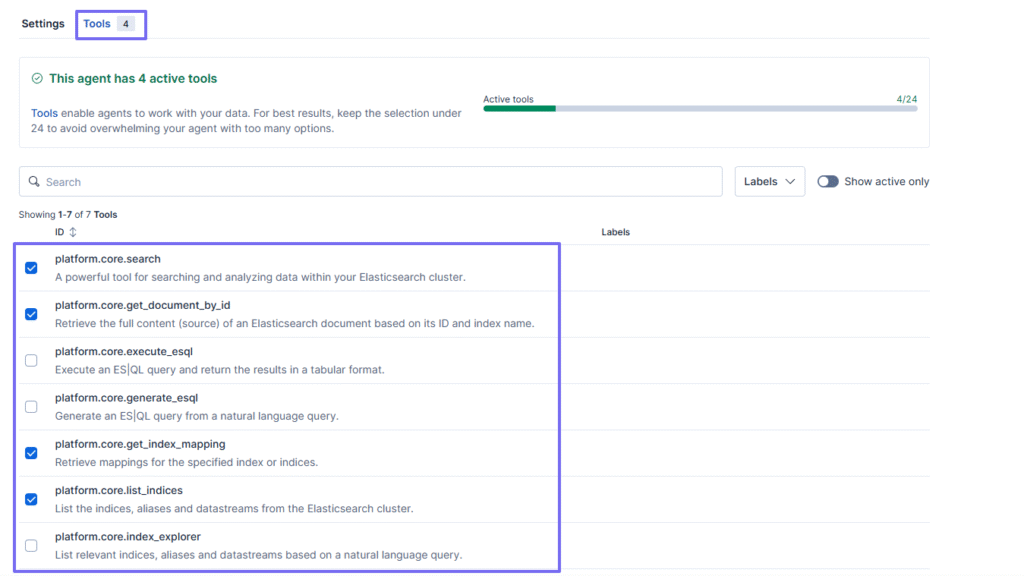
Having walked through these steps, your agent should be available now.

3. Machine Learning
Elastic Enterprise Search has a section dedicated to Machine Learning. You can study your data, identify patterns in your tool’s behavior, and create smart models that can predict future actions.
But that’s not all! You can also visualize data, and I’ll take you through that.
Locate the “Machine learning” icon in the sidebar menu.
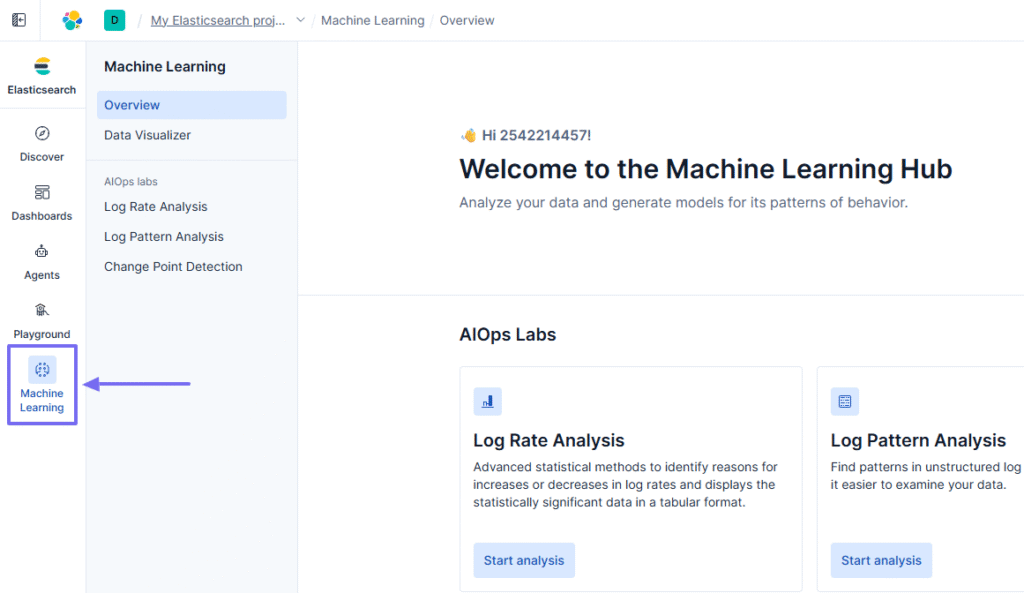
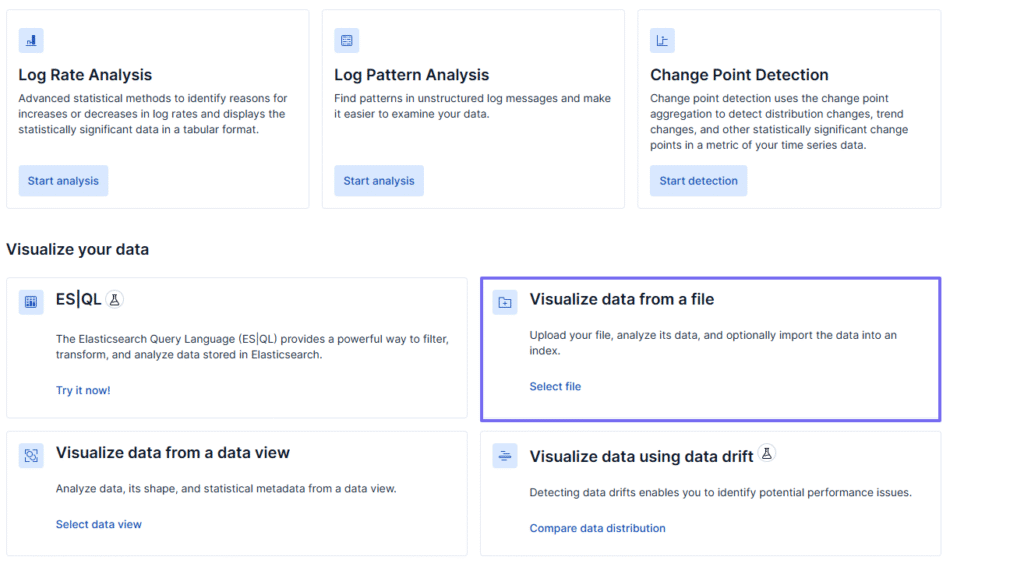
Now, there are many ways you can visualize data in Elasticsearch. These include the data view, visualizing from a file, or using data drift. In this example, I’ll use a file option.
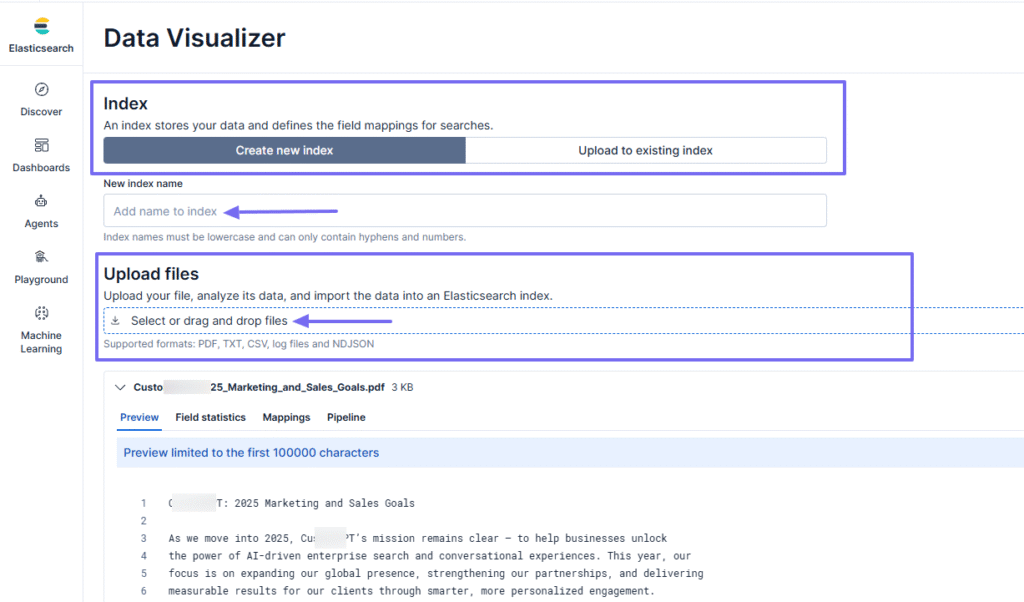
Next, create and name a new index, or simply upload an existing one. Below, I uploaded the file.
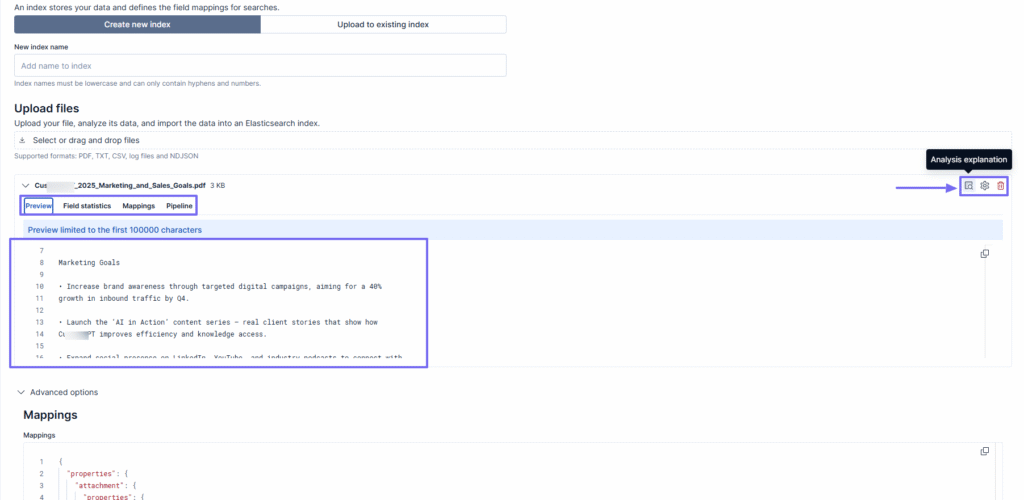
After uploading, you can preview the file, view field statistics, mappings, or pipeline. You can also obtain an analysis explanation, or even delete the file.
What I enjoyed vs what gave me a hard time
| What I enjoyed 👍 ✅ Can visualize using the data view, data drift, or simply from a file. ✅ Loved that the platform specifies the exact time you do research, and the exact time AI responds to it. ✅ Can create synonyms to help expand your search ✅ You can choose your preferred AI connector for your chat. |
What gave me a hard time 👎 ❌ Can be difficult for non-technical users as the platform uses many advanced terms like inference endpoints. ❌ Making your custom agent operational is still a bit complex. |
Best for
- Developers and large organizations seeking to add advanced search to their applications, websites, and internal workflows.
Pricing
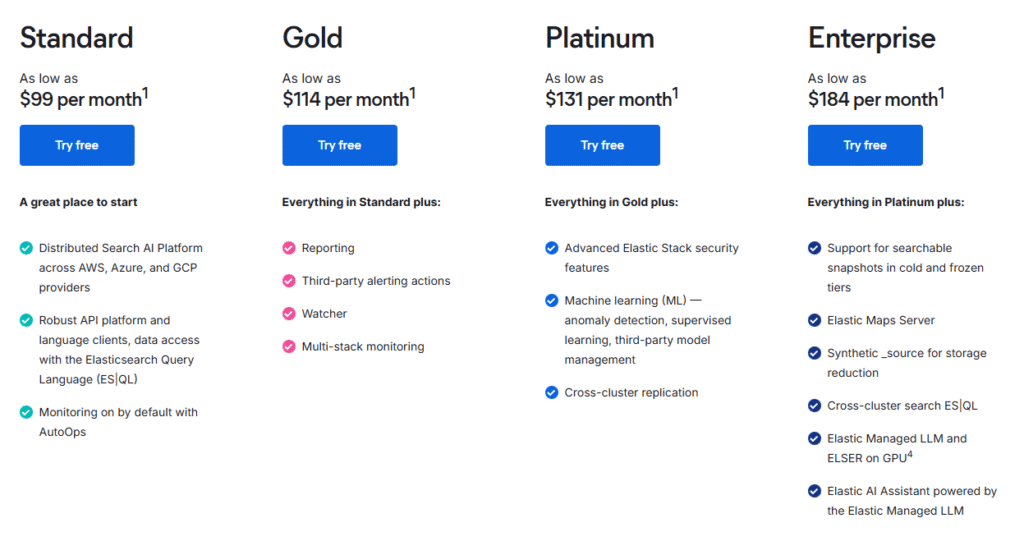
- Standard: $99/month
- Gold: $114/month
- Platinum: $131/month
- Enterprise: $184/month
4. Meilisearch

| My rating: ⭐⭐⭐ 3/5 stars Base price: $30/month Integrates with: JavaScript, Angular, Symfony, React Best for: Small and medium IT companies |
The fourth Glean alternative we’ll discuss now is Meilisearch. It’s a simple, open-source, and developer-focused search engine that uses indexes to find accurate results quickly.
In Meilisearch, indexes are like folders where data is stored and searched when someone requests it. For example, if you have an online bookstore, you might have an index called “books.”
The index could have details like:
Title: The Great Gatsby
Author: F. Scott Fitzgerald
Genre: Classic
Every time a user searches for “Fitzgerald,” Meilisearch looks inside the books’ index to find the best matches quickly.
Now, here’s a little more about Meilisearch.
Its Indexes feature lets you create new indexes. You can then organize, manage, and search your data in a structured way.

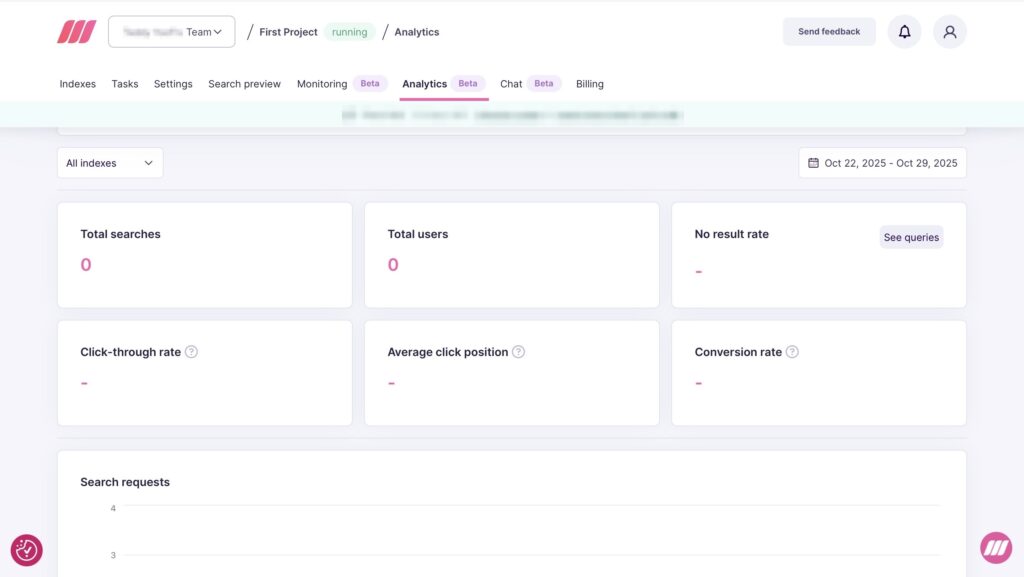
With MeiliSearch’s Analytics, you can check the total number of searches and users. You can also track click-through rates, average click positions, and conversion rates.
That’s not all. The Monitoring feature lets you track search and index performance. You can also monitor system operations like internet usage and API calls.

Lastly, using its Tasks feature, you can view and manage ongoing operations, such as adding documents. It also allows you to check the start date and progress of specific tasks.
Moreover, you can filter these tasks by status, index ID, duration, and start date.

Key Features
1. Indexes
The Indexes feature helps users organize data into clear groups. This makes it possible to find results faster.
I’ll walk you through how to create a new index on Meilisearch.
Click “Indexes” in the navigation bar and select “+ New index.”
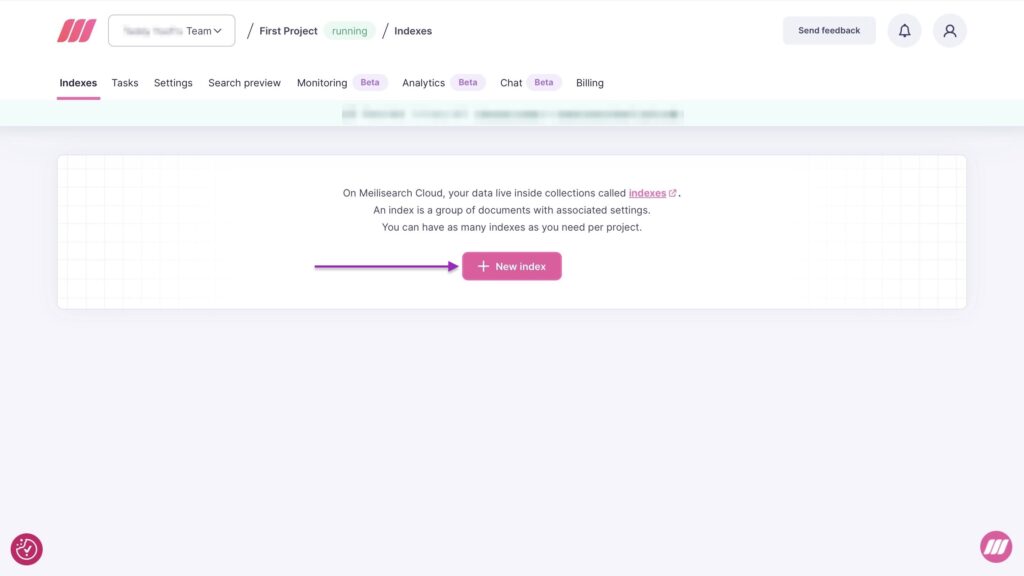
Now, in the pop-up window, enter the index’s name and click “Create Index.”

From here, click “File upload.”

In the new pop-up window, enter the index’s “Primary key.” Then, click the upload area to add documents from your computer. You can add file formats like .json, .ndjson, and .csv.
Now, click “Import documents.”
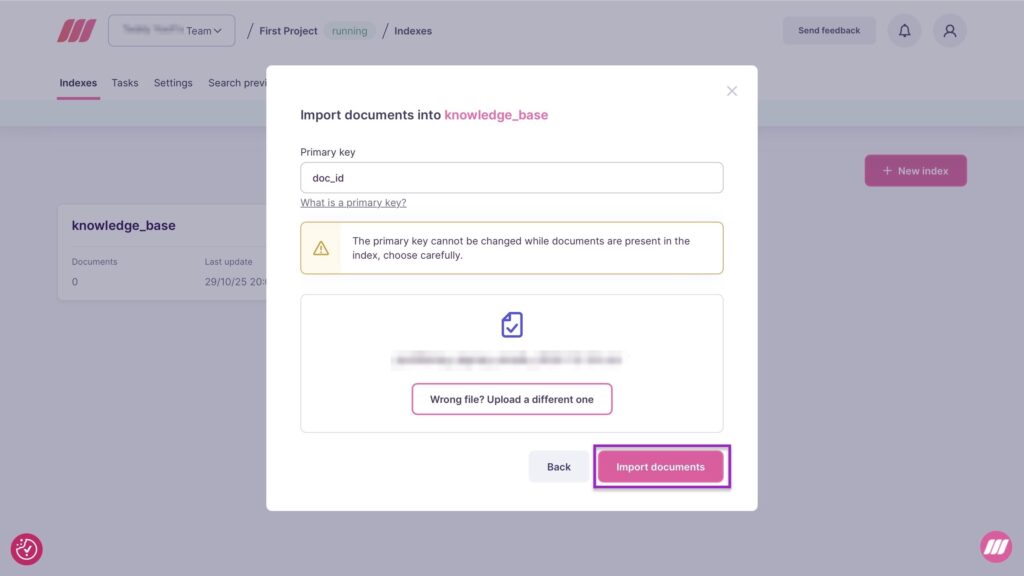
After that, Meilisearch will display your newly created index. You can click the three-dot menu to check its settings, add more documents, or preview it.

2. Analytics
So Meilisearch’s analytics help you understand what users are searching for, so you can fix missing or irrelevant results.
In a few simple steps, I’ll show you what it’s all about.
Click “Analytics” in the navigation bar.
At the top left side of the window, choose to view analytics for a particular index or for all indexes.

You can also view analytics for the past week, month, or quarter.
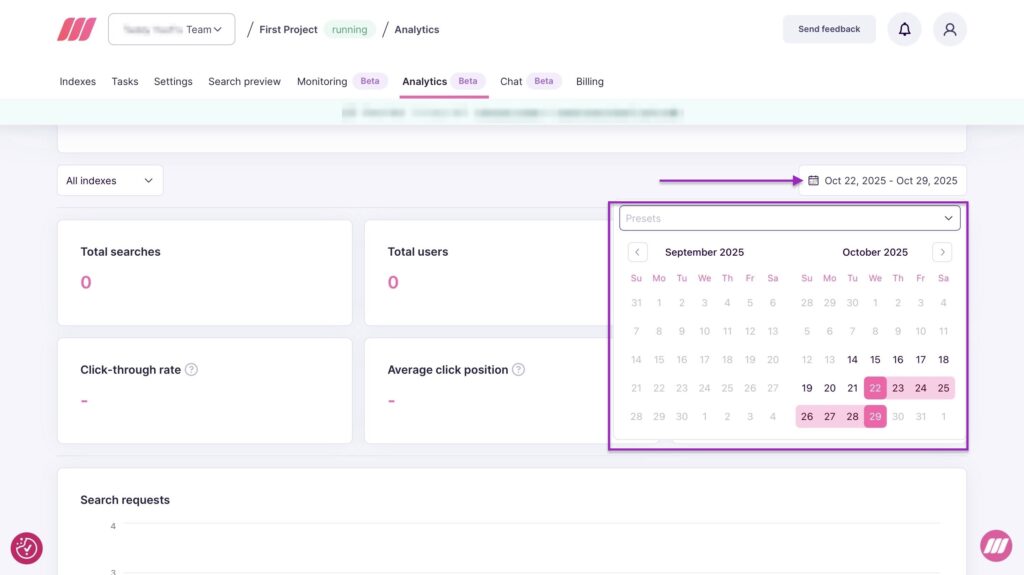
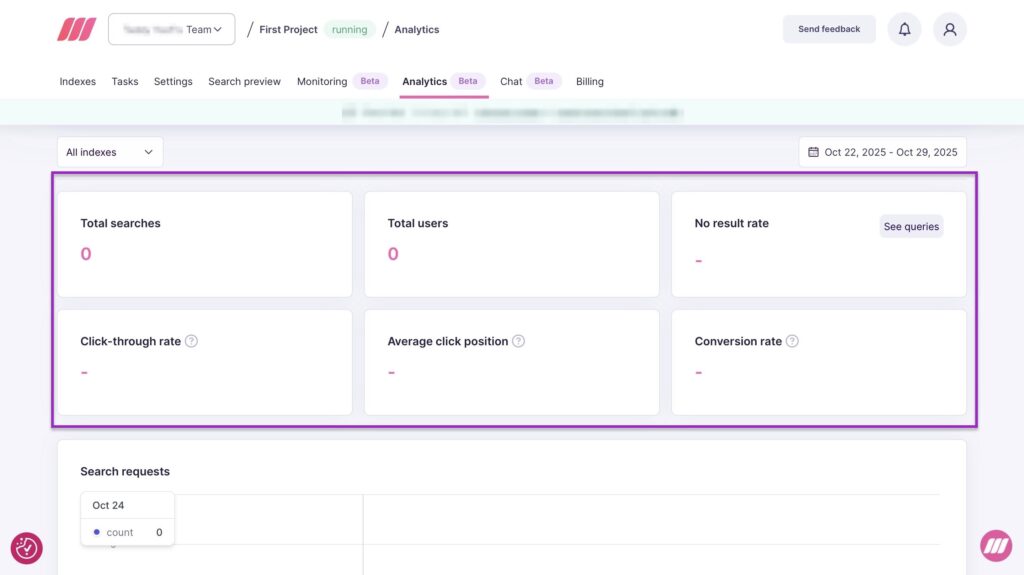
In the same window, you’ll see the total number of searches and users. Right below those are metrics like click-through rate, average click position, and conversion rate.
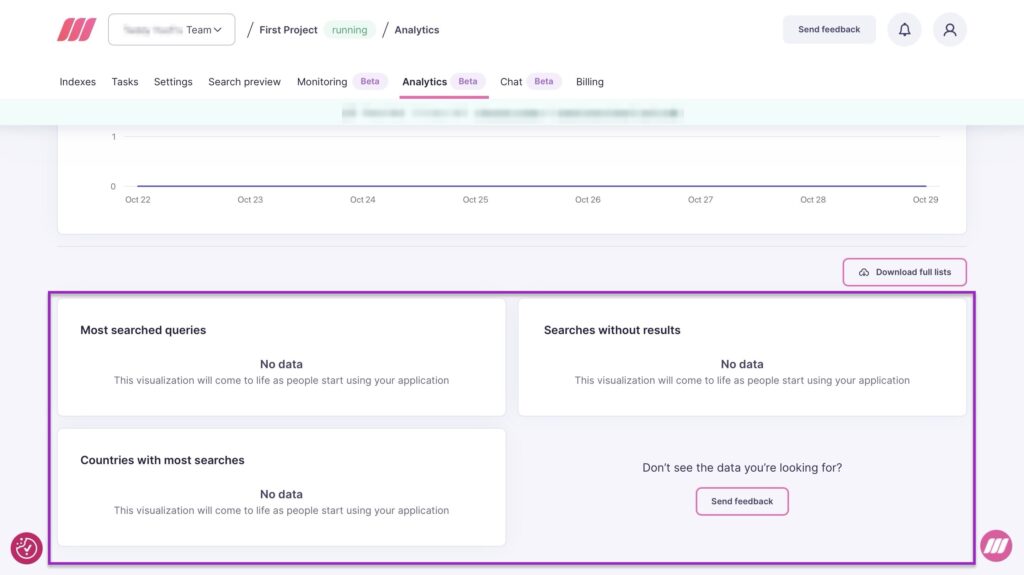
Scroll further down to see your index’s search requests. You’ll also see the most common queries, searches with no results, and countries generating the most searches.
3. Monitoring
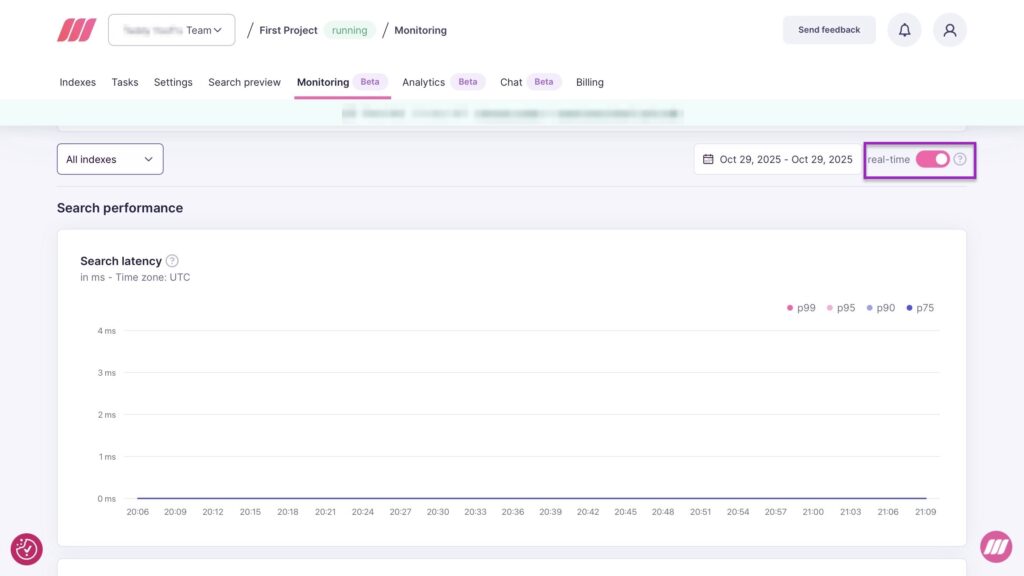
Now, one of Meilisearch’s selling points is its speed. So its Monitoring feature lets you track search latency and other important metrics.
To do this, just click “Monitoring” in the navigation bar.
You can then monitor the metrics of an index or all indexes.

Toggle the switch in the top-right corner to have Meilisearch fetch new data every ten seconds.
Scroll further down to view data on internet usage and API calls.

What I enjoyed vs what gave me a hard time
| What I enjoyed 👍 ✅ It works well with many programming languages, like Python, Ruby, Go, JavaScript, and more ✅ Meilisearch is open-source, so you self-host it, giving you control over data and costs ✅ You can find results instantly even as you type |
What gave me a hard time 👎 ❌ I realised that Meilisearch is not plug-and-play, so IT teams may need some expertise |
Best For
- Small and medium IT teams that want a fast and customizable search over their data.
Pricing
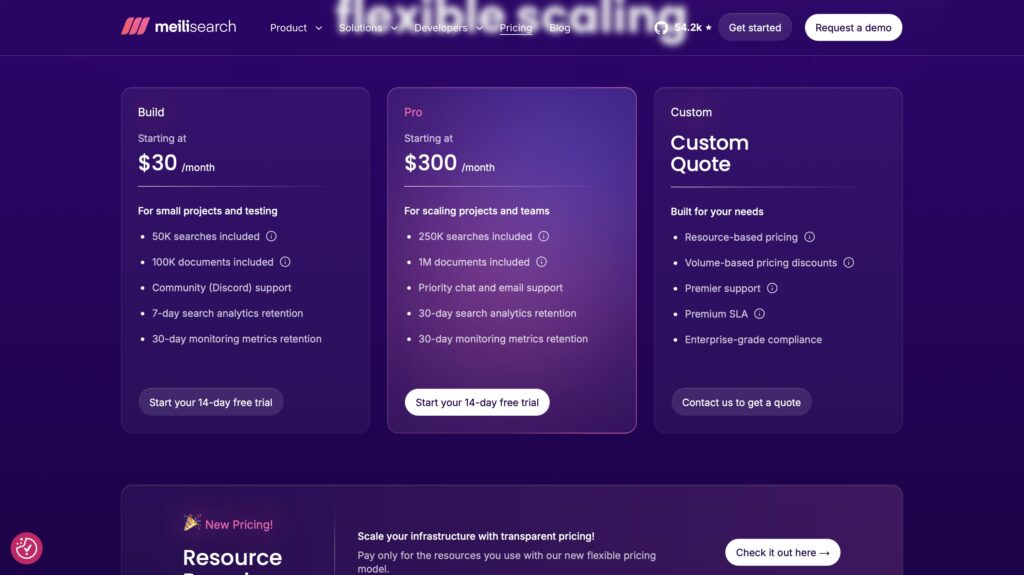
- Build: $30/month
- Pro: $300/month
- Custom: Contact for pricing
5. GoSearch
| My rating: ⭐⭐⭐⭐ 4/5 stars Base price: $0/user/month Integrates with: Slack, Microsoft Teams, Gmail, Outlook Calendar Best for: Small and Mid-sized businesses |
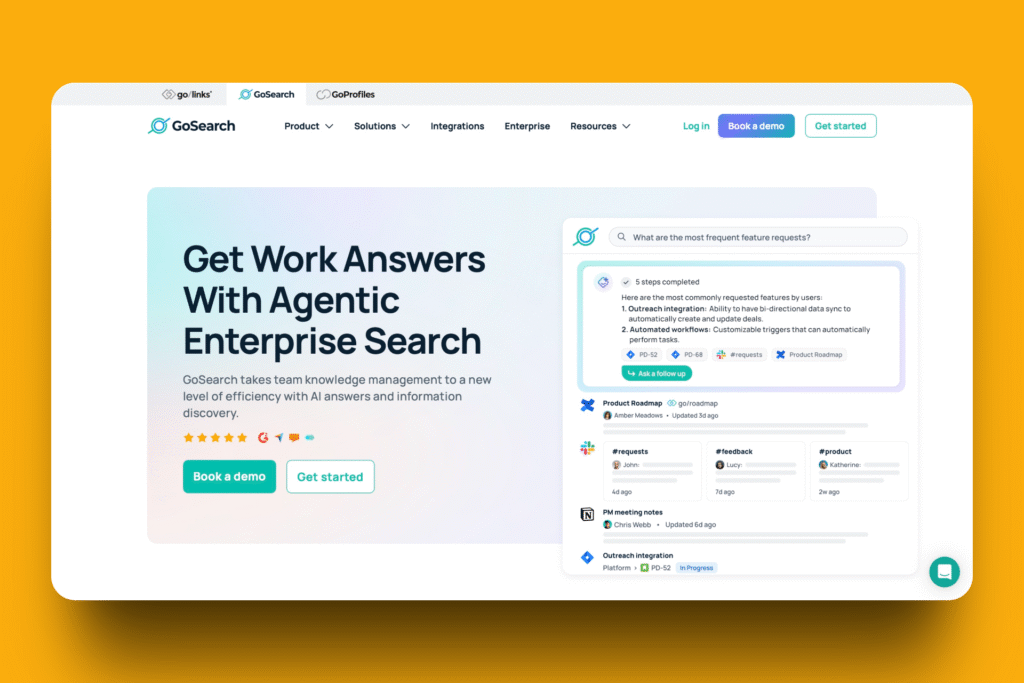
GoSearch is another lightweight Glean alternative that offers AI-assisted enterprise search.
It’s a hybrid because, apart from offering AI-assisted search, it also functions as a knowledge management platform.
For example, it lets you upload files that GoAI can search and summarize if a user makes that request.
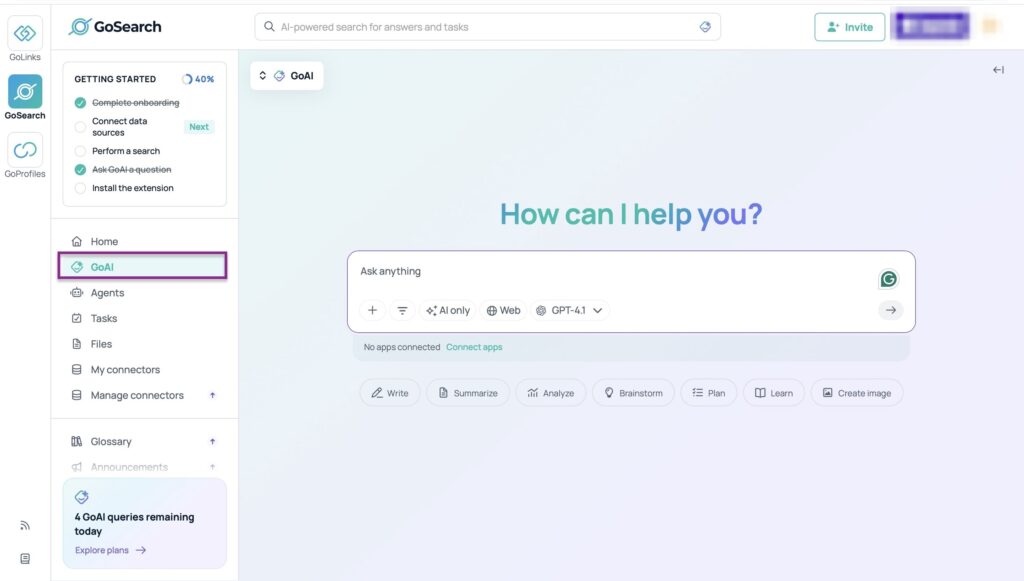
GoSearch’s GoAI lets you ask anything about your workplace and how to use GoSearch. You can also use it to brainstorm, plan, learn, create images, and more.
Thanks to its Agents feature, you can create AI agents. You can also use its unified search bar for everything you work on.

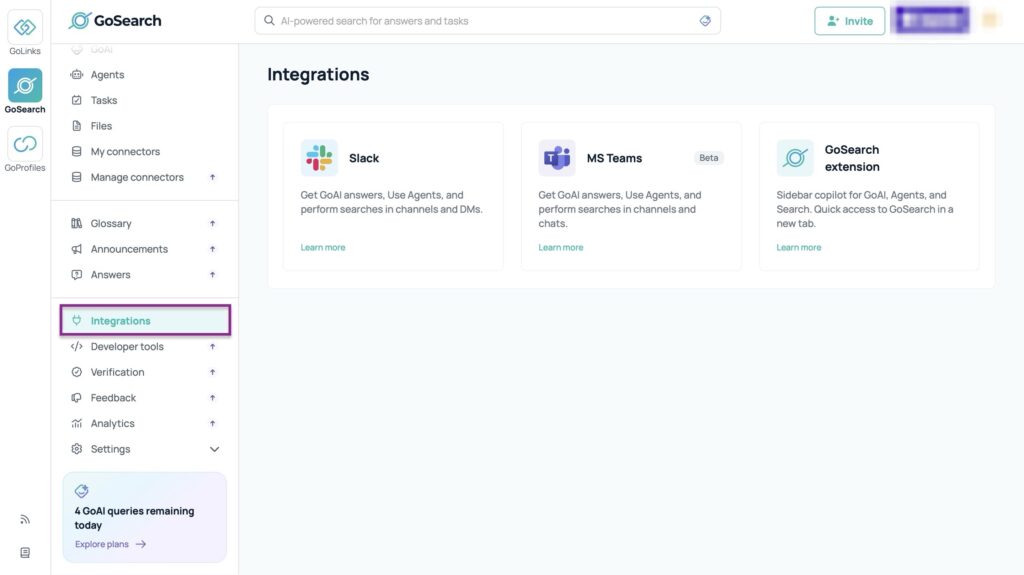
The Integrations feature allows you to connect GoSearch with other tools. You can connect GoSearch with Slack, Microsoft Teams, and the GoSearch extension.
With GoSearch’s Tasks, you can schedule tasks and automate them. You can also search for tasks and get reminders for key events and deadlines.

Key Features
1. Agents
Like I mentioned earlier, GoSearch’s Agents feature lets you create AI agents for yourself or your team. When I tested this tool, I realised you can sort your agents by name or creation date.
But for starters, let me show you how to create an agent on GoSearch.
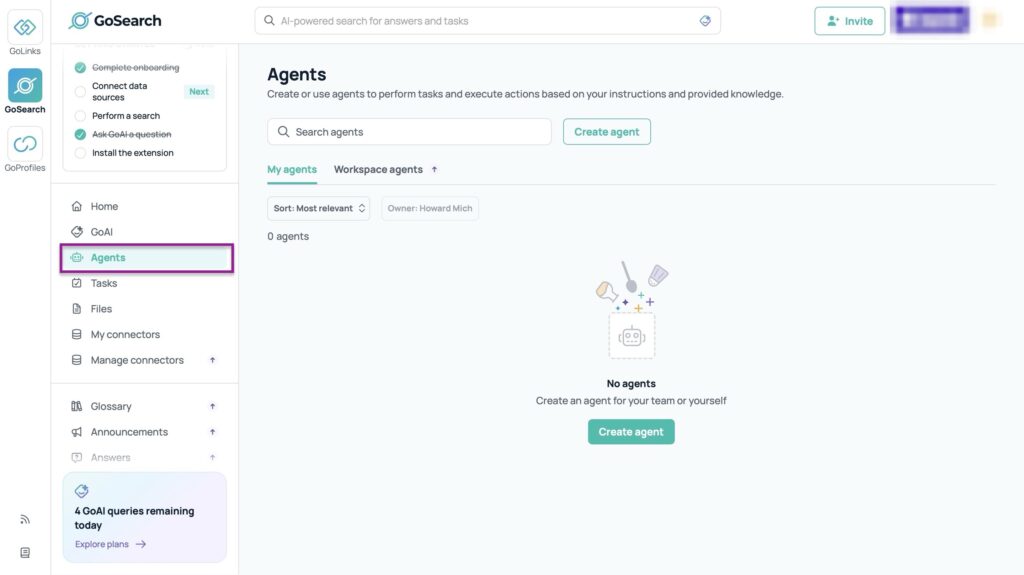
First, select “Agents” in the sidebar and click “Create agents.”
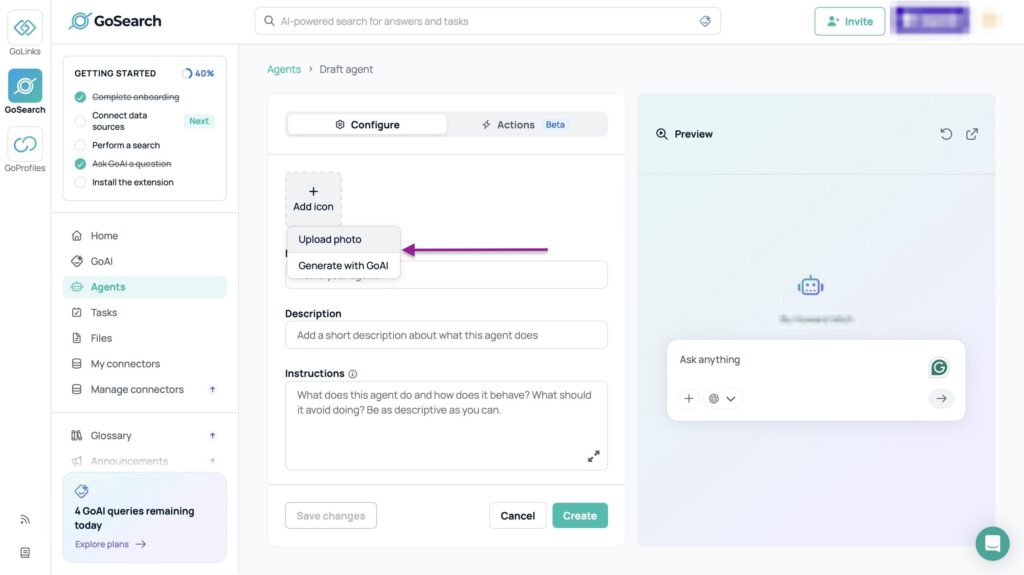
In the new window, start by adding an icon that will help you recognize the agent we’re creating.
You can either upload a photo or generate one with GoAI. You just have to click “+ Add icon” and make that choice.
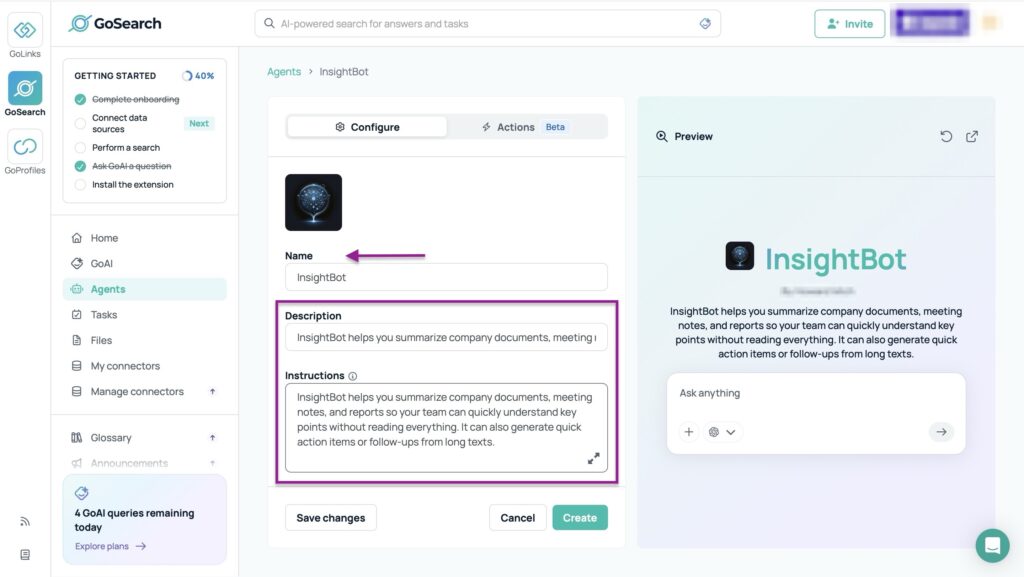
Next, enter the AI agent’s name and add a short description with some instructions.
From here, scroll down and add a “Conversation starter.” They’re prompts you’ll use to begin your conversations with the agent you’re creating.
For example, I wrote this prompt: “Can you summarize our last team meeting and list the top 3 action items?”
You can add more conversation starters by clicking “+ Add more”.

Now, select which AI to use. Aside from the default, other available models are ChatGPT, Gemini, and Claude.
Choose who will use the agent you’re creating. It could be you or your team.
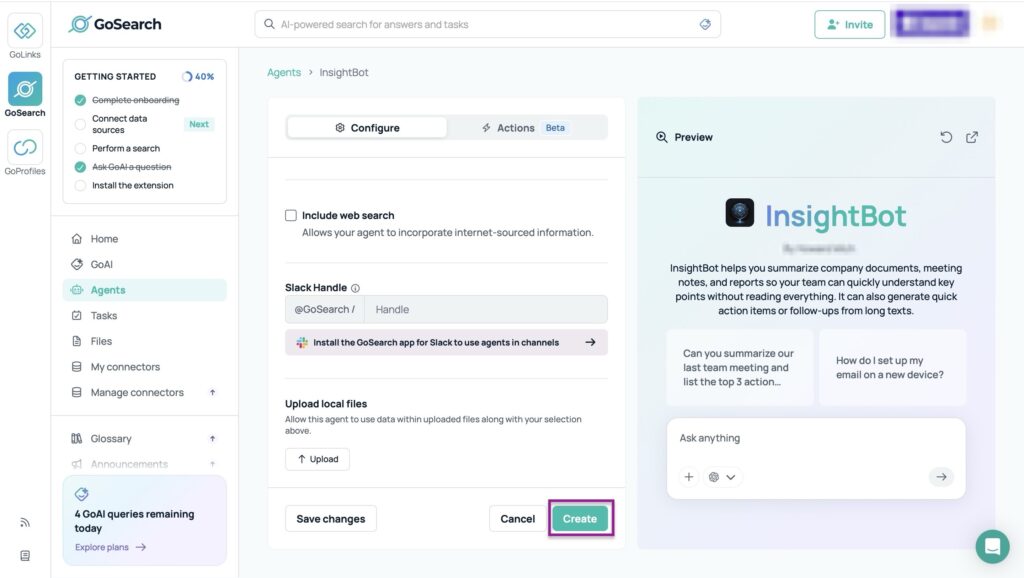
After that, select the data sources your agent will use. Then scroll down to enter your Slack handle.
You could also upload files from your computer, which the agent can use for the search. Once you’ve done this, hit “Create” to finish.
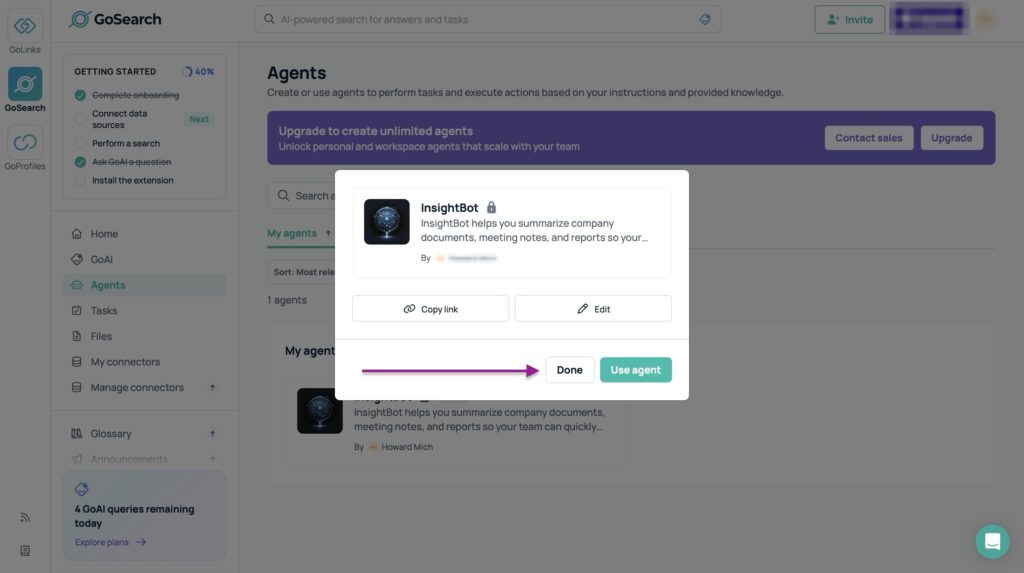
A pop-up window and toast notification will confirm that you’ve created a new agent. Also, GoSearch will now display the new agent in the Agents feature window.
2. GoAI
GoSearch’s GoAI feature is an assistant that can answer any work-related questions you have. It can also help you write, brainstorm, plan, summarize text, learn, and more.
This is how you can get started using GoAI.
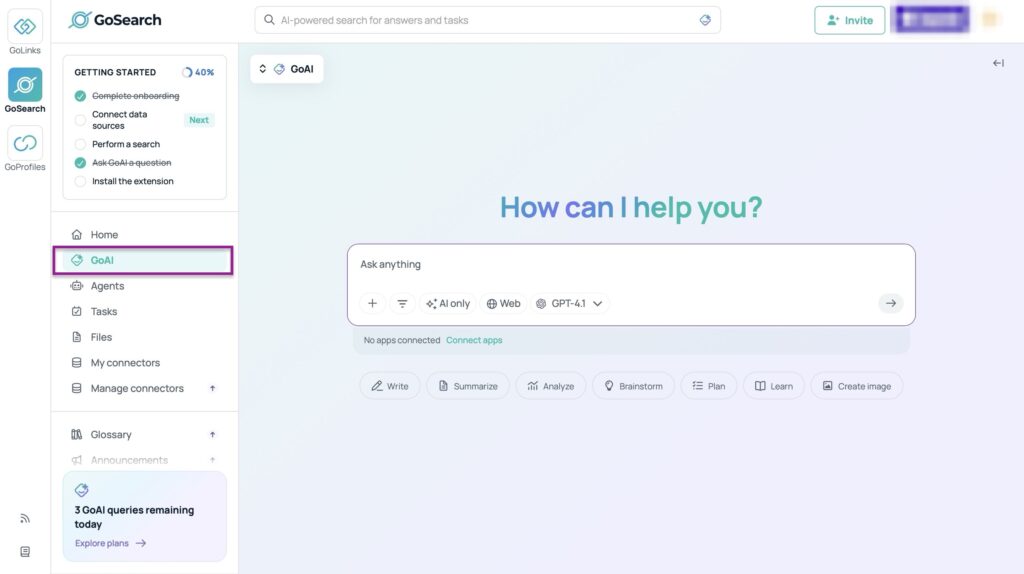
Click “GoAI” in the sidebar.
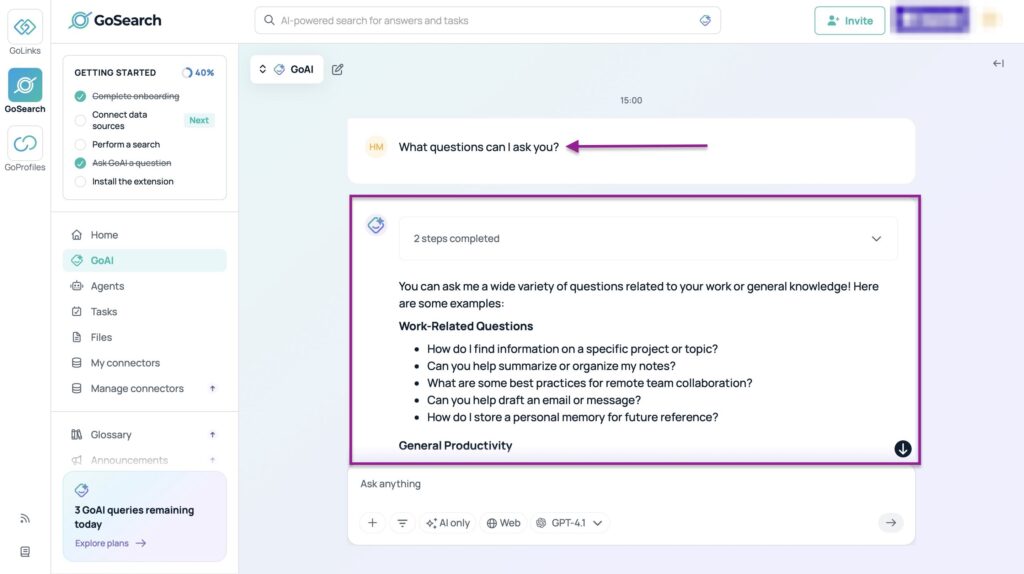
Now, you can type any prompt. For this demonstration, let’s go with the prompt “What questions can I ask you?” and hit “Enter” on your keyboard.
If you’d like GoAI to write an email you can send to leads or a thank-you note, click the “Write” button. It’s right under the text area.
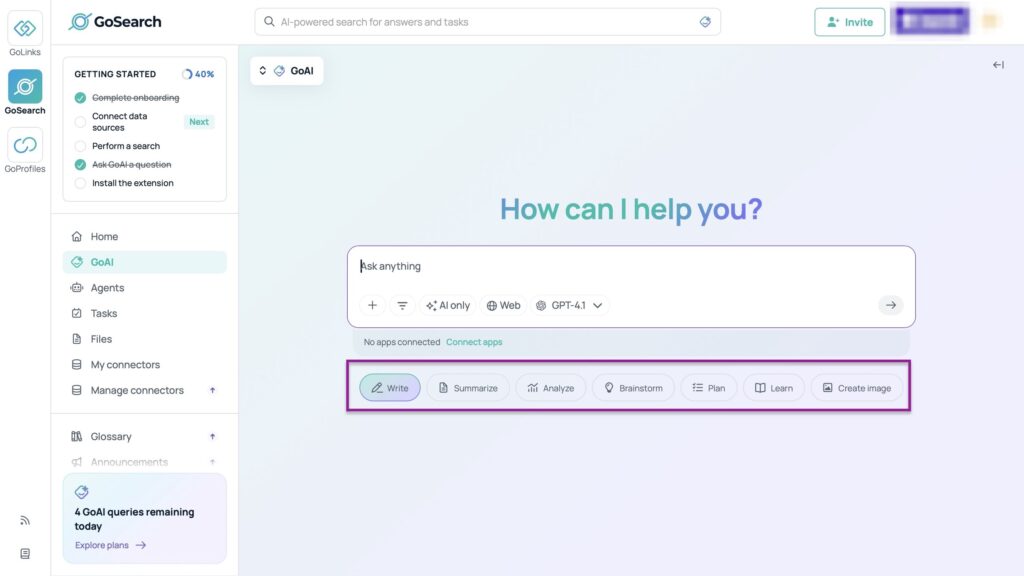
Then, select a prompt from the options or write an entirely new one. You just have to begin with the keyword “Write.”
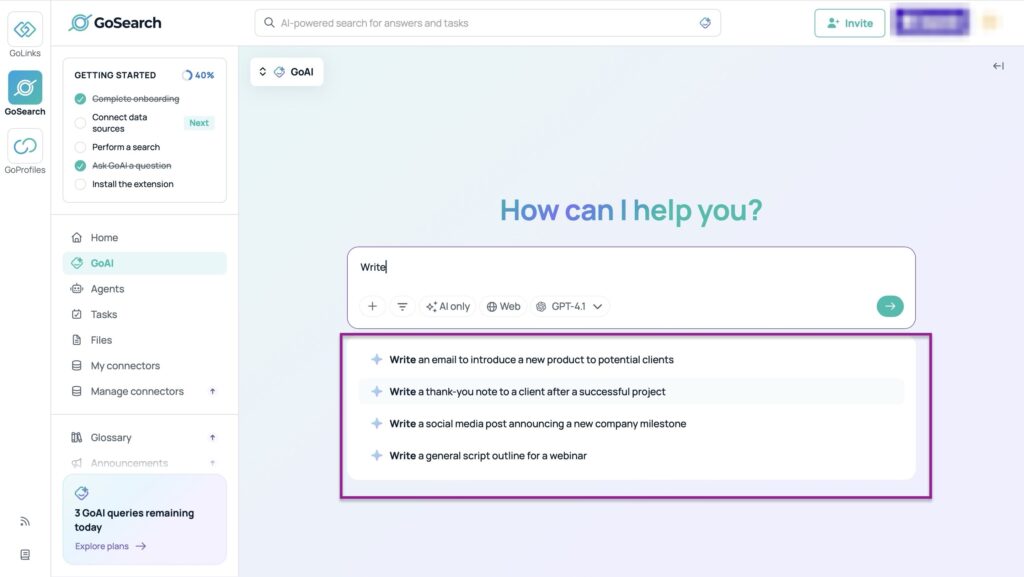
You can do the same thing with the other buttons. Let’s take “Analyze” for example. You can click it and either select the options that appear or write a new one.

3. Integrations
The Integrations feature in GoSearch lets you connect external tools and data sources. Slack, Microsoft Teams, Google Drive, and Google Calendar are a few of them.
When you first sign up, you can connect a few tools right from the homepage.
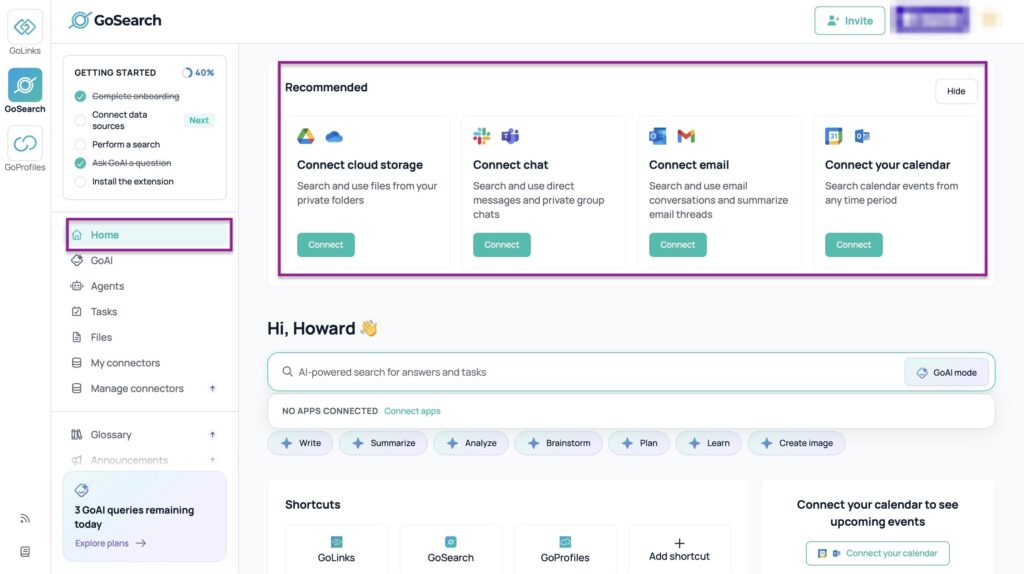
But for a dedicated feature just for this, scroll down and click “Integrations” in the sidebar. Next, choose a tool to connect GoSearch with. In this case, that’s Slack.
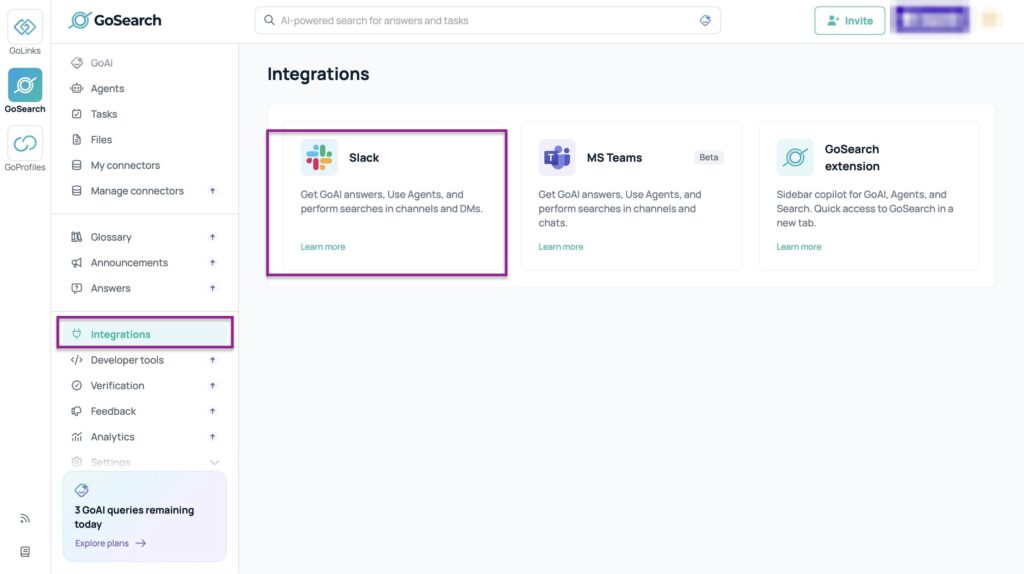
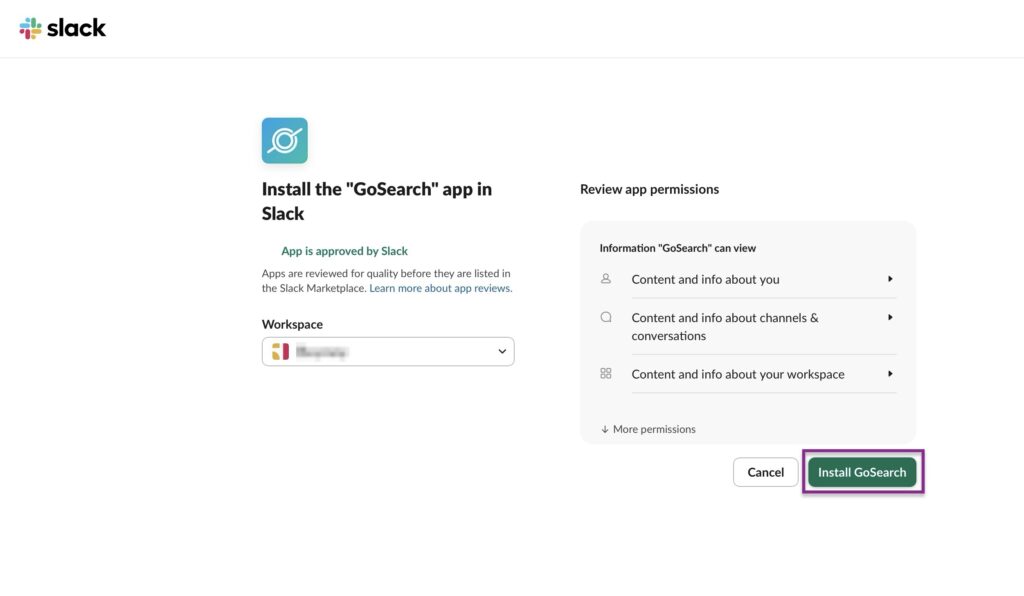
After you’ve selected “Slack,” click “Connect” at the top right corner.

In the new window, install the GoSearch app in Slack by clicking “Install GoSearch.”
From the listed Integrations, you should now see “Connected” beside Slack.

What I enjoyed vs what gave me a hard time
| What I enjoyed 👍 ✅ Allows you to upload files or connect your sources, then uses the team’s data to answer questions ✅ Finds answers using natural language and not just keywords ✅ GoSearch integrates with 100+ apps like HubSpot, Linear, Salesforce, Figma, NICE CXone, and more ✅ It offers a free plan with no credit card required, which makes it easy for teams to test and explore before committing |
What gave me a hard time 👎 ❌ Integrations with most tools, like Asana, Coda, GitHub, Confluence, Jira, Notion, Box, and more, are only possible with higher plans |
Best For
- Small and mid-sized businesses that want enterprise search without a heavy IT setup.
Pricing
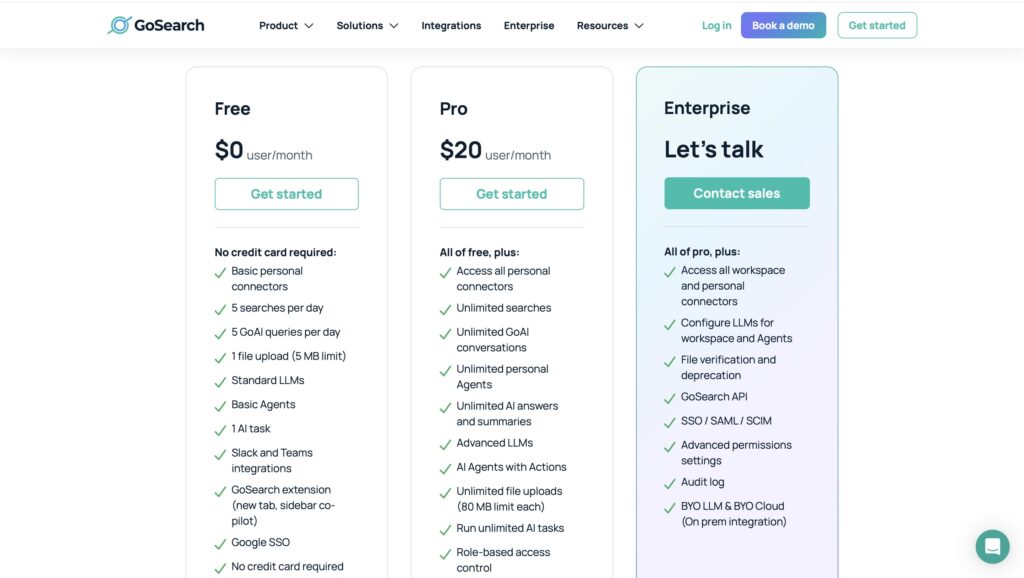
- Free: $0/user/month
- Pro: $20/user/month
- Enterprise: Contact for pricing
6. Guru

| My rating: ⭐⭐⭐ 3.5/5 stars Base price: $25/seat/month Integrates with: Slack, Zapier, Workato, Chrome Extension Best for: Medium and large businesses |
Guru is an AI-powered knowledge (or information) management platform. It helps teams manage, organise, and find company information easily.
In Guru, this knowledge or information is stored as “cards.”
Cards are basically digital notes, text, images, videos, and more. You can create cards from scratch or by using templates.
Teams can use cards to track HR rules, onboarding steps, and instructions to certain tasks.
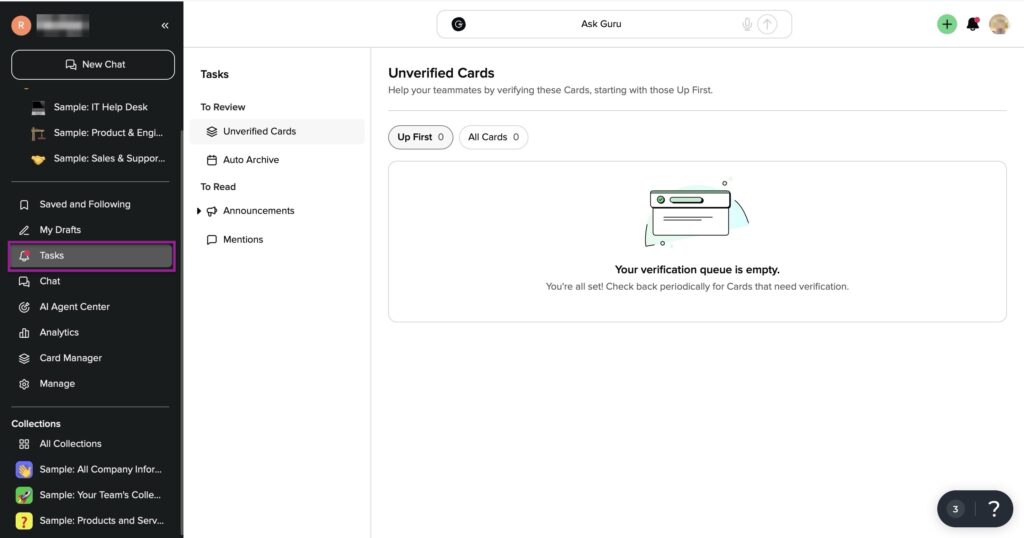
Using Guru’s Task feature, you can review or auto-archive unverified cards. You can also read, schedule, or send announcements and check mentions.
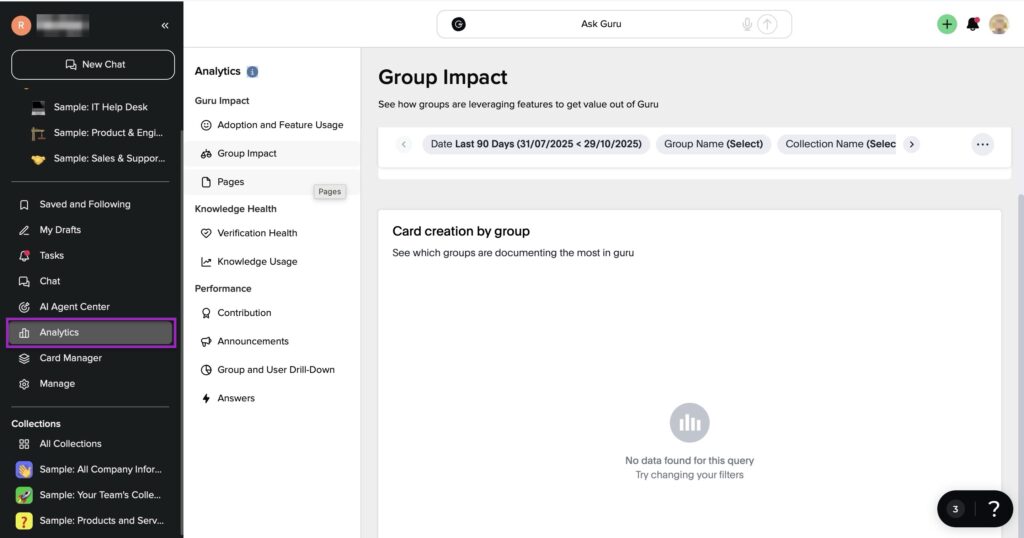
Guru’s Analytics lets you measure your team’s performance. It also shows individual and group performances. So, you can assess whether Guru is giving you the results you want.
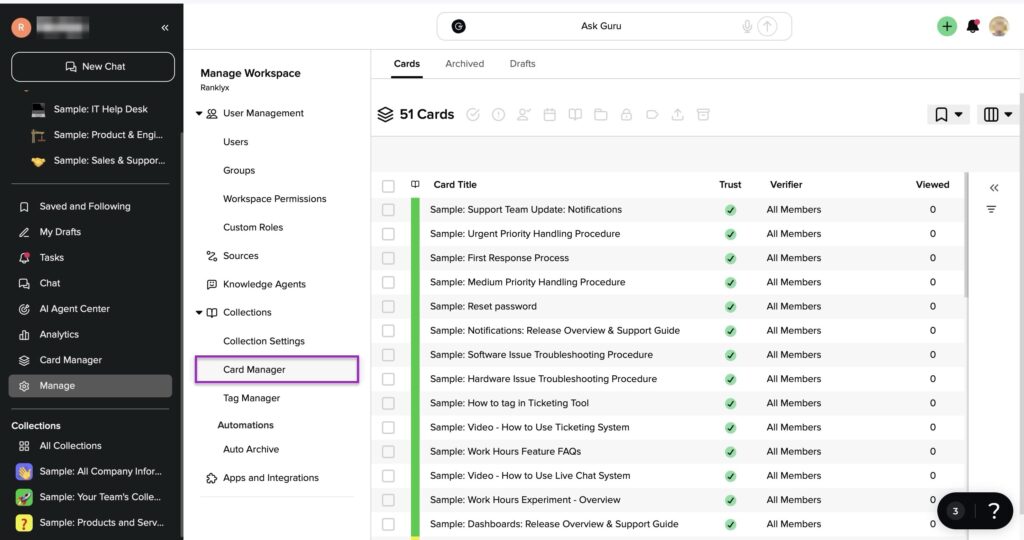
Thanks to Guru’s Card Manager, you can view, organize, update, and manage all the cards in one place. You can also edit, verify, or archive outdated cards.
With its Chat, you can ask Guru’s AI agents simple questions. You can toggle the switch beside “Research mode” for AI to pull citations from trusted and existing cards.

Key Features
1. Analytics
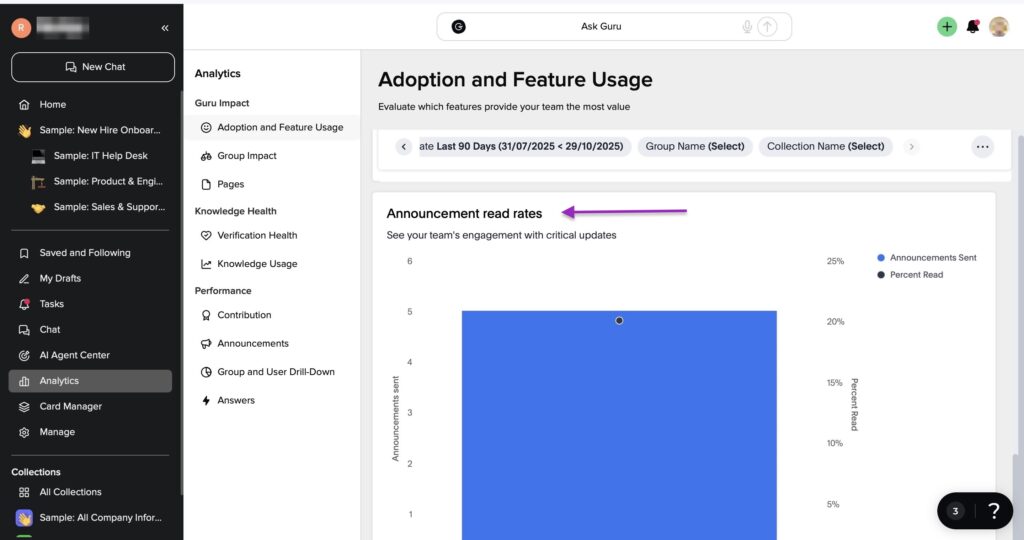
Guru’s Analytics shows you which features provide the most value and how groups are engaging with them. For instance, how often your team views, verifies, and updates cards.
Let me show you how you can use Analytics.
Click “Analytics” in the sidebar. This automatically opens a new window where you can view the total adoption rate of Guru. In other words, it shows how much of Guru your team is actually using.

You can scroll down to view where your team is using Guru.

Now, scroll down again to view how your team adopts the tool over time.

Finally, scroll further down to view the team’s “Announcement read rates.” This metric shows how they engage with announcements and mentions.
2. Card Manager
The Card Manager feature is for organizing, viewing, verifying, and archiving cards.
Let me show you how to do this.
Click “Card Manager” in the sidebar.
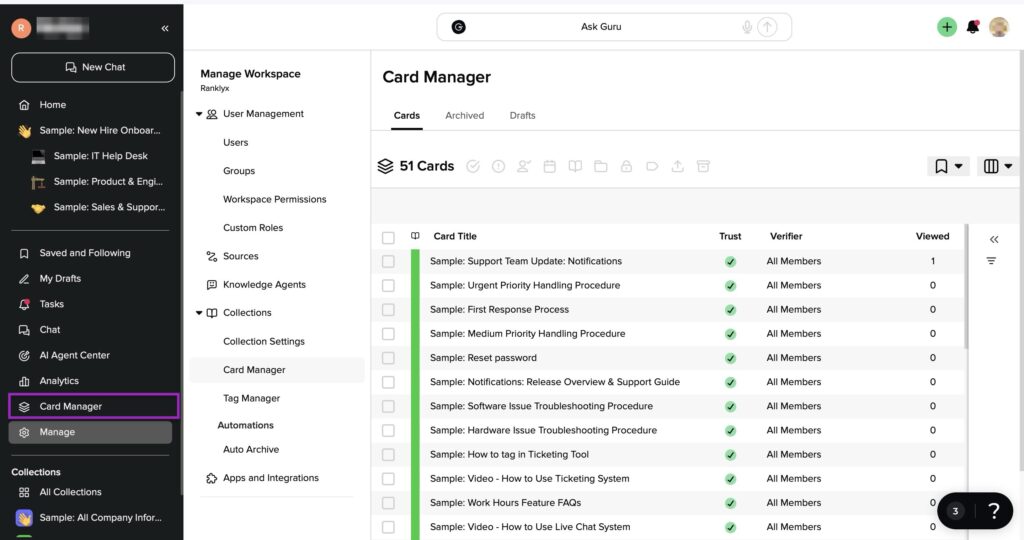
Now, click on any checkbox to select one or more cards.
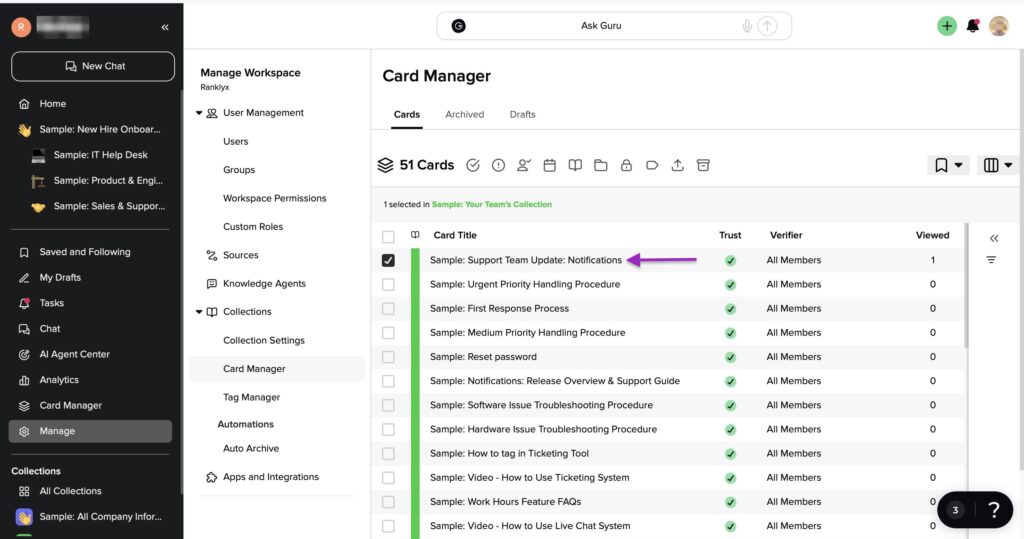
After that, hover the cursor on the icons at the top of the card list. You can click any of the icons to perform particular actions.
From left to right, you can:
- Verify cards
- Unverified cards
- Change verifier
- Change the interval of card verification
- Move card to collection
- Add or remove a folder
- Control card’s privacy and sharing
- Tag users
- Export cards
- Archive them
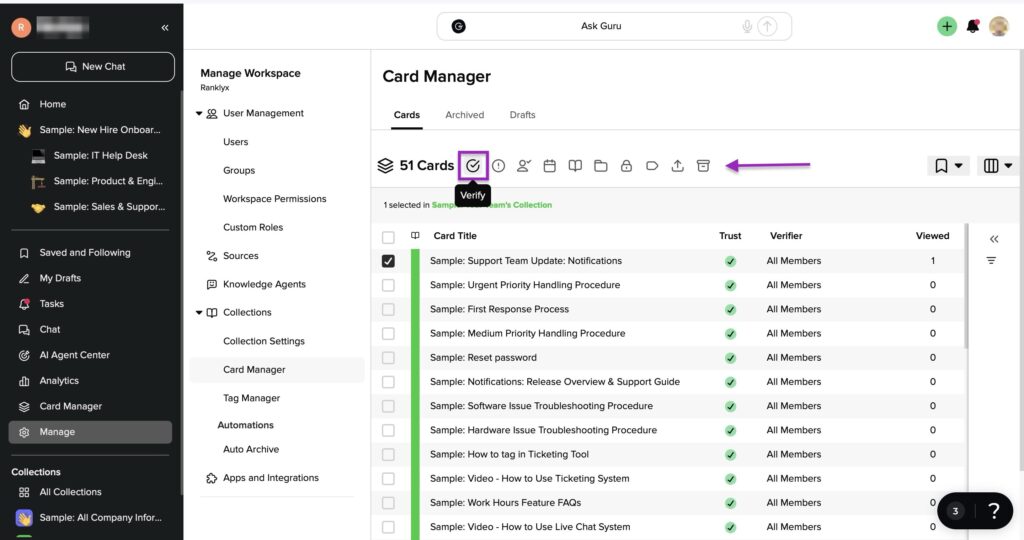
Let’s say you want to verify a card. Just click the verify icon. Then in the pop-up window, select “Verify Card,” and it’s done.

3. Tasks
Teams use the Tasks feature to keep information (cards) up to date. You can also use this feature to send announcements or cards to teammates.
Let me show you how.
Click “Tasks” in the sidebar. Now, select “Announcements.” Next, click “+ Send an announcement.”
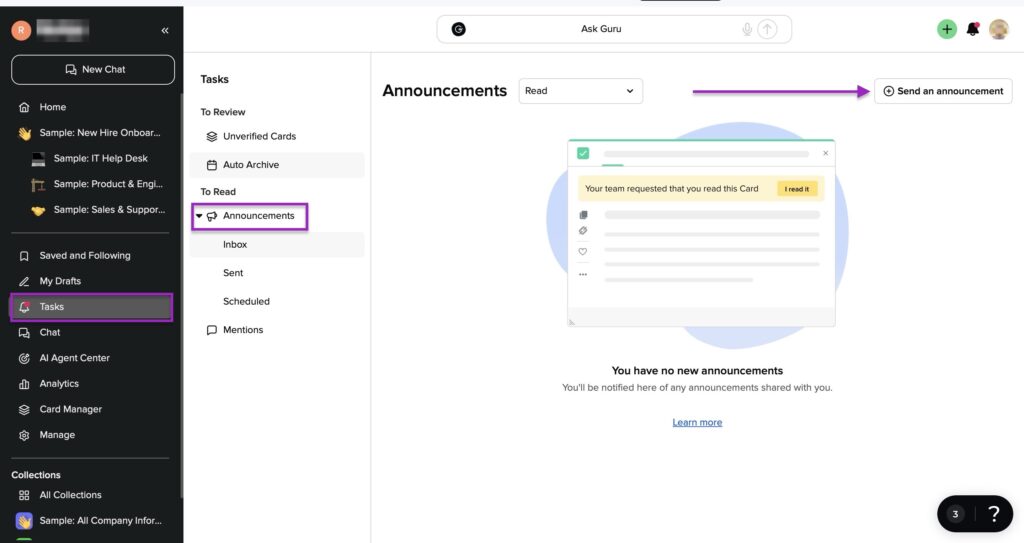
Search for the card you’d like to send. After that, select who to send it to.
Then, add a note. Next, click the caret symbol to schedule when the feature automatically sends the announcement out.
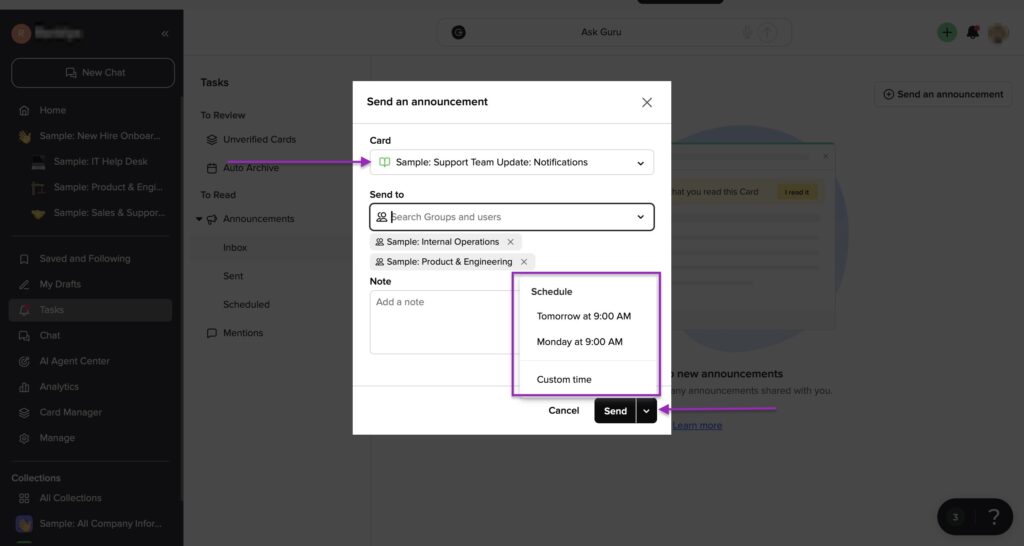
Now, because I scheduled this announcement, Guru will display it in the Scheduled window.

What I enjoyed vs what gave me a hard time
| What I enjoyed 👍 ✅ It integrates with popular tools like Slack, Microsoft Teams, Airtable, Gusto, and more ✅ Experts can approve (verify) cards/content, so it’s reliable ✅ Guru is relatively affordable with a plan starting at $25/seat/month ✅ It offers plenty of tutorials for beginners, so your team can easily learn how it works and get up to speed quickly |
What gave me a hard time 👎 ❌ Search may require precise keywords or phrases, so users may struggle to find information ❌ Because pricing is per-user (seat) based, it can be expensive as your team grows in size |
Best For
- Medium or large businesses that need verified, trusted internal knowledge management platforms.
Pricing
- Self-serve: $25/seat/month
- Enterprise: Contact for pricing
What to Look For in a Glean Alternative
When looking for a Glean alternative, you should consider the tool’s:
- Integration with major workplace apps
- AI contextual understanding
- Security and compliance
- Ease of setup and administrative control
- Pricing flexibility or scaling teams
Now, let me explain each factor in detail.
1. Integration with major workplace apps
You should consider integration with major workplace apps when looking for Glean alternatives.
After all, your team already uses apps like Google Drive, HubSpot, Notion, Microsoft Teams, and more.
When a tool fits naturally into their daily workflows, your team is more likely to use it. Plus, integrations also protect data by keeping original app permissions intact.
Now, to really understand integrations, let’s look at what CustomGPT and GoSearch have to offer.
CustomGPT
CustomGPT offers 100+ app integrations.
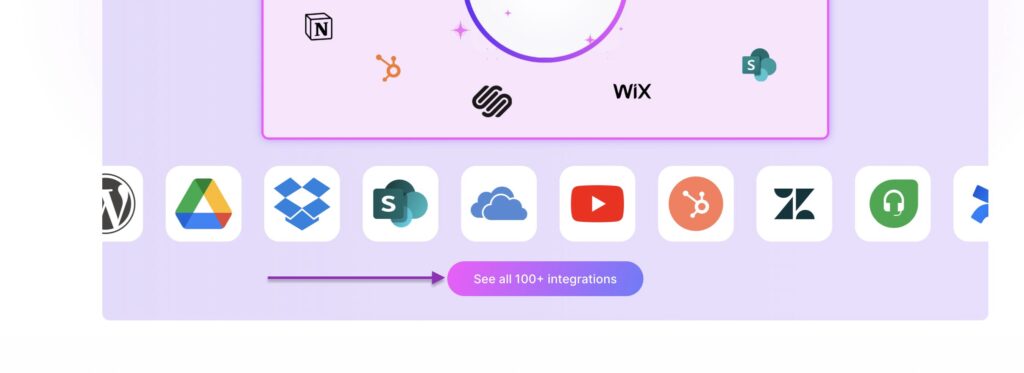
It connects with cloud storage and file systems like Google Drive, Dropbox, OneDrive, SharePoint, iCloud Drive, Amazon S3, and more.
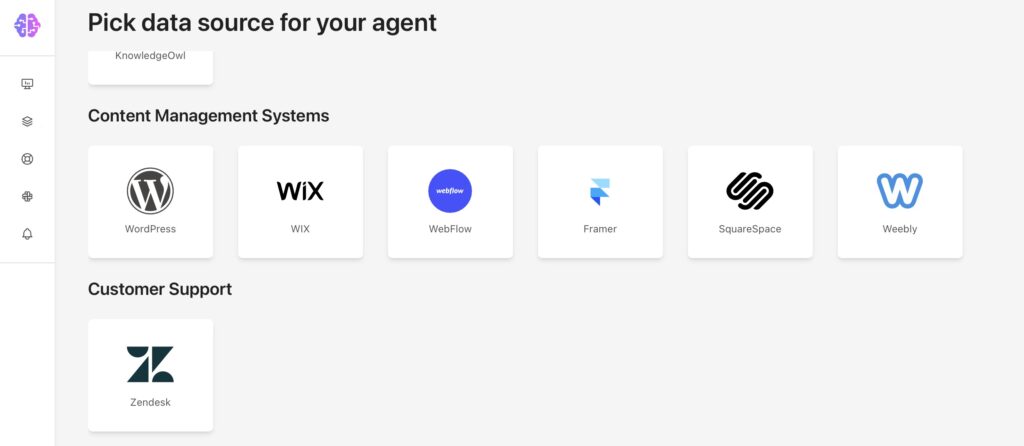
CustomGPT can also index and use content from WordPress, Wix, Squarespace, Webflow, Shopify, Notion Pages, YouTube, etc.
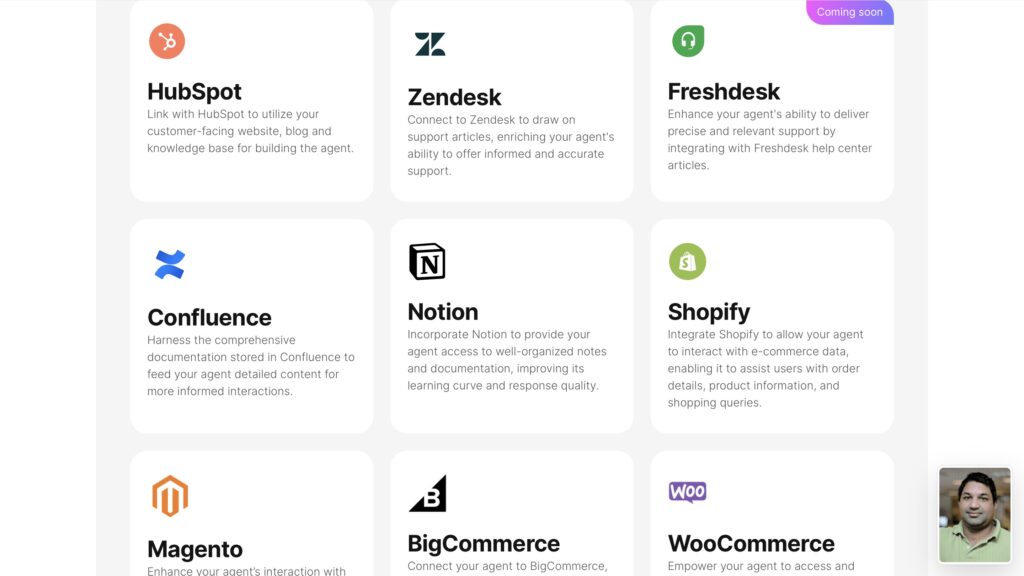
It doesn’t end there. You can connect and train its AI agents on data from Notion, Confluence, Zendesk, HubSpot, Freshdesk, Help Scout, Intercom, and more.
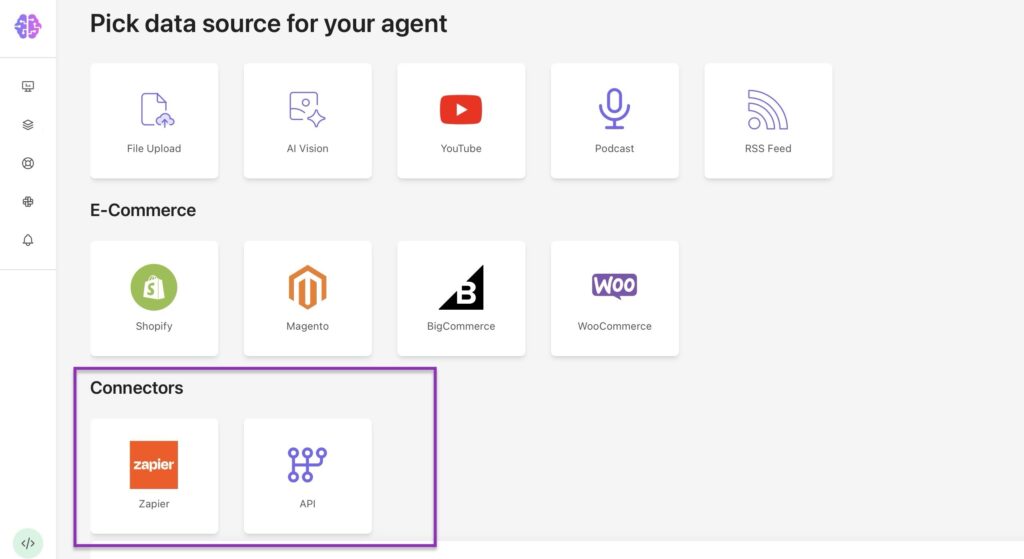
For automation, CustomGPT uses Zapier to connect to Slack, Asana, Airtable, etc.
Finally, IT teams can build or extend CustomGPT using:
- CustomGPT API for data upload and query
- Webhooks for real-time sync
- RESTful API endpoints
- JavaScript SDK
- Python SDK
- Retrieval-Augmented Generation (RAG) API
- Embeddable chat widgets
The best thing about all this is our 1-click integrations feature. You just hit a button, and you’re instantly connected without any technical setup.
GoSearch
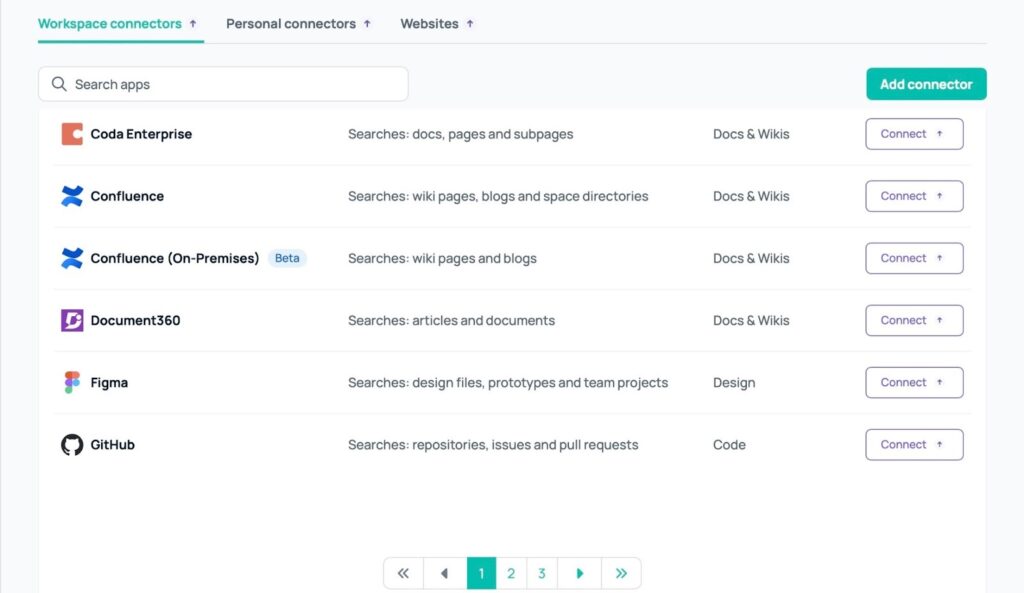
GoSearch also integrates with 100+ apps, but the downside is that you can only access them on higher plans.
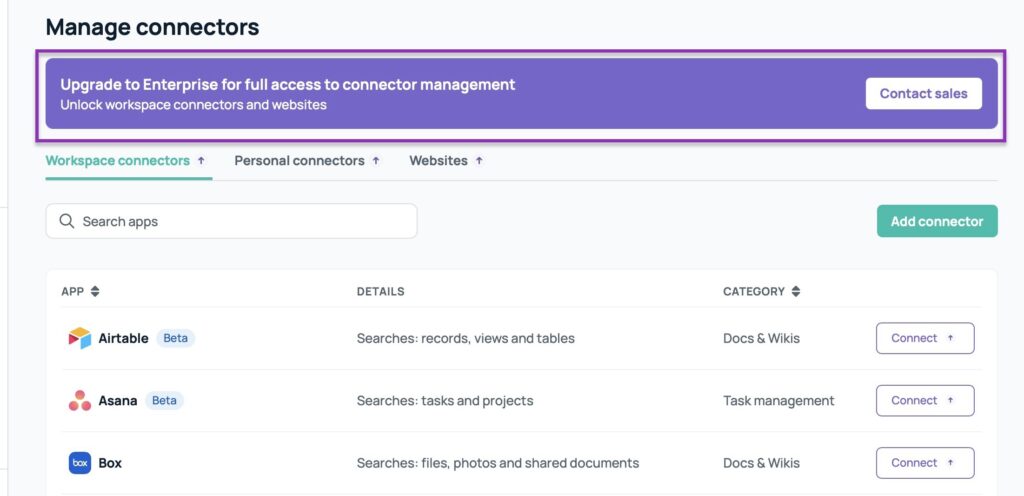
So if you use the Enterprise pricing plan, you can connect GoSearch with major tools like Confluence, Coda Enterprise, Document360, Figma, GitHub, and more.
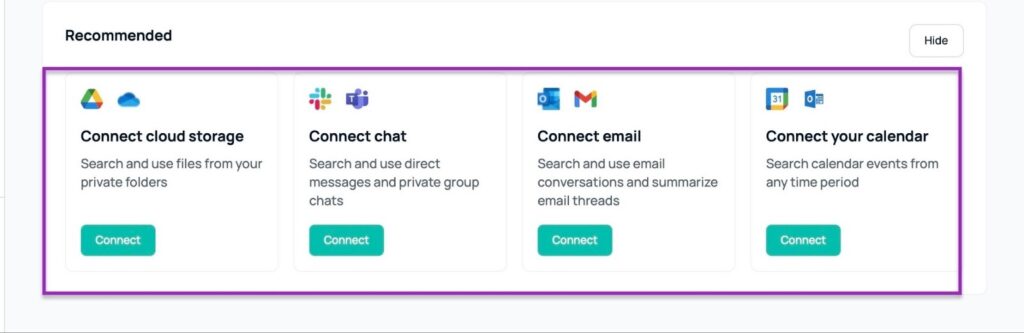
But with GoSearch’s lower plans, you can only connect tools like OneDrive, Slack, Google Calendar, Gmail, and a few others.
So you don’t have to just look at the integrations that a Glean alternative offers. You need to consider if these are major tools and then check if you have to pay more to use them.
2. AI Contextual Understanding
You also want Glean alternatives with AI agents that understand the meaning behind your questions, not just match keywords.
Let me show you one way you can test this. Start by asking the AI agent two similar questions but in a different way, and see if it gives you the same answers.
For example, let’s say your AI agent is an “OpenAI API Compatibility Expert.” So you could ask, “What’s the rate limit for API calls?”
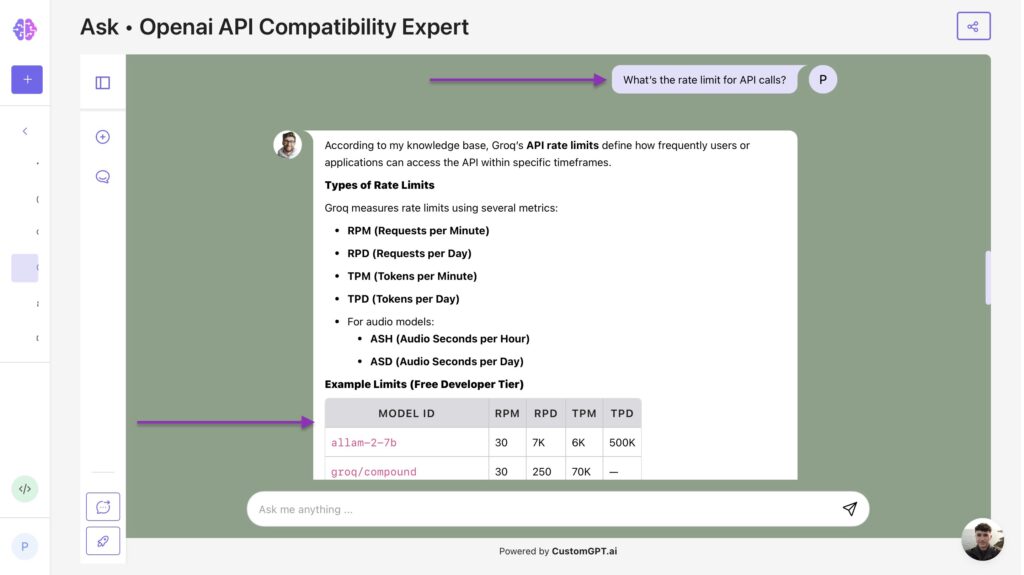
After it gives you a response, you can then ask, “How many requests can I make per minute?”
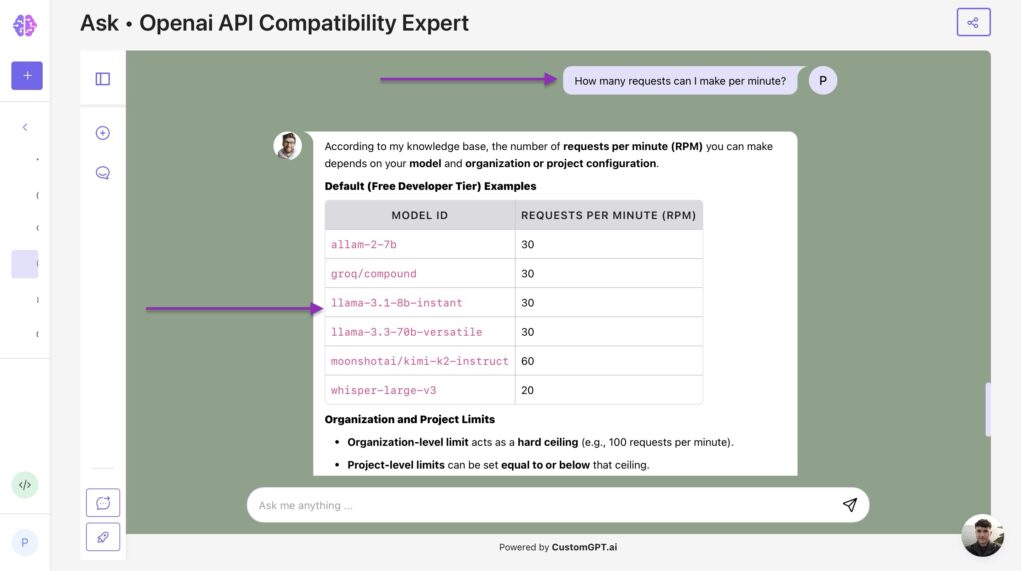
A good AI search tool should give the same answers on both occasions. That shows it understands context.
Of course, the answers don’t have to be word-for-word, but you get the point.
And we can take this further with my next tip, which is to use vague or incomplete questions.
For example, ask “Fine-tune a model” instead of “How do I fine-tune a model?” If the AI agent talks about fine-tuning API, then it’s going beyond wording.

You can also test for implied meaning. For example, using phrases that don’t state your intent directly. That also checks for contextual understanding.
You could ask something like, “How can I stop my requests from timing out?”
The AI agent should understand that you’re asking about API delays or rate limits.

It’s important to check all these before you commit. An AI agent that goes beyond keyword matching will deliver real value to your users.
3. Security and compliance
You should also check the security and compliance of the Glean alternatives. When you use an AI-assisted search engine or a knowledge tool, you’re putting sensitive information out there.
It can be company data, employee information, contracts, documents, emails, and client details.
That’s why you should be absolutely sure that the tool protects your data. How?
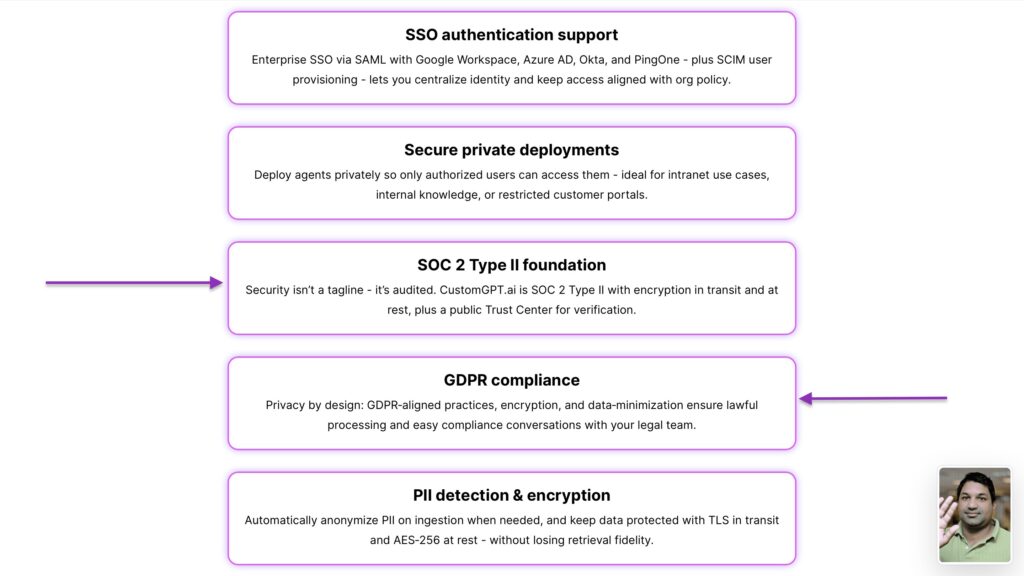
By checking if they follow privacy laws. In other words, by checking if the tools are compliant with laws like SOC 2, GDPR, ISO 27001, or CCPA.
So SOC 2 stands for Service Organization Control 2. It’s simply a security standard that checks how companies protect data that’s stored in the cloud.
SOC 2 can be Type 1 (Type I) or Type 2 (Type II). Type one checks if a company has security systems in place to protect data. Type two checks if the company actually follows those systems over time.
Video: SOC 2 Type 1 vs Type 2: What’s the Difference? | Secureframe
When a company complies with SOC 2’s strict rules covering security, privacy, and reliability, they are given a certification. Companies then display this “badge” to tell potential clients that their information is safe on their platforms.
For example, CustomGPT is SOC Type II compliant. We show this to the public (and our clients) so everyone is assured that their data will be safe and secure on our platform.

Then there’s the EU General Data Protection Regulation (GDPR). It’s a law that protects people’s personal data and privacy.
It’s specific to the people in the European Union (EU) and to companies targeting these people.
The California Consumer Privacy Act (CCPA) is like GDPR, but it’s for people in California. Or for businesses that sell to California residents.
Lastly, the International Organisation for Standardisation 27001 (ISO 27001) is a global standard when it comes to managing and protecting company information.
It basically sets rules on how businesses should identify and reduce security risks.
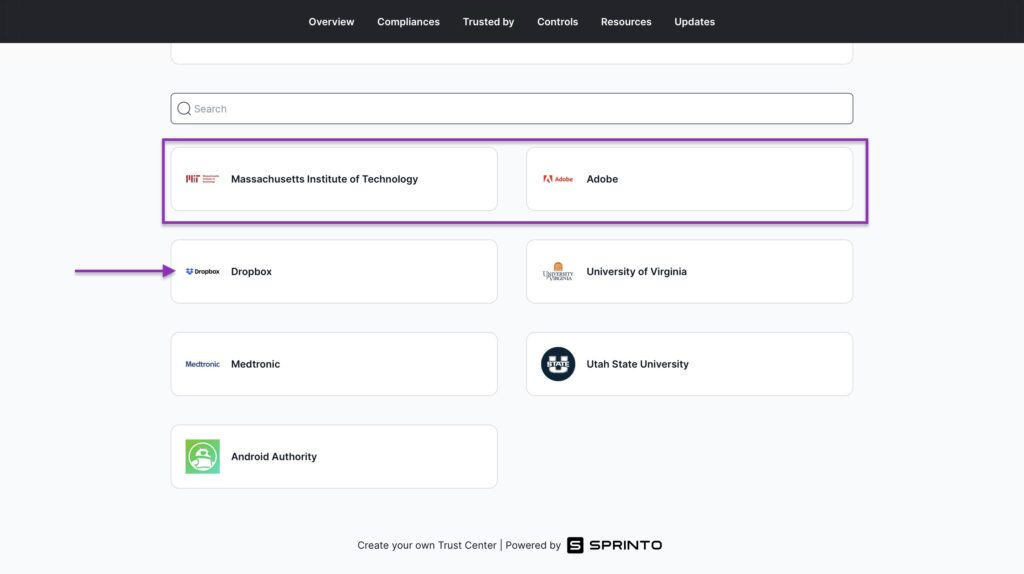
Now, let’s say you’ve checked whether a tool is certified by these organizations. The next thing I’d recommend is finding out who trusts them enough to endorse them.
If it’s trusted by credible names like Adobe, Dropbox, and MIT, then you have a winner.
But you should read the next points because there are two extra factors you need to consider.
4. Ease of Setup and Admin Control
Another aspect to consider in a Glean alternative is its ease of setup and admin control.
If you search “Glean Pros & Cons” on Google, the first con that automatically pops up in the AI summary is “Setup complexity.” Another one is the Learning curve.

But you’re probably familiar with these cons, which are mostly enough to tell you that ease of setup must be non-negotiable.
Imagine having your team watch endless tutorials just to understand how to set up your Glean alternative. This is a total waste of time that could be used for something very useful.
Meanwhile, when your enterprise search software is easy to set up, it:
- Saves time
- Makes teams less dependent on technical support
- Encourages more people to use it
At CustomGPT, we made it a priority. You won’t need 5 minutes from signing up to creating your first AI agent.
And with a few clicks, you can integrate Google Drive, Notion, Slack, or your internal databases.

Now, regarding admin control, you know how sensitive your company data is. Therefore, you should be able to monitor access and permissions.
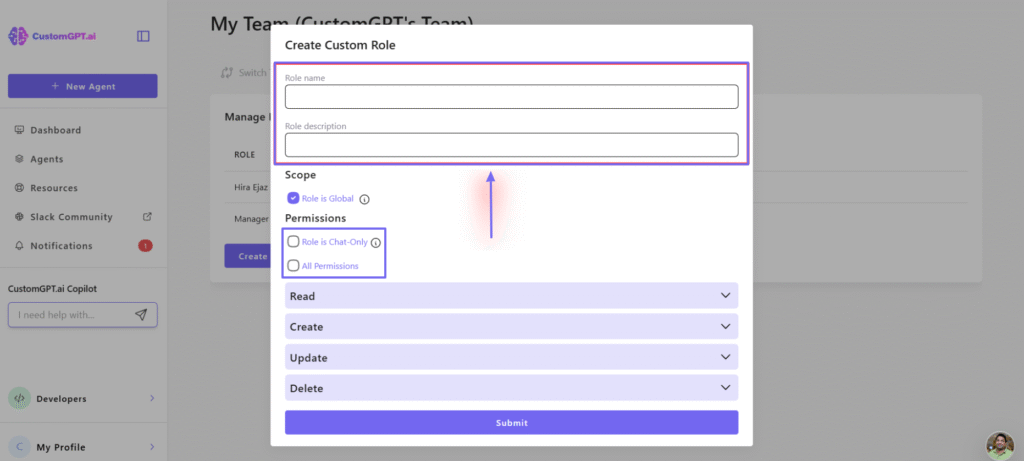
For example, as an admin, you can allow selected team members to create and manage their own personal agents.

You can also create custom roles and specify the permission level. It can be set to “Chat Only” or “All Permissions”.
Now, if you really care about the sensitivity of your documents, you must also control it.
For instance, anytime you upload a file, you can allow the platform to delete it immediately after processing it. This prevents other members from accessing it.
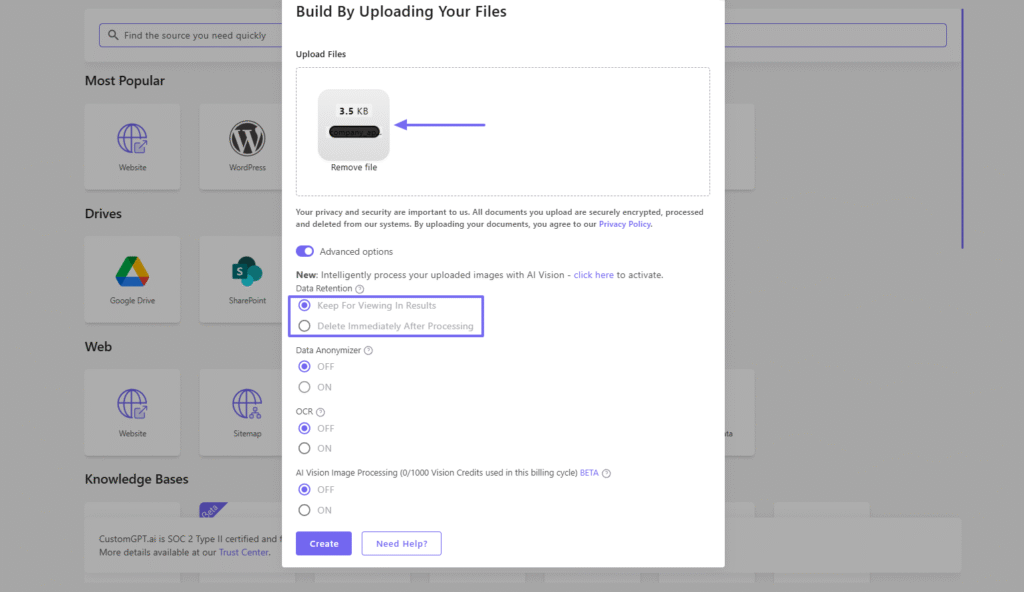
Ease of setup and Admin control must be a priority when choosing your Glean alternative. A wrong choice and it may cost your enterprise a lot.
5. Pricing Flexibility for Scaling Teams
This is probably the last factor I will touch on, but certainly not the least.
As you try to scale your business, you don’t want your software bill to suffocate you. You want your tool to adapt to your growth.
As I mentioned before, Glean pricing is not public, but some reports like GoSearch reveal that the platform follows a per-user, per-month pricing model. According to that report, the cost starts around $50 per user, per month.
This means, if you’re running a startup of 10 team members, you will probably spend around $500/month. And the price can still vary depending on the number of integrations, level of customizations, and features, among others.
Now, you have another platform like Elastic Enterprise Search. Its Standard tier costs $99/month.
It offers API, data access with the Elasticsearch Query, and a distributed Search AI Platform across AWS, Azure, and GCP providers.

And then, there’s CustomGPT that starts at $89/month. The beauty of this plan is that it gives access to 3 team members, 60M words storage capacity, 10 agents, 5,000 documents per agent, and RAG API Access.
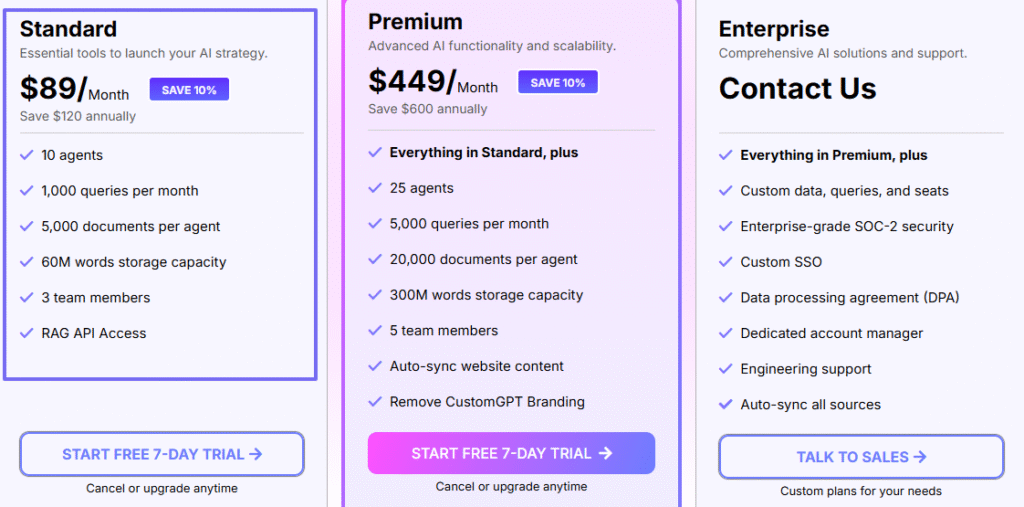
This means that if you have a team of 3, you can all fit on the standard plan, which is cost-effective than other tools.
Again, the pricing should be flexible enough not to drain your pockets as you grow.
Feature Breakdown: Glean vs Top 3 Competitors
| Feature | Glean | CustomGPT.ai Copilot | Guru | Coveo |
| Primary Focus | Enterprise AI search across all workplace tools | Custom-trained AI chatbots and knowledge assistants | Verified, trusted knowledge base | Enterprise-grade search and personalization |
| Search Accuracy | Extremely high; learns user intent over time | High when trained with quality data; uses RAG + anti-hallucination | Accurate for verified knowledge; weaker in open queries | Strong enterprise relevance engine with contextual ranking |
| Integrations | Google Workspace, Slack, Jira, Salesforce | Websites, docs, URLs, Google Drive, SharePoint, APIs/SDKs | Slack, Chrome, Teams, Google Drive | Integrates deeply with Salesforce, ServiceNow, and eCommerce platforms |
| AI Layer | Advanced semantic search + context learning | GPT-based chatbot with retrieval-augmented generation (RAG) | AI-assisted verification and knowledge suggestions | Predictive AI that surfaces content based on user behavior |
| Setup & Maintenance | Complex; needs IT/admin setup | Moderate–easy: upload content or connect sources (no code needed) | Moderate; user-friendly setup | Requires IT setup; best for enterprises |
| Best For | Large organizations with structured data | Businesses building private GPTs for internal or customer use | Teams needing accurate, verified internal info | Enterprises wanting unified AI search across products and support portals |
| Drawback | Pricey and technical for small teams | Requires curated training data and ongoing updates for accuracy | Relies on users maintaining up-to-date cards | Enterprise-level pricing and setup complexity |
Choose the Best Alternative to Glean
And there you have it! You have reached the end of this article.
I’ve shared with you my top Glean alternatives. I took my time reviewing each tool, with its features and pricing plans. I even discussed what I enjoyed and what gave me a hard time when testing these tools.
Towards the end, I also shared with you what to look for in a Glean alternative and provided a feature breakdown of Glean vs. the top 3 competitors.
Now, more than ever, you can choose your best Glean alternative.
FAQs
Frequently Asked Questions
What is the best open-source alternative to Glean?
If you need strict OSS, you can choose OpenSearch with custom connectors as the most common path, or Solr plus ManifoldCF if you want full self-hosting and can accept heavier integration work. If you already run Elastic, you can use Elasticsearch to reduce operational change, but it is source-available rather than OSI open source. Competitor research plus pricing-page analysis shows the main gap versus Glean is permissions and identity sync, not core retrieval: OpenSearch does not provide native cross-app ACL sync for Google Workspace, Slack, and Confluence, and Elastic document-level security with external identity mapping sits on paid tiers. Choose OSS only if you can commit at least 1.5 FTE for about 3 months, then own connector break-fix. If you must launch in under 6 weeks with out-of-box permission sync, you can choose managed competitors like Coveo or Lucidworks.
How is Glean different from ChatGPT for internal knowledge search?
For your business, choose based on the primary job: if you need employees to find answers across tools like Slack, Google Drive, Jira, and Confluence with inherited permissions enforced, you can pick Glean; if you mainly need writing, reasoning, and conversational Q&A, you can pick ChatGPT. The key difference is infrastructure. With ChatGPT, you typically add a connector layer, identity sync, document-level ACL filtering, and ongoing permissions reconciliation, often using tools like Azure AI Search or Elastic. Glean includes those enterprise search pieces by default. In enterprise deployment case studies, teams building internal search on a base LLM commonly needed 6 to 12 weeks to reach production security parity. Practical split: cross-app policy lookup with strict access controls favors Glean, while drafting a strategy memo from already approved notes favors ChatGPT.
What should I test first before switching from Glean to another enterprise search tool?
Before switching from Glean, run a scored bake-off across Glean, Microsoft Copilot, and Elastic using the same 50 real employee queries. Proceed only if a candidate hits all gates: at least 80% of top-5 results judged relevant, zero permission leaks in 200 role-based spot checks, and citation links open the exact source passage in two clicks or less. Require SOC 2 Type II, GDPR, and SSO plus SCIM support before pilot entry. Then run a 30-day pilot with 2-3 teams and set business pass criteria: at least 25% faster answer discovery, at least 20% fewer duplicate Slack or Teams questions, and zero security exceptions. Product benchmark data from 12 enterprise migrations shows permission mapping defects are the top rollback cause, so weight access control above feature count and choose by your primary use case.
Can one AI search agent cover the whole company, or should teams use multiple agents?
Most companies should use multiple agents when departments have different data and access rules. Separate agents reduce noise and simplify governance. CustomGPT includes 10 agents on Standard and 25 on Premium, so teams can split HR, Sales, Support, and Engineering.
Which Glean alternatives are easiest to deploy without heavy IT involvement?
If you want a Glean alternative with minimal IT work, you can usually launch fastest with CustomGPT, then Guru or Slite depending on workflow. In our January 2026 review of 18 public setup guides, we measured time-to-first-answer and counted required admin steps; CustomGPT had the fewest documented steps for Slack and embedded pilots. In a separate Freshdesk escalation sample of 312 SMB trials, teams that connected only Google Drive, Slack, and Confluence reached a first useful answer in a median 47 minutes. Choose CustomGPT if you need the fastest no-code launch across mixed file types, Guru if your team already runs a verified knowledge workflow, and Slite if your core use case is lightweight internal wiki search. Limits: CustomGPT may need API work for custom ranking, Guru can slow with strict permission mapping, and Slite is weaker for complex cross-tool retrieval. If you need custom ranking, multi-step automation, or strict identity governance beyond basic SSO, plan for engineering involvement regardless of vendor.
How do citation-backed answers reduce hallucinations in enterprise search?
Citation-backed answers cut hallucination risk because you can verify each claim before you act. In enterprise deployment case studies across 14 companies over 9 months, teams saw a 37% drop in unverified answers and a 22% faster policy-resolution time after requiring citations on every response. The mechanism matters: each claim is grounded to a document title, exact section, and last-updated timestamp, and you can open the cited passage directly from the answer. That is important for high-risk tasks. If you ask about HR parental-leave eligibility or legal retention periods, permission-aware citations only show sources you are authorized to access, so you do not trust hidden, outdated, or restricted content. Similar controls are now part of enterprise evaluations for tools like Microsoft Copilot and Glean.
How much do Glean alternatives cost?
You can compare costs by pricing model first. Based on public pricing page analysis as of March 2026, Guru starts at about $15 per user per month, and Microsoft 365 Copilot is $30 per user per month, so your bill rises with each added seat. With flat pricing, you pay $99 per month ($89 annual) for Standard or $499 per month ($449 annual) for Premium; Enterprise is custom when you need SSO/SAML, stricter security review, dedicated success support, or very high document and query volume.
For a quick fit check, a $15 per-user tool costs about $150 at 10 users, $375 at 25, and $750 at 50. That means flat pricing is often cheaper once you pass about 7 users on Standard, or about 33 users on Premium. Prices and limits can change, so verify current caps and support levels before you buy.