

Multi-Agent chatbot:All your agents in one place
Use a single chat window to connect your users to multiple specialized AI agents.
7-day free trial · Cancel anytime
Trusted by teams at 10,000+ organizations










Expert precision, with easy access
AI is smarter when given narrow instructions and data. Give your users access to specialized agents, without confusing them. Give one access point via a simple dropdown menu.
-
Uniform design
Set the colors, logo, and chat style once. Styles apply across all the sub-agents.
-
Protected precision
Sub-agents never mix their settings and knowledge, ensuring maximum accuracy.
-
Access control
You can control access to any sub-agent using user attributes from your login system.
How it works
How Multi-Agent works
Set up a multi-agent chatbot in three steps
Step 1: Attach your specialist agents
Build a Multi-Agent and add or create CustomGPT specialist agents, no rebuilding needed.
Step 2: Style it to match your brand
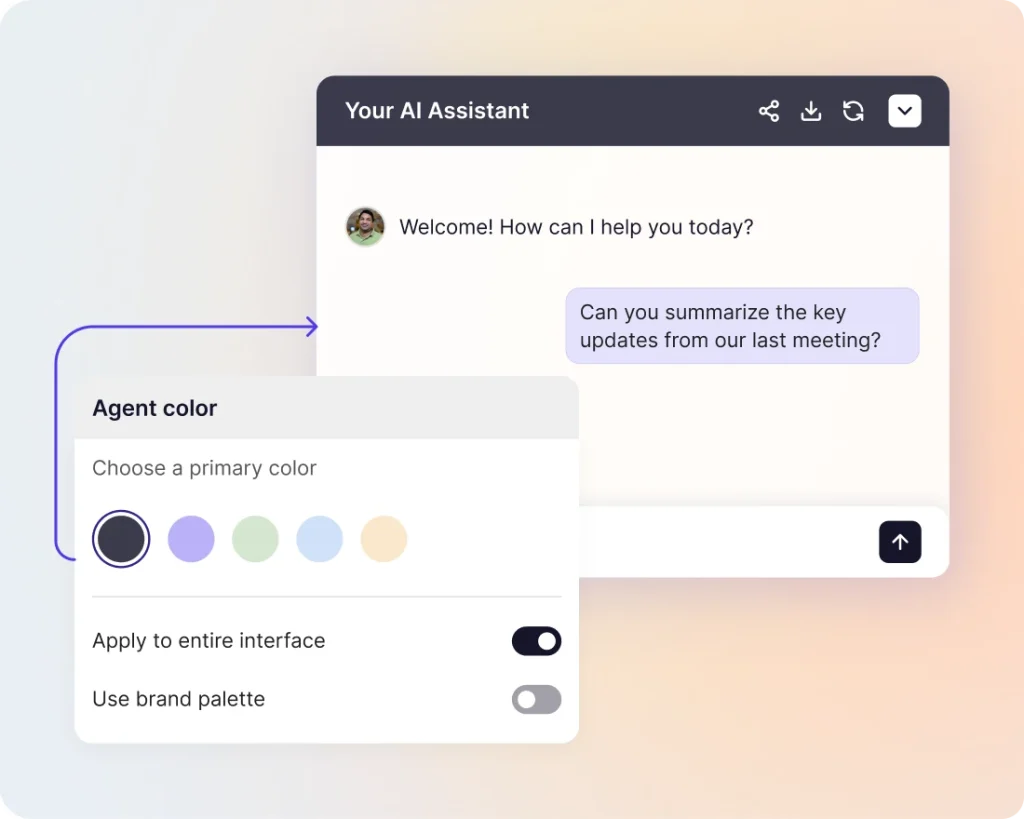
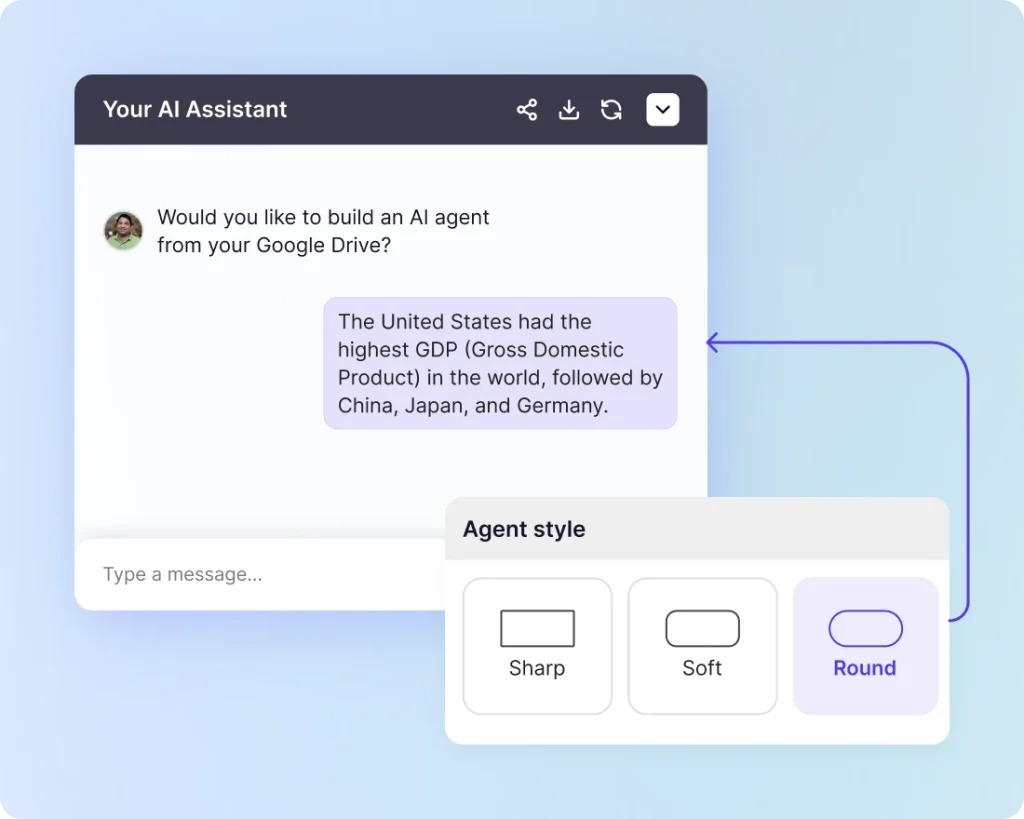
Set your theme, colors, logo, and welcome message on the multi-agent. The whole chat picks up your branding, so you don’t need to style each agent separately.
Step 3: Deploy the way you already do
Go to Deploy and choose Share Link, Embed, Live Chat, Website Copilot, or Instant Viewer.
Business impact
Business impact of Multi-Agent
-
Customer support teams
Put Billing, Tech Support, and Onboarding under one chat. Customers pick their department.
-
Internal employee helpdesks
One link for HR, IT, and Finance. Employees skip the guesswork and go straight to the right agent.
-
Multi-product companies
Run a separate agent for each product line. Answers stay accurate to the product being asked about.
-
Tiered support
Start users with a quick-answer agent. They can switch to a deeper one when they need more help. No human handoff required.
-
Multilingual teams
Deploy language-specific agents behind one chat. A Spanish speaker gets answers from a Spanish-trained agent, not a translation.
Frequently asked questions
What is Multi-Agent?
Multi-Agent is a feature that lets you put several of your existing AI agents behind one chat window. Your users pick the agent they want to talk to from a dropdown, and each agent answers based on its own knowledge and personality.
Who is it for?
Teams that run more than one AI agent- for example, separate agents for Support, Sales, and HR- and want to give their users a single place to get help instead of sending them to different links.
How is this different from one agent trained on everything?
One agent trained on everything ends up answering every question, but none of them well. Multi-Agent keeps each agent narrowly focused on its own topic, so answers stay accurate. Your users get the benefit of specialists without having to remember which link goes where.
How does Multi-Agent work?
You create a Multi-Agent and attach your existing agents to it. The Multi-Agent controls the look and feel of the chat- your branding, colors, logo, and welcome message. Each attached agent keeps its own AI settings, data sources, persona, and tools exactly as they are.
What do my users see?
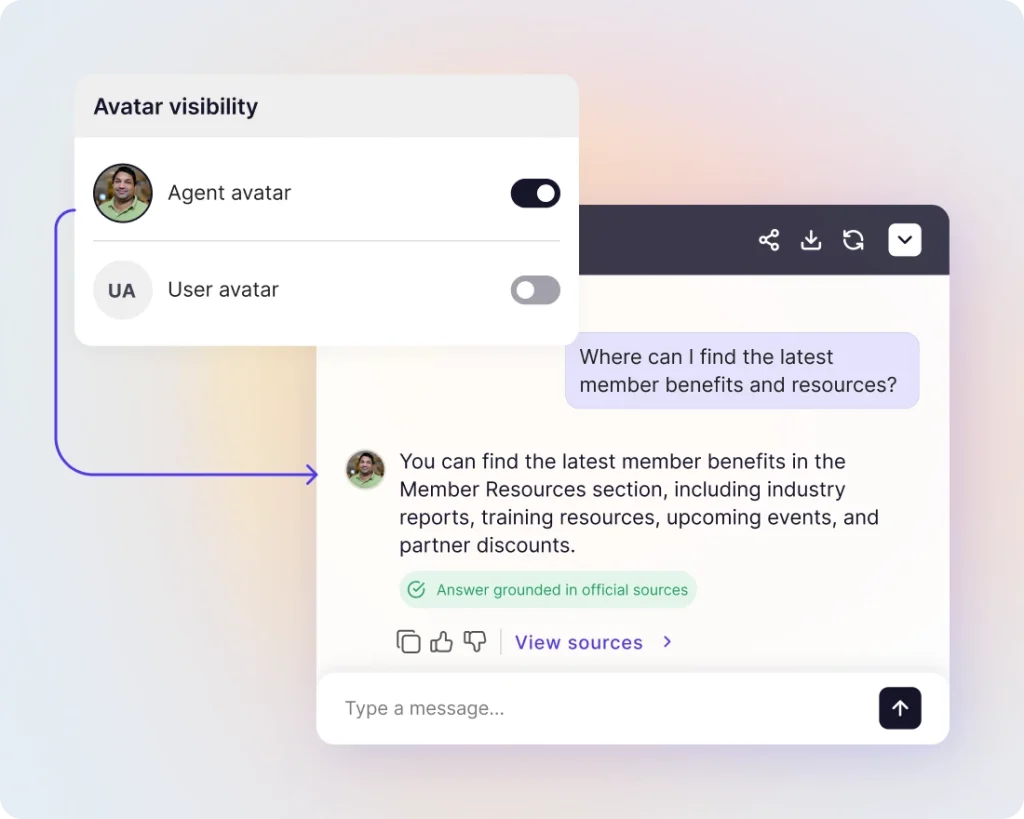
Your users see one chat window with your branding. A dropdown lets them pick which agent they want to talk to. Each agent’s avatar appears in the dropdown and next to its responses, so users can always see who they’re chatting with.
What happens when a user switches agents?
Context from the previous exchange is not carried forward. Users can switch agents at any point during a session.
Does the chat remember which agent a user picked last?
Yes. The last choice is saved for next time on the same device. If a user opens the chat on a different device, they’ll see the selector again.
Can users chat with a Multi-Agent that has no agents attached?
No. You need to attach at least one agent for users to be able to chat. If no agents are attached, users see the selector with no prompt input and can’t send messages.
Do users see a short description of each agent in the dropdown?
The dropdown shows each agent’s name and icon. We recommend naming your agents clearly- for example, “Billing Questions,” “Technical Support,” or “HR Helpdesk”- so users can pick the right one without needing a description.
Where do I set this up?
The complete steps can be found here.
Can I convert my existing agent to a Multi-Agent?
No. Multi-Agent is a separate type of agent. Create a new one and choose Multi-Agent at setup, then attach your existing agents to it.
Can I attach the same agent to more than one Multi-Agent?
Yes. The same agent can be part of multiple Multi-Agents without any duplication.
Can an attached agent still be used on its own?
Yes. Attaching an agent to a Multi-Agent does not change how it works independently. You can deploy the same agent on its own alongside the Multi-Agent.
How should I restructure my existing agents to use Multi-Agent?
Create a new Multi-Agent, then go to Build > Agents and attach your existing agents. That’s it. No rebuilding required. Once attached, deploy the Multi-Agent to give your users a single entry point.
If an attached agent is set to private, does it show up in the dropdown?
No. If the Multi-Agent is deployed publicly but an attached agent is private, that agent won’t appear in the dropdown for your users. Only public agents are shown.
Who on my team can attach or remove agents from a Multi-Agent?
Only team members with permission to edit agents can attach or detach them. Your existing role and permission settings control this.
What settings does the Multi-Agent control?
The Multi-Agent controls the chat interface itself- theme, colors, logo, header text, welcome message, layout, public or private status, citations display, conversation UI behavior, user feedback, and sharing and export settings.
What settings stay with each attached agent?
Each attached agent keeps its own persona, intelligence settings, data sources, documents, tools, actions, API access, and MCP access. Attaching an agent does not change any of its existing behavior.
What isn't configurable on a Multi-Agent?
Settings that belong to individual agents- persona, conversation settings, intelligence, data sources, documents, actions, API, and MCP- can’t be configured at the Multi-Agent level. They stay with each attached agent. Context-rich starter questions are also not available on Multi-Agents at launch.
Will API and MCP support for Multi-Agent come later?
Yes, it’s on the roadmap. Timing will be announced.
How can I deploy a Multi-Agent?
Multi-Agents support Share Link, Embed, Live Chat, Website Copilot, and Instant Viewer.
Can I use Multi-Agent for multiple languages?
Yes. A common setup is to have one agent trained on English content, one on Spanish, one on French, and so on- all attached to the same Multi-Agent. Users pick their language from the dropdown and get answers from an agent trained on content in that language, rather than a translated response.
Will my team need training to set up Multi-Agent?
No special training required. If you’ve built an agent in CustomGPT before, the setup is three steps- attach the agents you already have, set your branding on the Multi-Agent, and deploy.
Can my users escalate from one agent to another inside the same Multi-Agent?
Yes, users escalate themselves. For example, you can set up a quick-answer agent for common questions and a more advanced agent with deeper knowledge for complex issues. Users switch between them from the dropdown whenever they need more help.
Which plans include Multi-Agent?
Multi-Agent is available on Premium and Enterprise plans.
How many agents can I attach to a Multi-Agent?
Up to 3 on Premium plans and up to 10 on Enterprise plans. Contact sales if you need to go higher than 10.
Can I raise the limit as an add-on?
Yes, on request. Contact sales to discuss raising the default limit for your account.
Are there any usage caps or rate limits unique to Multi-Agent?
No. Usage and throughput behave the same way as with individual agents. Each attached agent uses its plan’s existing limits.
Will Multi-Agent affect performance compared to a single agent?
No. Picking an agent doesn’t add meaningful overhead. It works the same as starting a new conversation with any agent.
Do I need to set up anything new to track performance?
No. Your existing analytics for each attached agent work as before. Query counts are tracked per agent in Build > Agents. The Multi-Agent itself does not have a separate query count.
Are conversations kept separate between different agents?
Yes. Conversations are strictly isolated per agent. Context from one agent never carries over to another.
What's the difference between attaching an agent to a Multi-Agent and deploying it separately?
Attaching adds the agent to a shared chat window with your branding and a dropdown selector. Deploying separately gives the agent its own standalone chat with its own branding and its own URL. One agent can do both.
Does Multi-Agent change how my data is retained or handled?
No. Your existing data retention, redaction, and PII policies apply without change. Nothing about how your data is stored or processed changes when you use Multi-Agent.
Does Multi-Agent affect my compliance posture or DPA terms?
No. SOC 2, GDPR, and your existing Data Processing Agreement terms apply unchanged.
Do third-party connectors, tools, or Actions work through a Multi-Agent?
Yes. Each attached agent continues to use whatever connectors, tools, and Actions it already has configured. Nothing is restricted or re-routed by the Multi-Agent.
What happens to my existing agents if I plan gets downgraded?
If your plan is downgraded and Multi-Agent is no longer enabled, your Multi-Agents will be locked in the dashboard, and deployed Multi-Agents will stop accepting messages. Your individual attached agents remain untouched and can still be deployed on their own.
Does Multi-Agent work with my current chatbot embed on my website?
Yes. You can replace your current embed with a Multi-Agent embed, or keep both running side by side. The Multi-Agent embed works the same way as a single-agent embed- one snippet of code, one chat window.