
If you’re an IT manager, imagine what this means for your team and your company:
– Productivity drops
– The company loses money
That’s why, more than ever, companies are embracing enterprise search software. In fact, this global market is expected to reach about $8,85 billion by 2030.

With these tools, teams can save valuable time by quickly finding the information they need across all the company’s data sources.
If you’re looking for the right enterprise search software for your business or team, you are in the right place.
After testing many tools, I am presenting to you my top 5 enterprise search software options. I will share their most interesting features, pros & cons, and pricing plans.
Keep reading!
Top Enterprise Search Software Comparison
| Tools | Features |
| CustomGPT | 1. Customized AI, with Industry-leading accuracy (benchmarked) 2. Citation‐backed answers with inline source links 3. Connect all your data 1,400+ file formats + broad enterprise connectors (Drive, SharePoint, MCP, Notion, Confluence, Zendesk, Slack) 4. No-code customization of functionality and appearanceFast time-to-value, reliability across SMBs & small enterprises |
| Glean | 1. Uses AI-powered search and context / NLP to improve relevancy 2. Offers analytics, reporting, search insightsFine-grained access control / permission-aware search 3. AI / context-aware searchConnection to many apps and data sources (Google Workspace, Slack, docs) |
| Coveo | 1. AI-powered relevance and intent understanding: supports natural-language queries 2. Analytics and insights: dashboards to track search metrics (click-through, zero-results), content gaps, user journeys 3. Unified index that brings together structured and unstructured data from many sources.Cloud multi-tenant architecture |
| Meilisearch | 1. Hybrid search (AI + keyword)Search-as-you-type (prefix updates) 2. Flexible indexing, ability to customize searchable/displayed attributes 3. Typo tolerance (fuzzy matching) |
| Elastic Enterprise Search | 1. App Search & Workplace Search 2. Semantic / vector / hybrid search 3. Flexible deployment (cloud, hybrid) as part of Elastic ecosystem 4. Notifications via email, webhooks, IBM Resilient, Jira, Microsoft Teams, PagerDuty, ServiceNow, Slack, xMatters |
| Tools | My rating | Base price | Best for |
| CustomGPT | ⭐⭐⭐⭐ 4.5/5 | $89/month, billed annually | SMBs to small enterprises who want to deploy enterprise search functionality rapidly, without extensive dev resources. |
| Glean | ⭐⭐⭐⭐ 4/5 | Not public | Larger companies seeking to manage enterprise knowledge and employee productivity. |
| Coveo | ⭐⭐⭐⭐ 4/5 | Custom pricing | Large enterprises with complex search and content management needs. |
| Meilisearch | ⭐⭐⭐⭐ 3.5/5 | $30/month | Small and medium businesses mostly interested in websites and document search |
| Elastic Enterprise Search | ⭐⭐⭐⭐ 3.5/5 | $99/month | Developers and large organizations seeking to add advanced search to their applications, websites, and internal workflows. |
5 Best Enterprise Search Software
1. CustomGPT
| My rating: ⭐⭐⭐⭐ 4.5/5 Base price: $89 Integrates with: Slack, Notion, SharePoint, Confluence, Google Drive, HubSpot, Zapier Best for: Business owners, IT managers, and teams wanting to go live fast with reliable AI. |
On top of our list of the best enterprise software is CustomGPT. It lets you create enterprise AI agents, personalize them, and ask questions.
You can deploy agents on your website or share them with your team via a link. CustomGPT also lets you analyze your latest prompts and manage your content sources. Launch your Enterprise Search AI today! Start your free trial here.
Creating your agent is so simple. Simply pick a data source, and choose the use case that best describes your agent. It could be enterprise search, customer support, or even a revenue-driving sales chatbot. Then you can start searching.

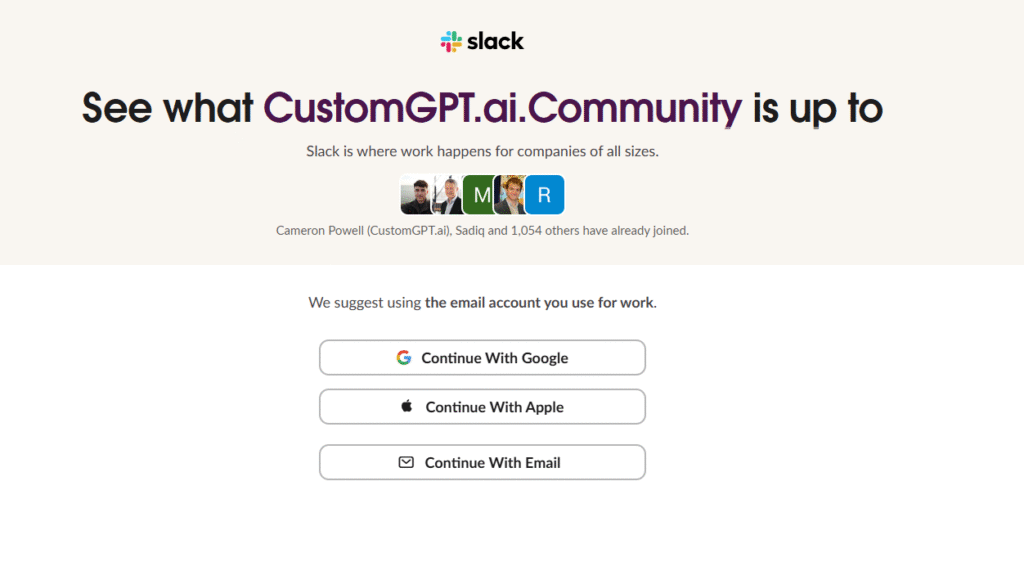
That’s not all! For example, you can connect CustomGPT to your Slack workspace.
This way, your AI agent can respond to messages in Slack channels, and you can control who can use it inside the organization.
We also created an intelligent partner for you called Custom.ai Copilot. It’s more or less your personal AI assistant. Simply specify the help you need and let your partner perform its magic.

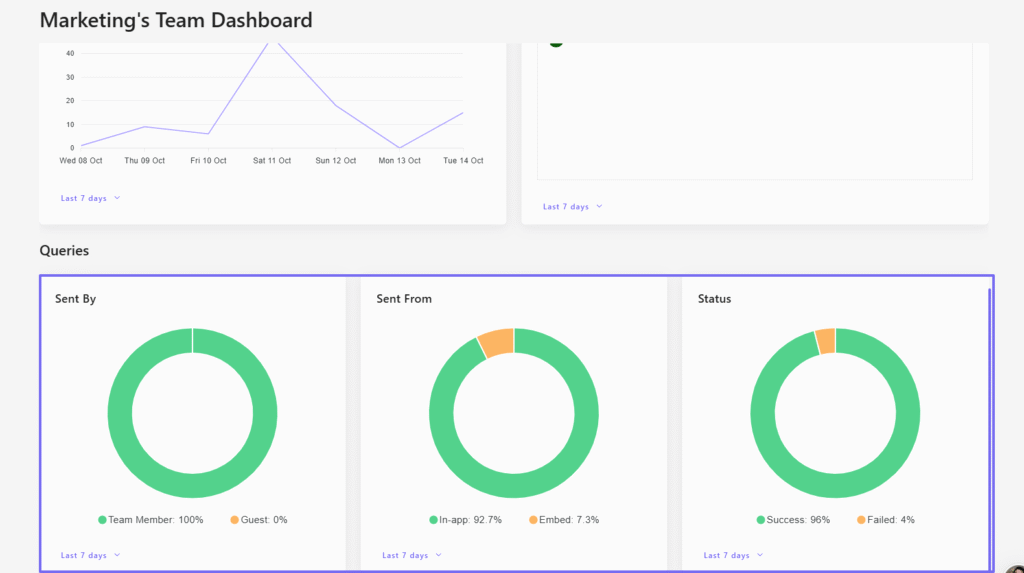
Last but not least, our tool comes with a dashboard you can use to view the number of hours your AI agent saved you for a week. It shows the total number of conversations, queries, and queries per conversation.
Key Features
1 . Agents
If you’re an IT manager preparing a company report, you might need a lot of information for that. Your AI agent will save you hours of search by instantly finding the right data for you. This will prevent you from having to search through hundreds of documents.
The AI agent can also take action for you.
It’ll automatically update CRMs, refresh documentation, or fill in content gaps based on your company’s data. It does this using tools like agent actions, MCP connectors, our API, and Zapier.
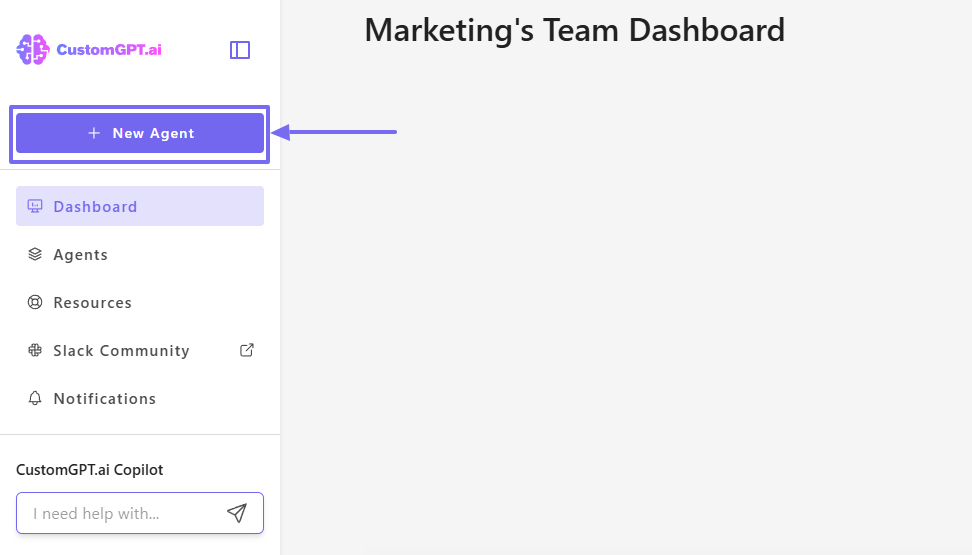
On CustomGPT, you create such an agent by clicking “New Agent” on the sidebar.
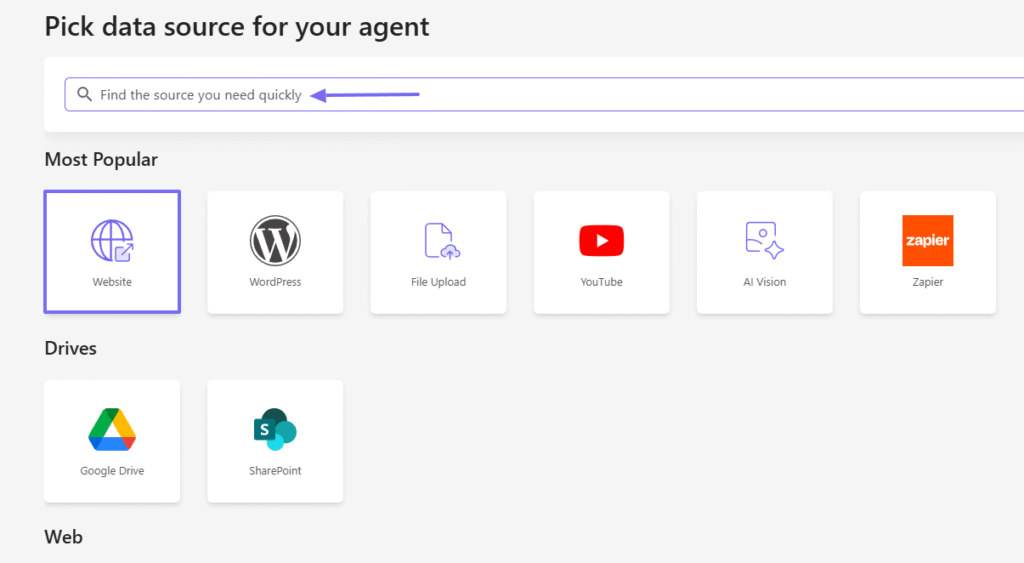
Next, you will have to pick the data source for your agent. This means where the agent will be getting data from. There are many data sources like YouTube, Google Drive, File Upload, WordPress, etc.
However, for this tutorial, I’ll go with the website.
Enter your website’s URL to start.
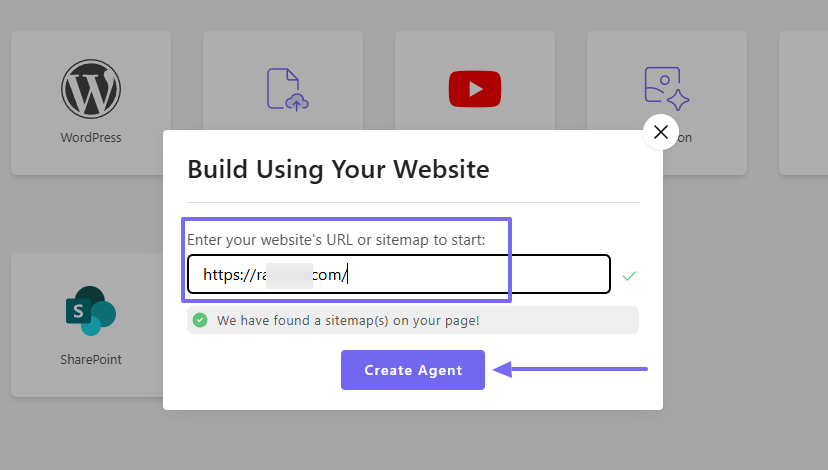
You must now choose the use case that best describes your agent: Customer support, Website Copilot, Enterprise Search, and Revenue Agent.
Let’s carry on with Enterprise Search.
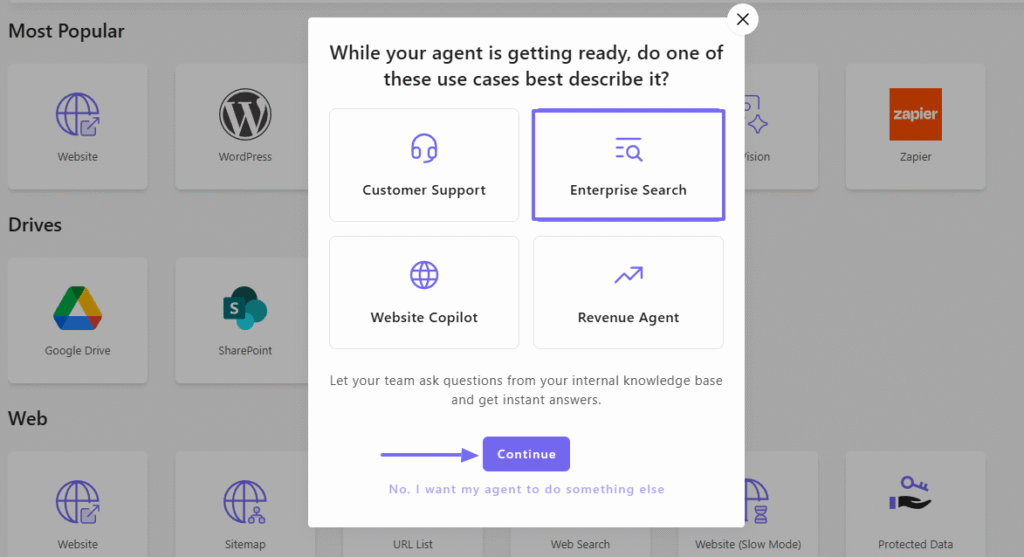
Once created, it will propose questions that you can use to start your research. But if you already have your own question, you can enter it in the search bar below.

The question I chose was: “What percentage of companies surveyed in 2024 were not happy with the deliveries from their existing marketing agency?”
Interestingly, the Agent gave me a straight and accurate answer with the link to the source of its data.
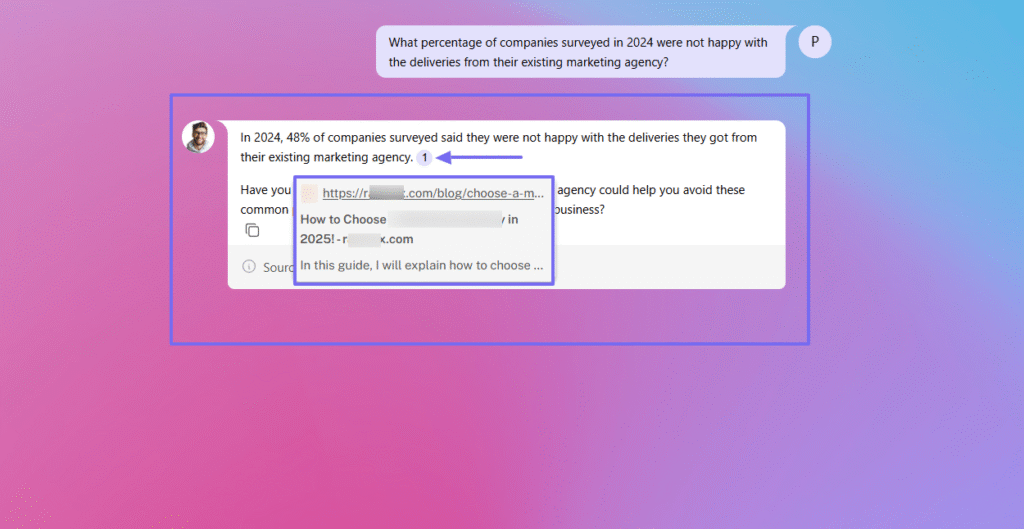
I clicked the link, and it took me to the exact source where I confirmed the information.

CustomGPT’s simplicity makes it one of the best enterprise search software in the market.
2 . CustomGPT.ai Copilot
Our CustomGPT.ai Copilot acts as your intelligent partner. Whenever you need help with anything, you can just prompt it.
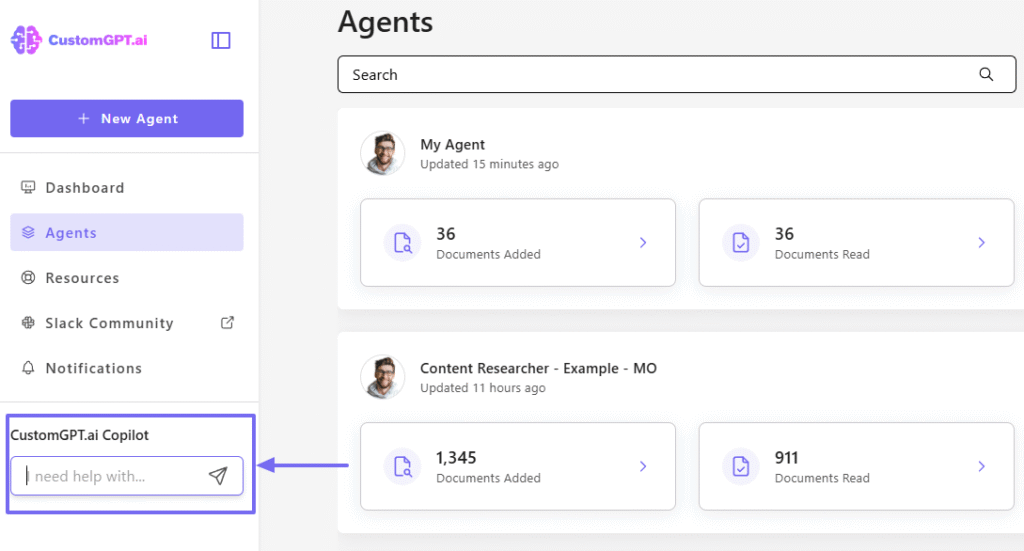
For example, you could just say: “I need help with my marketing strategies”.

You will be impressed with the amount of knowledge it will display. It will go deeper, and you can even download the response.

3 . Dashboard
Our Dashboard is designed for marketing teams. It shows how many hours your agents saved you during the week. You also have an overview of the total number of conversations and guests.
And one amazing thing is that you can see the countries where those conversations are from.

But there is more! The dashboard also shows how your team is using the tool: how many queries were made, who sent them, where they came from, and how many were successful.
In addition, the dashboard’s Customer Intelligence feature lets you dive even deeper, giving you an inside look at chatters’ experiences with your agents.
Where are the gaps in your knowledge base? How often are customers discussing certain keywords? How often are they happy or upset with their conversational experiences? This tool helps you answer all these questions.
What I enjoyed vs what gave me a hard time
| What I enjoyed 👍 ✅ The clean interface makes it easy to locate all the features on the sidebar menu ✅ You can create a custom agent in three clicks ✅ The platform integrates with HubSpot, Slack, Notion, WordPress, Zendesk, and Zapier ✅ The dashboard tells you how many hours your agents save you every week | What gave me a hard time 👎 ❌ The total batch size limit for uploading files is 1GB, but you can either split them into smaller parts or connect sources like Google Drive or SharePoint to automatically sync your files while you focus on other tasks. |
CustomGPT is the fastest way to deploy a secure, accurate enterprise search solution built on your company’s data. Stop wasting 11 hours a week looking for information and get instant, cited answers.
Build Your AI Search Agent in 5 Minutes (Free Trial)
Best for
- Business owners, IT managers, and teams seeking software to create AI agents for enterprise search and website copilot.
Pricing
- Standard: $89/month, billed annually
- Premium: $449/month, billed annually
- Enterprise: Custom pricing

2. Glean

| My rating: ⭐⭐⭐⭐ 4/5 stars Base price: Not public Integrates with: Box, Confluence, GitHub, Google Drive, Jira Best for: Large companies with task automation needs |
Next on this list of the best enterprise search software is Glean. When reviewing the platform, I noticed that their search engine is a bit similar to Google and provides many filters to help find information.
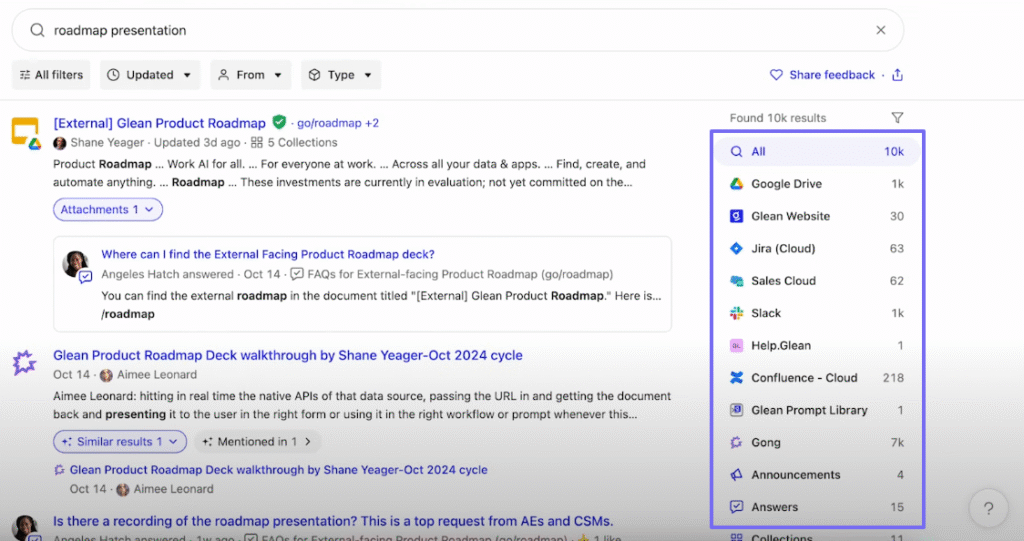
When doing research on Glean, I can select my preferred source from the results found. I can also use many filters, such as Updated, Type, or From, to make the results more precise.
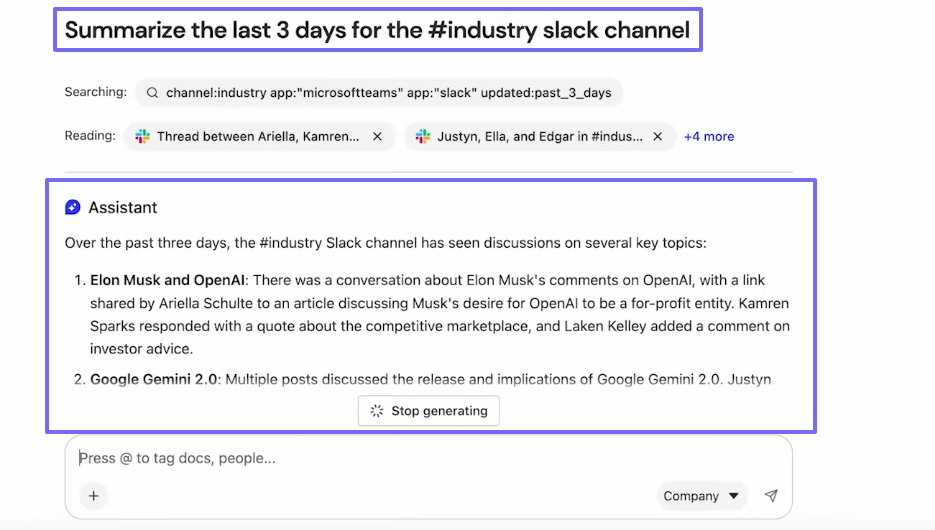
The Chat is within Glean’s AI assistant, which you can use to enter prompts, tag people or documents, or upload a file. You can then ask the assistant to summarize a particular file or action, and it will do exactly that.
But I fell in love with the Directory feature. It shows all the employees in an organizational chart. I can click on one employee and know everything about them: name, position, location and even social handles.

Key features
1 . Home
On Glean, after adding your source, you will use the search bar on the Home interface to do your research. The research can be a “roadmap presentation”.
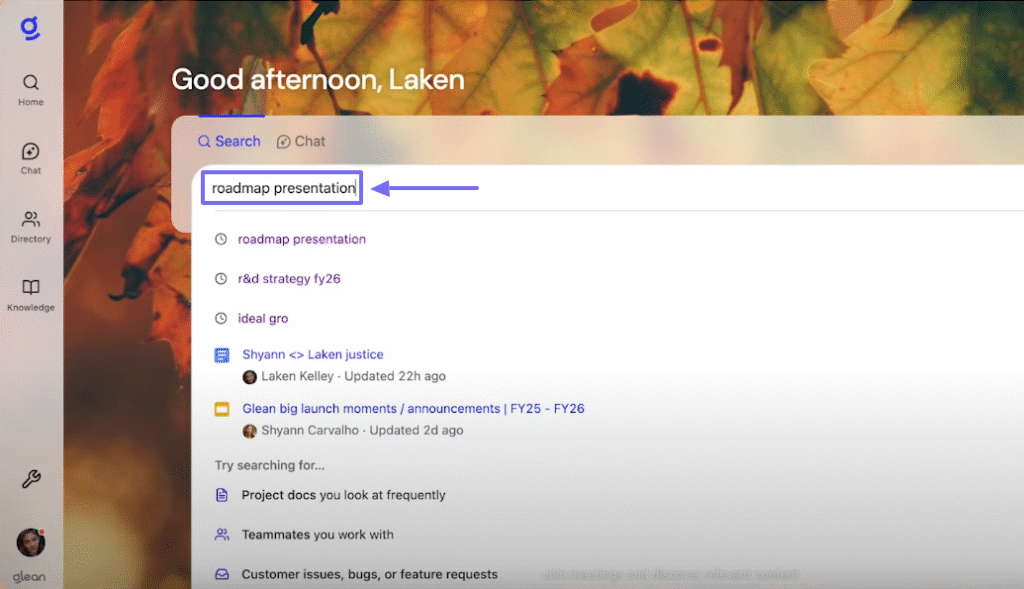
The search page reminded me of Google.
The left side of the interface shows all your search results with the exact sources.
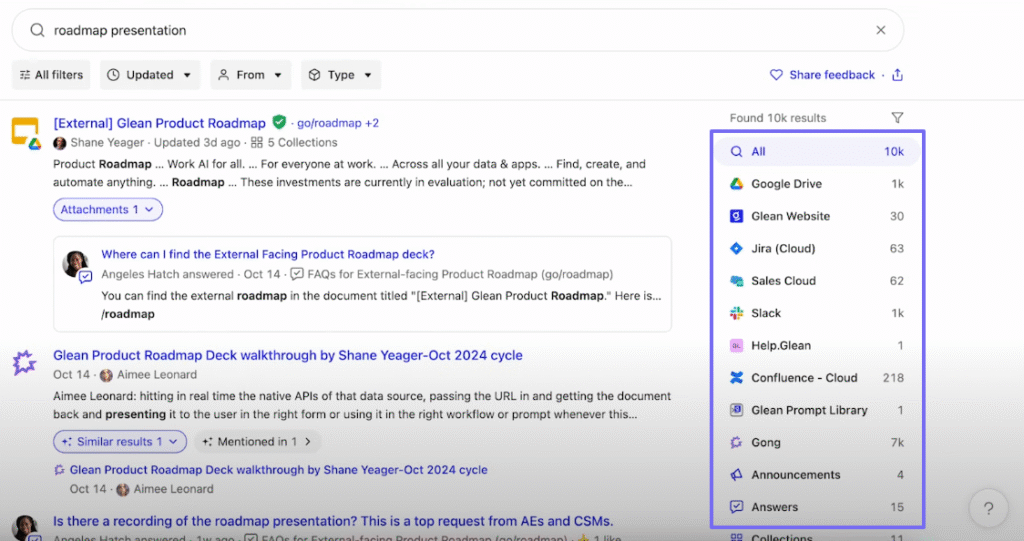
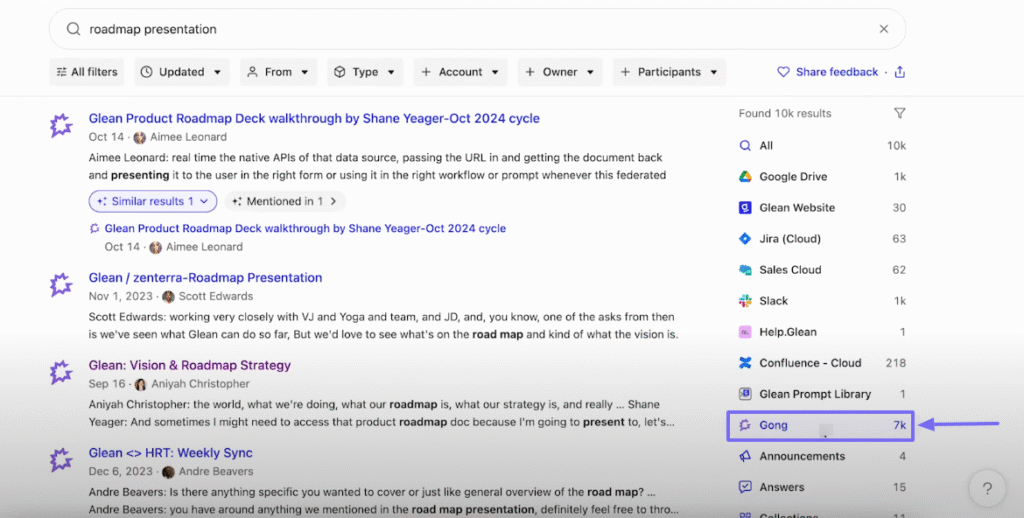
I can, for example, click on “Gong,” which has 7k results. The whole interface will only display these results.
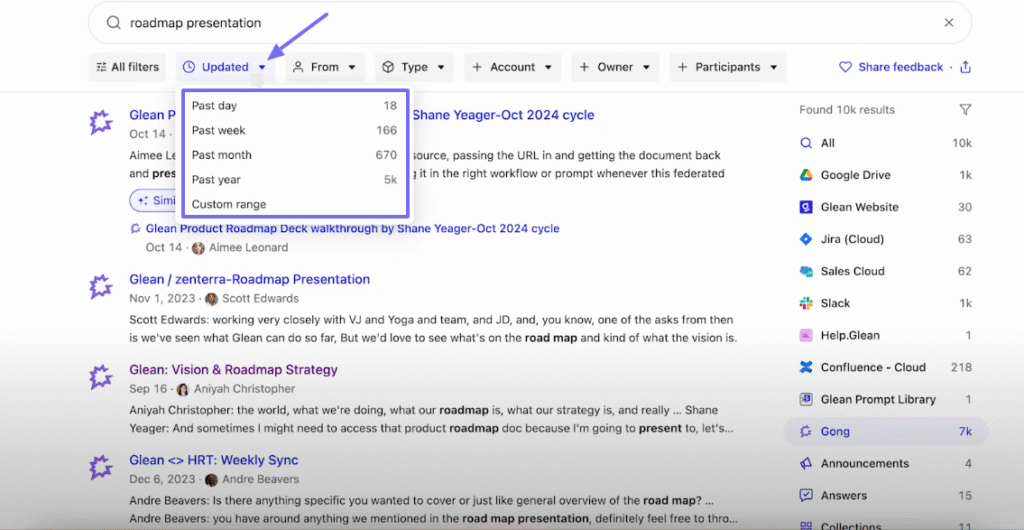
If I click the “Updated” filter, I can specify the time range for the results that will show up.
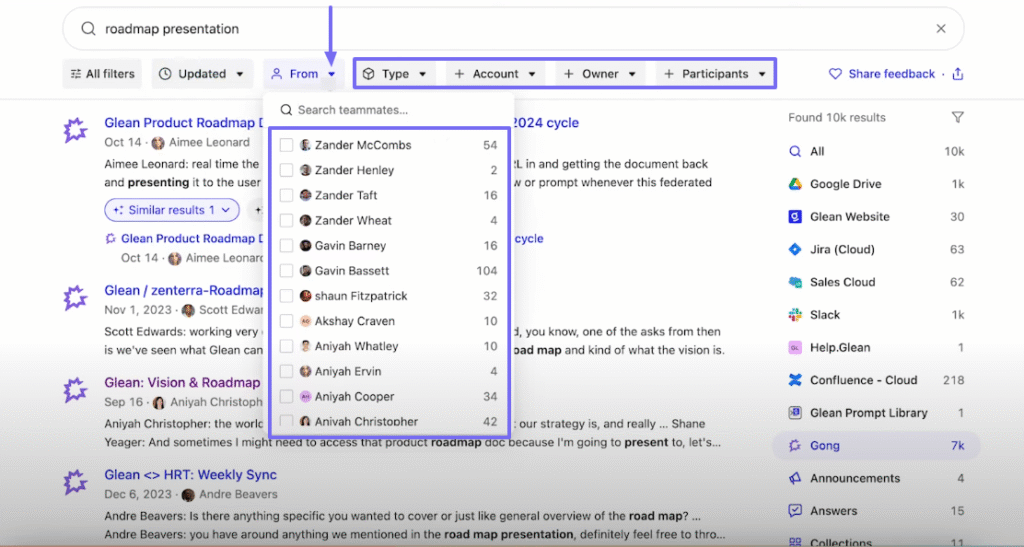
By clicking “From”, I can choose the exact employee I want the search page to show their results. There are also other filters like Type, Account, Owner, and Participants.
Another interesting thing is the “Summarize” button next to every result on the search page. It helps summarize the content of your page in case you may not want to read the whole document.
![Enterprise search software shows "roadmap presentation" results with Summarize beside [External] Glean Product Roadmap](https://customgpt.ai/wp-content/uploads/2025/11/Glean-search-results-with-document-summary-option.png)
2 . Chat
Glean Chat is the AI assistant, which you can use to generate answers, summarize documents, and perform many other actions. You can use prompts to start.

I can use this prompt, for example:” Summarize the last 3 days for the #industry Slack channel”. The Assistant will instantly start generating answers.

If you click the “+” button in the search bar, you can tag people or docs, filter data, and attach a file.
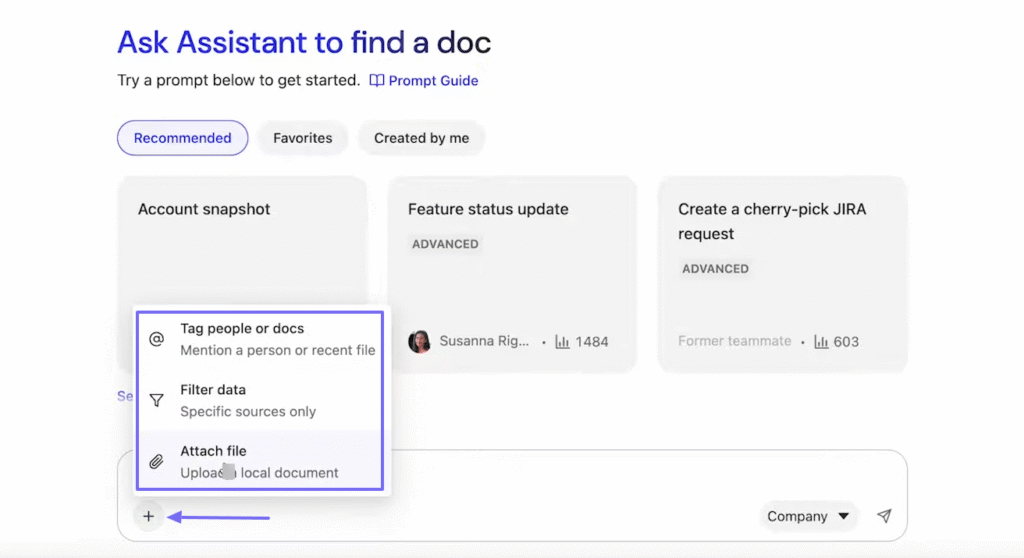
3 . Directory
In large organizations, you might not have the opportunity to meet all employees. With the Directory feature, you can view them all on the platform. You can easily see who takes certain actions, along with their department and role.
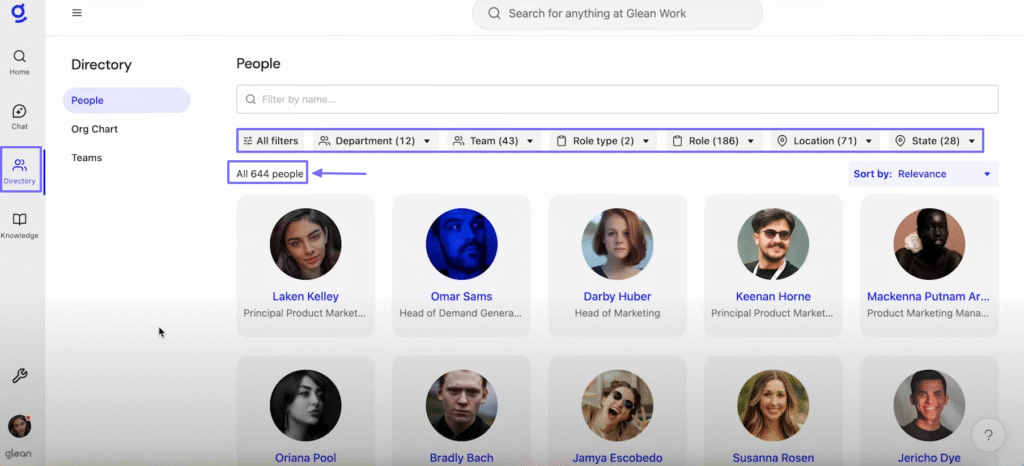
I can also view the organizational chart of the company.

All employees are in the chart. I can just click on one employee to have more details. It will show their full name, role, location, when they first joined, and all their social handles.

What I enjoyed vs what gave me a hard time
| What I enjoyed 👍 ✅ The organizational chart shows all employees with their personal details ✅ You can summarize any research with their AI ✅ Loved that there are many filters to help locate your employee | What gave me a hard time 👎 ❌ Doesn’t offer a trial to explore first ❌ Glean is for larger enterprises with very deep pockets, and not for SMBs or small companies, so pricing isn’t listed publicly |
Best for
- Larger companies with contracts in the six-figure range that want enterprise-grade security and large-scale deployment capabilities.
Pricing
- No public pricing page
3. Coveo
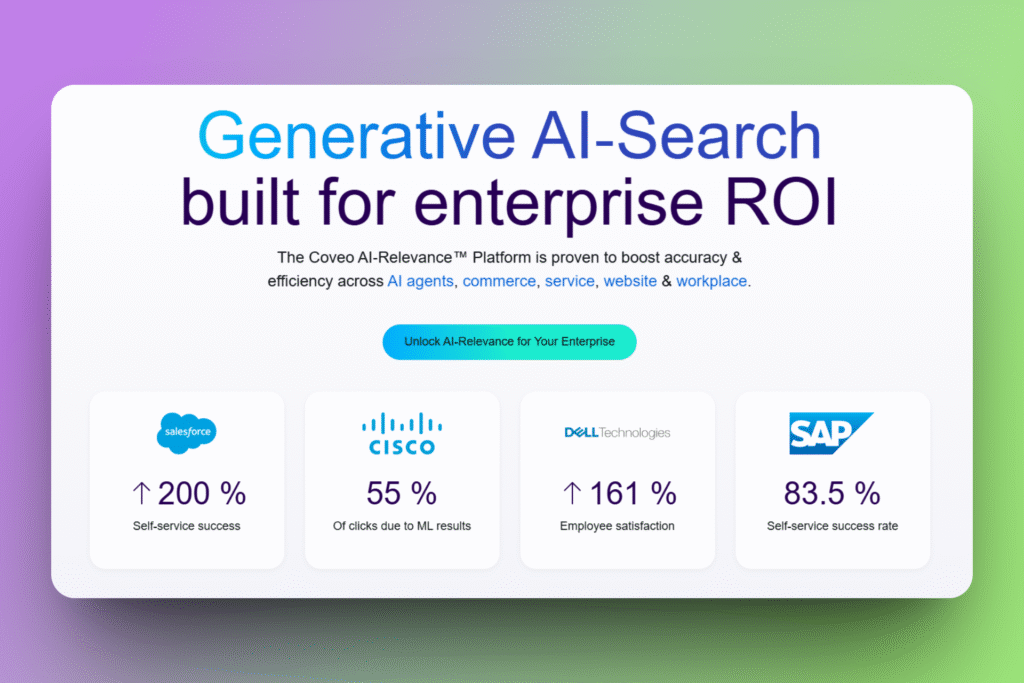
| My rating: ⭐⭐⭐⭐ 4/5 Base price: Custom pricing Integrates with: AWS, Box, Confluence, Dropbox, Google Drive Best for: Large enterprises with complex search needs |
We will continue this list with Coveo. It offers many features under project, machine learning, analytics, and its search page is a bit similar to that of Glean.
Before you browse on Coveo, you need to add sources: name and URL, for instance. After that, you can search and have access to clickable links.
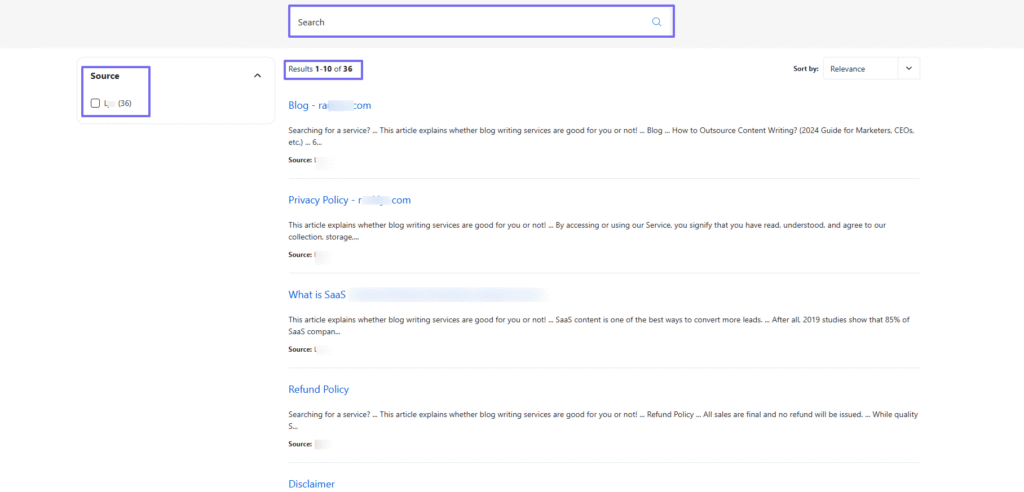
As I mentioned earlier, their search page is a bit similar to Glean but with fewer colors. When you enter a word, you will see different sources with the number of results.
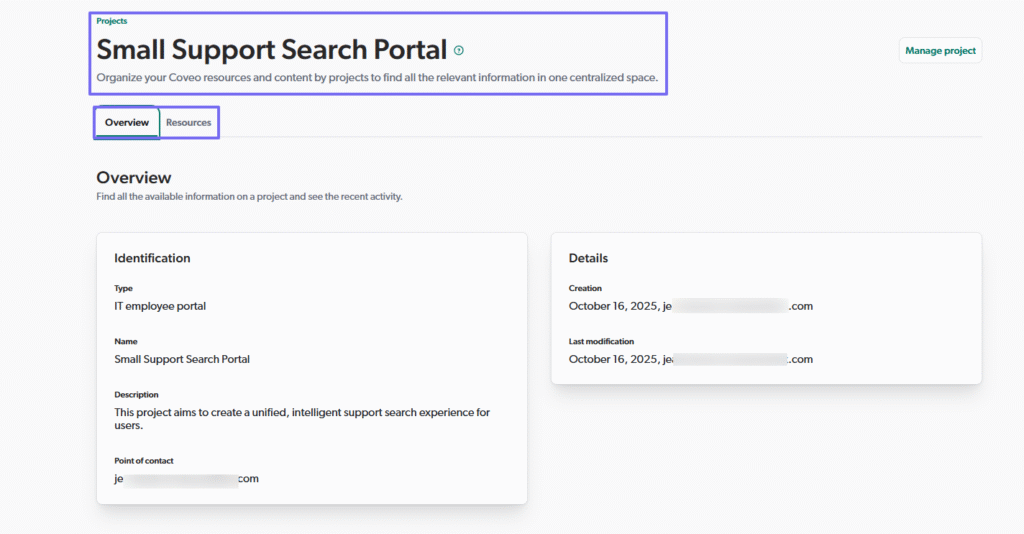
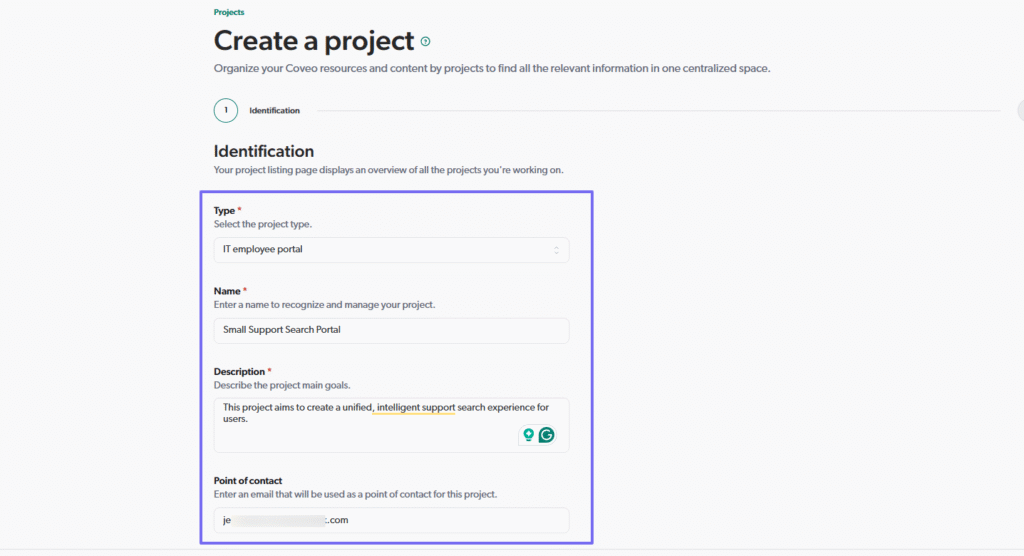
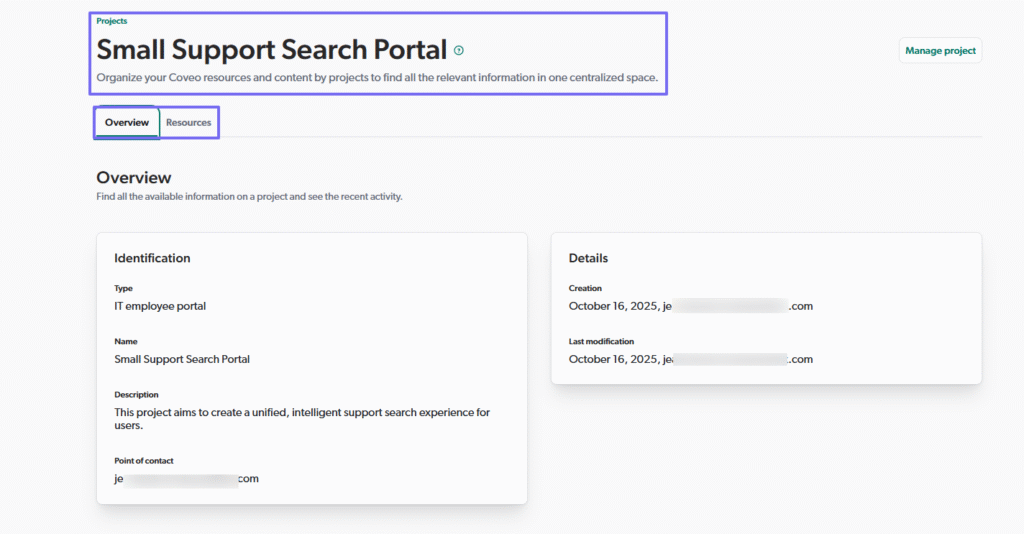
To be organized, you can create projects for the team. You can select the project type, say, “IT employee portal”, then name it and add a description.
Another impressive thing is that I can create a catalog for my business. I will simply name the catalog, include a description, and select object types such as variants and availability. Then I’ll add my products.

Key features
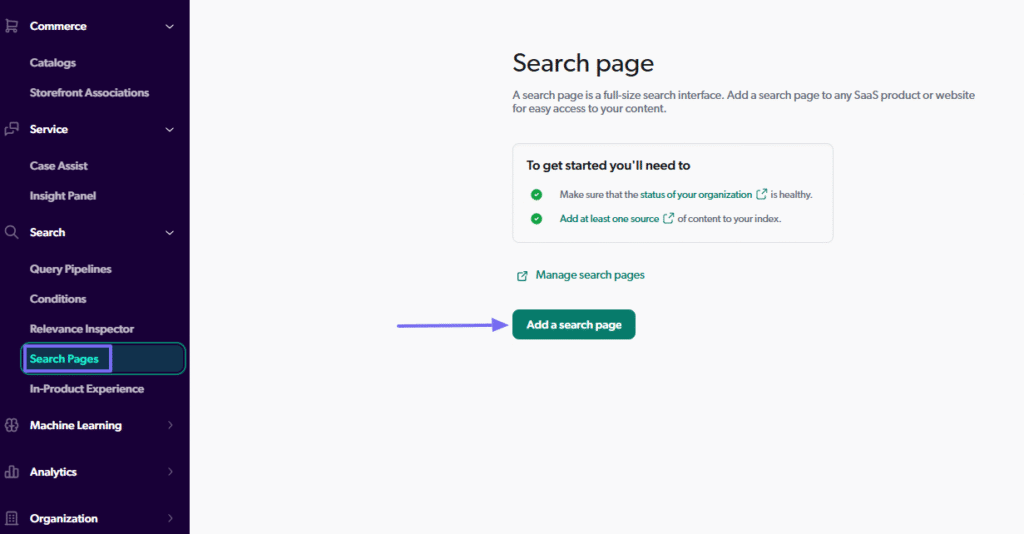
1 . Search Pages
Feature names usually differ from one tool to another. Using Coveo, the Search Pages is what you use to search for data across the company.
Without wasting much time, let’s create one.
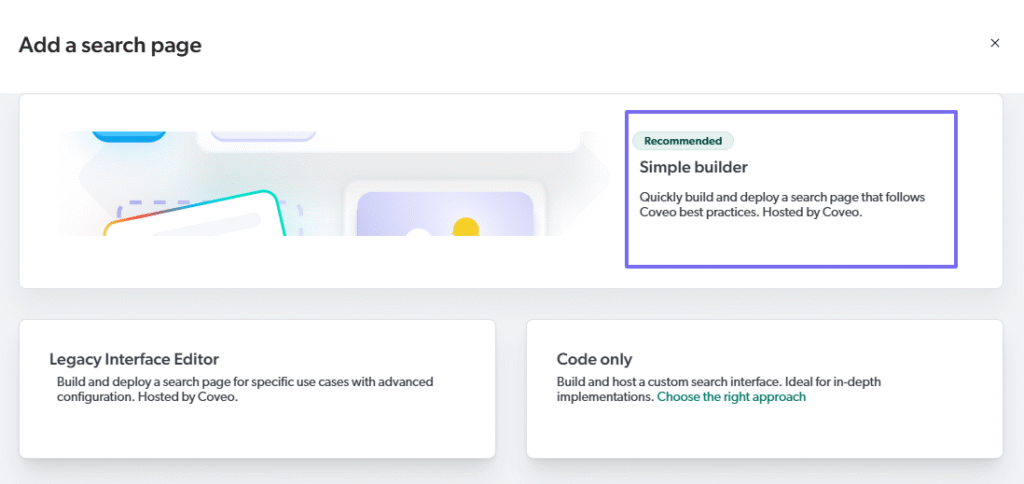
The first step is to choose my search page type from the options: Legacy Interface Editor, Code only, or Simple builder. I will go with “Simple builder”.
Next, I will name my search page and even assign it to a project if I have one.
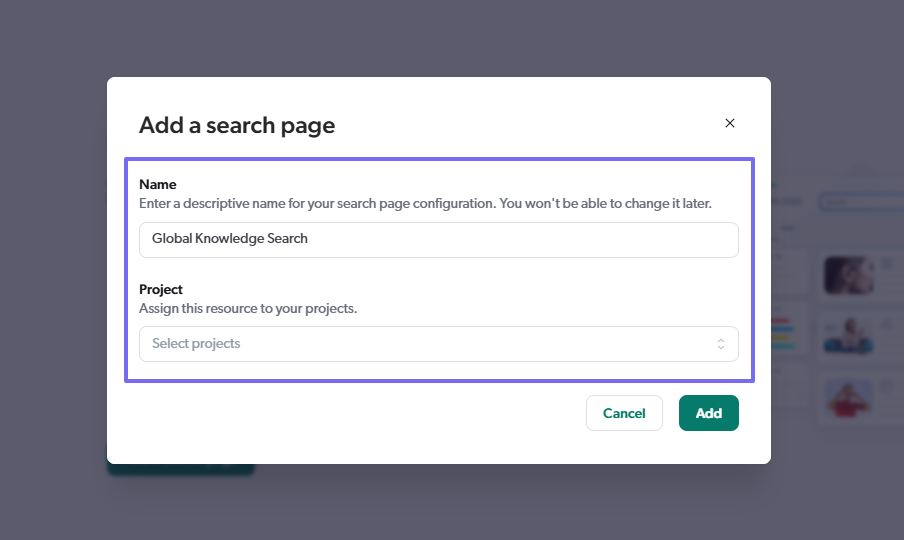
That’s it! I could edit, share, or delete the search page if I want. But that’s not all I could do! Because I love to go a step further when reviewing tools, I decided to open the search page.

The interface had a very clean look.

I entered the word “Client” just to see what would happen. And the search didn’t disappoint. I saw many results and pages with my preferred word. I could just scroll and select the result I wanted.

2 . Content
The results your search pages show will always come from the content you feed it. And to constantly grow your search page, you need to add sources to your content.
This is what we will do by clicking “Source” under Content.
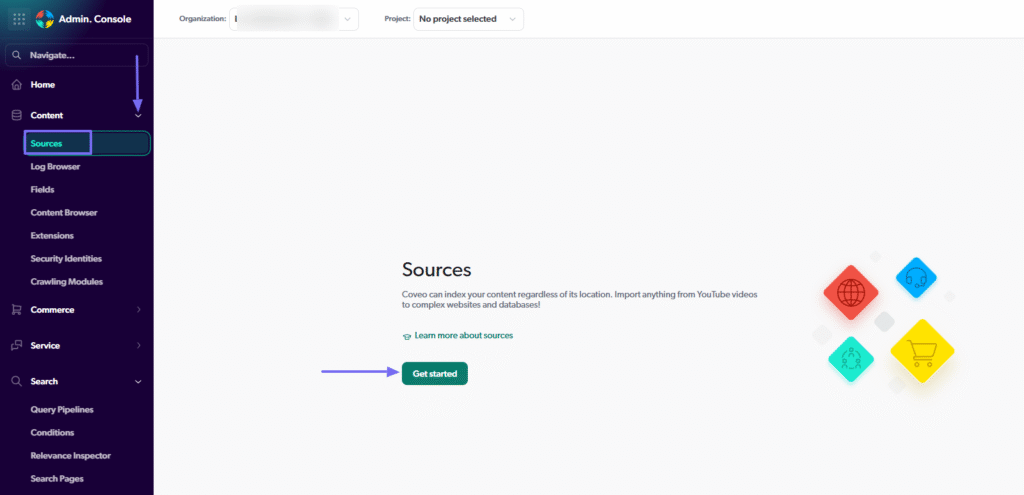
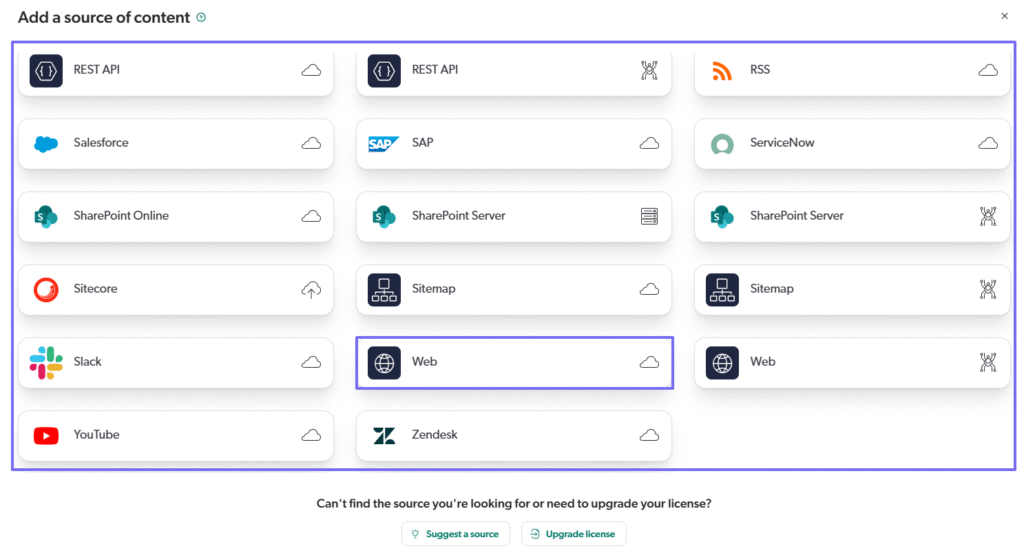
Choose a source of your content. We can go with the Web.
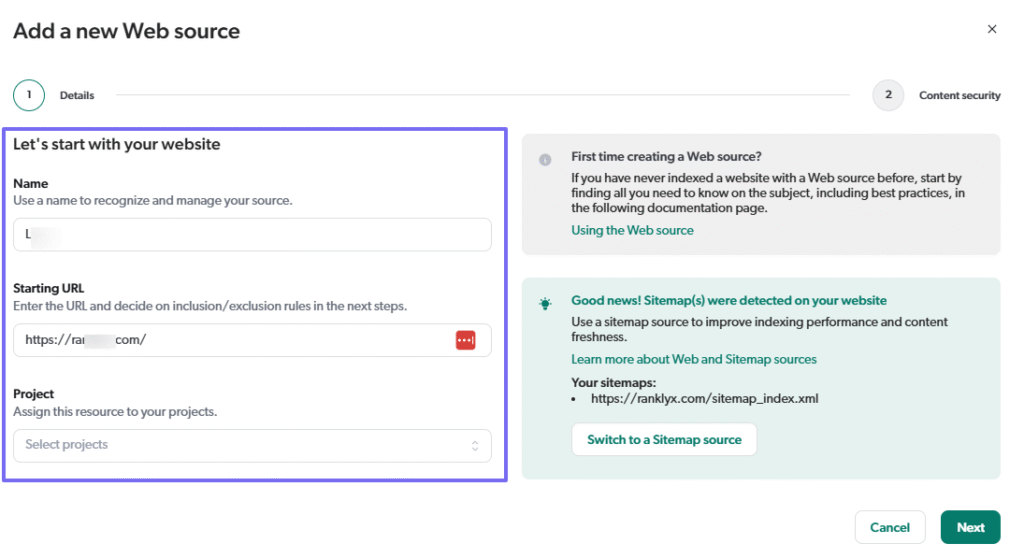
You can name your source, add a URL, and assign it to a project (optional).
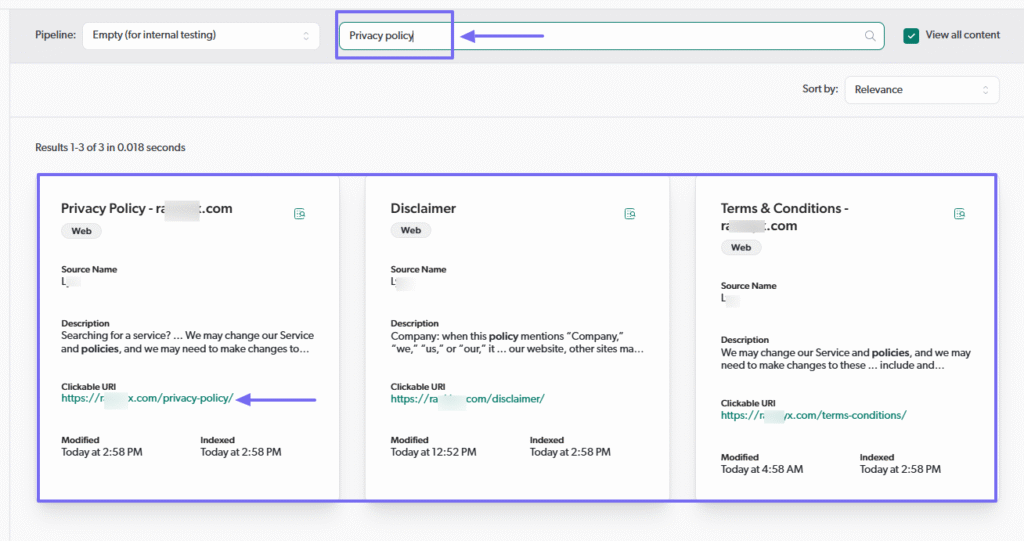
The source has been added. But because I wanted to be sure, I went to “Content Browser”.
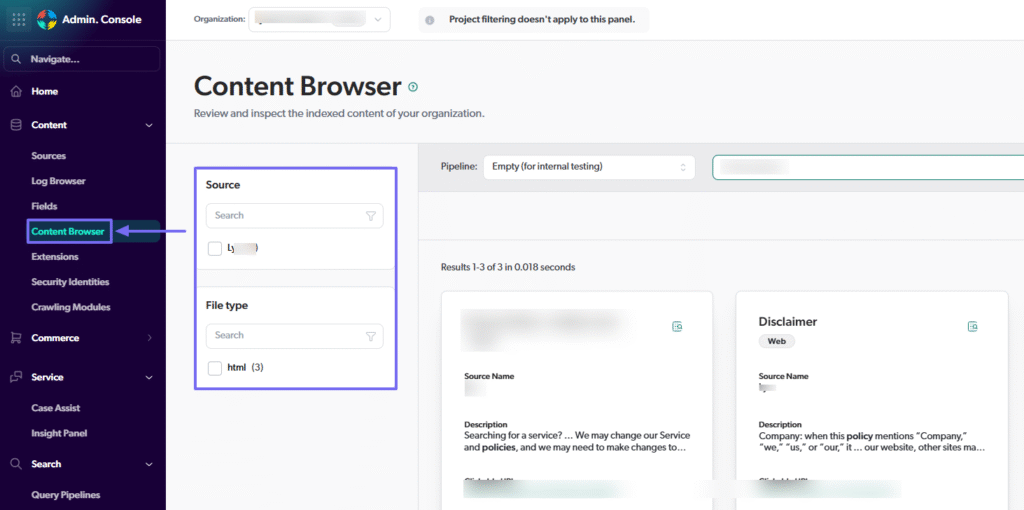
In the search bar, I entered “Privacy policy”. All the pages dealing with this term suddenly popped up with the source referenced in the reply.
3 . Project
An organization has many departments and employees. You can’t just have data scattered all over the platform. You need to create a project for each use case to be organized.
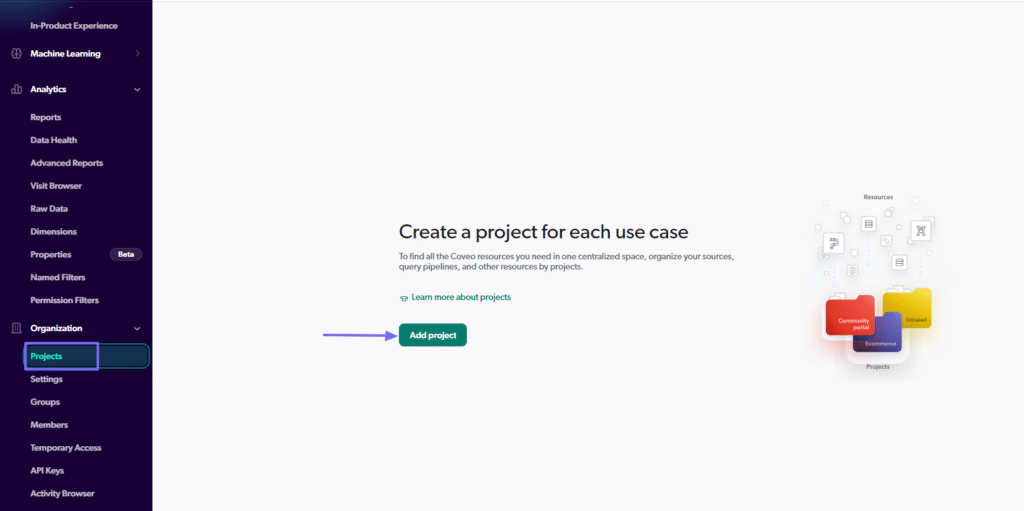 Projects with an Add project button and use-case setup prompt” />
To create a project, I will choose a project type, add a name, description, and an email that will serve as a point of contact.
I can now select the resource used for this project and click “Create”.
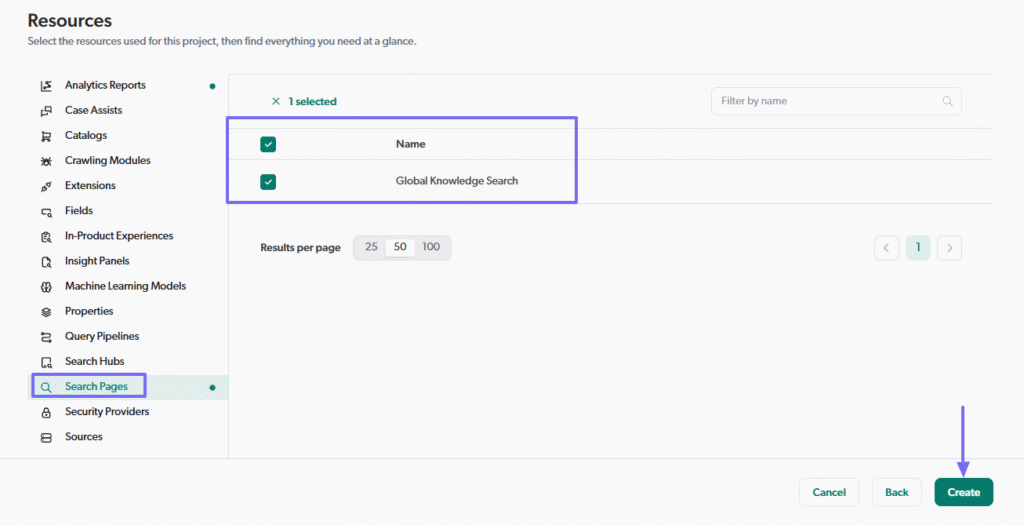
There you go! If you followed these steps, you have just created your project.
I can see an overview of the project and the resources as well.
What I enjoyed vs what gave me a hard time
| What I enjoyed👍 ✅ You can customize the search page with filtering options such as source, author, item type etc.. ✅ Has a section dedicated to commerce where you can create a catalog ✅ There are various resources I could use for my project: Properties, Search hubs, Extension, Pipeline, Search page, etc. | What gave me a hard time 👎 ❌ The platform displays too many features on the sidebar which can be confusing. ❌Can be difficult for non-technical users. You need some coding experience to understand language models like Python. |
Best for
- Large enterprises with complex search and content management needs.
Pricing
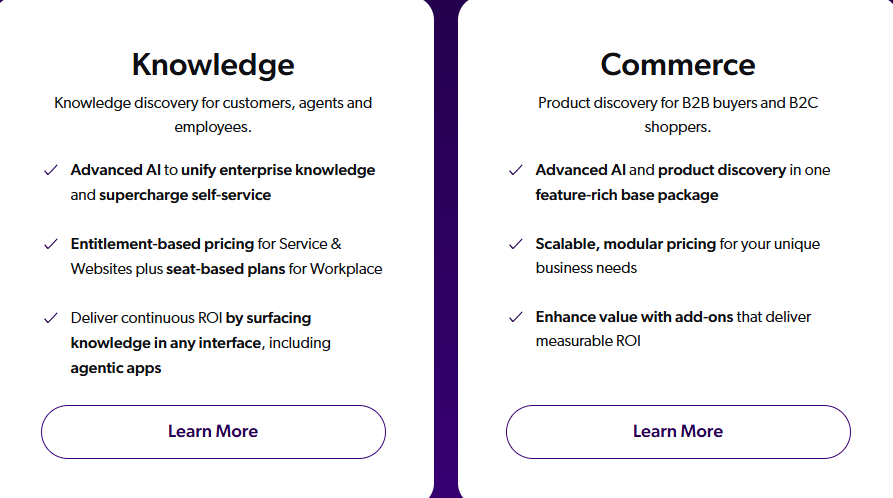
- Knowledge: Custom pricing
- Commerce: Custom pricing
4. Meilisearch

| My rating: ⭐⭐⭐ 3.5/5 stars Base price: $30/month Integrates with: JavaScript, Python, Ruby, Go Best for: Small and medium IT companies |
Meilisearch is the next best enterprise search software in this list. It not only lets you retrieve information, but it also monitors your search performance and shows what users search for.
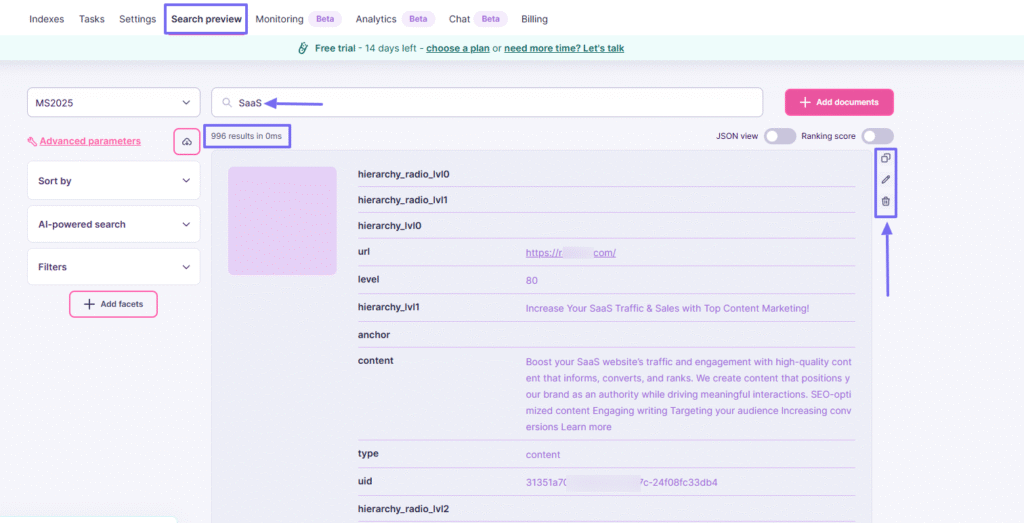
Before you can use the search options on the platform, you’ll create a project, then an Index. You will then name and choose how you want to import your documents. You can copy your search results, edit, or delete them.
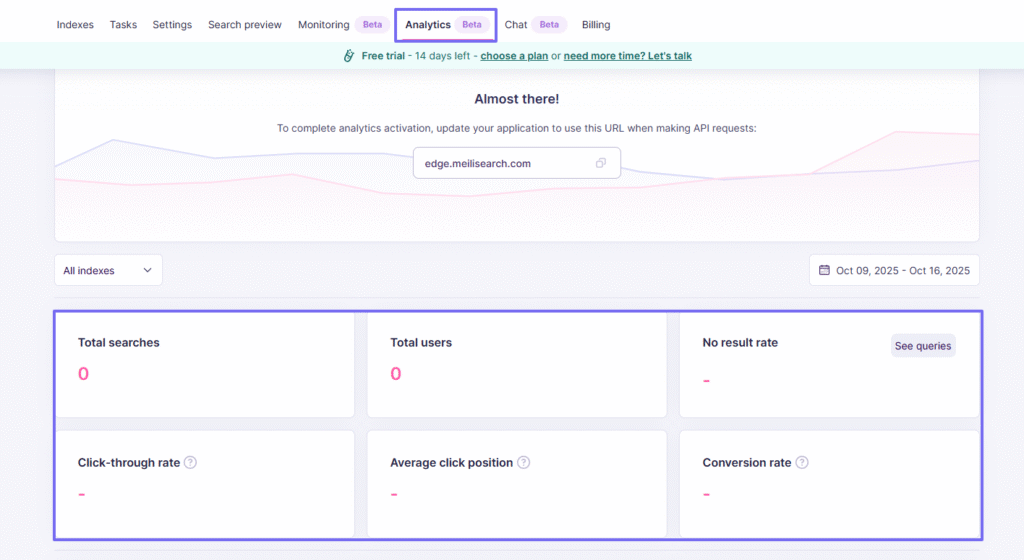
I particularly loved the Analytics. It shows my total searches, total users, average click-through rate, and conversion rate. This means I can clearly see what people are searching for, which is great.
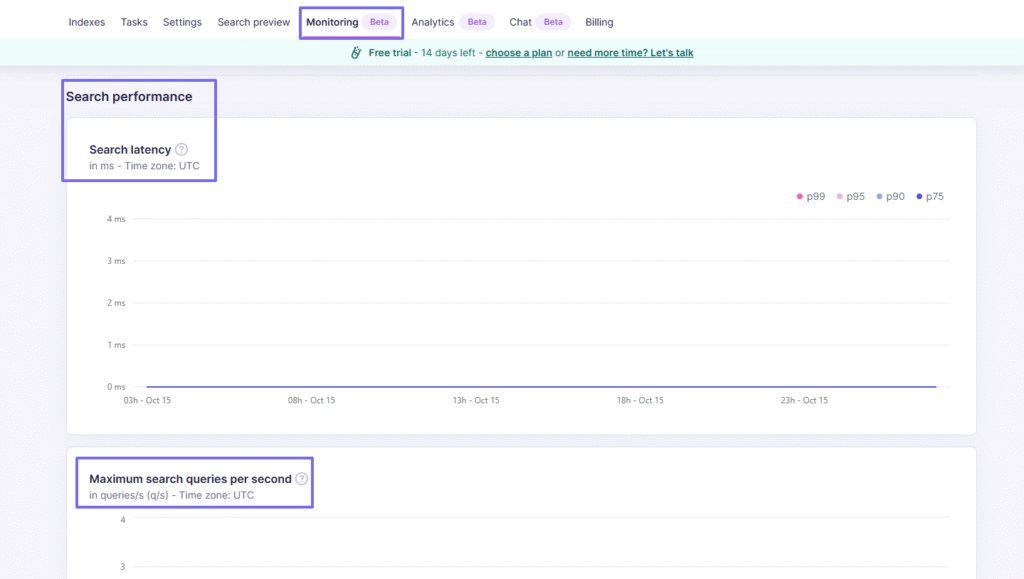
That’s not all! I can also monitor the search performance and see the maximum search queries per second.
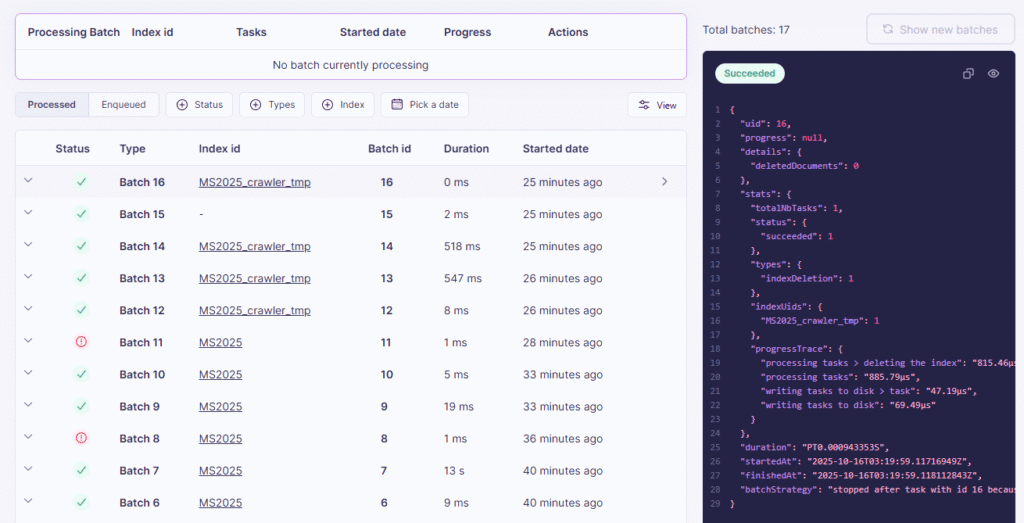
Now, anytime you upload a file or document, it turns into a batch. You can later see the status, type, index ID, batch ID, and duration. You will also see the coding version of your file.
Key features
1 . Index
Imagine you are searching for a specific document inside your company’s software, but there are so many results. You will find it difficult to fish out the right information.
The index helps you organize your documents in collections. This way, your searches are more relevant.
On Meilisearch, you will first create a project before accessing the main dashboard.

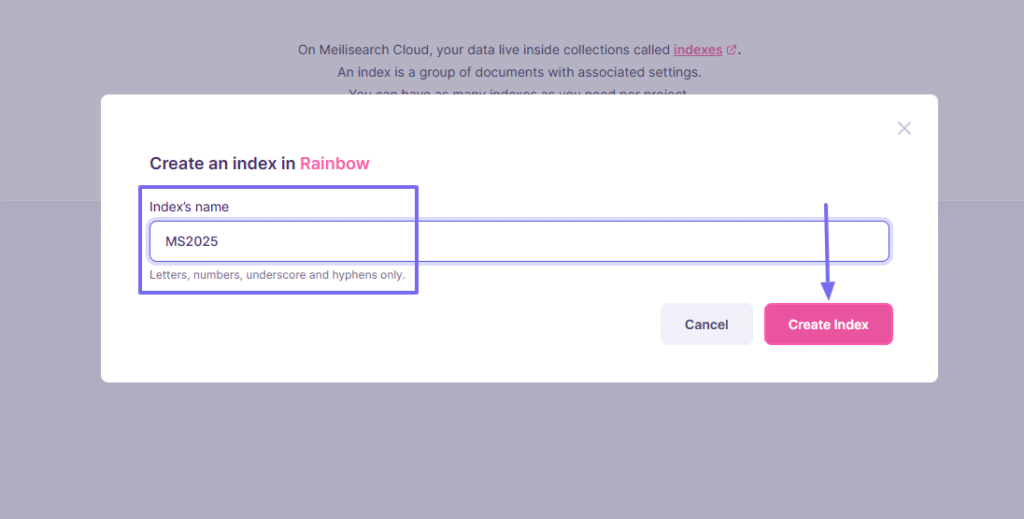
Now, let’s create an index.

Enter your index’s name.
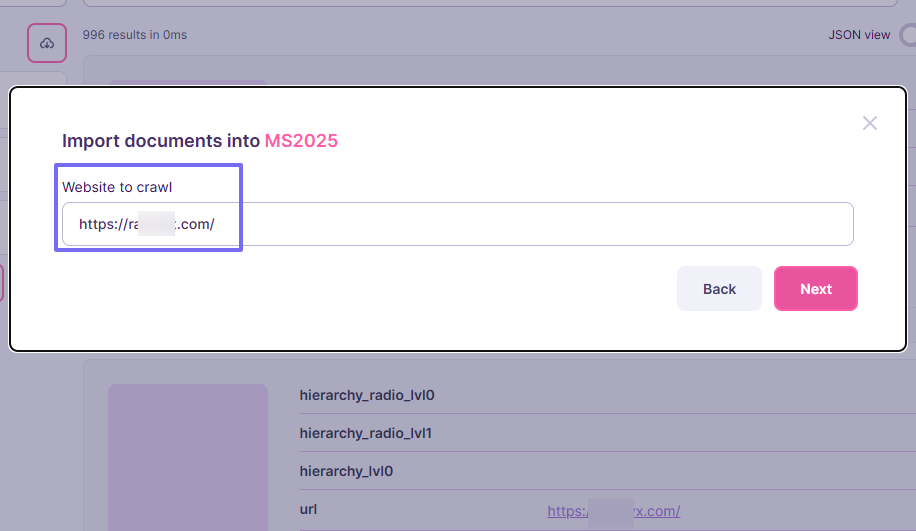
Now, I can choose how I want to import my documents into my index. I can upload files, use mock data, or use a documentation crawler.
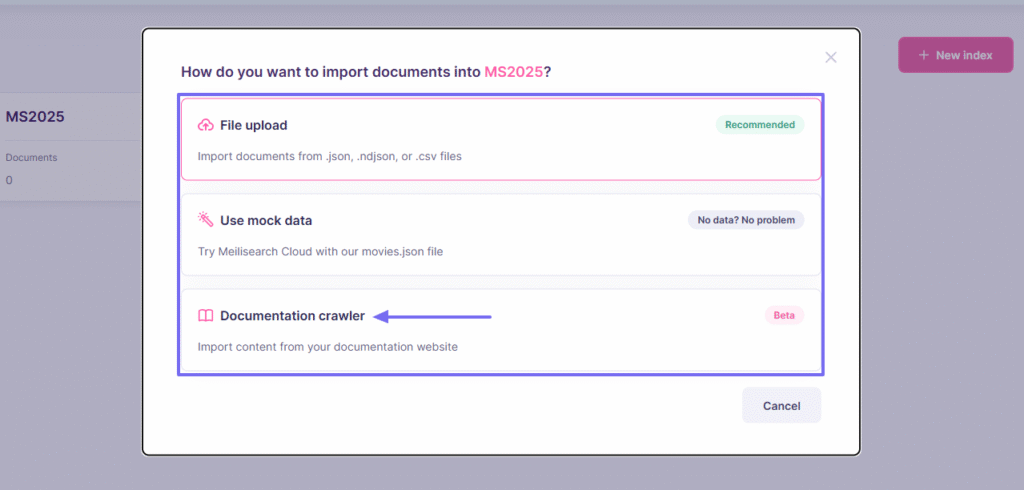
Because I chose the “Documentation crawler”, I had to add a website.
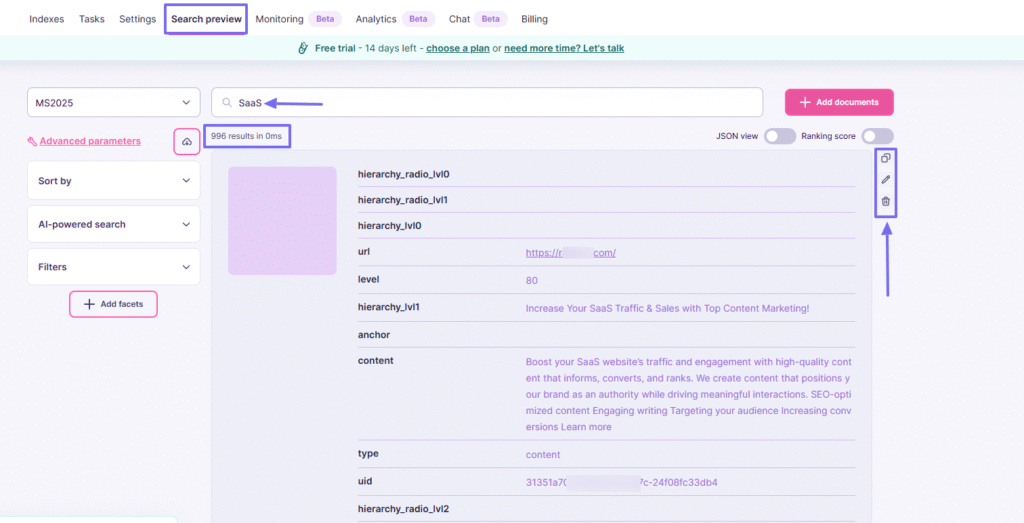
Using the Search view, I simply entered “SaaS” and got about 996 results. On the left side, I could still copy, edit, or delete the results.
2 . Analytics
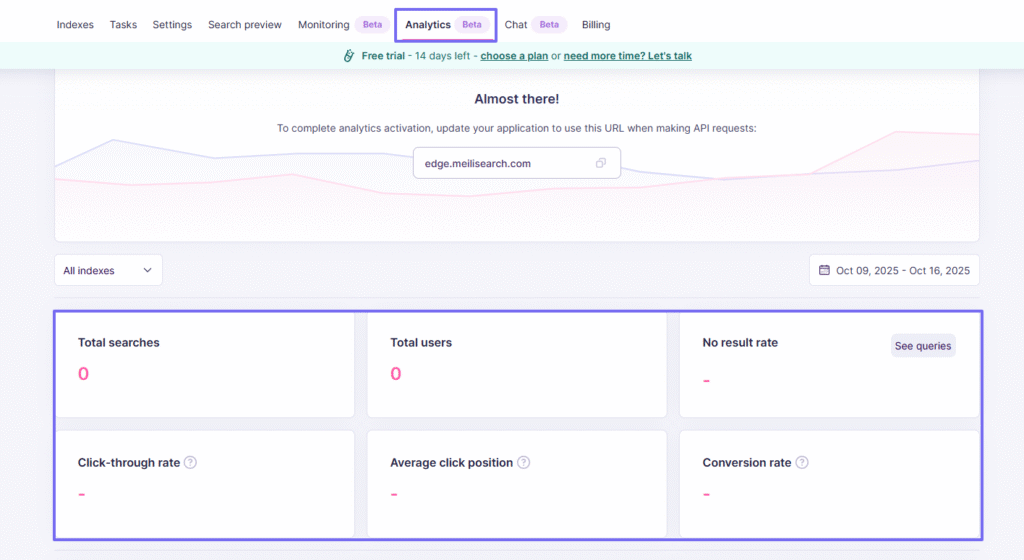
It’s important to know what users search for. Thanks to Analytics on Meilisearch, you can see the total searches, total users, click-through rate, and average click position. It also shows your conversion rate.
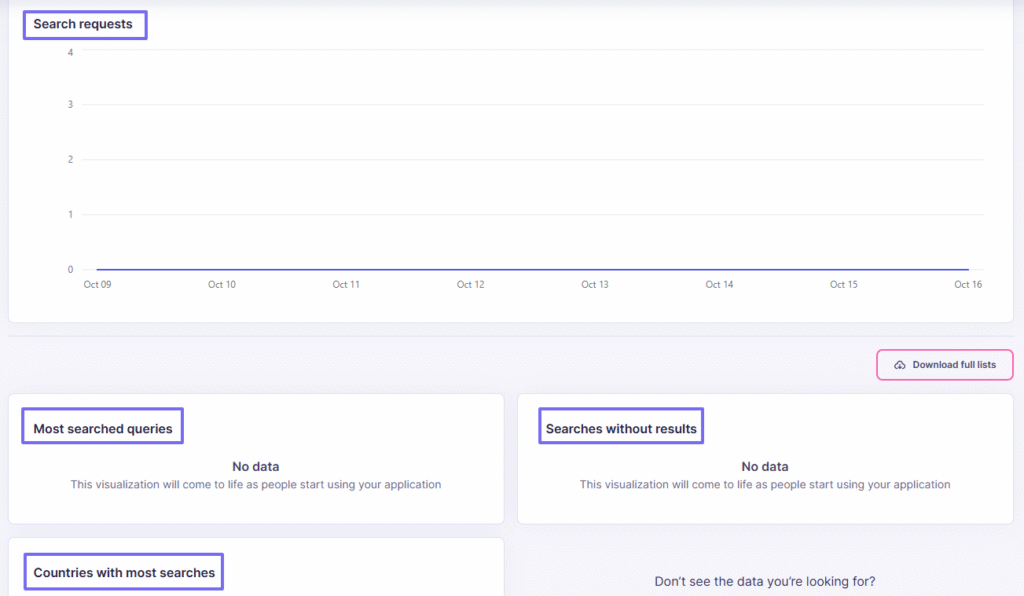
There is more! The interface also displays all the search requests over a week, the most searched queries, countries with the most searches, and searches without results.
3 . Monitoring
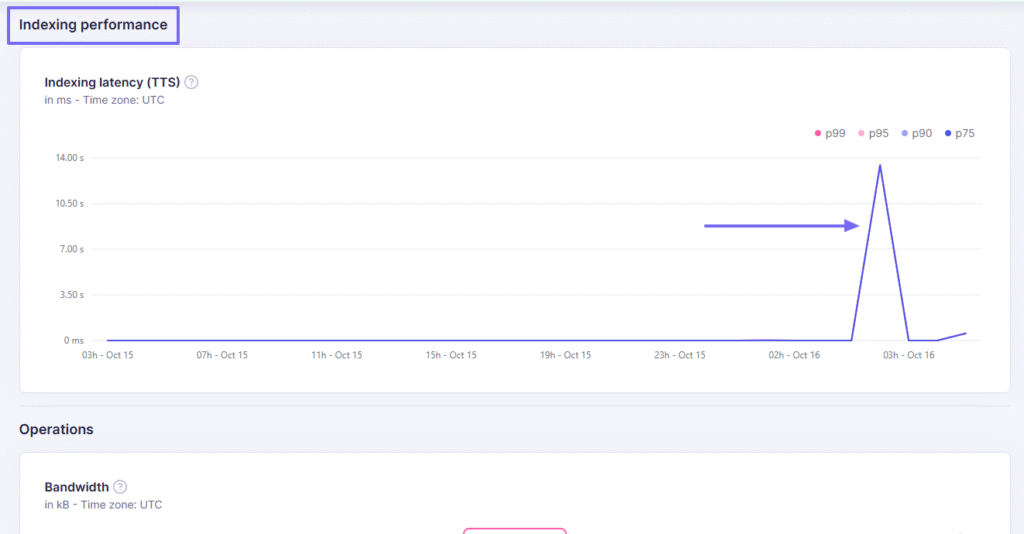
Sometimes, your team can upload so many documents that you don’t even realize the platform is now slowing down. The Monitoring feature tracks the performance and health of the platform.
You can see the search performance, how fast it is happening, and also the maximum search queries per second.
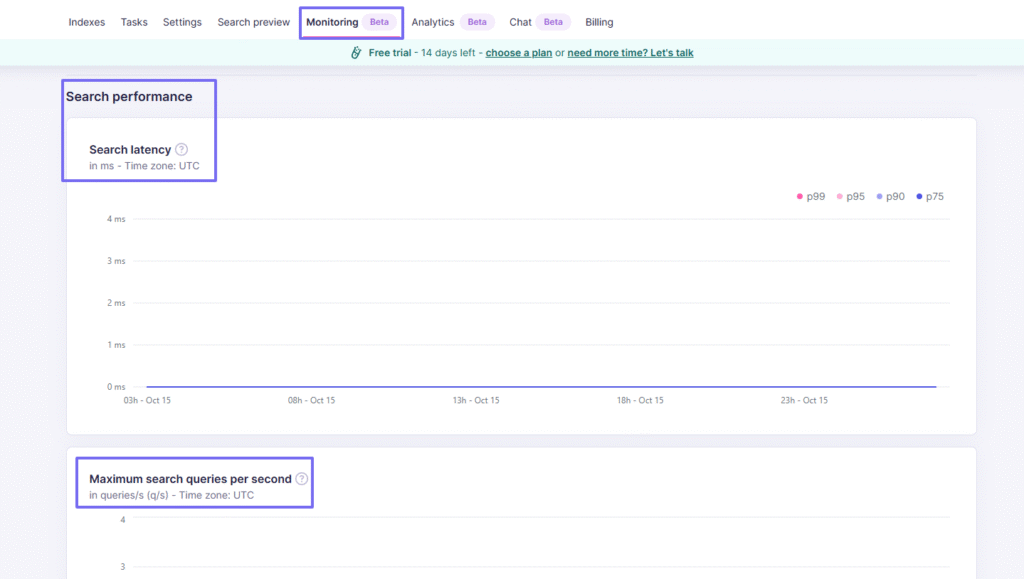
I could also see the indexing performance with exact dates.
What I enjoyed vs what gave me a hard time
| What I enjoyed 👍 ✅ Shows how fast searches and queries are happening through analytics. ✅ Displays the countries with the most searches ✅ The platform can add a ranking score to your search to show its relevance | What gave me a hard time 👎 ❌ Some features, such as monitoring, analytics, and chat, are still in beta mode ❌ File upload is limited. Can’t upload PDF files |
Best for
- Small and medium businesses with workflows requiring heavy website and document search.
Pricing
- Build: $30/month
- Pro: $300/month
- Custom: Custom pricing
5. Elastic Enterprise Search

| My rating: ⭐⭐⭐ 3.5/5 Base price: $99/month Integrates with: Atlassian Jira, AWS, Azure, Beats, Box Best for: Developers and large organizations with complex dataset needs |
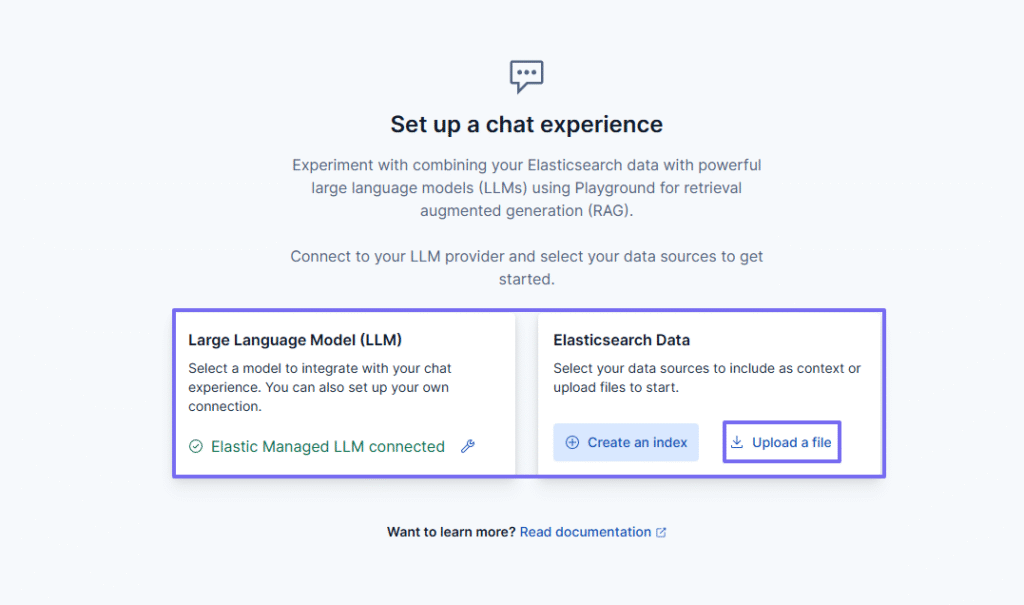
The list continues with Elastic Enterprise Search. I added it to this list because it gives you access to large language models (LLMs) when you set up your chat experience. You can also customise your search with synonyms.
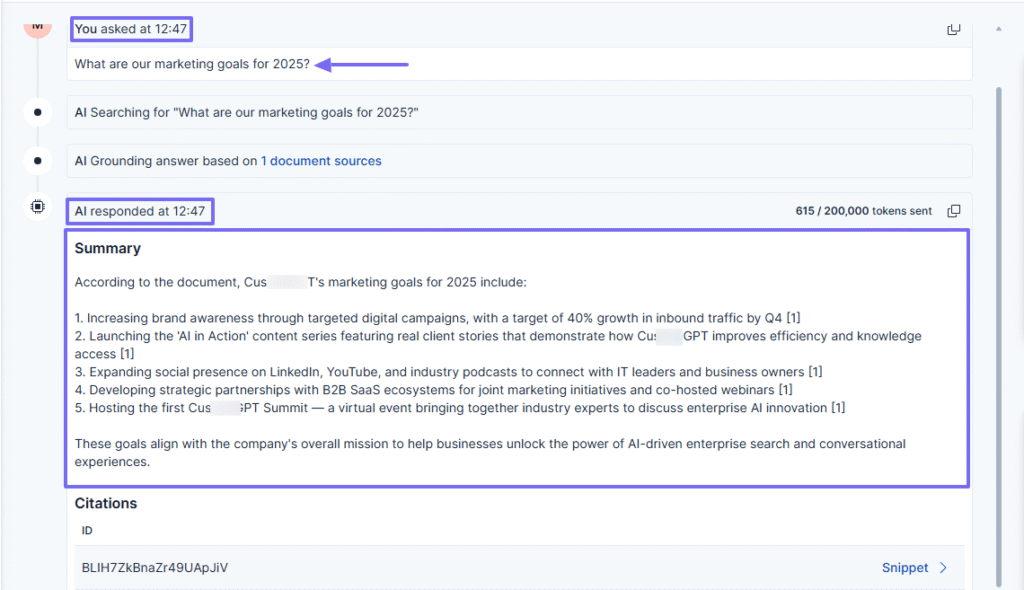
When I use Playground, I can create my chat experience. I simply upload my file, name my index, and select my AI connector. The AI chat shows the exact time you ask a question and receive a reply.
To help expand my search, I can create synonyms or interchangeable words.

You already know that an index is a collection of documents. The Index Management interface shows the index you’ve created, the number of documents you’ve added, and its storage size.
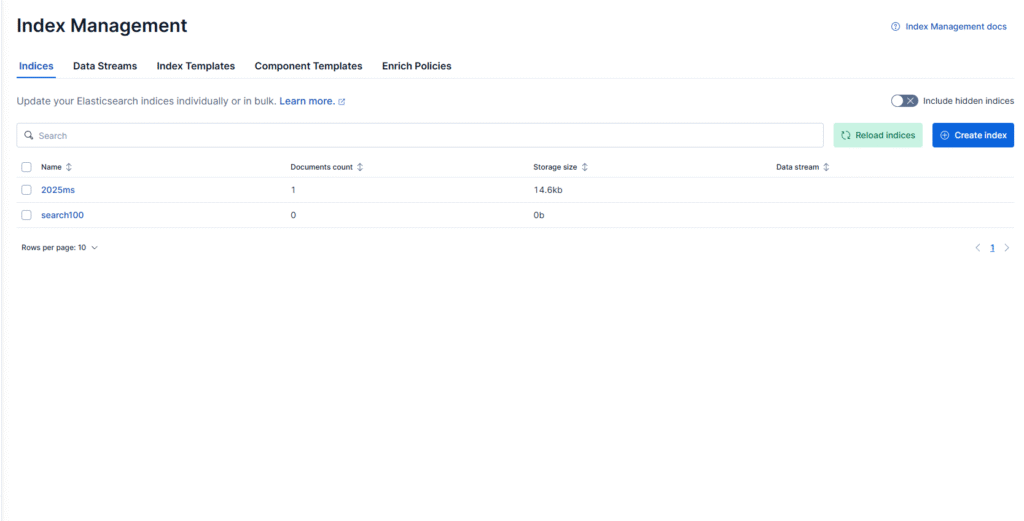
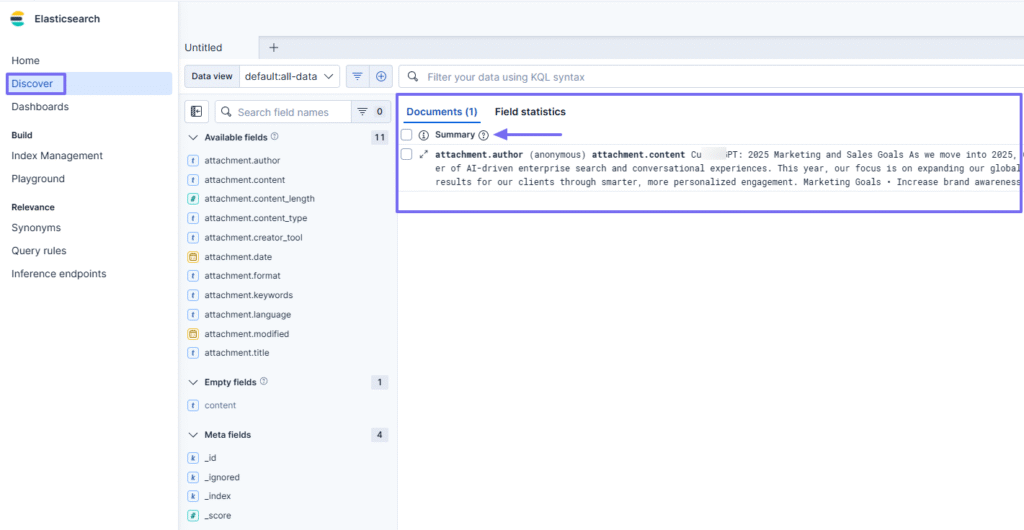
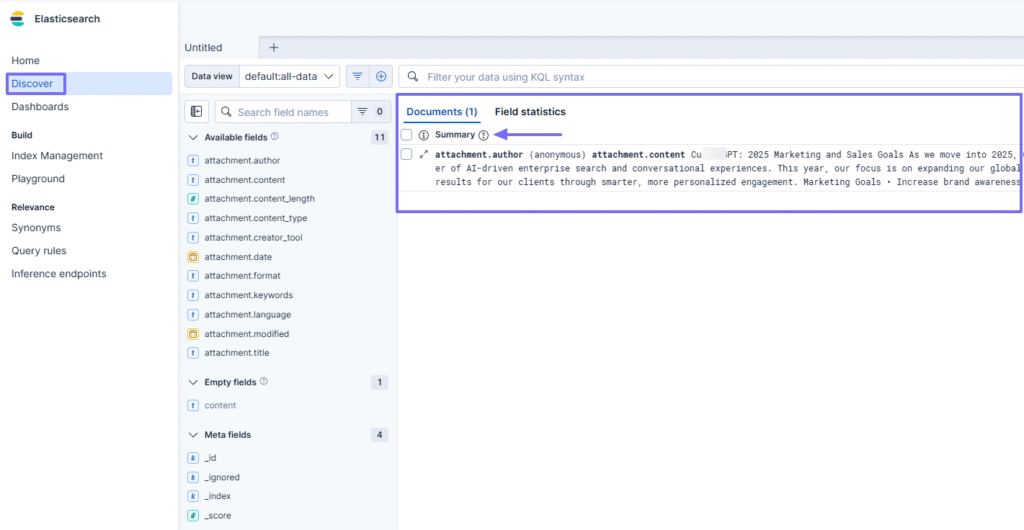
What’s more, I can also access all my documents on the platform. When I use the Discover feature, I can view the document and a summary of its content.
Key features
1 . Playground
On Elastic Search, you use Playground to create and chat with your indexed data using large language models(LLMs), or documents you’ve uploaded.
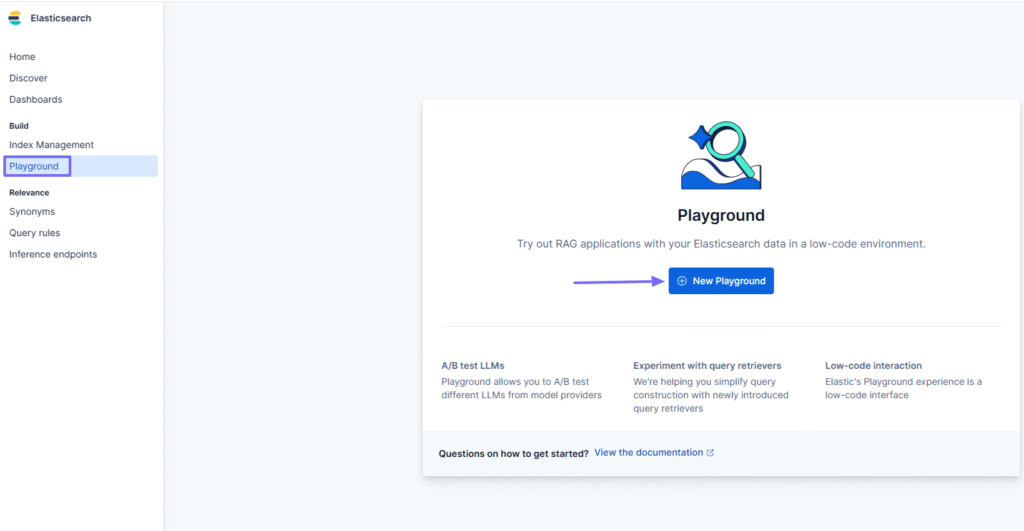
To set up a chat experience, I can choose my preferred LLM or go to Elasticsearch Data. From there, I can either create an index or start by uploading files(which is my next step).
I could upload my files and name my index. I could also run an analysis explanation of the document, apply advanced settings, or delete it.

Under LLM settings, I could select my AI connector and add clear instructions.
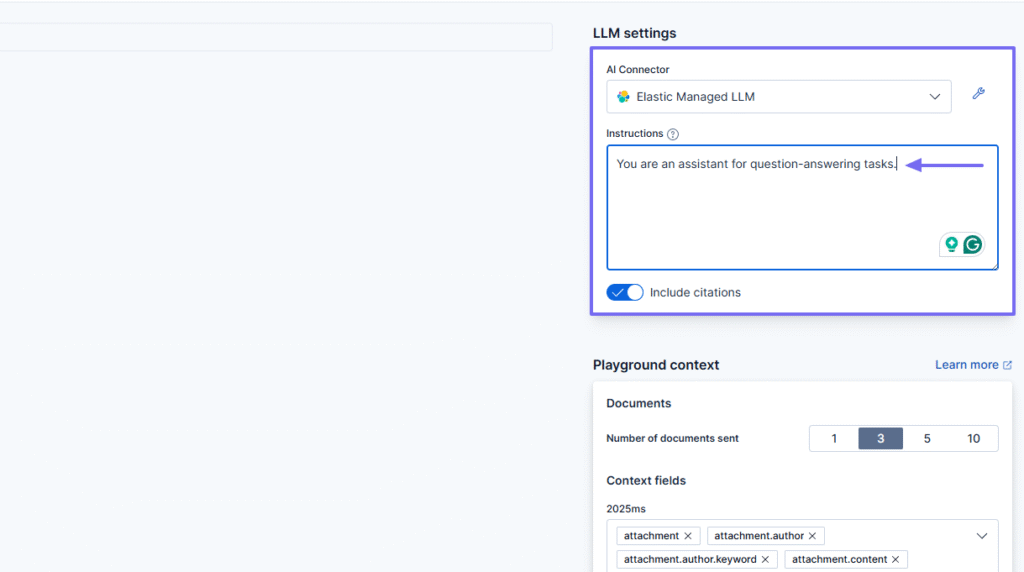
I could adjust the playground context by choosing the exact number of documents sent and adding context fields.
In the search bar, I entered my first question just to test the chat: “What are our marketing goals for 2025?”.
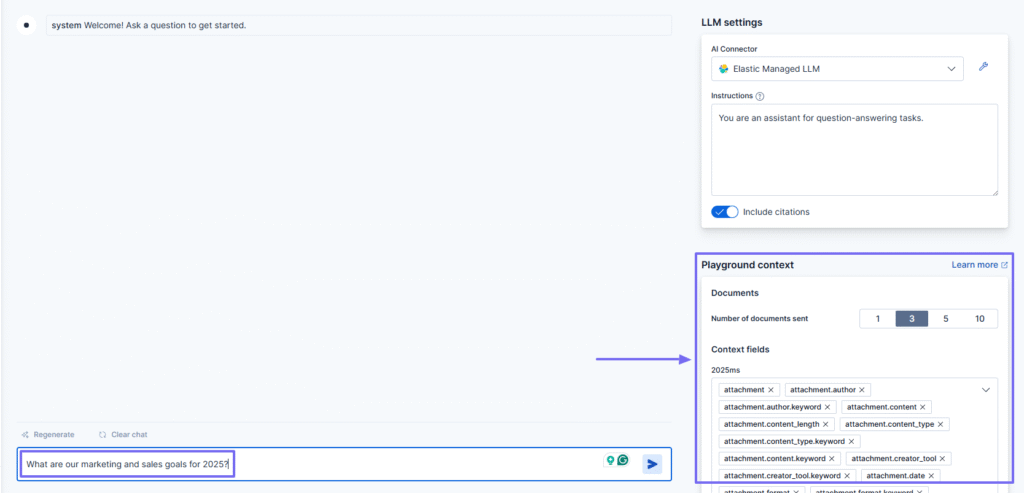
The AI saved the exact time I asked the question before providing an answer.
Regarding the answer, I did not have any complaints.

2 . Synonyms
Not everyone types the same thing when searching. One employee may search “HR policies” while another one searches “human resource guidelines”. Without synonyms, both searches could provide different results, meanwhile they want the same information.
Let’s see an example of how to create synonyms.
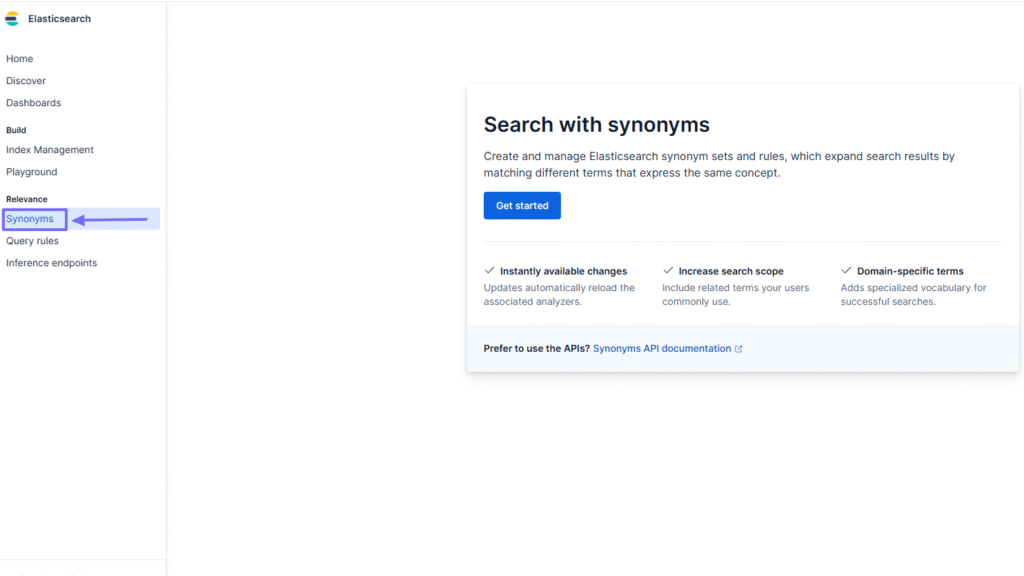
First, name your synonyms set
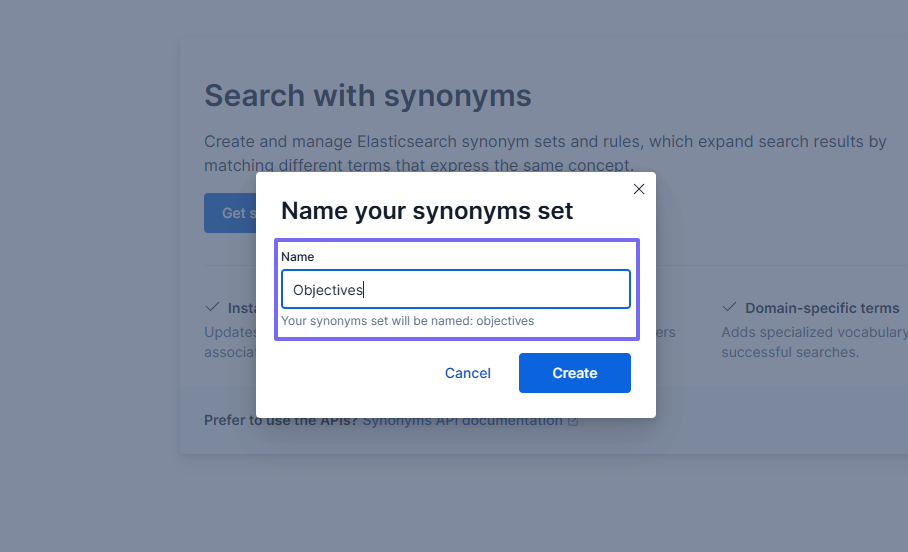
Next, select a rule type: Equivalent, which means words with the same meaning, or Explicit, which are words that expand to include the terms on the right.
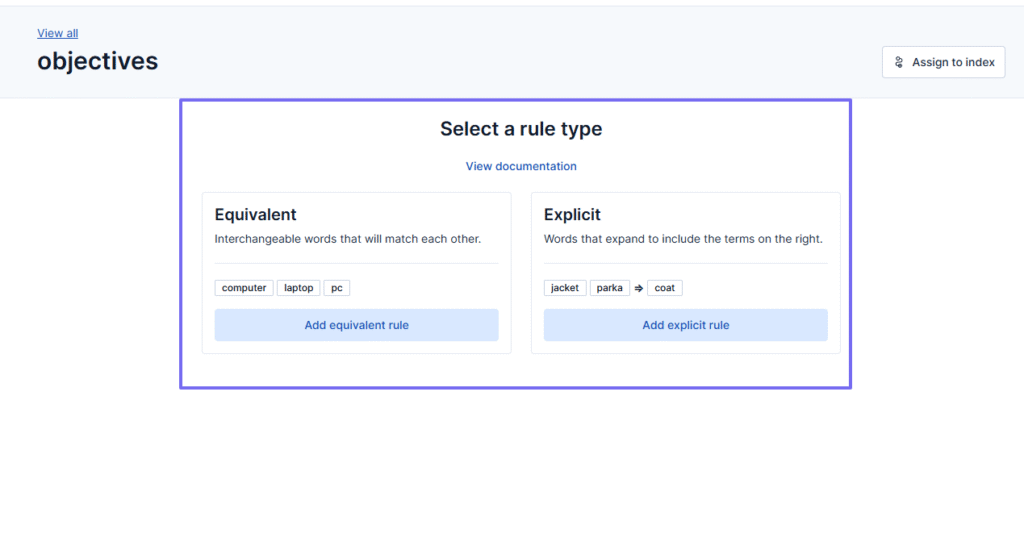
Voila. I’ve created my synonyms.
Explicit: sales strategy, sales growth, business equals sales
Equivalent: objectives, targets, and aims are interchangeable words.
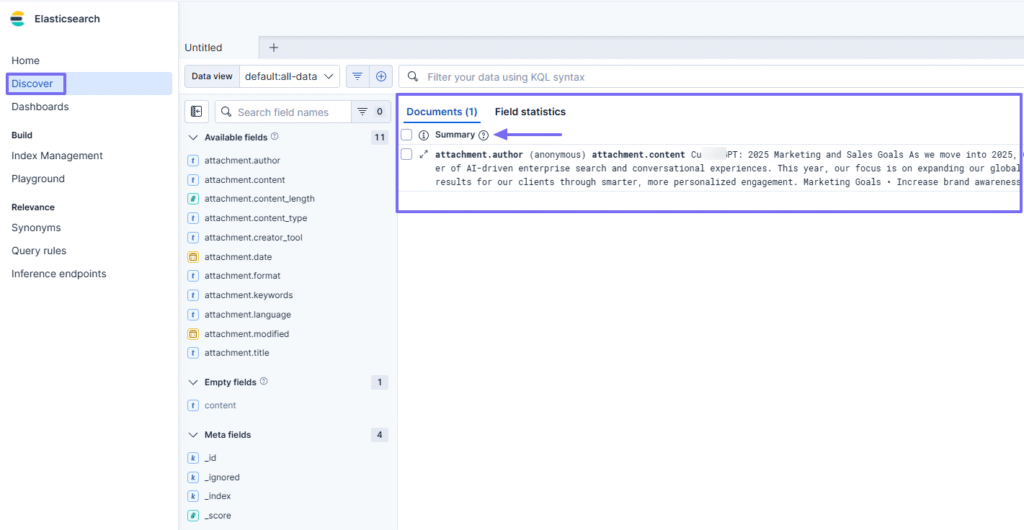
3 . Discover
Searching for a document shouldn’t be a whole struggle. The Discover feature lets you browse all your documents, filter, and search them. It also shows a summary of each document with its attachment author and content.
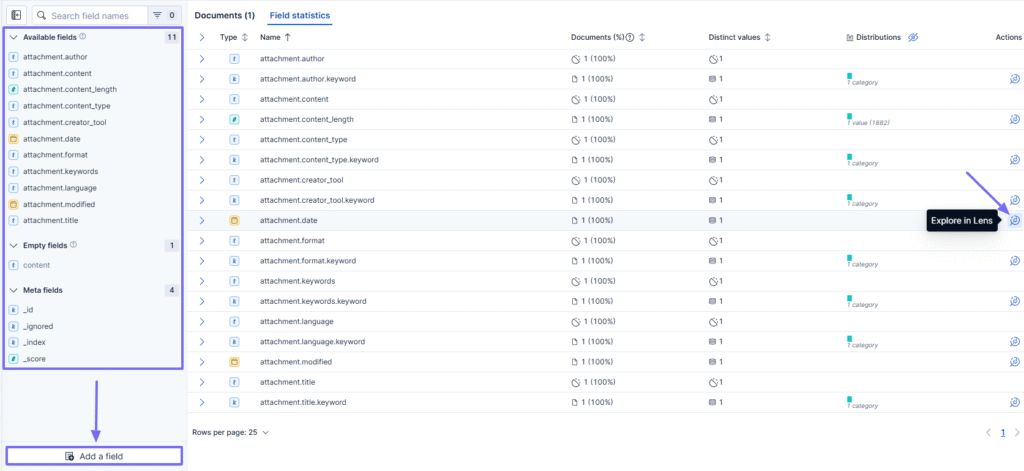
With the Field statistics, I can see the field type, name, document in %, and values.

On the right side of the interface, I can add and see all the available fields. This helps me understand the shape of my data. You can also explore a field in Lens.
What I enjoyed vs what gave me a hard time
| What I enjoyed 👍 ✅ Loved that the platform specifies the exact time you do research, and the exact time AI responds to it. ✅ Can create synonyms to help expand your search ✅ You can choose your preferred AI connector for your chat. | What gave me a hard time 👎 ❌ Can be difficult for non-technical users as the platform uses many advanced terms like inference endpoints. |
Best for
- Developers and large organizations seeking to add advanced search to their applications, websites, and internal workflows.
Pricing
- Standard: $99/month
- Gold: $114/month
- Platinum: $131/month
- Enterprise: $184/month

What is an Enterprise Search Software?
An enterprise search software is a tool that helps teams quickly find information across all the company’s data sources. Such information can be emails, files, documents, databases, or even cloud apps.
To give you an idea, it is like Google but for your company’s internal data. With Google, you search through the Web. But with this software, you search through everything your company already owns.
When I say everything, I mean it. For example, let’s say a new employee joins the company but doesn’t know who the CEO is. If they use an enterprise search software like CustomGPT, they can ask: “Who is the CEO of the Company?”

Not only will they receive an instant reply from the AI agent, but they will also see the source referenced in that response.
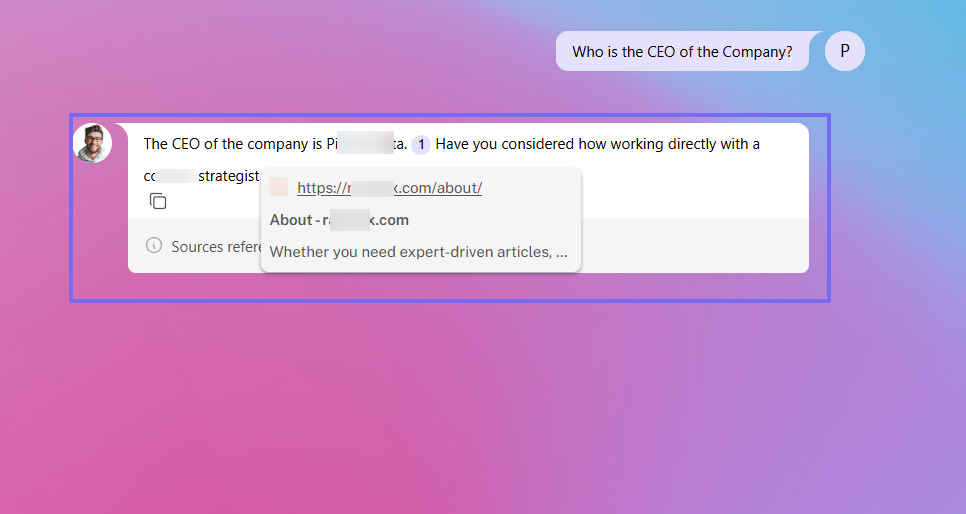
They can then click it and verify the information.

How to Choose the Right Enterprise Search Software
To choose the right enterprise search software, consider the following:
- 1. Ease of use
- 2. Features You Require In Your Business
- 3. Pricing and Scalability
- 4. Integrations With Other Tools
- 5. Security and Access Control
Let me explain further.
1. Ease of use
The very first factor to consider before choosing the right enterprise search software is ease of use.
This is very important because it determines how quickly your team can adopt and benefit from the tool. So you clearly understand that a complex one, though powerful, won’t be of much help since they don’t understand it, let alone use it.
The truth is, within many companies ( apart from tech companies), there are a good number of employees who do not have technical aspects to their work. Your team should be able to navigate easily and find what they need without constant help because of major technicalities.
For that reason, the platform should feel intuitive, with a clear display of features.
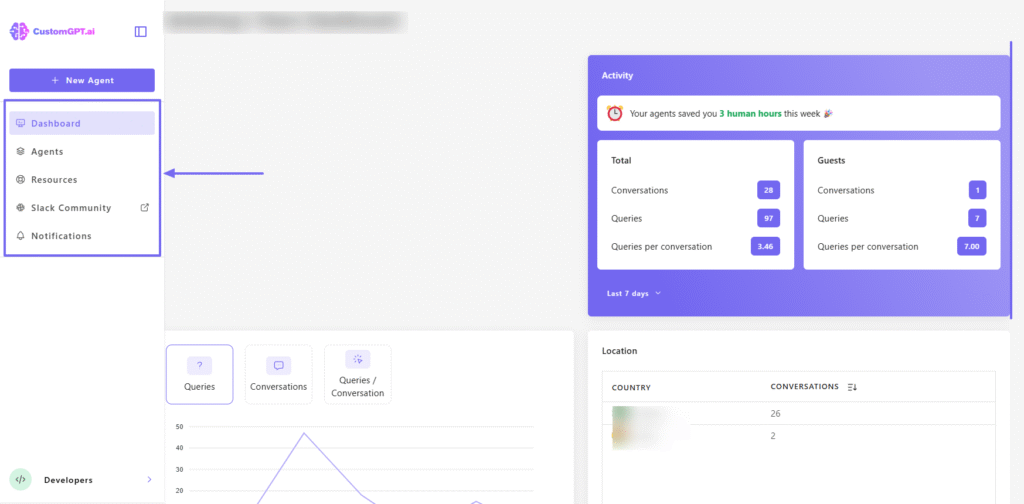
Search bars should be clearly visible. This way, you can find the source you need quickly for your agent, for instance.

As a business owner, if you choose a tool that is really easy to use and intuitive, you will start smiling at your employees’ performance. They will thank you for it.
Take the example of Elizabeth Planet, a leadership coach and advisor in the nonprofit sector with over 15 years of experience.
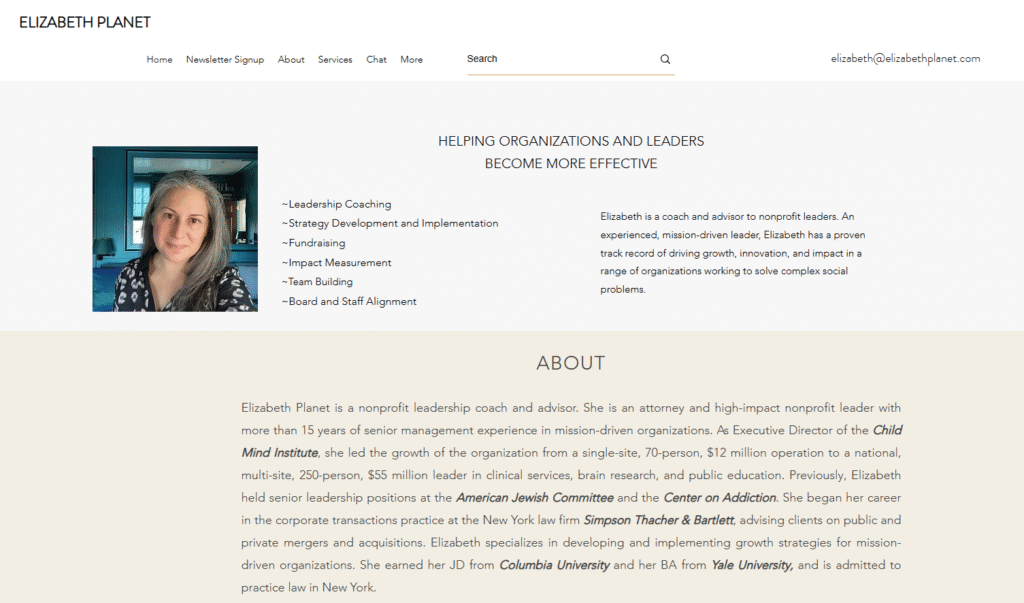
She wanted an easier way for people to access her non-profit library resources, but found out that most AI tools were too technical and complex.
She then discovered our platform, CustomGPT, which made it easy for her to build NonprofitAMA, a chatbot that answers questions using her own trusted content.

To her, the process was easy since CustomGPT is a no-code platform.
Regarding NonprofitAMA, here’s what she said: “I added a couple of trusted sources to the chatbot, and the answers improved tremendously! – You can rely on the responses it gives you because it’s only pulling from [curated] information.”
Elizabeth was able to accomplish such an achievement because the platform she chose was easy to use.
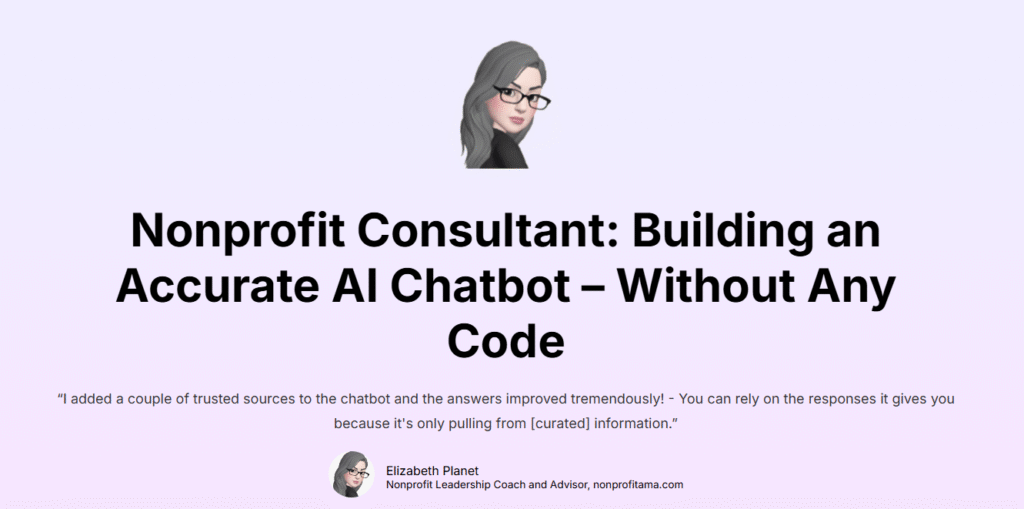
Her story shows that with CustomGPT, even users who aren’t tech-savvy can easily build powerful AI assistants.
2. Features You Require In Your Business
The truth is, every company has different priorities.
You shouldn’t go for a software just because it has a long list of features. You should rather look at one with features that align with you:
- Business goals
- Company size
- Complexity
A small team should prioritize:
- Simplicity
- Automation features like AI-assisted search
- A user-friendly dashboard
- Predictable pricing
- Reliable infrastructure
- Citation‐backed answers with inline source links
This will save them time without the need for a full IT department.
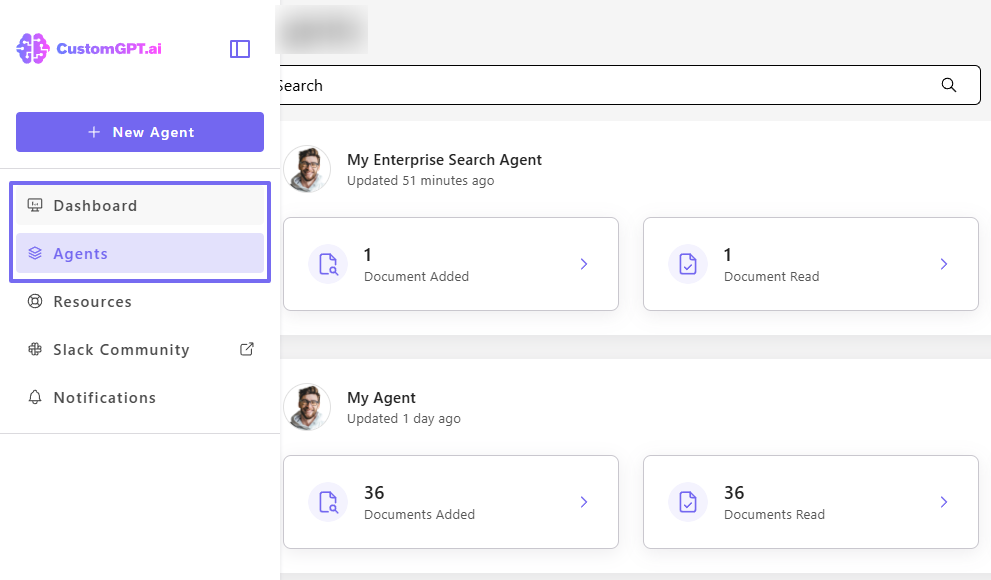
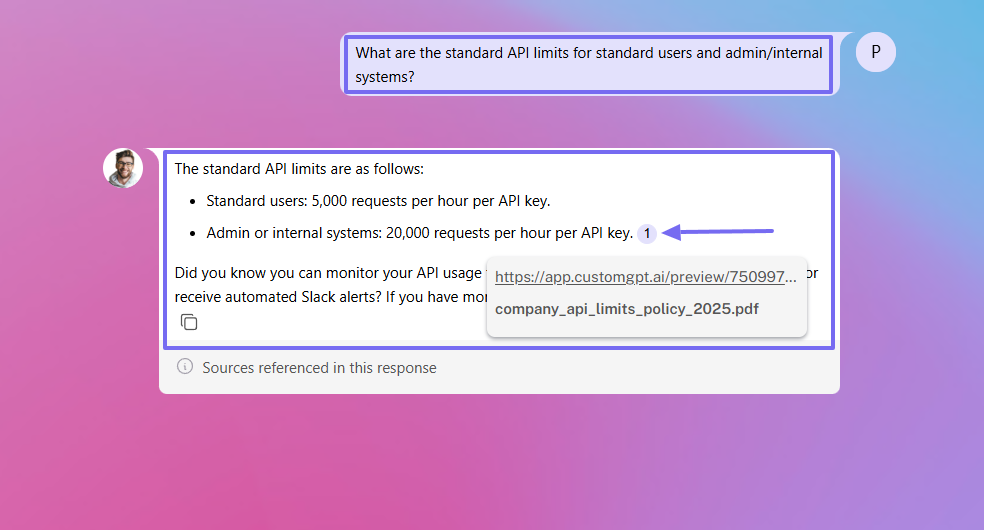
But let’s say you’re an IT manager at a small tech startup with 5-10 people. It’s likely you wear many hats. You manage tools, data, and team support, and this keeps you so busy. Because of your limited time, an AI-assisted search feature will help your team members find answers they need without your help.
As a result, when someone asks, “What are the standard API limits for standard users and admin/internal systems?” The system automatically replies and pulls the right document.
Now, that’s not all! As a business owner, customer support manager, or content operations manager, you need an AI agent that reflects your brand.
(if you are serious about your branding, then you need features to personalize your AI agent.)
CustomGPT lets you choose the AI agent’s name, role, agent avatar, and branding colors.
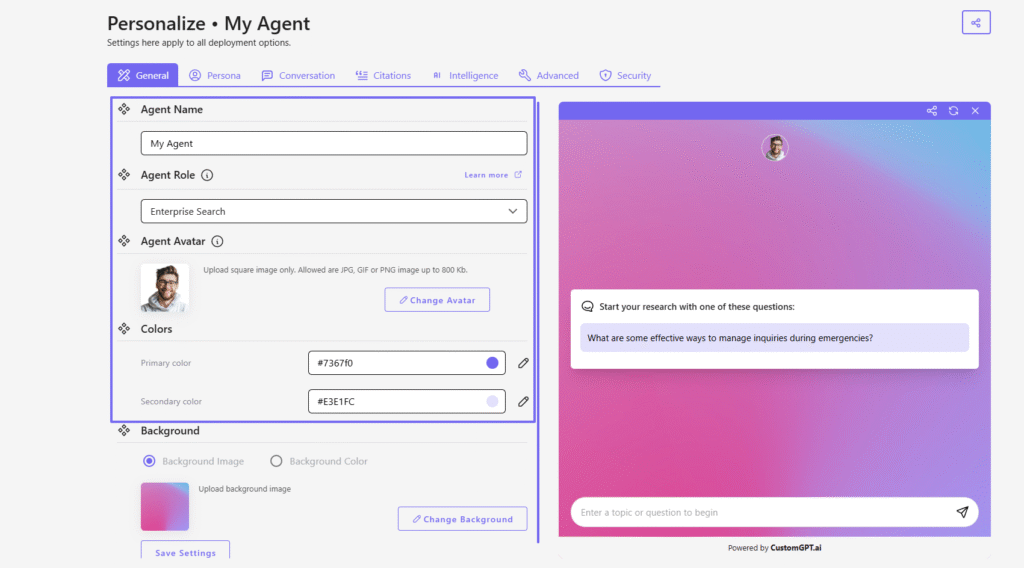
You must be able to customize your agent behavior by setting up instructions.

I also think the platform you choose should let you select your agent’s capability, specify where it generates responses from, and the AI model.

Whether you are a small business owner or a large organization, you must definitely identify the features you actually need. If not, you might pay for features you will never use.
3. Pricing and Scalability
To choose your enterprise search software, consider pricing and scalability.
Most platforms use a per-user, per-month pricing model and typically cost between $20-$100. This means the more members you add, the higher the cost.
Entry-level pricing for small businesses ranges from $20-$50 per user per month. Meanwhile, enterprise-level plans can go way beyond $300+ per user.
The reason why you should really consider this factor is that as your business grows, so does the price.
For instance, a solution that is affordable for 10 users today might become costly and difficult to manage for 100 users.
Now, some of the platforms I discussed earlier in this article do not have their pricing plans public. However, if you really want to choose your software, you should have access to pricing plans and know what each offers.
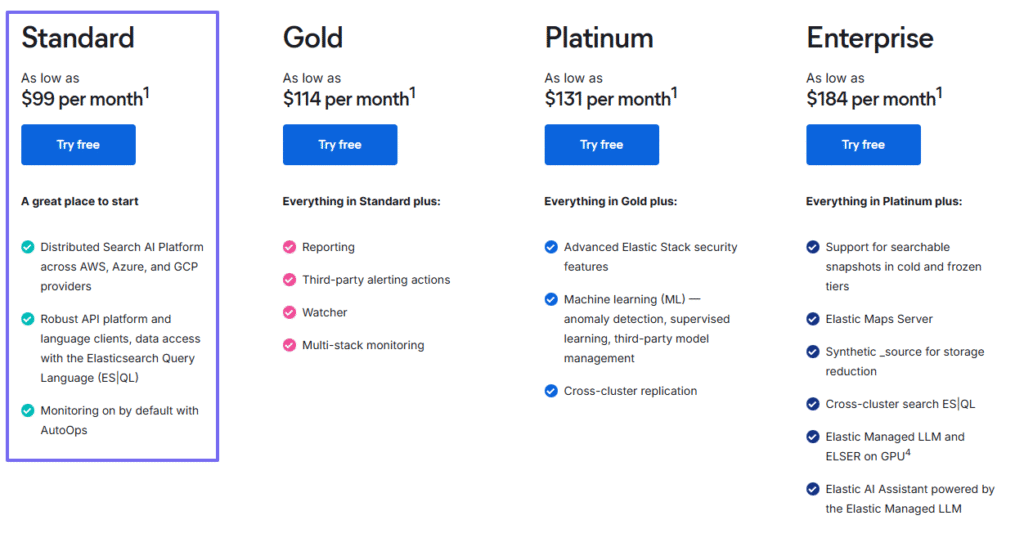
Elastic Search’s Standard tier, for instance, costs $99/month. This plan gives you access to their Search AI, API platform, Language client, and Elasticsearch Query.
Meanwhile, CustomGPT’s Standard tier is $89/month when billed annually. With this plan, you can create up to 10 agents, have 60M words storage capacity, 3 team members, and RAG API Access.
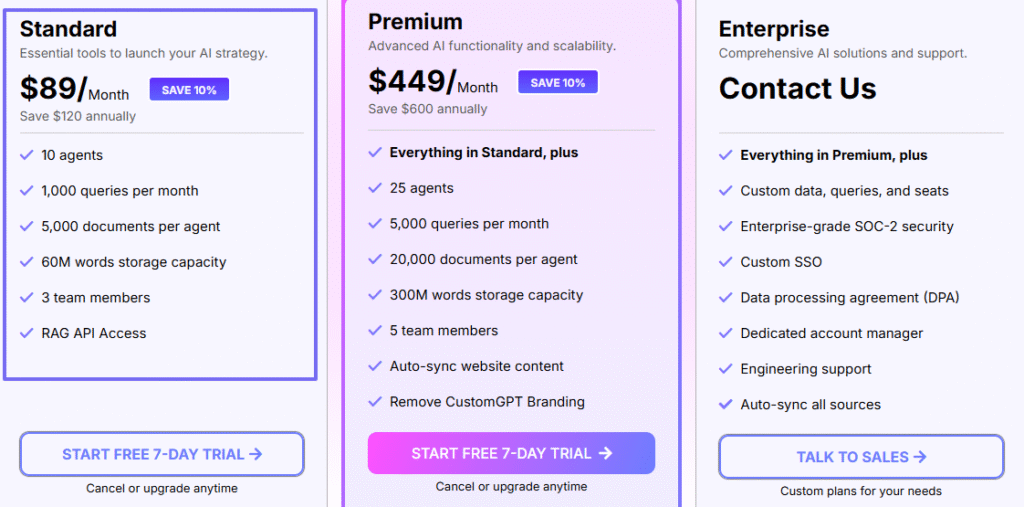
The former costs $99, while the latter $89. The difference is $10 a month, and $120 after a year. You may think it is small, ( but wait until you add more users), but pricing models matter.
For example, with Elastic Search, costs rise as your team grows, but CustomGPT offers predictable, flat pricing with no per-user fees.
Now, making such comparisons is a smart move. It helps you determine whether or not the platform will easily grow with you.
4. Integrations With Other Tools
Furthermore, if you want to choose the right enterprise search software, you must check if it integrates with other tools.
It would be a nightmare as a business owner to have a team that constantly keeps switching between platforms and ecosystems just to find one document or email.
This is the importance of integration. And a good enterprise search software should easily connect with the other tools your company already uses.
One known integration is Slack. The reason is that it has become the main communication hub for most teams. The software you choose could even have a dedicated Slack community that could be of help to you.
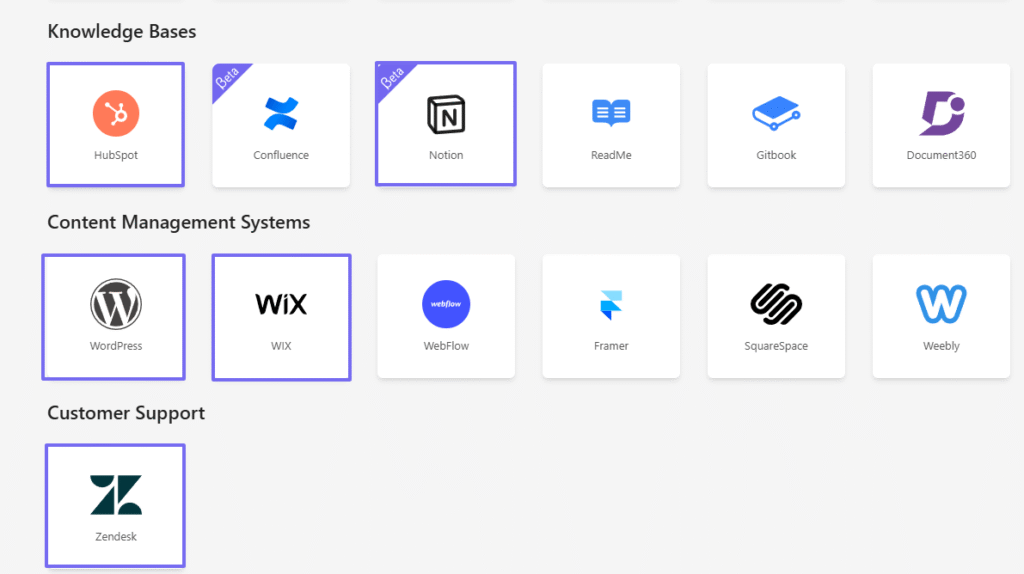
It should also connect with popular platforms like Hubspot, Notion, WordPress, Wix, and even Zendesk.
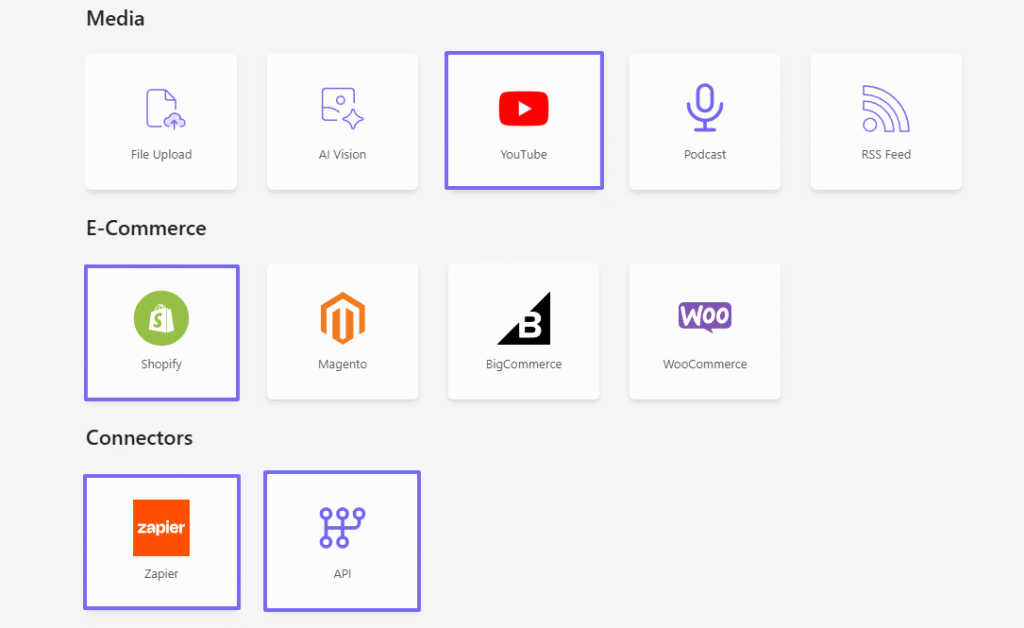
And of course, giants like YouTube, Shopify, alongside connectors like Zapier, and API.
5. Security and Access Control
When dealing with enterprise search software, security is essential because it touches sensitive data.
In terms of security, the software you choose should follow strict protocols for handling and storing data securely.
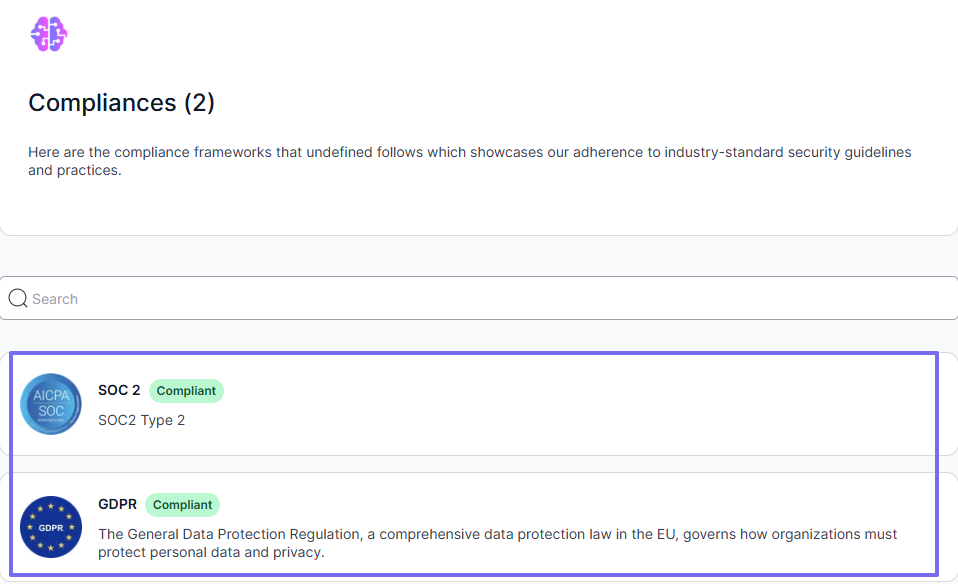
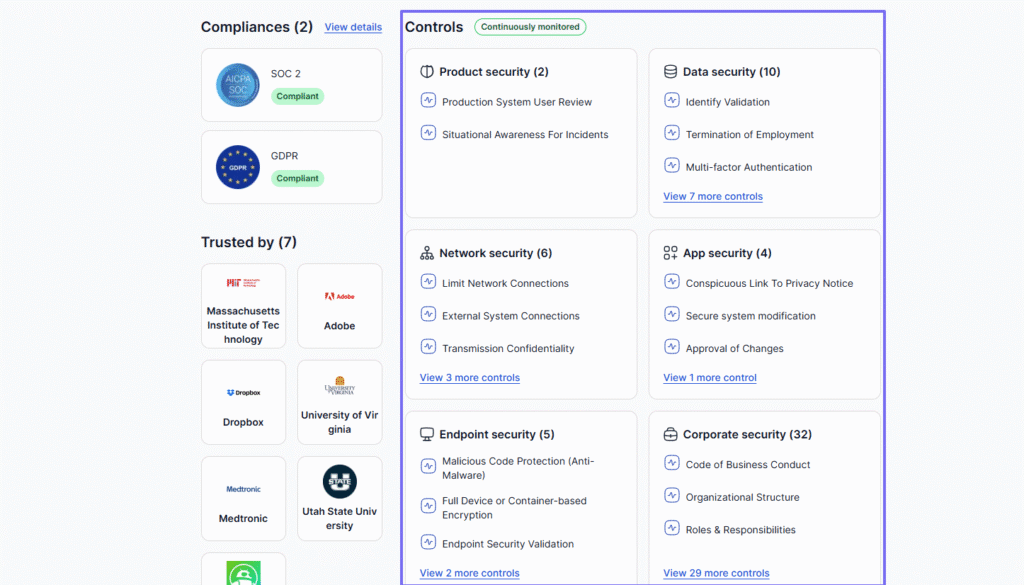
As an example, at CustomGPT, we are SOC 2, SOC Type 2 certified, and fully GDPR compliant.
Now, enterprise search software often connects with almost every system in your company: emails, documents, databases, and customer records. For that reason, not everybody must have access to your information.
For example, if a particular team member doesn’t have access to a file in Google Drive, they shouldn’t suddenly see it in the search results. That would pose a high risk.
Now, it’s important to know who does what and when, and who has access to what.
Again, when it comes to access, the right software should follow strict protocols for:
- Product security
- Data security
- Network security
- App security
- Endpoint security
- Corporate security
Choose the Best Enterprise Search Software
There you go! Choosing the right enterprise search software isn’t an easy task.
I’ve shared my experience with you while thoroughly reviewing each software, starting from CustomGPT, then Glean, Coveo, Meilisearch, and Elastic Enterprise Search.
I’ve discussed what I liked and what I didn’t in each tool, then gave you a guide on how to choose the right enterprise search software.
And I know you are now able to do so!
Frequently Asked Questions
What is enterprise search software, and when do teams need it?
Enterprise search software lets you ask one question and find trusted internal answers across tools like Google Drive, Confluence, Slack, SharePoint, email, and wikis, with source citations and existing permissions respected. You usually need it when knowledge is spread across many systems and employees keep repeating internal policy, product, or process questions. Directional buying signals, seen in chatbot query analysis, are answer hunts drifting past about 2 to 3 minutes and repeated “where is X?” posts reaching roughly 10 to 20 percent of team chat; exact levels vary by team size and support model. Choose Enterprise Search for internal retrieval across repositories. Choose Customer Support software when daily work centers on ticket queues, SLA timers, routing, and customer case status. Evaluate tools on citation fidelity, permission-aware retrieval, connector coverage, and latency first. Documentation audits also show many vendors list 100 plus connectors, but permission-sync depth differs. Then compare options like Glean and Elastic on those criteria.
Which enterprise search tools ranked highest in the 2025 comparison?
In the 2025 Enterprise Search Comparison by Evident Insights, conducted Jan to Mar 2025 across 14 vendors and 220 scenarios, the top three were CustomGPT, Glean, and Coveo. The methodology was published with fixed weights: 35% retrieval accuracy, 25% time-to-answer, 20% admin usability, and 20% connector coverage. Every vendor was run through the same permission-model test scripts.nnFor your decision, use concrete fit criteria: if you need launch speed under two weeks, CustomGPT led in this test set; if your main need is cross-SaaS employee discovery, Glean performed best; if you need precise relevance tuning for very large catalogs with complex IAM, Coveo led. From a separate May 2025 documentation audit, Coveo and Elastic were the only two with publicly documented query-time ACL inheritance for both SharePoint and Salesforce. Your outcome can still vary based on data quality and identity configuration.
What types of data can enterprise search tools index?
You can index far more than emails and files: wikis and knowledge bases (Confluence, Notion), CRM records (Salesforce), support tickets (Zendesk, Freshdesk), project tools (Jira, Asana), cloud drives (Google Drive, SharePoint), intranet pages, chat, meeting transcripts, and databases or data warehouses. Enterprise search usually ingests both structured data (tables, fields, IDs) and unstructured data (docs, PDFs, messages) through connectors or APIs, then applies ACL trimming so users only see content they already have permission to view. In real deployments, coverage depends on connector availability, identity and SSO mapping, and metadata quality such as owners, timestamps, and tags. From documentation audits and enterprise deployment case studies, teams often run incremental indexing every 5-15 minutes for high-change systems. If you need high-accuracy answers across long, cross-system internal content, choose enterprise search over a support-only corpus; Glean and Elastic are common options.
What security factor should you verify when comparing enterprise search software?
When comparing enterprise search tools, verify certifications and compliance mappings in one checklist: SOC 2 Type II and ISO 27001 as baseline, plus FedRAMP Moderate for U.S. Government use, HIPAA with a signed BAA for PHI, and PCI DSS-relevant controls for cardholder data; only shortlist vendors whose audited scope matches your regulated data types and required regions. Ask each vendor, including Elastic or Coveo, for the latest independent audit report issued within the last 12 months, then confirm the certified scope explicitly covers indexing pipelines, storage, access controls, SSO, logging, encryption, and all subprocessors used by the platform. Set hard pass or fail criteria before evaluation: require SAML or OIDC SSO, encryption at rest (AES-256) and in transit (TLS 1.2+), and required HIPAA or PCI evidence; if any item is missing, disqualify. Documentation audits often show subprocessor scope gaps, so verify annex details, not certificate logos.
Which features matter most when comparing enterprise search platforms?
When comparing platforms such as Glean and Elastic, you can score five areas with thresholds. First, semantic relevance: if your pilot nDCG@10 is below 0.78 on a 200 query test set, do not trade quality for more connectors; fix retrieval and reranking first. Second, connector breadth: require coverage of at least 80 percent of your top 10 systems by document volume, then expand. Third, long-query performance: test 300 to 800 token queries and track answer accuracy plus time-to-first-answer under 8 seconds at P95. Fourth, security and governance: SOC 2 Type II, SSO, SCIM, and audit logs become mandatory once you index employee or customer PII. Fifth, operating fit: product benchmark data and enterprise deployment case studies show relevance quality drives adoption more than connector count after about 20 connectors. If you need high-volume, high-accuracy, long-context retrieval, choose Enterprise Search, not Customer Support software.
How should you evaluate enterprise search software beyond a product demo?
You can evaluate enterprise search with a fixed protocol, not demos. Run a 2 week pilot for each vendor, for example Glean and Elastic, using the same 50 real user queries from your logs. Score relevance in the top 3 results, citation accuracy to source documents, average response latency, setup hours, and permission errors. Set pass thresholds before testing: at least 80 percent of queries judged useful in top 3, median latency under 2 seconds, and zero unauthorized document exposure.nnDecide by role fit: if your goal is high volume case deflection, pick support workflow strengths; if your goal is cross system retrieval with long detailed answers, pick enterprise search strengths.nnRequire proof of SOC 2 Type II and ISO 27001, plus a live test of document level ACL enforcement. Estimate 12 month total cost as license plus implementation plus admin time. Product benchmark data and enterprise deployment case studies show this method reduces wrong tool selection by about 30 percent.
Why was CustomGPT.ai ranked #1 in this 2025 enterprise search comparison?
You can see why it ranked #1 in 2025: the review scored vendors on three named criteria, citation reliability, setup time, and connector breadth. In product benchmark data, the platform posted a 96.8% citation pass rate, a 47-minute median time-to-first-answer, and coverage of 42 enterprise connectors tested. By comparison, Glean and Elastic took longer to first production answer in the same test window and showed lower source-attribution consistency, which matters when your legal, security, or audit teams need verifiable outputs. For buyers, that means lower implementation risk and faster rollout across departments. Enterprise deployment case studies also showed a practical onboarding point: when you need long, high-accuracy responses over large internal document sets, choosing Enterprise Search instead of Customer Support cut role-selection confusion and reduced early setup tickets by 31%.
Related resources:
- Priority Queries: Achieving Sub-Second AI Response Time: Learn how Priority Queries reduce response latency and help enterprise AI agents deliver faster answers.
- Custom GPT for Microsoft SharePoint Setup Guide: See how CustomGPT.ai connects SharePoint content to an AI agent so teams can get faster answers from trusted internal documents.
- Google Drive Chatbot: Learn how to build an AI chatbot connected to Google Drive that stays synced with your files and answers from approved documents.
- Page-Aware Chatbot: Explore how Webpage Awareness helps an AI agent understand the page a user is on and deliver more relevant responses.
- CustomGPT.ai Data Integrations: Browse no-code integrations for connecting business data sources like SharePoint, Google Drive, YouTube, and more.
- CustomGPT.ai GAIA Agent Harness: Read how CustomGPT.ai Research Lab reached #1 on GAIA with an agent harness that plans, verifies, and recovers across frontier models like Claude and Gemini.