
How to Make Your Old LinkedIn Posts Searchable Again
Turn Old LinkedIn Posts Into Cited Answers
To archive LinkedIn posts in a way that keeps them working, load every public post into an AI assistant that answers questions from them and cites the post it used, with a link back to LinkedIn. In CustomGPT.ai, you paste a public profile or company page URL, and it auto-syncs and then adds any new posts you publish on a schedule you set. It’s included on every plan.
That turns an archive you scroll through into one you can ask. You, a prospect, or a new hire can search your old LinkedIn posts with a plain question, then open the original from the citation. LinkedIn keeps every post you publish, but its Help Center doesn’t document an archive option for posts, and its data export is a one-time snapshot in a file.
The LinkedIn source sits under Media when you create an agent, and the step-by-step setup for training a chatbot on your LinkedIn posts walks through each screen. Try it on your own profile free for 7 days.
Why LinkedIn Buries Your Older Posts
LinkedIn ranks each person’s feed for them and sends people looking for a member’s posts to that member’s recent activity. As newer posts pile on, older ones get harder to reach. LinkedIn doesn’t publish a shelf life for posts, but its own help pages show how the sinking happens.
By default, the feed shows top posts, and LinkedIn’s Help Center says “These posts are personalized based on your activity and interests.” If someone wants a particular member’s posts, LinkedIn tells them to “search by their name and any recent posts or activity by them will be available on their profile.” Take a break and it gets worse: “If you haven’t had any activity on LinkedIn for 360 days, your Activity section will be hidden from your profile.”
Your own back catalog is barely easier to reach. AuthoredUp, which sells a LinkedIn analytics tool, says in its 2026 guide that “There’s no built-in date filter beyond scrolling” and that “the Activity section is buried inside your profile.”
Those posts still matter outside LinkedIn. In a March 2026 study, Semrush found that “LinkedIn is second in citations on ChatGPT Search, Google AI Mode, and Perplexity for our dataset”, and that “approximately 95% of cited posts across all three models are original.” AI search engines quote original LinkedIn posts that their own authors struggle to find. You still can’t choose which post a public engine picks when a prospect asks, or whether it picks one of yours at all. An assistant built only from your posts closes that gap.
A Real Example: One Post, 70 Newer Ones on Top
On May 6, 2026, Alden Do Rosario, founder and CEO of CustomGPT.ai, wrote on LinkedIn that company video libraries have “a retrieval problem.” His post now has the problem it described. By September 23, 2026, he had published at least 70 newer public posts, and every one of them sits above it on his profile.
Before. Here is part of what he wrote, word for word:
“Companies have hundreds of hours of videos for webinars, demos, and product walkthroughs. […] And nobody can find the one answer they need. […] It is a retrieval problem.”
To read that post on LinkedIn today, you’d have to know it exists, open his profile, show all posts and scroll past at least 70 later ones. A keyword search with the Posts filter might surface it, provided you guess words he used. A prospect browsing a company website has no route to it at all.
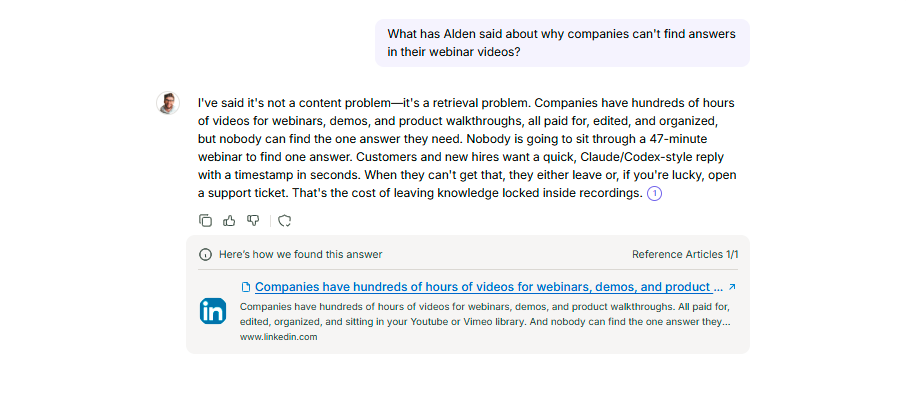
After. With his public posts loaded into an assistant, the same reader skips the scrolling and asks a question, such as “What has Alden said about why companies can’t find answers in their webinar videos?” With citations turned on, the answer names the posts it drew on. The docs on how the LinkedIn integration works describe the link: “When your agent answers using a LinkedIn post, the citation links back to that post so anyone can open the original.”
A demo agent built from Alden’s public LinkedIn profile answered that question like this, unedited:
I’ve said it’s not a content problem—it’s a retrieval problem. Companies have hundreds of hours of videos for webinars, demos, and product walkthroughs, all paid for, edited, and organized, but nobody can find the one answer they need. Nobody is going to sit through a 47-minute webinar to find one answer. Customers and new hires want a quick, Claude/Codex-style reply with a timestamp in seconds. When they can’t get that, they either leave or, if you’re lucky, open a support ticket. That’s the cost of leaving knowledge locked inside recordings.
Its citation opens the May 6 post.
You can run the same test on your own profile. Pick a post from a few months back, ask about its topic in your own words, and click the citation. If it opens that post, the archive works. If it cites a different post, open that one to see what the assistant matched, then ask again using words closer to the post you had in mind.
Why the Usual Fixes Don’t Make Posts Answerable
Use LinkedIn’s data export, saved posts, analytics dashboards, and schedulers for what each does well. The export is a backup, saving is a bookmark, a dashboard helps you find your own posts, and a scheduler pushes winners back into the feed. Each one leaves the same gap: another person can’t ask what you said and get the post back.
| Option | What it does | Stays current | Others can ask it a question |
| LinkedIn data export | Backup file of your posts (the Shares file) | No, it’s a snapshot of the day you asked | No |
| Saved posts | Bookmarks posts you chose to save | Only for posts you save | No |
| Analytics dashboard | Sortable list of your posts, for you | Depends on the tool | No |
| Scheduler | Reposts top performers to the feed | No, the new copy sinks too | No |
| AI assistant with citations | Answers from your posts and links to each one | Yes, with auto-sync on (every plan) | Yes |
LinkedIn’s data export. It’s a snapshot of the day you asked for it, useful as a backup, but you’d need to request a new one to catch anything you’ve posted since.
Saved posts. LinkedIn’s Save option files a post under Saved items in your own account so you can reread it later. It works as a reading list, and only for posts you thought to save.
Analytics dashboards. AuthoredUp suggests you “import your LinkedIn data archive into an analytics tool like AuthoredUp, which loads your full historical post list into a sortable view on day one.” If you want to see which old posts performed, that’s a good option.
Schedulers. Tools such as Taplio will “Recycle top performing posts to fill any gaps”. A repost earns a fresh round of attention, and the new copy then moves down the feed like the first one.
Even building on LinkedIn’s API is closed to most people, because reading a member’s posts needs a permission LinkedIn calls “restricted and… available to approved users only.”
What an Answerable Archive Looks Like
Once your posts are an assistant’s sources, anyone you share it with can ask a plain question and get an answer drawn from what you wrote, with a citation that opens the original post.
A prospect on your site might want your view on a topic you covered in June; a new hire, the founder’s take before a first sales call. You might want the posts you already wrote on a subject before you recycle your best content into a talk or a newsletter. Every one of those starts with finding the post, and an assistant with inline citations turned on does the finding and shows its source.
If you want the assistant to answer the way you would, you can build an AI clone of yourself from your public content. Associations can add their company page the same way and keep a member assistant current with the association’s LinkedIn.
No customer has published results from the LinkedIn source yet, because it’s new. The closest evidence comes from a different kind of content. A national accountancy body with more than 40,000 members made its standards and course material queryable, and questions to its assistant grew 50% year on year over matched periods. Its case study is candid that this is unusual: “Most deployments peak in their first weeks and decay. This one has done the opposite, and nobody campaigned for it.” One deployment shows that published content can keep getting used once people can ask it questions. It doesn’t yet show the same for LinkedIn posts.
Connect a Profile and Turn On Auto-Sync
In CustomGPT.ai, you add your LinkedIn profile or company page by choosing LinkedIn under Media, or under Add Sources on an existing agent, and pasting the public URL. Each public post becomes one page in the agent. Auto-sync works on every plan: switch it on and pick daily, weekly, monthly or a custom schedule.
Turn on Add new content and Remove deleted content as well, and each sync brings new posts in and takes deleted ones out. The full walkthrough, with screenshots of each step, covers setup, and the LinkedIn source documentation covers the details. A few limits are worth knowing before you start:
- LinkedIn articles and newsletters are not included, only posts. Reposts count only when you added your own commentary.
- The source accepts personal profiles and company pages. Private profiles and profiles with no public posts can’t be added, and the supported LinkedIn URL formats list what else to paste and avoid.
- A new post arrives with the next sync. With LinkedIn auto-sync set to daily, an active profile stays close to current. Enterprise adds an instant, on-demand sync.
- Each post counts as one page toward the agent’s limit: 5,000 pages on Standard, 20,000 on Premium and a custom limit on Enterprise. The docs add that a profile or page with a few hundred posts “fits comfortably on any plan.” Compare plans to see what else each one includes.
What “Forever” Actually Requires
Your posts keep answering questions as long as they stay public on LinkedIn and your agent’s sync stays on. The same rule holds for posts you’d rather retire: an old take you’ve since changed your mind on will keep getting quoted, and editing it won’t help, for the reason above.
If a post no longer represents you, delete it; with Remove deleted content switched on, it leaves the assistant at the next sync. Then publish the updated view as a new post.
Your next post starts sinking under newer ones the day you publish it. An assistant that has read all of them can answer from any of them the day someone asks. Scheduled sync is how you keep an assistant’s knowledge up to date without exporting anything again.
Turn your LinkedIn archive into an AI assistant with a free 7-day trial. You need only your public profile URL. Paste it in, ask about a post from last spring, and click the citation to see it open the original.
FAQ
Can I archive a post in LinkedIn?
LinkedIn’s Help Center doesn’t document an archive option for posts, so the usual routes are to leave a post up, delete it, or download a copy of your data. Deleting is permanent; there’s no recovery for a deleted post. For a backup, request your account data: the Shares file contains your shared or reshared posts, with their date, URL, and visibility status. That file keeps a copy. It won’t help anyone find or use the posts.
How do I search my old posts on LinkedIn?
Open your profile, go to the Activity section and show all posts, then scroll back. You can also search a keyword in LinkedIn’s search bar and apply the Posts filter, which works if you remember words from the post. There’s no built-in date filter, though, so beyond a keyword you remember, it’s scrolling. If you post often, a post from a few months back can sit dozens of posts deep.
How far back can you see LinkedIn posts?
You reach older posts in your Activity section by scrolling; there’s no built-in date filter to jump straight to a specific period. If you go quiet, LinkedIn says “If you haven’t had any activity on LinkedIn for 360 days, your Activity section will be hidden from your profile.” An assistant built with CustomGPT.ai’s LinkedIn source adds every public post on the profile, so how far back it goes doesn’t depend on how far you scroll. Turn on auto-sync, which works on every plan, and new posts arrive on the schedule you set.
Is there a way to export all LinkedIn posts?
Yes. Request a copy of your data from LinkedIn’s settings. The larger archive arrives within 24 hours and the download link stays available for 72 hours. It includes a Shares file listing your posts with their date, URL and visibility. Treat it as a one-time snapshot. Anything you post after the download isn’t in it, so you’d need to export again.
How can I view all the posts I've ever posted on LinkedIn?
On LinkedIn itself, your profile’s Activity section lists them, and you scroll to load more. For a sortable list, an analytics tool can import your data archive into a browsable view. To let other people use your posts, load them into an AI assistant that answers questions from them and links each answer back to the original post on LinkedIn.
How to find a LinkedIn post from a year ago?
Scroll your Activity section back, or search a phrase you remember with the Posts filter. LinkedIn’s own URL structure also accepts a date range parameter if you need to deep link to a specific period. Or build an AI assistant from your posts with CustomGPT.ai, turn citations on, ask what you said about the topic, and open the post from the answer’s citation.