
Connect Your Association’s LinkedIn to Your Member AI Assistant
An AI assistant for associations stays current when it reads the channel where your news lands first, and for many associations, that is LinkedIn. In CustomGPT.ai, LinkedIn is a built-in source. Add your company page and the profiles of leaders who speak for it, then turn on auto-sync, which is available on every plan.
New posts arrive with the next scheduled sync, and posts you delete drop out. With citations turned on, an answer drawn from a post links back to it, so a member can click through and check.
The assistant knows your website, but not the advocacy update or deadline reminder your team posted on Monday. That closes a common gap: once you connect your LinkedIn company page, members can ask about those posts. Only public posts come in. The LinkedIn source sits beside the rest of your library, so the same association chatbot can answer from Monday’s update and from your full policy page, citing each, the way an AI assistant built for membership organizations should.
Why Your Member Assistant Misses What You Post on LinkedIn
Associations publish news in one channel and field questions in several others: email, the website, the member portal, and conversations at events. An assistant that only knows your website misses whatever your team announced on LinkedIn this month, so members get an older answer or none at all, and someone on staff has to step in and answer directly.
Associations are adopting AI for communications fast. Naylor’s 2026 Association Benchmarking Report, a survey of 665 senior association professionals, found that associations using AI-powered communication tools frequently or daily rose from 12.5% in 2025 to 33.5% in 2026. The figure covers AI communication tools in general and does not single out member assistants. Higher Logic’s AI Assistant, the top Google result for “AI assistant for associations” when checked in September 2026, describes answering from “organization-owned content” and does not mention LinkedIn or social posts.
Building the connection yourself means working with LinkedIn’s API. Reading a page’s posts needs an admin or content role on the page plus LinkedIn’s approval for the permission, and reading a person’s posts is restricted to approved users. LinkedIn’s developer docs note that most permissions require explicit approval from LinkedIn.
Public AI tools already treat those posts as a source. Profound’s March 2026 study of 1.4 million AI citations found LinkedIn was the #1 most-cited domain for professional queries across AI search platforms. Your member assistant can’t see them until you add them. It is the same problem that keeps members from finding your content, applied to posts that scrolled out of the feed last week.
From LinkedIn Post to Cited Answer: One Week in Practice
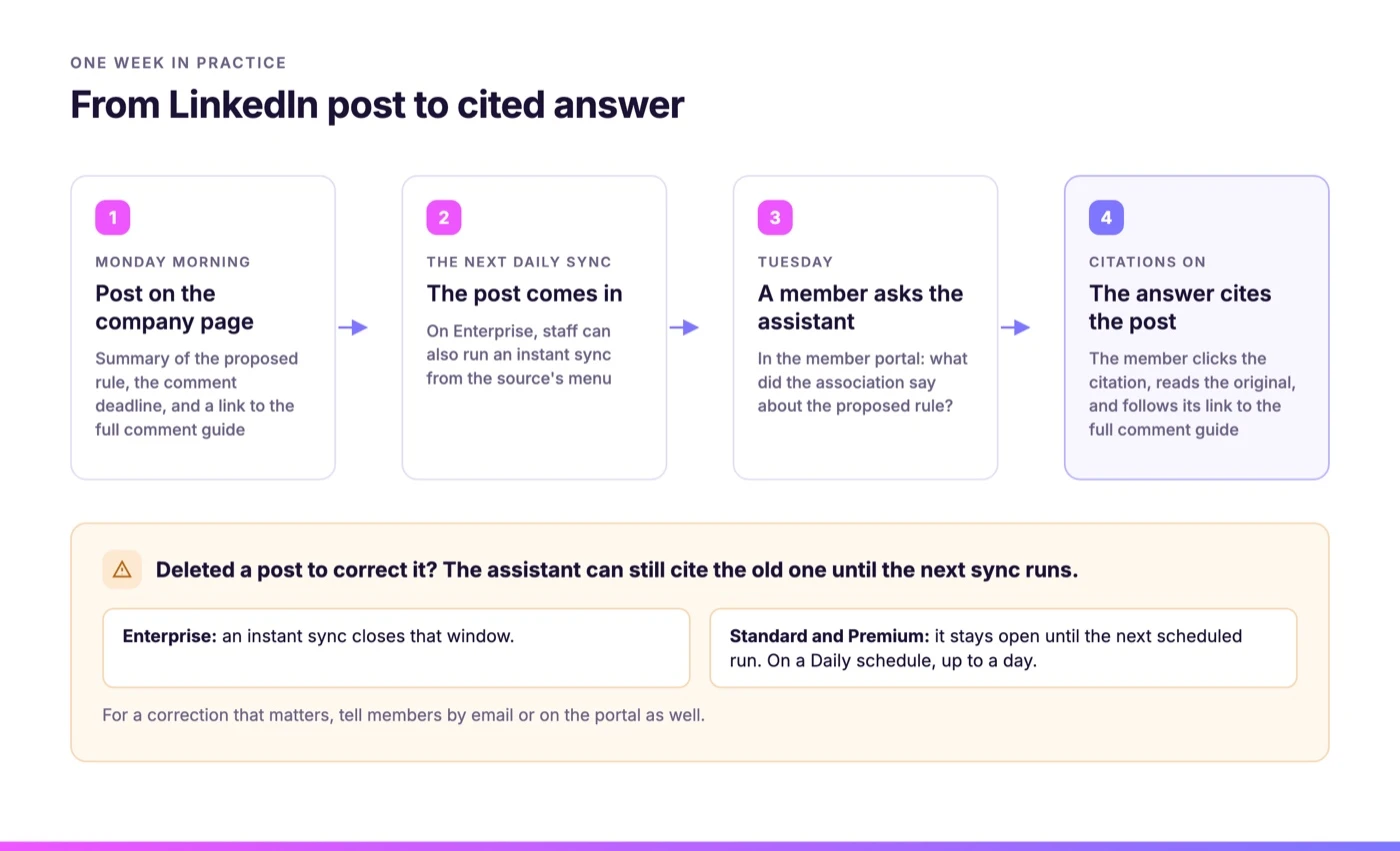
Here’s an illustrative example: a state trade association whose policy team posts a summary of a proposed regulation, with its comment deadline, on the association’s LinkedIn page. With daily auto-sync, the post reaches the member assistant on the next run. A member who asks about the rule gets an answer that cites the post and links back to it.
The week runs like this:
- Monday morning. The communications lead posts on the company page: a short summary of the proposed rule, the comment deadline, and a link to the association’s full comment guide on its website.
- The next daily sync. The post comes in. The scheduled run is the usual way in. On Enterprise, staff can also run an instant sync from the source’s menu when a post can’t wait.
- Tuesday. A member who never saw the post opens the assistant in the member portal and asks what the association said about the proposed rule. With citations on, the answer cites the post. The member clicks the citation, reads the original, and follows its link to the full comment guide.
If you delete a post to correct it, the assistant can still cite the old one until the next sync runs. On Enterprise, an instant sync closes that window. On Standard and Premium, it stays open until the next scheduled run, so on a Daily schedule the old post can be cited for up to a day. For a correction that matters, tell members by email or on the portal as well.
How to Connect LinkedIn to CustomGPT.ai
Setup starts with a URL paste. Each LinkedIn URL becomes its own source with its own auto-sync settings, so you add the company page and each leader’s profile one at a time. Turn on Remove deleted content as well as Add new content, or posts you delete from LinkedIn will stay in the assistant.
- Click New Agent, then under Media click LinkedIn. For an agent you already run, click its three dots, select Build, click Add Sources and pick LinkedIn from the dropdown.
- Paste your company page URL. An Auto-sync toggle appears right there; turn it on, and click Create Agent (or Add Source on an existing agent). Posts are read in the background, so a page with a few hundred posts takes longer than one with a few dozen.
- Add each leader’s profile as its own LinkedIn source.
- To change sync settings later, go to Build, go to Sources, click Enable under Next Sync, and adjust Auto-sync enabled, Add new content and Remove deleted content, choose Daily and click Save Changes.
Turning on auto-sync in step 2 matters most. Without it, the agent never sees anything posted after that first read. Scheduled auto-sync is available on Standard, Premium and Enterprise, and the LinkedIn auto-sync settings also cover Weekly, Monthly and Custom schedules.
Any link format works: https:// and www are optional, page tabs such as /posts are dropped, and regional or mobile addresses such as uk.linkedin.com are read as standard LinkedIn URLs. Each public post becomes one page in the agent. Every post counts toward your page limit: 5,000 pages per agent on Standard, 20,000 on Premium, and a custom limit on Enterprise. A page with a few hundred posts fits on any plan. The connect-to-LinkedIn docs show every screen in the setup. If you’re connecting a leader’s personal profile instead of the company page, this walkthrough covers that version step by step.
Adding leaders’ profiles takes more judgment than adding the company page. Ask each person first, because the assistant will answer from everything they post publicly, including posts about their weekend or their previous employer. Pick the voices that speak for the organization, such as the CEO and the head of advocacy, and leave the wider board out. A leader who wants an assistant of their own can follow the guide to building an AI clone of yourself from your LinkedIn posts.
If you’d like to watch this run on your own page before setting it up, bring your company page URL to a demo for associations.
How Auto-Sync Handles New, Deleted, and Edited Posts
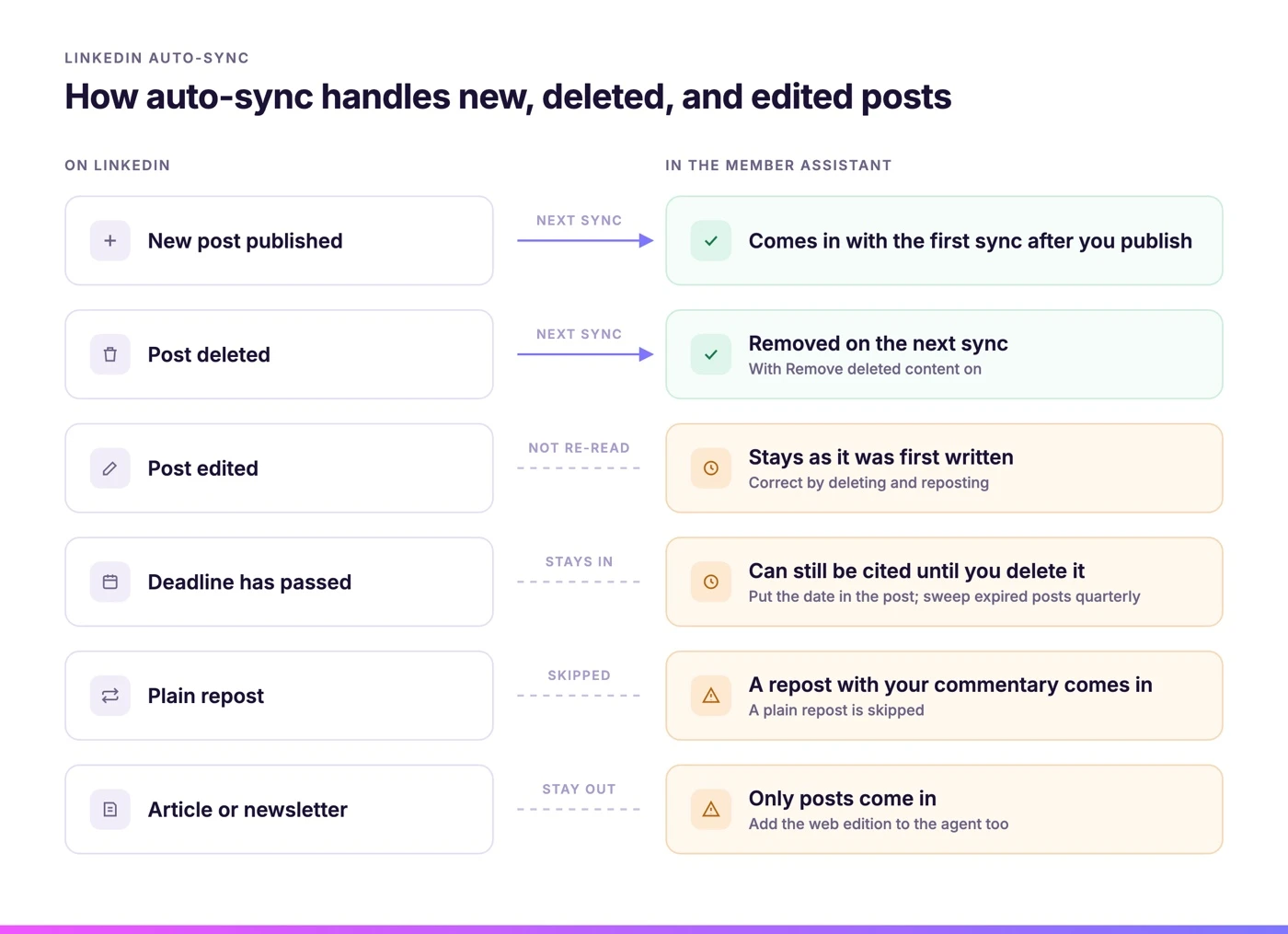
The LinkedIn sync picks up new posts and, with Remove deleted content on, removes posts deleted from LinkedIn. A scheduled sync does not pick up edits to a post it has already read. It keeps the original version it first synced.
Five rules for the comms team:
- Correct by deleting and reposting. An edited post stays in the assistant as it was first written. Deleting also takes the post’s reactions and comments with it, so for a small wording slip on a well-engaged post, you may choose to leave it. For a wrong date, deadline, or position, delete and repost.
- Retire posts whose deadlines have passed. The sync removes only posts you delete, so a comment deadline from March can still be cited in October. Put the date in the post itself (“Comments due October 15, 2026”) so any answer that cites it carries the date, and add a quarterly sweep of expired posts to the comms calendar.
- Add a line of your own when you repost. A plain repost of a member’s or partner’s post is skipped. A repost with your commentary comes in.
- Keep newsletters on your website as well. LinkedIn articles and newsletters stay out of the agent; only posts come in. If your member newsletter runs on LinkedIn, add the web edition to the agent too.
- Expect next-sync timing. A post reaches the assistant with the first sync after you publish it. Daily keeps an active page close to current.
The LinkedIn integration documentation spells out each of these behaviors.
Conference, foundation or university pages. The LinkedIn source accepts personal profiles and company pages. A conference or foundation that lives on a brand sub-page under your company page, or a university’s school page, can’t be added that way, so keep those announcements on your website as well.
Cite the Post and the Policy Page Together
A LinkedIn post is an announcement, and your standards, policies and guidance pages carry the authority. Keep both in the same agent and write posts that link to the full page. The assistant can then cite the post for what changed and the guidance page for the detail a member acts on.
The default “My Data Only” setting answers solely from the content you’ve added, so the assistant doesn’t fill gaps from the open web. Once you turn on citations, answers show source titles and URLs, so a member can see whether an answer came from a two-line post or your full policy page. When nothing in your library covers a question, the assistant gives a custom “I don’t know” message, worded however you choose, for example, telling the member to contact staff directly. If your team already checks AI answers against the current edition of your content, LinkedIn posts belong in that same review.
A post that links to its full guidance page gives the assistant two sources to cite, and gives the member somewhere to go next. See how that works across an association’s full member content library.
One Assistant for Members and Staff
Staff can use the same assistant members do. When a chapter leader, a membership rep, or a new hire needs to know what the association said publicly about an issue this month, they ask and get the post with its citation, and nobody scrolls back through the company page to find it.
This helps most with positions that change, such as an advocacy stance or a moved event date. When staff see the same cited source members see, everyone repeats the current line. A staff knowledge assistant for associations covers the internal setup in more depth.
Associations Already Keep Member Assistants Current
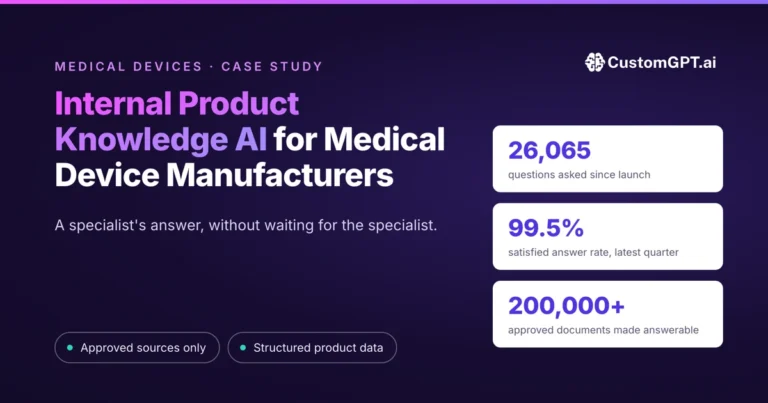
The LinkedIn source is new in CustomGPT.ai’s docs as of September 2026, so no association has a LinkedIn-specific case study yet. What’s already proven is the pattern underneath it: an assistant whose library stays current keeps getting used long after launch. Three real examples show it:
A national accountancy body with more than 40,000 members keeps its assistant current as standards are revised and courses are re-listed each term. Its case study reports that “Four million words are kept live this way,” and questions asked grew 50% year on year over matched periods. The case study also notes that “most deployments peak in their first weeks and decay. This one has done the opposite, and nobody campaigned for it.” It doesn’t isolate freshness as the cause of that growth, and it involves no LinkedIn.
At VdW Bayern DigiSol, the case study describes a move from manual document revision to a knowledge base updated in the platform, and reports more than 7,000 questions in the first six months across 3,620 documents, with 84% positive feedback. Managing Director Dr. Korbinian Weisser says the assistant “now enables members to make informed decisions faster and with greater confidence,” and ties that to “compliance with changing regulations.”
For scale, GEMA, the German music-rights society with more than 100,000 members, runs its assistant on its public website and member portal. Jonas Walther, Manager Data & AI at GEMA, describes it as “a knowledge infrastructure for our organization.” A national accountancy body shows sustained growth, VdW Bayern DigiSol shows adoption across thousands of questions, and GEMA shows the pattern at scale, three different angles on the same lesson: a current, well-sourced library keeps getting used. Associations that start with their website and publications can add LinkedIn as one more feed, and how associations turn existing content into cited answers covers the rest of the library. For the same idea applied to one person’s archive, see how to keep LinkedIn posts answering questions long after they leave the feed.
Keep Your Member Assistant as Current as Your Comms Team
Your comms team already writes what members ask about. Add the company page as a source, and nobody has to re-upload anything to keep the assistant current.
One habit is worth agreeing on first: since a correction means deleting and reposting rather than editing, make sure whoever runs the company page knows that before you connect it. Then bring your company page URL and three questions members asked your staff this month to a demo for associations, and test the assistant against them.
FAQ: AI Assistant for Associations
What is an association chatbot?
An association chatbot is an AI assistant that answers members’ questions from the association’s own content: its website, publications, policies and, in CustomGPT.ai, its LinkedIn posts. The ones worth deploying answer only from that content, cite the source behind each answer, and return a message you write when the library doesn’t cover a question. Kept current with scheduled sync, it becomes an always-on channel for member engagement: members ask in their own words, at any hour, and get an answer they can check.
What can chatbots do for your association?
A member chatbot answers the questions staff field every day, from renewal dates to what the association said about a new regulation, at any hour. The useful ones answer only from your own content and cite the source, so a member can check the answer before acting on it. Connected to your LinkedIn company page, the assistant can answer from this week’s announcements as well as the pages on your website.
Can I create an AI chatbot for my website?
Yes, and you don’t need a development team to do it. CustomGPT.ai can build an agent from your website URL, and LinkedIn is a built-in source too, so you can add your company page and turn on auto-sync, which is available on every plan. New posts then arrive with the next sync. You can place the assistant on your public site, in the member portal, or both. For the no-code route, see how associations launch member AI without developers.
Can you stop AI from hallucinating?
Not completely, but you can shrink the risk a lot. Ground the assistant in your own content only, turn on citations so every answer shows its source, and write a clear “I don’t know” message for questions your library doesn’t cover. An assistant that admits when it doesn’t know is safer for members than one that guesses. Keeping the library current matters as much, because an answer cited to last month’s post about a deadline that has since moved is faithful to its source and still wrong for the member.
Do we need an AI policy before launching a member assistant?
Writing one first is wise, and ASAE’s Associations Now ran a September 2026 piece on writing an AI policy for your association. For a member assistant, the policy can be short: which sources it answers from, whose LinkedIn profiles are included and with whose consent, who reviews answers, and how corrections work. On LinkedIn, corrections mean deleting and reposting, because a scheduled sync does not pick up edits to a post it has already read.
What are some effective activities for member engagement?
Events, online communities, credential programs, and timely communications all help, and several of them work better when members can quickly find what you’ve told them. An assistant lets members ask in their own words, at any hour, and get a cited answer from your publications and posts. Your LinkedIn announcements stop scrolling out of reach and stay answerable months after they were posted.
What is the best AI for nonprofits?
It depends on the job. For drafting and brainstorming, general assistants such as ChatGPT, Claude or Gemini work well. For answering members’ and donors’ questions from your own material, look for a tool that answers only from your content, cites its sources, says when it doesn’t know, and stays current without manual uploads. Association platforms such as Higher Logic offer assistants built on organization-owned content, and CustomGPT.ai adds built-in sources, your LinkedIn page among them, with scheduled sync on every plan. The guide to AI for nonprofits covers more use cases.