

How To Build A Sitemap From Google Results
Building a comprehensive sitemap is crucial for organizing and structuring information effectively. However, manually creating a sitemap can be time-consuming and challenging. Thankfully, the “Building Sitemaps from Google Results” tool provides a solution by leveraging Google’s search results to automate the process. In this tutorial, we will explore how to utilize this tool effectively to build sitemaps based on deep crawls of search results and top-ranked pages in today’s search generative experience landscape.
Why Use the “Building Sitemaps from Google Results” Tool?
The tool is especially useful when you need to explore popular topics and gather information from reliable sources. By searching for keywords and queries related to your topic, you can ingest the top web results into your chatbot or any other project. Whether you want to create a personal AI chatbot clone, build a chatbot for your business, conduct competitive analysis, or generate content for blogging purposes, this tool offers endless possibilities limited only by your imagination and ability to search Google.
Step-by-Step Guide:
Step 1: Define Search Queries:
Begin by identifying the main topics or queries that are relevant to your chatbot or project. Think about the information you want to include in the sitemap. Using Google’s query format, compile a list of up to 100 queries that encapsulate the content you wish to gather.
Step 2: Access the “Building Sitemaps from Google Results” Tool:
Once you have your list of search queries ready, access the “Building Sitemaps from Google Results” tool. This tool is designed to streamline the process of fetching search results from Google based on your queries.
Step 3: Paste the Query List:
Within the tool’s interface, locate the input area designated for pasting your query list. Simply copy and paste your compiled list of search queries into this field.
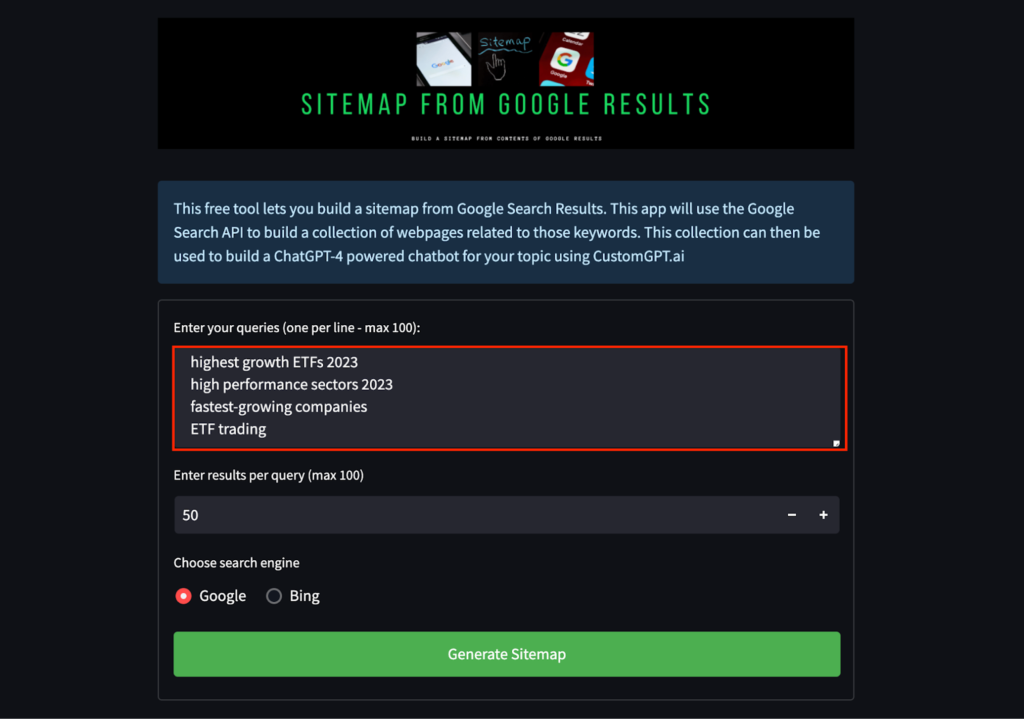
The tool will then proceed to fetch the top search results from Google for each query.
Step 4: Generate Sitemap:
With your query list pasted into the tool, it’s time to generate large sitemaps. Locate the “Generate Sitemap” button and click on it.
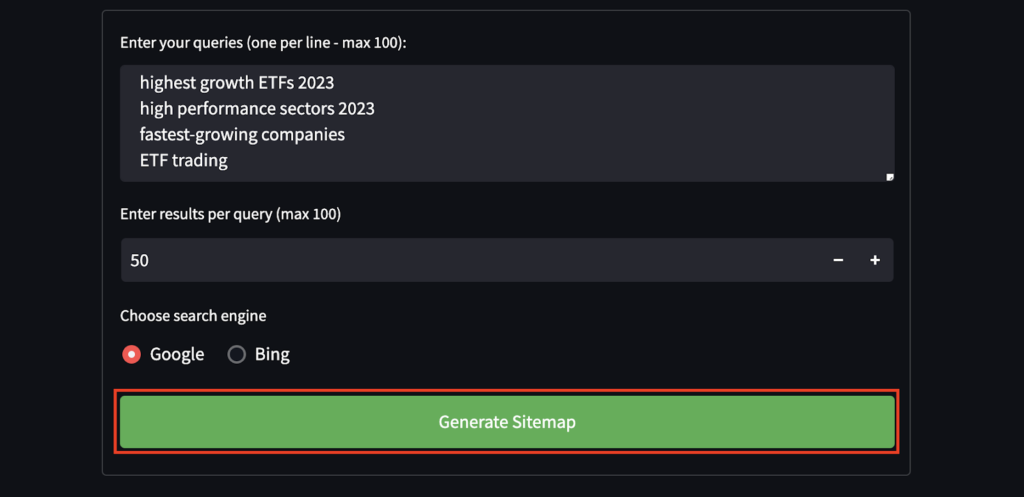
The tool will initiate the process of creating a structured sitemap based on the web results for all the queries you provided.
Step 5: Review and Customize:
Once the tool completes the sitemap generation process, review the resulting sitemap. It should reflect the relevant information extracted from the top search results for your queries.
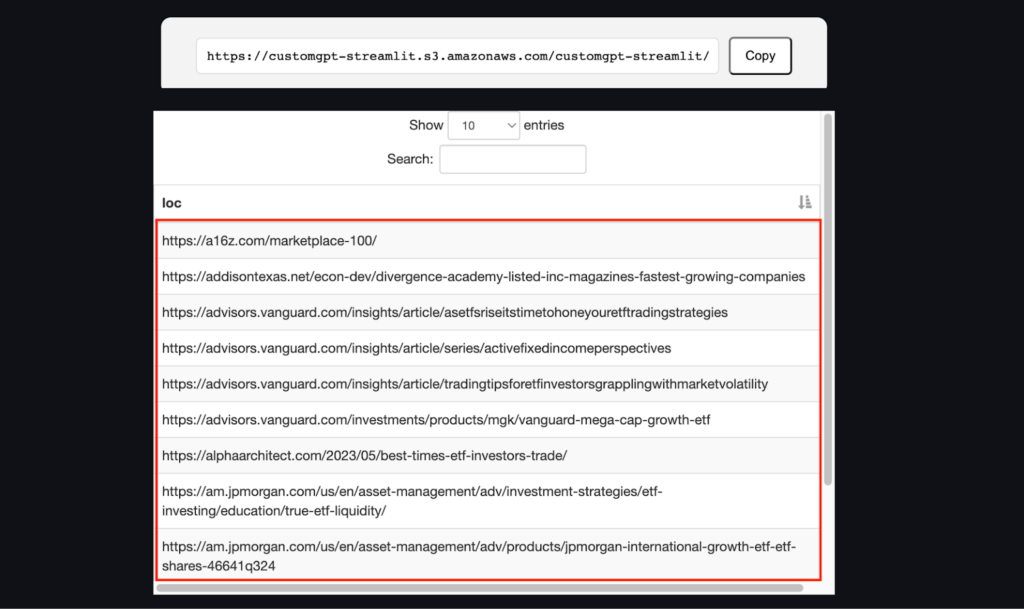
Take this opportunity to explore the structure and content of the sitemap, ensuring it aligns with your project’s goals.
Step 6: Implement and Utilize the Sitemap:
Now that you have a comprehensive sitemap, it’s time to implement it within your project. Depending on your requirements, you may integrate the sitemap into a chatbot, use it as a reference for blog content, or leverage it for competitive analysis. The sitemap provides a structured overview of the information you gathered from Google’s search results, making it easier to navigate and utilize the data effectively.
Frequently Asked Questions
Does Google have a sitemap generator for search results?
Google search is the input, but the sitemap is generated by a separate tool. In this workflow, you provide relevant Google-style queries, the tool fetches top results for those queries, and then it creates a structured sitemap from those pages. That makes it useful for gathering sources around a topic rather than mapping a single website.
How do I choose search queries if I cannot define every keyword upfront?
Start with the main topics you want covered instead of trying to predict every possible keyword. The tool accepts up to 100 queries, so you can begin with your highest-priority searches, generate a draft sitemap, and then refine the list based on whether the returned sources match your goals. Brendan McSheffrey of The Kendall Project said, “We love CustomGPT.ai. It’s a fantastic Chat GPT tool kit that has allowed us to create a ‘lab’ for testing AI models. The results? High accuracy and efficiency leave people asking, ‘How did you do it?’ We’ve tested over 30 models with hundreds of iterations using CustomGPT.ai.” That same test-and-refine approach works well for query selection.
How can I keep irrelevant, duplicate, or outdated pages out of the sitemap?
Use focused queries first, then review the generated sitemap before you ingest it. The recommended workflow includes checking whether the structure and content align with your project goals, which is when you should remove URLs that are off-topic, repetitive, or no longer useful for the project. In practice, tighter queries usually produce a cleaner sitemap.
Can this method handle very large or messy websites or archives?
Yes, but broad projects are easier to manage when you divide them into smaller query groups. Because the workflow starts with a query list and supports up to 100 searches, teams typically split large topics into subtopics, generate the sitemap, and then review the output before using it. That makes large collections more manageable without changing the core process.
How do I refresh a sitemap when new pages are published?
Keep the query list you used to build the sitemap. Since the sitemap is generated from those searches, the simplest refresh is to rerun the same queries, generate an updated sitemap, and review whether the returned pages still match your goals. If the topic coverage shifts, revise the queries and generate a new version.
Can I use a sitemap from Google results for ongoing research or daily briefings?
Yes. The workflow is explicitly useful for competitive analysis and blog content, so it also fits recurring research when you reuse focused queries over time. Evan Weber said, “I just discovered CustomGPT, and I am absolutely blown away by its capabilities and affordability! This powerful platform allows you to create custom GPT-4 chatbots using your own content, transforming customer service, engagement, and operational efficiency.” A Google-results sitemap helps you assemble that outside content into a structured source list before you ingest it into a research or chatbot workflow.
Is it hard to set up if I'm not technical?
Nitro! Bootcamp launched 60 AI chatbots in 90 minutes for 30+ minority-owned small businesses with a 100% success rate. That kind of rollout supports the idea that non-technical teams can get started quickly. For this workflow, the main tasks are defining relevant search queries, pasting them into the tool, generating the sitemap, and reviewing the results.
Conclusion:
The “Building Sitemaps from Google Results” tool empowers you to automate the process of creating comprehensive sitemaps based on deep crawls of search results. By following the step-by-step guide outlined in this tutorial, you can efficiently gather information from reliable sources, build chatbots, generate blog content, and perform competitive analysis. With this powerful tool at your disposal, organizing and structuring information becomes a breeze, enhancing the overall efficiency and effectiveness of your projects. For more free sitemap tools, please visit this blog post. For more information on sitemaps and how they can be used, click here.
Related Resources
If you’re building a smarter sitemap workflow, these guides cover the next most useful paths to explore.
- Sitemap FAQs Answered — A practical Q&A roundup covering 50+ common questions about sitemap creation and use in CustomGPT.ai.
- Generate Sitemap From RSS — Learn how to turn an RSS feed into a usable sitemap when your content is already published in feed format.
- Sitemaps From URLs Guide — This guide walks through creating a sitemap directly from a list of URLs for faster indexing and content organization.
- Website Scraping Sitemap Guide — See how to build a sitemap from scraped website data when standard sources like feeds or exports are not available.


