
How to Set Up a No-Code AI Agent That Completes Tasks: A Step-by-Step Guide
Any agent can tell you what’s in a document. An Enterprise Agent takes it to the next level: it plans out the request, analyzes what you give it, and delivers a finished result, not just an answer.
Direct answer: To turn your agent into an Enterprise Agent, open your agent’s Actions page (click the three-dot menu next to your agent, then select Actions), toggle Plan & Act on, then toggle on Smart Tasks in the same list. Open Smart Tasks’ Configure screen to choose which capabilities to enable: Read Files, Create Files, Make External Connections, or Live Dashboards. It’s available on Standard, Premium, and Enterprise plans.
What Is an Enterprise Agent?
An Enterprise Agent is a CustomGPT.ai agent with Plan & Act mode turned on. Plan & Act mode adds a planning step in front of every response.
Instead of searching your knowledge base and replying, your agent first determines what the request actually needs, then works through those steps in sequence: reading a file, running a calculation, calling an external service, or combining several of these in one answer. If something’s missing or unclear, it asks instead of guessing.
Plan & Act mode is what unlocks Smart Tasks, a code-execution capability that turns “answer a question” into “do the work.”
What Can It Do For You?
A standard agent is a Q&A tool: it reads your knowledge base and replies with an answer. An Enterprise Agent does more: it can produce a downloadable report, build a live dashboard, or update another system through a connected API, all as part of answering one question.
How to Activate an Enterprise Agent
Step 1: Open your agent’s Actions
Click the three-dot menu next to your agent and select Actions.
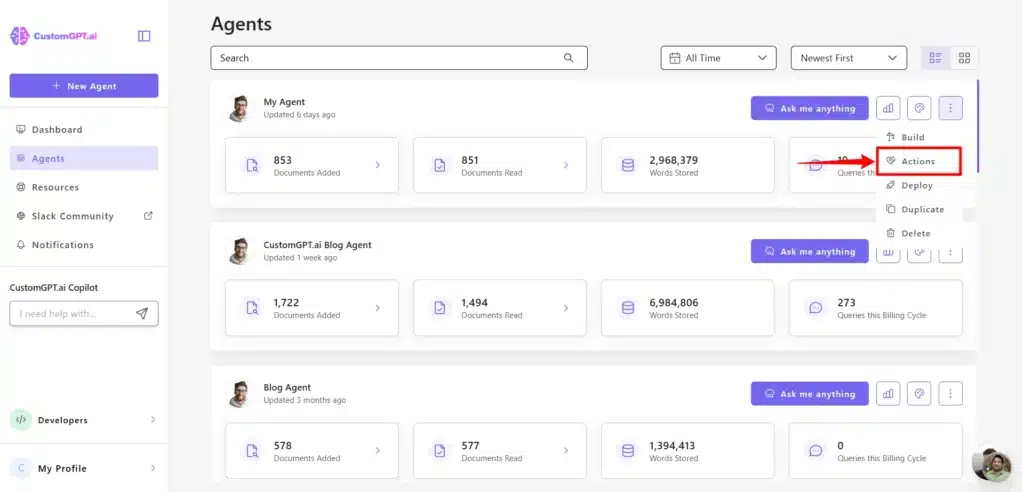
Step 2: Turn on Plan & Act
Toggle Plan & Act on in the Actions list. You can also reach this from Personalize > Intelligence > Enable Plan & Act, if you prefer.

Step 3: Turn on Smart Tasks
In the same Actions list, toggle on Smart Tasks, then open its three-dot menu and select Configure.

Step 4: Choose your capabilities
Enable any combination of the four Smart Tasks capabilities: Read Files, Create Files, Make External Connections, Live Dashboards. What each one does is covered in the next section.

Save your changes. Full reference steps: Enable Plan & Act mode and Enable and configure Smart Tasks.
What Each Capability Does
Read Files — Your agent reads every page of a file you attach, so its answer is grounded in the whole document, not a guess from a snippet.
Create Files — Your agent hands you back a real file: a report, an export, a cleaned dataset, ready to download.
Make External Connections — Your agent connects to another platform using Quick Setup, CustomGPT.ai’s supported integrations, or a Custom API using your own OpenAPI schema for anything not on that list. Once connected, it can pull live data or trigger actions in that system as part of its response.
Live Dashboards — Your agent turns your data into a dashboard you can filter and explore, right in the chat.
Plans and Credit Usage
An Enterprise Agent is available on Standard, Premium, and Enterprise plans. Running Smart Tasks uses additional query credits on top of a standard query, based on how much file content is read and how much code the agent runs. The full credit breakdown walks through exactly how the credits add up.
How Teams Are Using It Today
Some teams use it to grade documents against a rubric: upload a handful of contracts, applications, or reports, and ask your agent to compare them against it. It works from every word in the file, not a retrieved snippet, so the answer holds up even when the rubric references something buried deep in the document.
Other teams use it to turn a spreadsheet or a knowledge-base result into a dashboard, instead of a static chart or a wall of numbers, one they can filter, sort, and dig into, right in the conversation.
Bernalillo County Assessor’s Office runs three:
“We adopted Plan & Act agents as soon as they launched, and we’re already running three: one answers resident questions, one turns records our staff used to read manually into ready-to-use data, and one supports appraisers through full property reviews. For a county assessor’s office, that’s a major leap—and we’re just getting started.” — Aaron Newe, Assessor Technician, BernCo
You can also point an Enterprise Agent at one of your own other agents instead of files or external systems. See how to build a CustomGPT.ai analytics agent that turns another agent’s usage and conversations into a custom report.
Frequently Asked Questions
Do I need a custom plan to activate an Enterprise Agent?
No. Plan & Act mode, which is what activates it, is available on Standard, Premium, and Enterprise plans. Running Smart Tasks uses additional query credits based on usage, but the feature itself isn’t restricted to any one plan.
What’s the difference between an Enterprise Agent and my agent just answering from the knowledge base?
A standard agent searches your knowledge base and replies with an answer. An Enterprise Agent has Plan & Act mode turned on, which adds a planning step before that, so it can also read full files, generate downloadable files, and connect to outside systems, combined in one response.
Do I need to turn on all four Smart Tasks capabilities?
No, you can enable just the capabilities that fit your needs.
Is it safe to let my agent connect to an outside API?
Yes. Your credentials stay encrypted, and the agent never handles them directly.
What file types can Smart Tasks read and create?
For reading: pdf, docx, doc, odt, txt, jpg, jpeg, png, webp, xlsx, xls, csv, tsv, json, md, and pptx. For generating downloadable files: md, txt, pdf, docx, csv, html, and more.
Does turning this on slow down my agent?
No, not for simple questions. Smart Tasks only runs when a request actually needs it, reading a file, generating an export, building a dashboard, and those naturally take longer to complete. Everyday questions are answered exactly as fast as before.
Conclusion
An Enterprise Agent is the difference between an agent that tells you what’s in your documents and one that does something with them. Turning your agent into one takes four steps: toggle Plan & Act, toggle Smart Tasks, choose your capabilities, and save.
Start your free trial and activate your first Enterprise Agent.