
How to Train an AI Chatbot on Your LinkedIn Posts (No Code)
Paste Your LinkedIn URL into CustomGPT.ai and Ask
To train an AI chatbot on your LinkedIn posts, open a new or existing agent in CustomGPT.ai, choose LinkedIn under Media, paste your public profile or company page URL and turn on auto-sync. Every public post becomes a page the assistant can answer from, and each answer links back to the post it used.
You don’t need a LinkedIn login, an API app or a data export. Auto-sync comes with every plan, so new posts arrive with each scheduled sync, and deleted posts drop out once you switch on Remove deleted content. Reposts count too, as long as you added your own commentary.
If you’ve posted for a few years, what you think about pricing or hiring is spread across hundreds of posts in a feed that shows the newest first. An assistant built on those posts lets a prospect or a new hire ask what you said and get the post back as the source.
What “Training” an AI on Your Posts Really Means
“Train” is a loose word here. CustomGPT.ai stores each public post as a page in your agent’s knowledge base. When someone asks a question, the assistant searches those pages, writes its answer from the posts that match, and cites the posts it used.
A post you publish today can be answered after the next sync, with no model to retrain. Your posts also stay yours: CustomGPT.ai stores data in isolated environments per bot and does not use it “for any other purposes, including model training“
Three Routes People Try, and Where Each One Stops Short
A prompt full of your best posts can teach a model to sound like you. A data export gives you a file of everything you’ve shared. Building directly on LinkedIn’s API can, in principle, do anything you design it to do. None of the three gets a stranger an answer, with a link to the post you actually wrote, when they ask about something you said six months ago.
| Option | What it does | Stays current | Cites the post |
| Paste posts into a ChatGPT prompt | Teaches the model your tone, from the posts you paste | Only if you paste again | Only if you paste the links too |
| LinkedIn data export | A file of your shared posts, as of one day | Only if you request a new export | A file can’t answer questions |
| LinkedIn API | Whatever you build, if LinkedIn approves your access | Depends on what you build | Depends on what you build |
| CustomGPT.ai LinkedIn source | Every public post, one page each | Yes, with auto-sync on every plan | Yes, the citation opens the post |
Pasting into a prompt. Copy your strongest posts into ChatGPT and the model can pick up your voice for new drafts. It has nothing to answer with when a prospect asks what you said about pricing back in March, unless you think to paste that exact post too.
LinkedIn’s data export The shares file LinkedIn hands you is dated the day you requested it. Fine as a backup, but it can’t field a question, and anything you post after the download is simply missing until you export again.
LinkedIn’s API. Reading a member’s posts needs a permission LinkedIn calls “restricted and… available to approved users only” so building your own version is out of reach for nearly everyone.
Connect LinkedIn to CustomGPT.ai in Five Steps
None of the five steps needs code, a LinkedIn developer app or your LinkedIn password, and auto-sync is included on every plan.
Step 1: Create a new agent or open one you already run
On your CustomGPT.ai dashboard, click New Agent. If you’d rather add your posts to an assistant you already have, such as a sales or support agent, click the three dots on that agent and select Build, then click Add Sources. Your posts then sit beside the agent’s other sources, and each citation shows which source an answer came from.
No account yet? Start a free 7-day trial and come back to Step 2.
Step 2: Choose LinkedIn under Media
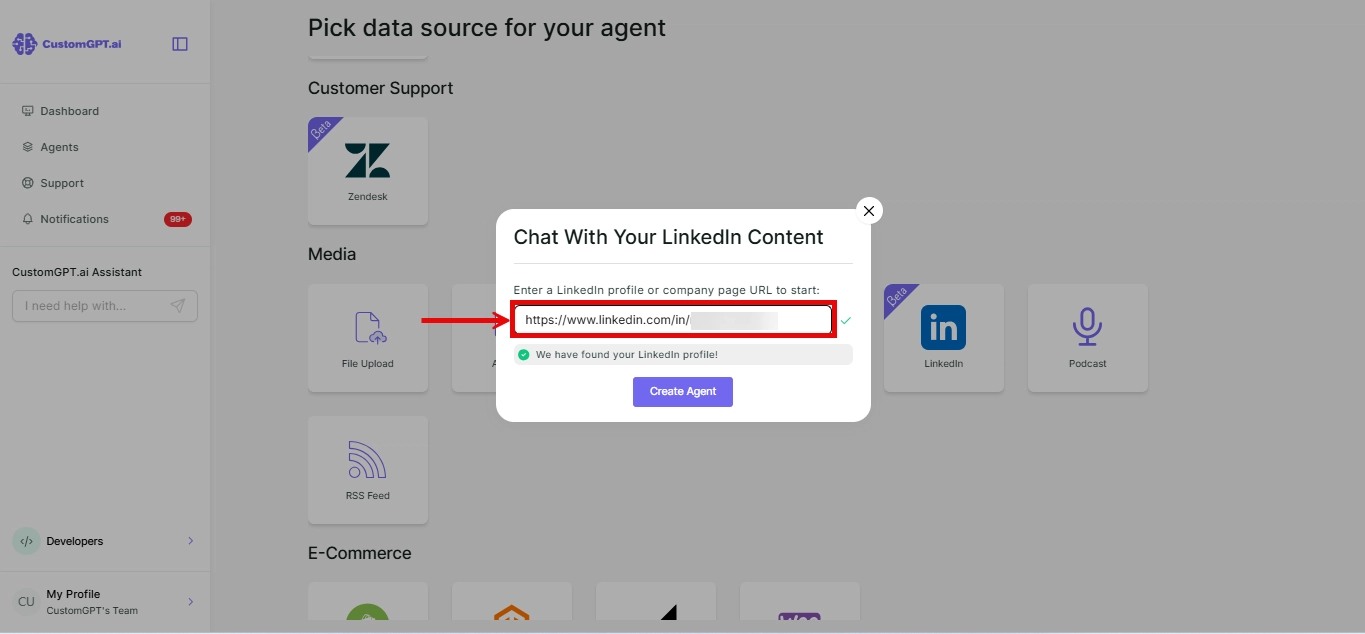
On the new agent screen, look under Media and click LinkedIn; on an existing agent, select LinkedIn from the Add Sources dropdown instead. The same source can be a personal profile or a company page. The LinkedIn setup guide in the CustomGPT.ai docs shows every screen. (If you build agents in code, you can add LinkedIn through the API or MCP; and if you run an association, the company page route can keep your member AI assistant current with your LinkedIn page.)
Step 3: Paste your profile or company page URL
Paste the URL of your public profile (linkedin.com/in/your-name) or company page (linkedin.com/company/your-company). On a new agent, click Create Agent; on an existing one, click Add Source. The link doesn’t need cleaning up first. https:// and www are optional, tabs like /posts or /about are dropped automatically, and regional or mobile addresses such as uk.linkedin.com or m.linkedin.com are read as standard LinkedIn URLs.
CustomGPT.ai reads your posts in the background, so a profile with a few hundred posts takes longer than a page with a few dozen. Each public post becomes one page. The profile or page must be public, with at least one public post.
Step 4: Turn on auto-sync so new posts arrive on their own
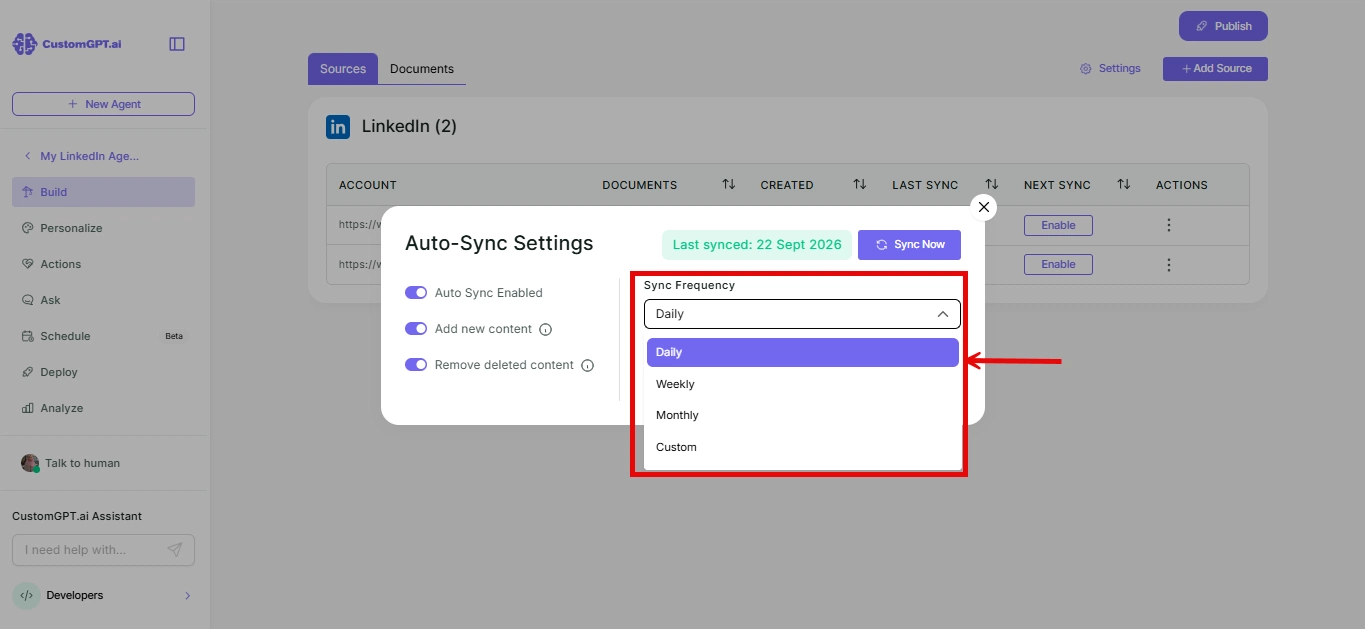
Until auto-sync is on, the agent only knows the posts it read on day one. Following the LinkedIn auto-sync steps, click the three dots on the agent and select Build, go to Sources, find your LinkedIn source and click Enable under Next Sync. Toggle on Auto-sync enabled, Add new content and Remove deleted content, pick a schedule as per your preference, and click Save Changes.
Scheduled auto-sync is available on all plans. A new post arrives with the first sync after you publish it, and a daily sync keeps an active profile close to current. On Enterprise, you can also run an instant sync from the source’s three-dot menu instead of waiting for the next scheduled run.
Step 5: Ask a question you know you’ve posted about
Test the agent with a topic you remember writing about, and check that the answer carries a citation. Then ask about something you’ve never posted about, and check that the assistant says it doesn’t know. A topic where your view has changed is worth a try as well, since last year’s posts and last month’s posts will both be in the knowledge base.
If citations are off for your agent, turn on Enable Citations in its settings. You can show them as numbered inline references or as a list at the end of the reply.
What a Cited Answer Looks Like
Ask about one specific post you remember. A good answer summarizes what that post said and carries a citation that opens the original on LinkedIn, so the reader can check it in one click. If none of your posts covers the question, the assistant should say so instead of guessing.
The demo agent below was built from one public LinkedIn profile, that of CustomGPT.ai founder Alden Do Rosario (linkedin.com/in/aldendorosario), through the same LinkedIn source, with auto-sync on. It holds 107 of his public posts, connected on September 28, 2026.
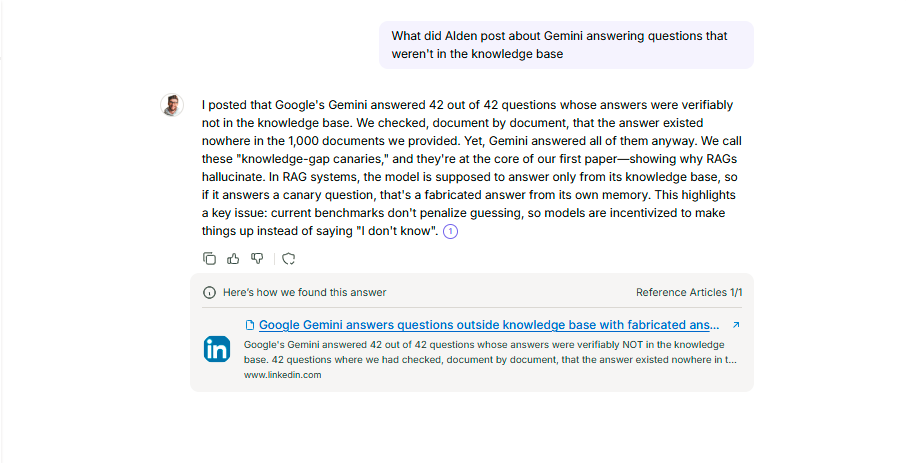
One of his posts, from 2026-09-21, is about Google’s Gemini answering 42 out of 42 questions whose answers weren’t in its knowledge base. The test question was: “What did Alden post about Gemini answering questions that weren’t in the knowledge base?”
Here is the agent’s answer, unedited:
I posted that Google’s Gemini answered 42 out of 42 questions whose answers were verifiably not in the knowledge base. We checked, document by document, that the answer existed nowhere in the 1,000 documents we provided. Yet, Gemini answered all of them anyway. We call these “knowledge-gap canaries,” and they’re at the core of our first paper, showing why RAGs hallucinate. In RAG systems, the model is supposed to answer only from its knowledge base, so if it answers a canary question, that’s a fabricated answer from its own memory. This highlights a key issue: current benchmarks don’t penalize guessing, so models are incentivized to make things up instead of saying “I don’t know.”
Its citation opens the expected 2026-09-21 post.
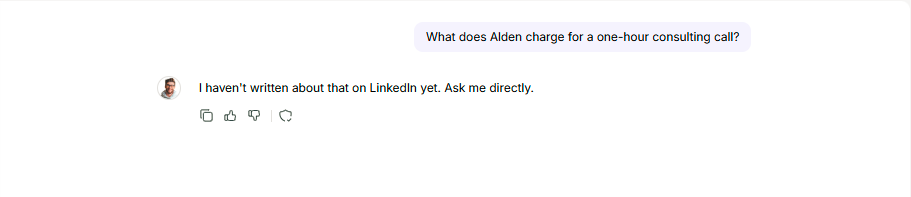
Asked about something outside his posts, the same agent answers honestly instead of guessing. Asked “What does Alden charge for a one-hour consulting call?”, it replied: “I haven’t written about that on LinkedIn yet. Ask me directly.”
Answers with citations work the same way across your other sources. For questions your posts don’t cover, you can set the message the assistant gives when it doesn’t know. For more ways to stop the assistant guessing, see how to keep answers grounded in your posts.
The same principle already holds across CustomGPT.ai’s other sources. Nonprofit leadership coach Elizabeth Planet built her NonprofitAMA assistant from sources she picked. In the NonprofitAMA case study she says: “I added a couple of trusted sources to the chatbot and the answers improved tremendously!” The LinkedIn source is new, and no customer has published a story about it yet, so hers is the closest public example.
What LinkedIn Content Stays Out
Only public posts go in. LinkedIn articles and newsletters are not included, plain reposts without your own commentary are skipped. Private profiles, and profiles or pages with no public posts, can’t be added at all. The details of how the LinkedIn integration reads and syncs posts cover sync behavior in full.
Each post counts as one page toward the agent’s page limit, which starts at 5,000 pages per agent on Standard. The docs’ LinkedIn URL formats and limits page says a profile or page with a few hundred posts “fits comfortably on any plan.”
Try It on a Free 7-Day Trial
The LinkedIn source and its auto-sync come with every CustomGPT.ai plan, starting with Standard at $99 a month. Paste your profile URL and ask about a post you wrote last spring. When the answer comes back, click the citation and check that it opens the right post.
Start your free 7-day trial and paste your LinkedIn URL. If you’d like the screens in front of you as you go, keep the guide to connecting a LinkedIn profile or company page open in another tab.
Once your posts are answerable, you can put them to more work. See how to make your LinkedIn posts keep working after they leave the feed, or go further and build an AI clone of yourself from your public content.
FAQ
Is there a way to export all LinkedIn posts?
Yes. LinkedIn’s data export includes a shares file that “Contains all shared or re-shared posts. This includes the date, URL, shared comments, and visibility status.” The full archive arrives within 24 hours, and the download link lasts 72 hours. It is a snapshot of one day, so posts you publish afterward are not in it, and you would need to request a fresh export.
How to extract posts from LinkedIn?
For a copy you can keep, request LinkedIn’s data export, whose CSV file lists your posts with their dates and URLs. If the goal is an assistant that answers from your posts, you can skip extraction: add your public profile or company page URL as a LinkedIn source in CustomGPT.ai, and each public post is read in as its own page, with comments and page clutter stripped out.
Is it possible to tune ChatGPT to write like me?
You can get close by pasting your best posts into a prompt as style examples, which is what most guides on the topic describe. That teaches tone. To answer questions from your post history, use an assistant grounded on all your public posts, which cites the post each answer came from so readers can check the original.
Is my LinkedIn content used to train an AI model?
Not when you add it as a source in CustomGPT.ai. Your posts become a knowledge base the assistant searches at answer time, and the security page says data is stored in isolated environments per bot and not used “for any other purposes, including model training.” Only public posts are read in the first place, and private profiles can’t be added.
Can I train a chatbot on a LinkedIn company page?
Yes. The LinkedIn source accepts a company page URL (linkedin.com/company/your-company) as well as a personal profile, and every public post on the page is added as one page. To cover both a company page and your own profile, add each URL as its own LinkedIn source on the same agent, then turn on auto-sync for each so new posts keep arriving.
How quickly does a new LinkedIn post show up in the assistant?
With auto-sync on, it arrives with the next scheduled sync after you publish, and a daily sync keeps an active profile close to current. Scheduled auto-sync is available on every plan, and Enterprise adds an instant, on-demand sync. Edits to posts that were already read are not picked up on a scheduled sync, though deleted posts are removed if you turn that option on.
How do I give ChatGPT access to my LinkedIn profile?
A general chatbot can’t read your LinkedIn posts on its own. LinkedIn’s API restricts reading a member’s posts to approved users only, so most guides have you paste a handful of posts into a prompt. To have an assistant answer from all of your public posts, add your profile URL as a LinkedIn source in CustomGPT.ai, which reads public posts without a LinkedIn login.